 Emily CarterPrinter Drivers
Introduction
A printer driver not working is not always a driver problem. First identify the symptom: a queued job usually points to the Print Spooler, an Offline message often points to the connection, and a “driver unavailable” message usually needs driver attention. This guide covers five practical fixes for Windows 10 and Windows 11. Start with the symptom table, use the Windows troubleshooter when the cause is unclear, then choose the targeted repair that matches what you find.
Is It Really a Printer Driver Problem?
Use this quick check before reinstalling anything. It can prevent a driver reinstall from masking a queue, connection, or application problem.
| Symptom | More likely cause | What to check first |
|---|---|---|
| “Driver is unavailable” | Missing or incompatible driver | Driver installation |
| Printer disappeared after a driver update | Driver or update problem | Roll back or reinstall the driver |
| Printer is detected but jobs stay in the queue | Print Spooler or queue | Clear the queue and restart Print Spooler |
| Printer shows Offline | Connection or status problem | USB, Wi-Fi, or network connection |
| Windows cannot find the printer | Connection or device discovery | Connection and printer setup |
| Only Word or one app cannot print | Application or print-setting issue | Test another app |
| Windows test page also fails | System, driver, or printer issue | Continue system troubleshooting |
| Scanner works but printer does not | Printing component or driver | Printer driver and queue |
Quick Method Comparison
| Method | Best For | Efficiency | User Effort |
|---|---|---|---|
| Windows printer troubleshooter | An unknown cause or failures in several apps | Fast first check | Low |
| Restart Print Spooler | Jobs stuck, disappearing, or failing to start | Direct for queue issues | Medium |
| Install, update, or roll back driver | Driver unavailable or failure immediately after an update | Direct when the cause is driver-related | Medium |
| Remove and reinstall printer | A damaged or persistently unresponsive printer entry | Thorough setup refresh | Medium |
| Fionn Printer Driver — Recommended | Uncertain cause, unknown model, or several print-chain checks needed | Guided diagnosis and repair | Low |
Method 1: Run the Windows Printer Troubleshooter
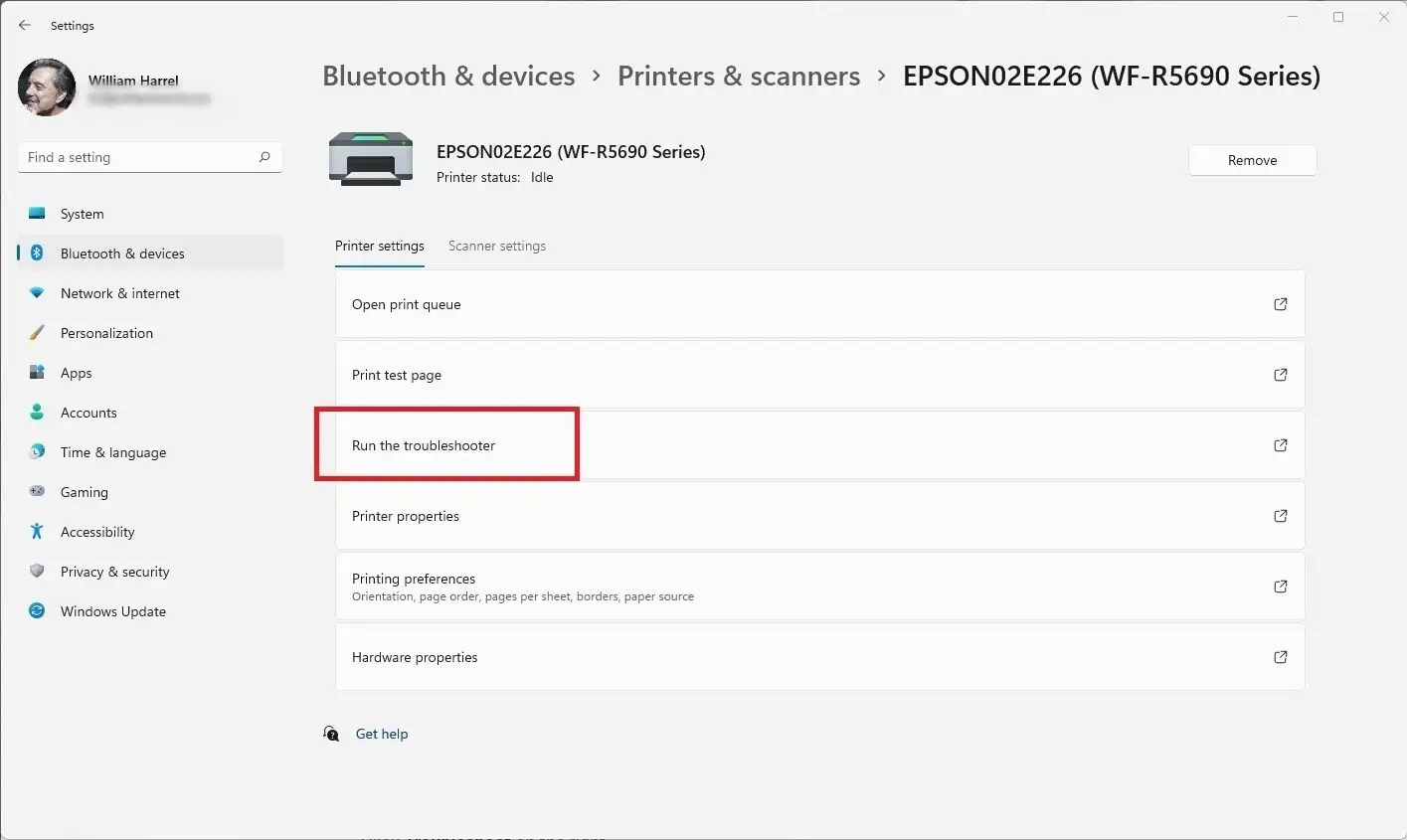
When to use: Use this first when several apps cannot print or the cause is unclear. Microsoft’s Windows printer guidance recommends the automated troubleshooter in Get Help.
- Open the Start menu and search for Get Help .
- Open Get Help and search for printer problems.
- Follow the prompts to run the printer troubleshooter.
- Apply any recommended fix.
- Print a Windows test page.
Verification: If the test page prints, retry the original document. If it fails, use the symptom table to choose the next method.
Method 2: Restart the Print Spooler and Clear Stuck Jobs
When to use: Use this when the printer is detected and a driver is installed, but jobs remain in the queue, vanish without printing, or printing suddenly stops.
- Cancel pending jobs in the affected printer’s queue.
- Press
Windows + R, enterservices.msc, and select OK .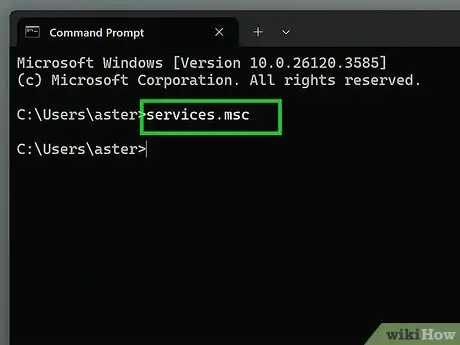
- Find Print Spooler , right-click it, and select Restart .
- Submit one small document or Windows test page.
Verification: The new job should leave the queue and reach the printer. If it remains stuck, continue with a driver or printer-entry repair.
Method 3: Install, Update, or Roll Back a Compatible Printer Driver
When to use: Choose this for “driver unavailable,” a recently added printer, or a failure that began immediately after a driver update.
Driver source priority: Check Windows Update first, then the printer manufacturer’s official support site, then a Windows-compatible driver offered during the Add Printer workflow. Optional driver updates are not installed automatically.
- Open
Settings > Windows Updateand install available updates, including relevant optional driver updates.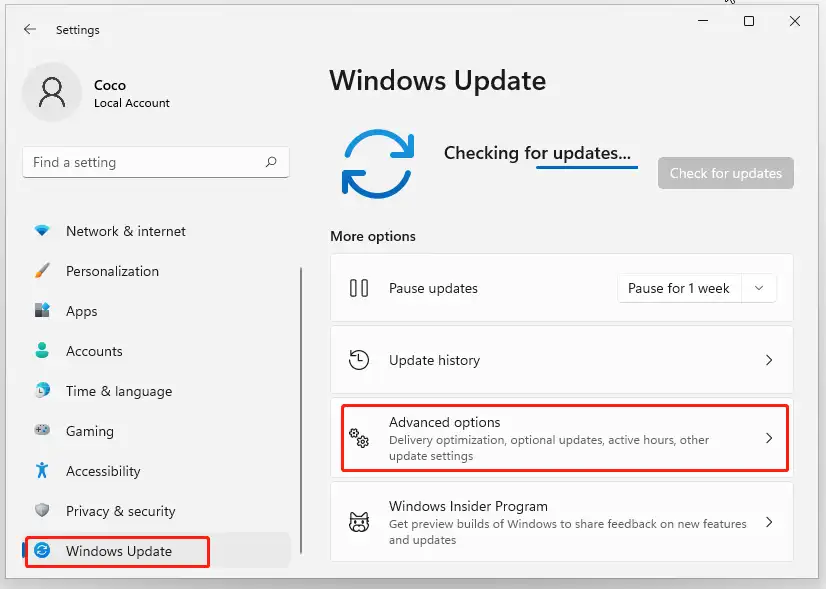
- Check the exact printer model in its existing Windows entry, on the device, or on its packaging.
- If Windows Update does not provide a working driver, download the matching package from the manufacturer’s official support site.
- Install the package that matches the printer model and Windows system architecture.
- If printing stopped directly after an update, open Device Manager, select the affected printer device, open Properties > Driver , and select Roll Back Driver when available.
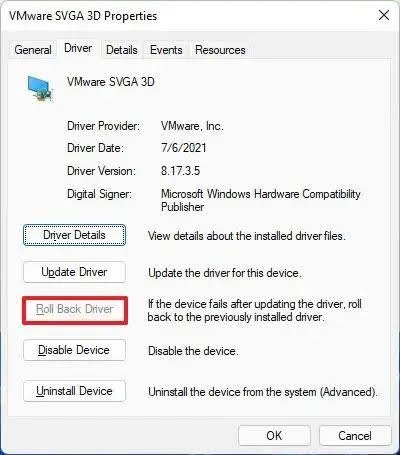
Verification: Confirm that Windows recognizes the printer, then print a test page. If the driver is installed but the printer entry remains unavailable, use Method 4.
Method 4: Remove and Reinstall the Printer
When to use: Reinstall the printer when a compatible driver is already present but its Windows entry remains unavailable, damaged, or unresponsive.
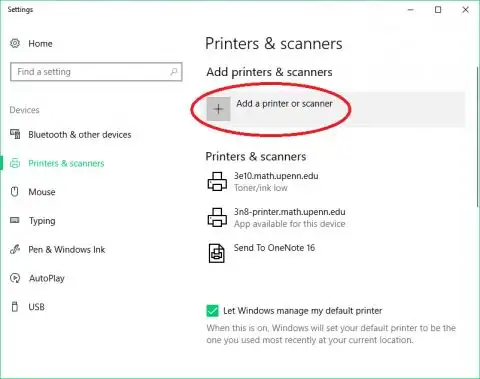
- Open
Settings > Bluetooth & devices > Printers & scannersin Windows 11, orSettings > Devices > Printers & scannersin Windows 10. - Select the affected printer.
- Select Remove or Remove device , then confirm.
- Restart the computer and reconnect the powered-on printer.
- Return to Printers & scanners and select Add device or Add a printer or scanner .
Verification: Windows should create a fresh printer entry. Print a test page before returning to the original job.
Method 5: Diagnose and Fix a Printer Driver Problem with Fionn Printer Driver
When to use: This is the recommended guided option when the model is unknown, selecting a compatible driver is difficult, or the failure could involve the driver, queue, port, Windows Printer Service, sharing, or default-printer setting. Fionn Printer Driver can identify many mainstream printer brands and models and check those print-chain components.
- Launch Fionn Printer Driver and click “Scan Now” to scan your computer for printer drivers and related issues.

- Wait while Fionn Printer Driver scans your system for installed printers, drivers, and common printer issues.

- After the scan finishes, click “One-Click Fix” to automatically install or repair the required printer driver.

- Wait for the repair to finish and confirm that the printer issue has been fixed successfully.

Verification: Print a new Windows test page. A completed scan or success message alone does not prove that the printer can complete a fresh job.
Special Case: ARM and Copilot+ PCs
If a manufacturer installer fails on an ARM-based Windows PC, do not assume the printer is incompatible. Microsoft documents cases where manufacturer installers cannot add a printer on ARM PCs. Use
Settings > Bluetooth & devices > Printers & scanners > Add device
before repeatedly reinstalling the vendor package, unless the manufacturer provides specific Windows on ARM guidance.
Conclusion
Start by matching the symptom to the likely cause. Run the Windows troubleshooter for an unknown problem, restart Print Spooler for stuck jobs, and install, update, or roll back the driver for a driver-specific failure. Remove and reinstall only the affected printer when its Windows entry is damaged. When several parts of the print chain may be involved, Fionn Printer Driver provides a guided way to scan drivers and related settings. After any repair, verify the result with a Windows test page and the original print job.
Frequently Asked Questions
How do I know if my printer driver is the problem?
A “driver unavailable” message, a printer disappearing after a driver update, or printing failing while scanning still works can indicate a driver issue. If jobs stay in the queue, the Print Spooler is more likely. If only one application fails, test another app and a Windows test page before changing the driver.
Why does Windows say the printer driver is unavailable?
The driver may be missing, incompatible, damaged, or incorrectly associated with the printer. Check Windows Update first, then use the printer manufacturer’s official support site for an exact model match.
Should I update or roll back my printer driver?
Update or install a compatible driver when it is missing, unavailable, or mismatched. Roll it back when the printer worked before and failed immediately after a driver update, provided the Roll Back Driver option is available.
Why is my printer offline when the driver is installed?
An installed driver does not confirm that Windows can reach the printer. Check power, USB or network connectivity, printer-side errors, and the selected printer before reinstalling the driver.
What does it mean if a Windows test page fails?
A failed Windows test page points to a printer, driver, queue, connection, or Windows printing issue rather than a problem limited to one document or app. Continue with system-level troubleshooting.


