 Emily CarterPrinter Drivers
To get a Canon LBP6030-series printer working, install the official Canon driver, make sure Windows recognizes the printer, and print a test page. A successful installer alone is not the final result: the test page confirms that Windows can send a job to the connected printer.
Before you start
The cited Canon 64-bit package supports imageCLASS LBP6030, LBP6030B, and LBP6030w. Canon lists Windows 11 and Windows 10 (x64), as well as certain older Windows and Windows Server releases, for that package. Check the model label and your Windows version before downloading.
Install the official Canon LBP6030-series driver
Choose this route when you have confirmed an LBP6030, LBP6030B, or LBP6030w on a supported 64-bit Windows system. Canon identifies the listed package as UFRII LT Printer Driver version 21.11.
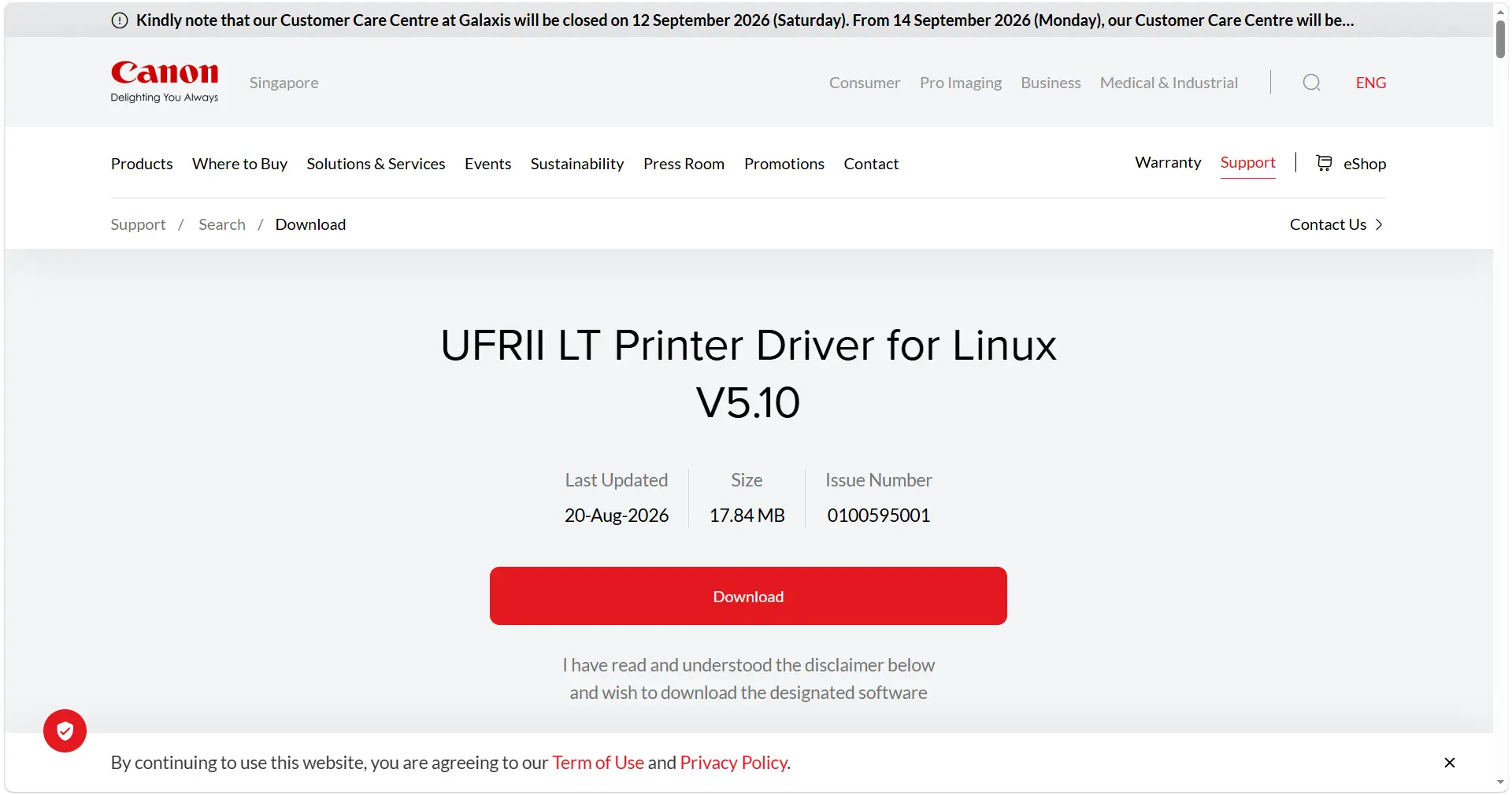
- For a USB connection, disconnect the USB cable between the printer and computer.
- Download the Canon package to a folder you can locate again.
- Double-click the downloaded self-extracting EXE to decompress it.
- Open
Setup.exein the extractedBootUpfolder. - After installation, reconnect the USB cable.
Use the package listed for your model and operating system on the official Canon LBP6030-series driver page . Continue to Windows verification below; seeing the installer finish does not yet prove that a print job can complete.
Add and verify the printer in Windows
Use this step if the printer is powered on and connected but does not appear in Windows after installation.
- Confirm that the printer is turned on and connected to the PC, such as by USB.
- In Windows, go to
Settings
>
Bluetooth & devices
>
Printers & scanners
.

- Select Add a printer & scanner , then choose Add device next to the desired printer.
- If discovery does not find it, choose Add a new device manually and follow the Add Printer window.
- Print a test page after the printer is added.
A printed test page is the observable success signal. Microsoft documents both adding a printer and using a test page to confirm that it works: add or install a printer in Windows and fix printer connection and printing problems .
Use Fionn Printer Driver when the cause is unclear
Fionn Printer Driver supports Windows 10 and Windows 11 and can scan for printers, drivers, and related issues. It is useful when the issue may involve more than a missing driver—for example, a paused queue, printer service, or port condition.
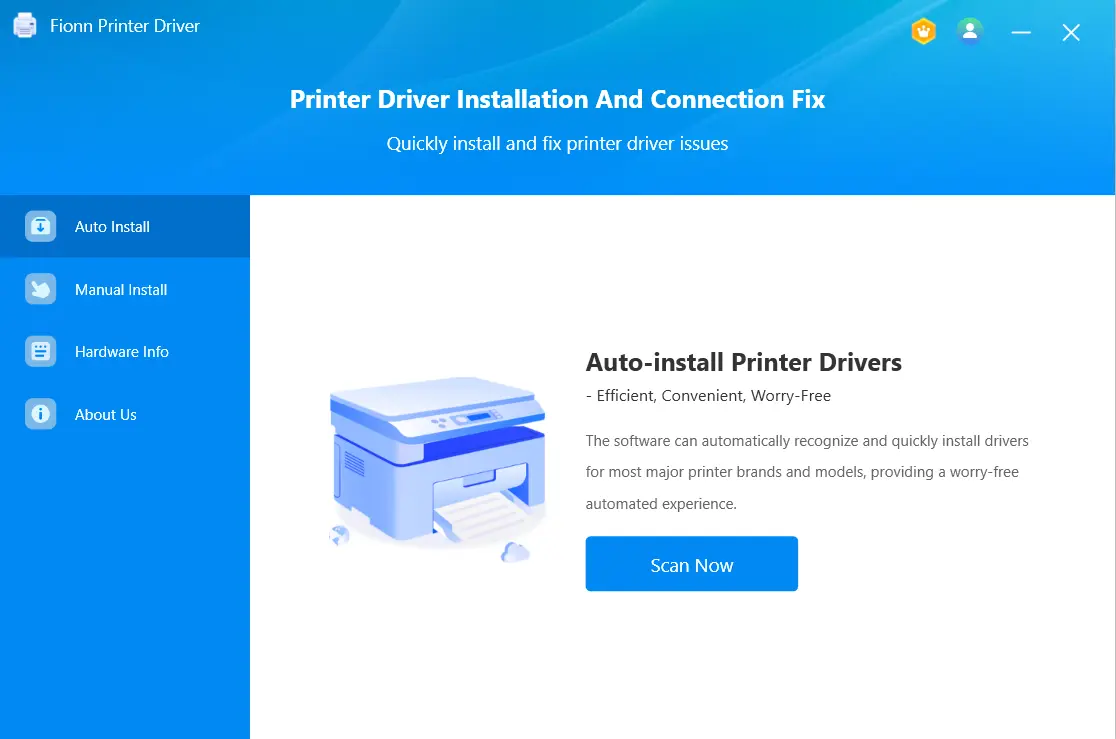
- Launch Fionn Printer Driver and click
Scan Now
to scan your computer for printer drivers and related issues.
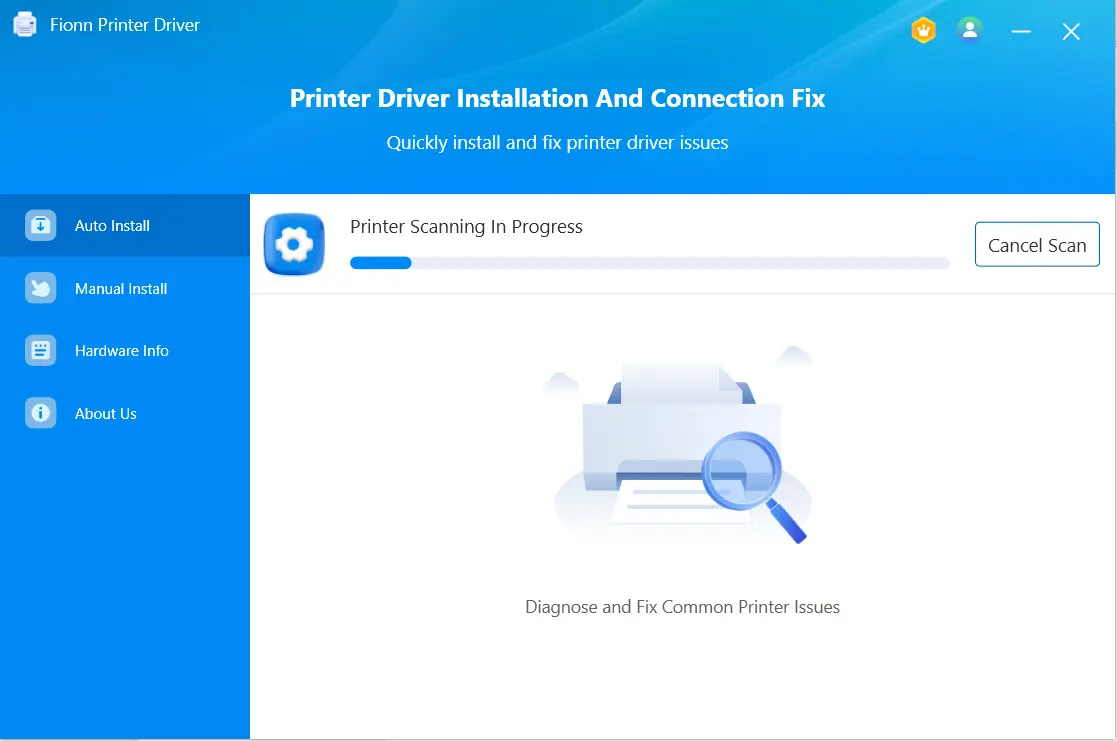
- Wait while Fionn Printer Driver scans your system for installed printers, drivers, and common printer issues.
- After the scan finishes, review the detected driver issue, then click
One-Click Fix
to start the suggested installation or repair.
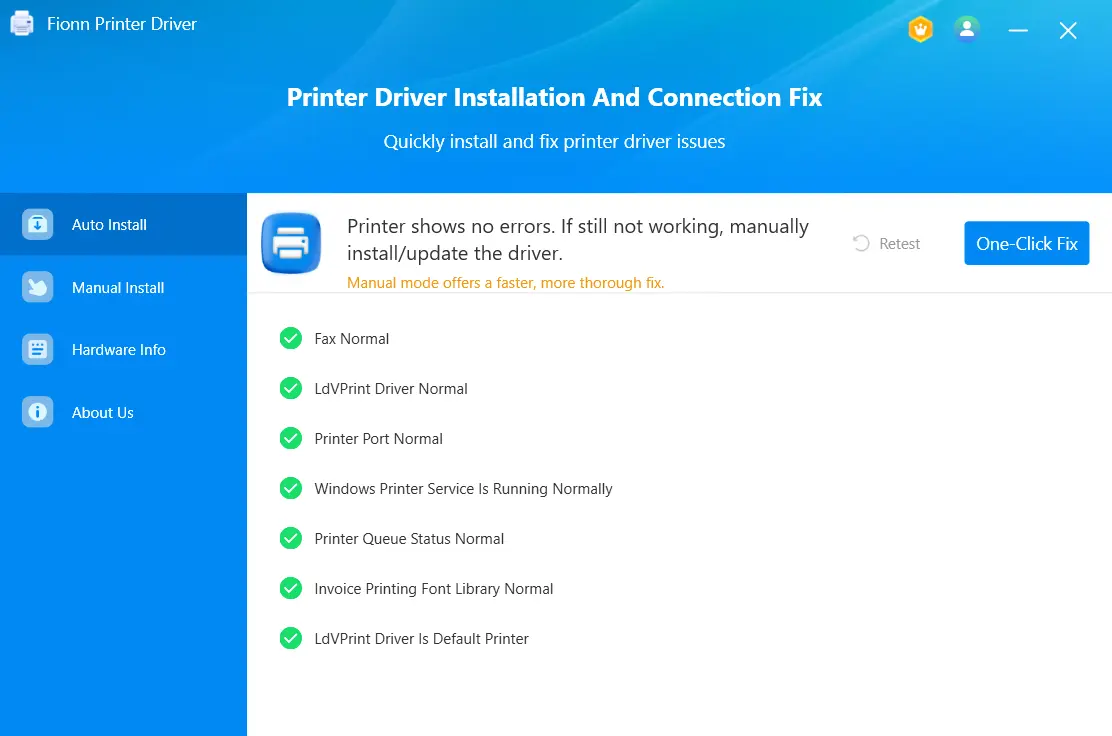
- Wait for the operation to finish and review its result. Then print a Windows test page to check whether the printer actually works.
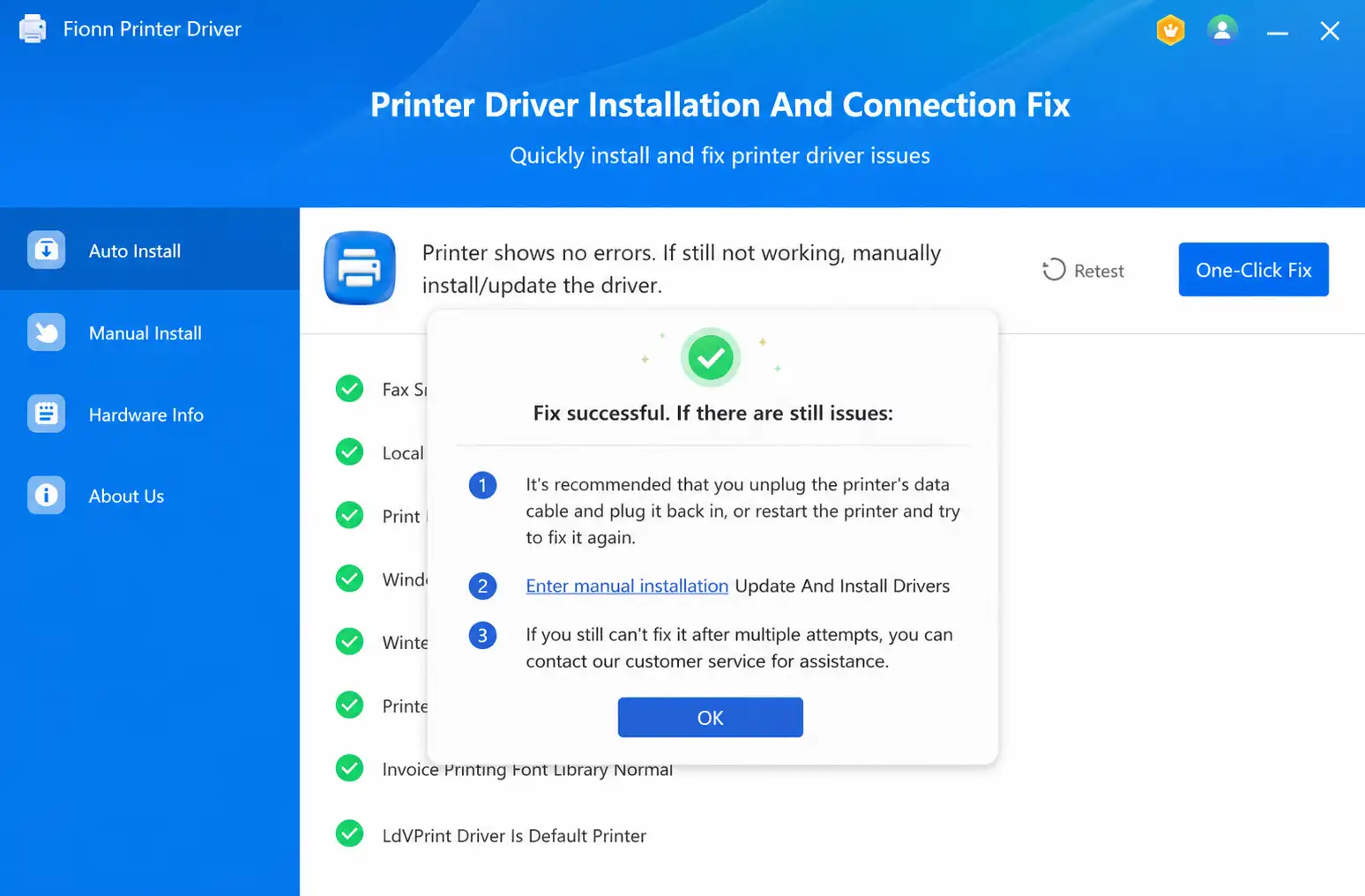
The scan can help identify a driver or print-system problem, and the repair can address the suggested issue. However, a completed software operation is not proof of successful printing; print a Windows test page afterward.
Troubleshoot a printer that still will not print
If the test page fails, work through the connection and Windows print path before reinstalling again.
- Turn off the printer, unplug it for 30 seconds, reconnect it, and turn it back on.
- Check that the USB cable is securely connected between the printer and PC.
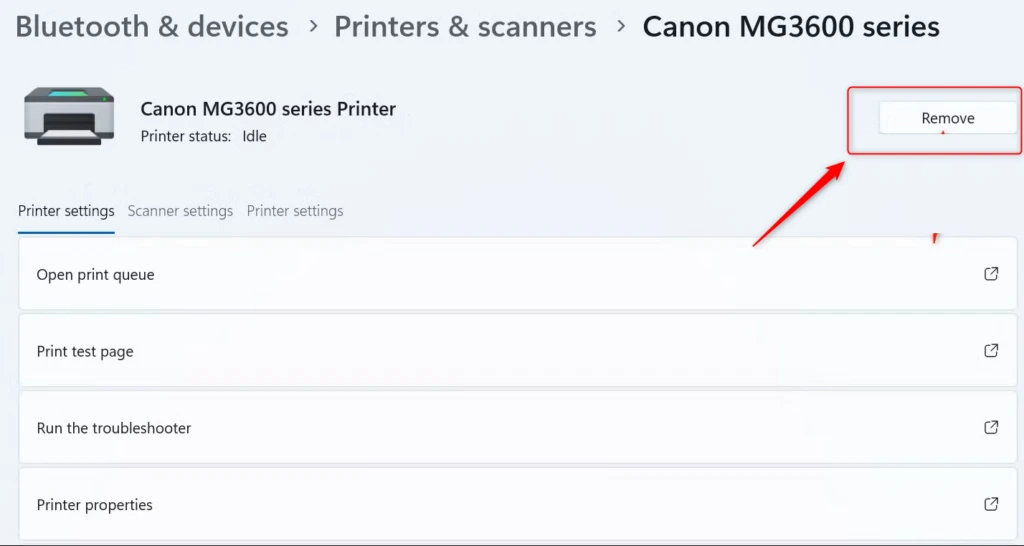
- If necessary, remove the printer in Windows and add it again.
- For a stuck or paused queue that remains after earlier checks, clear spooler files and restart the Print Spooler service.
- Print another test page after the recovery step.
These are documented Windows recovery checks, not a guarantee that every hardware or connection fault can be repaired. See Microsoft’s printer connection and printing troubleshooting guidance for the supporting procedure.
Conclusion
For a confirmed LBP6030-series model, install Canon’s listed package, reconnect USB at the documented point, and add the printer in Windows if necessary. Finish with a test page. If the printer still fails, check the cable, queue, and Print Spooler; when the cause is unclear, Fionn Printer Driver can provide a guided scan before you retest printing.
FAQ
Which printers does the cited Canon LBP6030 driver support?
The cited Canon 64-bit package lists imageCLASS LBP6030, LBP6030B, and LBP6030w. Confirm the model label before downloading.
Should I connect the USB cable before installing the Canon driver?
No. Canon instructs USB users to disconnect the cable before installation and reconnect it after installation.
How do I know the Canon LBP6030 driver is working?
Confirm that the printer appears in Windows and print a test page. A successful page verifies more than installation: it shows that Windows can send a job to the printer.
What if Windows does not detect the printer?
Confirm that it is powered on and connected, then use Printers & scanners to add it. If discovery fails, use the Windows option to add a new device manually.
Can Fionn Printer Driver prove the printer will print?
No. It can scan for driver and related print-system issues and start a suggested repair, but a Windows test page remains the final confirmation.


