 Emily CarterData Recovery
Introduction
To recover a deleted Word document, check Recycle Bin first, then distinguish a deleted saved file from an unsaved draft. Windows backups, command-line recovery, and storage scanning address different loss scenarios. This guide covers five methods in that order. Stop saving or downloading files to the affected drive before proceeding because new data may overwrite recoverable content. Start with the simplest applicable method and verify the recovered document in Word before resuming work.
Identify What Happened to the Word Document
A document that was saved and later deleted requires file restoration or storage recovery. An unsaved draft lost after Word closed unexpectedly requires Word's Document Recovery or Recover Unsaved Documents feature. These cases look similar, but their recovery paths aren't interchangeable.
- Deleted normally: Start with Recycle Bin.
- Never saved or lost after a crash: Check Word's recovery features.
- Deleted after File History was enabled: Restore a backup copy.
- Permanently deleted: Use a recovery tool and write results to another drive.
A renamed or moved file may not be deleted. Search File Explorer for part of its name, then search for
*.docx
and
*.doc
before beginning recovery.
Choose the Right Method
| Method | Best For | Efficiency | User Effort |
|---|---|---|---|
| Recycle Bin | Recently deleted local files | High | Low |
| Word recovery | Unsaved drafts or unexpected closure | High when a recovery copy exists | Low |
| File History | Files protected by an existing backup | High when backup was enabled | Low |
| Windows File Recovery | Permanently deleted local files | Depends on overwrite and storage conditions | High |
| Fionn Data Recovery | Deleted documents requiring a visual scan, filtering, and preview | Practical when simple restoration fails | Moderate |
Method 1: Restore the Word Document from Recycle Bin
When to use: Use this method when the document was deleted from a local or connected drive and Recycle Bin wasn't emptied.
- Open
Recycle Bin
from the desktop or Windows search.
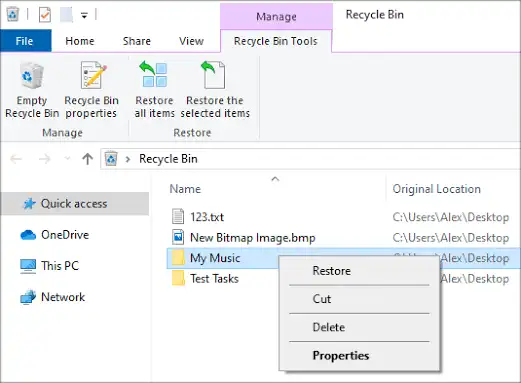
- Search for the document name, or sort the items by deletion date.
- Confirm the file name, original location, and file type.
- Right-click the document and select Restore .
- Open the original folder and double-click the restored document.
Verification: Confirm that Word opens the document and that its latest required content is present. The Restore command returns the item to its original location.
Method 2: Recover an Unsaved Document in Microsoft Word
When to use: Use Word recovery when the document was never saved, Word closed unexpectedly, or recent edits disappeared. It doesn't restore a previously saved file that was permanently deleted from storage.
- Reopen Word and inspect the Document Recovery pane if it appears.
- Open the newest relevant copy, using its date and time to distinguish versions.
- If no pane appears, select File > Info > Manage Document > Recover Unsaved Documents .
- Select the likely document and choose Open .
- Select
Save As
and save the recovered copy with a clear name.
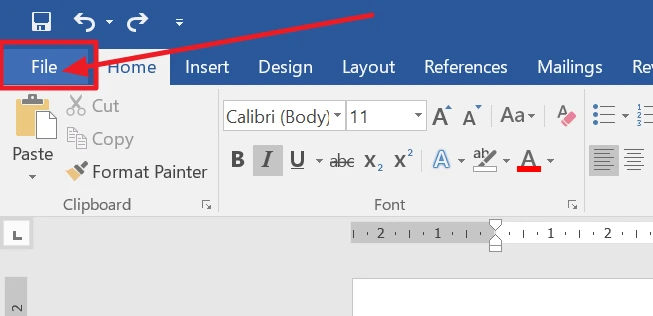
Verification: Close and reopen the newly saved file. Microsoft documents this workflow on its official Word recovery page .
Method 3: Restore the Word Document with File History
When to use: Choose File History if it was configured before deletion and included the folder that contained the Word document. Enabling it after the loss cannot create an earlier backup.
- Connect the external drive or network location used for File History.
- Open Windows search and enter
Restore your files with File History
.
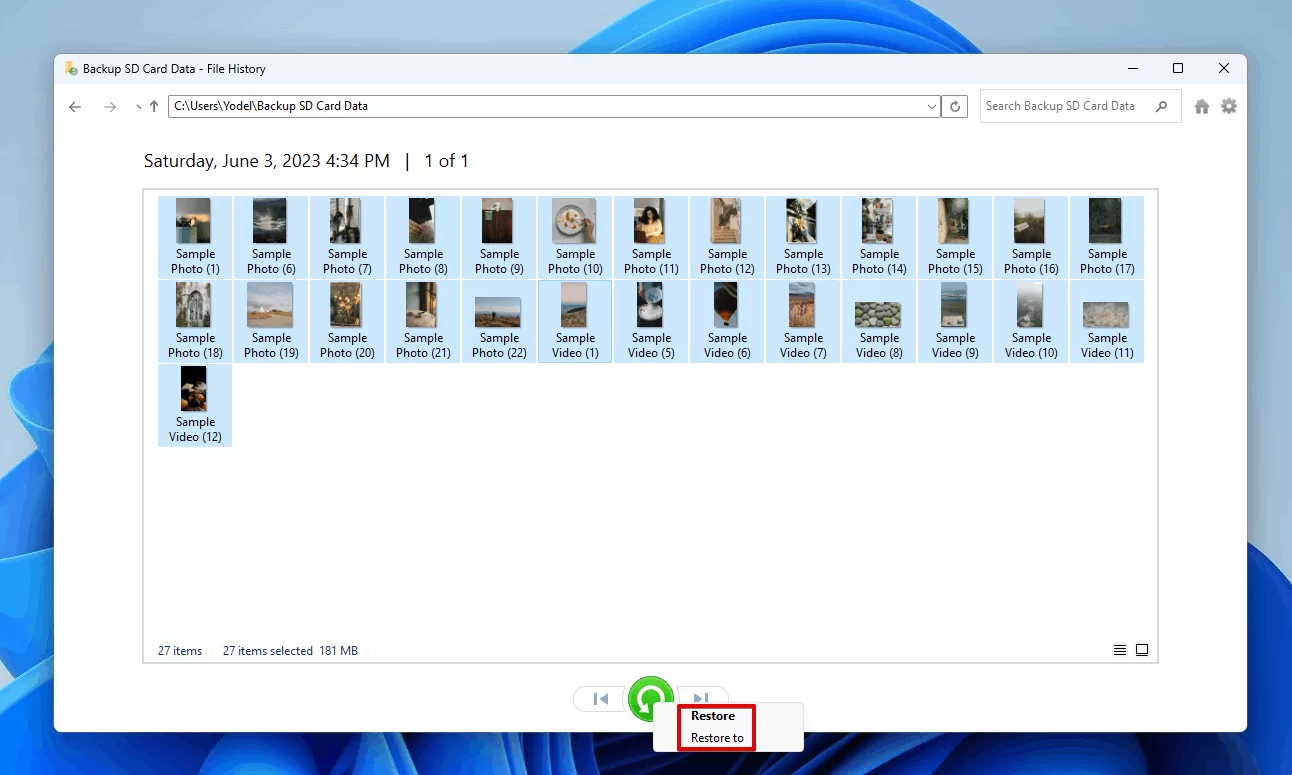
- Browse to the original folder and move through available backup dates.
- Select the Word document or its containing folder.
- Use the restore control to recover the selected version.
Verification: Open the restored document and compare its contents and modified date with the version you needed. Microsoft's Windows backup and recovery guidance confirms that File History saves copies of personal files to a configured external drive or network location.
Method 4: Recover the File with Windows File Recovery
When to use: This advanced method is for a file deleted from local storage that isn't available in Recycle Bin or a backup. Windows File Recovery is a command-line app for Windows 10 and 11; it doesn't recover from cloud storage or network shares.
- Connect a destination drive that is different from the source drive.
- Install
Windows File Recovery from the Microsoft Store
.
- Open Windows File Recovery and approve the permission prompt.
- Run a filtered command, replacing the drive letters and username for your computer:
winfr C: E: /regular /n \Users\<username>\Documents\*.docx /n \Users\<username>\Documents\*.doc - Enter
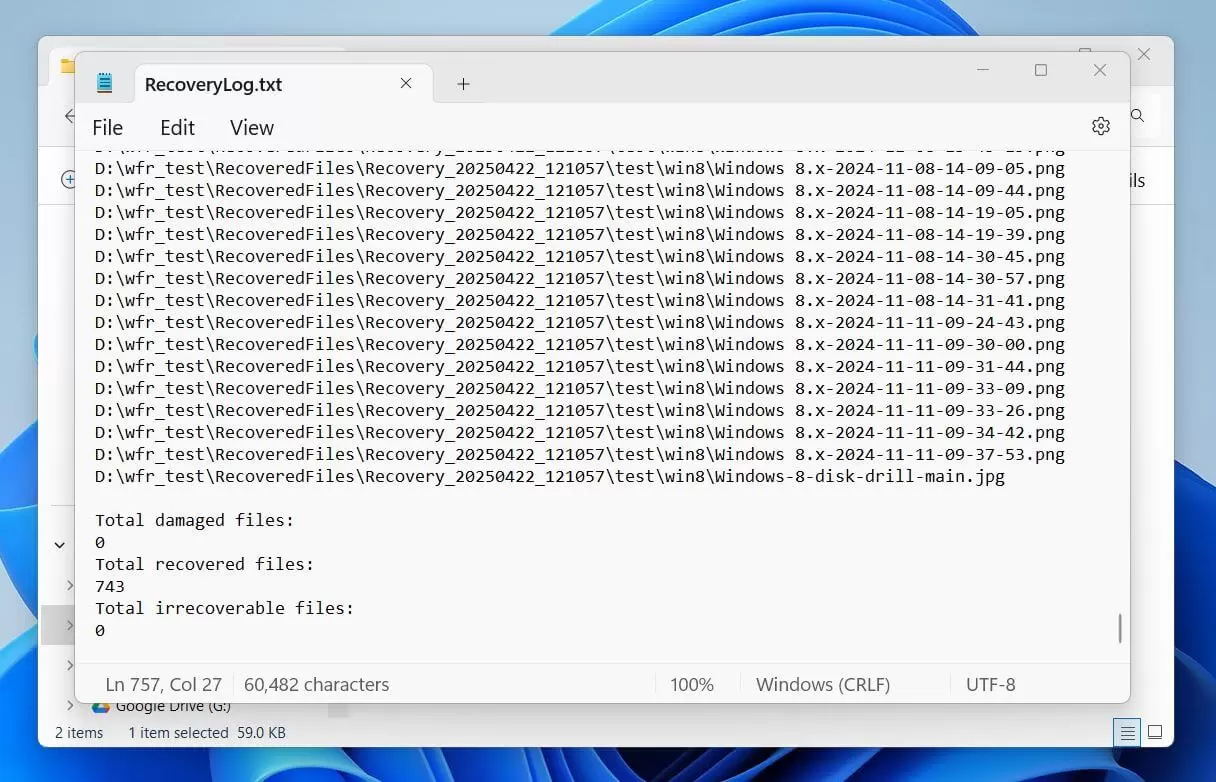
Ywhen prompted to begin recovery. - Check the automatically created recovery folder on the destination drive.
Verification: Open candidate files in Word and save a verified copy outside the source drive. If Regular mode finds nothing, Microsoft's documentation provides Extensive mode for a broader search.
Method 5: Fix Deleted Word Document Loss with Fionn Data Recovery
When to use: Use this method when a saved Word document was deleted or Recycle Bin was emptied and you prefer a visual scan with search, filtering, and file preview. The Windows desktop application scans locally in read-only mode and does not upload files.
- Launch Fionn Data Recovery and select the recovery option for the type of data or storage location you want to recover.

- Start the automatic scan and wait while Fionn Data Recovery searches the selected location for deleted or lost files.

- After the scan finishes, browse the results and preview the files to select the data you want to restore.

- Select a destination folder to save the recovered files, then start the recovery process.

Verification: Open the restored document from the destination folder and review its contents. Previewing before recovery helps identify the intended file, while using another disk avoids writing the recovered copy onto the source.
Tips That Improve the Chance of Recovery
- Pause downloads, installations, and document editing on the affected drive.
- Recover to another physical drive when using storage-scanning methods.
- Search by extension when the original file name is unknown.
- Preview or open recovered candidates before treating recovery as complete.
- After recovery, keep a separate backup instead of relying on recovery software.
Solid-state drives and other storage conditions can make deleted data unavailable even when recovery software finds a file name. A listed result therefore isn't proof that the document content remains intact.
Conclusion
Start with Recycle Bin because it preserves the original file without scanning. Use Word recovery only for unsaved work or crash-related copies, and use File History when a pre-loss backup exists. For permanent deletion, minimize drive activity and try Windows File Recovery or Fionn Data Recovery , saving results elsewhere. Recovery is verified only when the document opens and contains the required text, tables, and embedded items. If every method fails, preserve the drive and consult a qualified recovery specialist rather than repeatedly writing to it.
Frequently Asked Questions
Can I recover a Word document after emptying Recycle Bin?
Possibly. Stop using the source drive, check any existing File History backup, then use Windows File Recovery or a storage-scanning tool. Recovery depends on whether the deleted file's data remains available and unoverwritten.
Does Recover Unsaved Documents restore a deleted DOCX file?
Usually not. Recover Unsaved Documents targets unsaved recovery copies created while working in Word. A DOCX file that was saved and later deleted should be sought in Recycle Bin, backups, or the underlying storage.
Where does a restored Recycle Bin file go?
Windows returns it to its original folder. Check the Original Location column before restoring if you don't remember that folder, then confirm the file there after using Restore.
Why must recovered files be saved to another drive?
Writing to the source drive can reuse space occupied by deleted data. A different destination reduces further writes to the storage being scanned and helps preserve other potentially recoverable files.
What if the recovered Word document will not open?
The recovered data may be incomplete or damaged. Keep the original recovered copy unchanged, try another candidate or backup version, and use Word's Open and Repair command only on a duplicate.


