 Emily CarterPrinter Drivers
Introduction
An Epson printer driver update is best started through Windows Update when Windows already recognizes the printer. This guide covers four methods: Windows Update, Epson Support, the legacy Add Printer Driver Wizard, and a guided diagnostic option. Use Epson Support when you know the exact model and need its model-specific package. Keep the legacy wizard for an older printer already installed in Windows. If the model or failure source is unclear, use the recommended low-effort option in Method 4. After any method, confirm both basic printing and the task that originally failed.
Before You Update: Confirm the Model and Windows Version
Read the full model identifier from the printer label or its Windows printer entry. Then open
Settings > System > About
and note the Windows edition, version, and System type. Keep the printer powered on and connected through its normal USB or network connection. Save open work because Windows or an installer may request a restart.
Quick Method Comparison
| Method | Best For | Efficiency | User Effort |
|---|---|---|---|
| Method 1: Windows Update | Routine updates for a printer Windows recognizes | High | Medium |
| Method 2: Epson Support | An exact, model-specific package | Medium | Medium |
| Method 3: Legacy Windows wizard | An older printer already installed in Windows | Low | High |
| Method 4: Fionn Printer Driver | Recommended when the exact model or failure source is unclear | High | Low |
Method 1: Run an Epson Printer Driver Update with Windows Update
When to use: Choose this method for a recognized Epson printer when you want the compatible driver currently offered by Windows. Microsoft identifies Windows Update as its recommended printer-driver path.
- On Windows 11, open
Settings > Windows Update > Advanced options. On Windows 10, openSettings > Update & Security > Windows Update > Advanced options.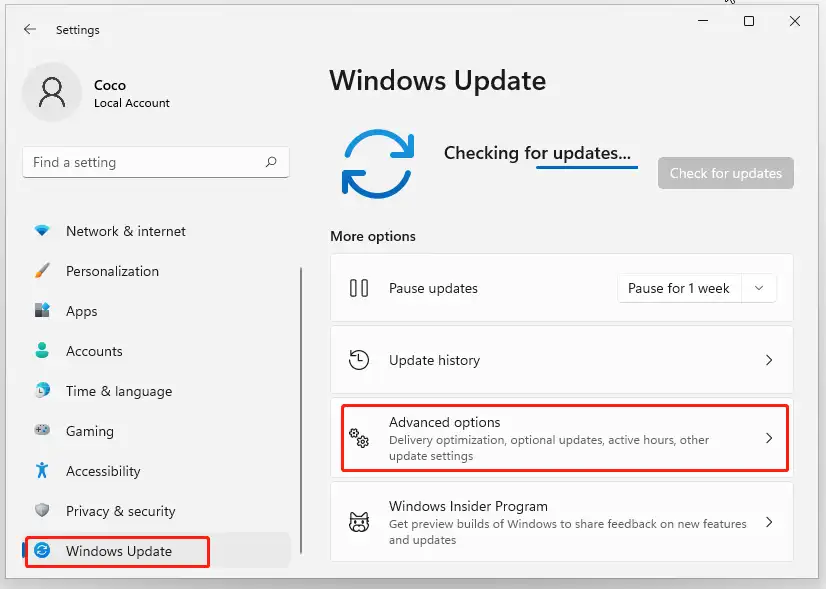
- Turn on
Receive updates for other Microsoft products. - On Windows 11, select
Optional updates. On Windows 10, return to Windows Update, selectCheck for updates, and openView optional updatesif it appears. - Select the applicable Epson driver entry, then choose
Download and install. - Restart Windows after the update finishes.
Verification: Reopen Optional updates after the restart and confirm the installed entry is no longer offered. Print a Windows test page to check the basic print path.
Method 2: Download the Driver from Epson Support
When to use: Choose this manual method when Windows Update has no applicable entry, when model-specific settings are missing, or when you need the package Epson lists for a known model.
- Open
Epson's official support search
.
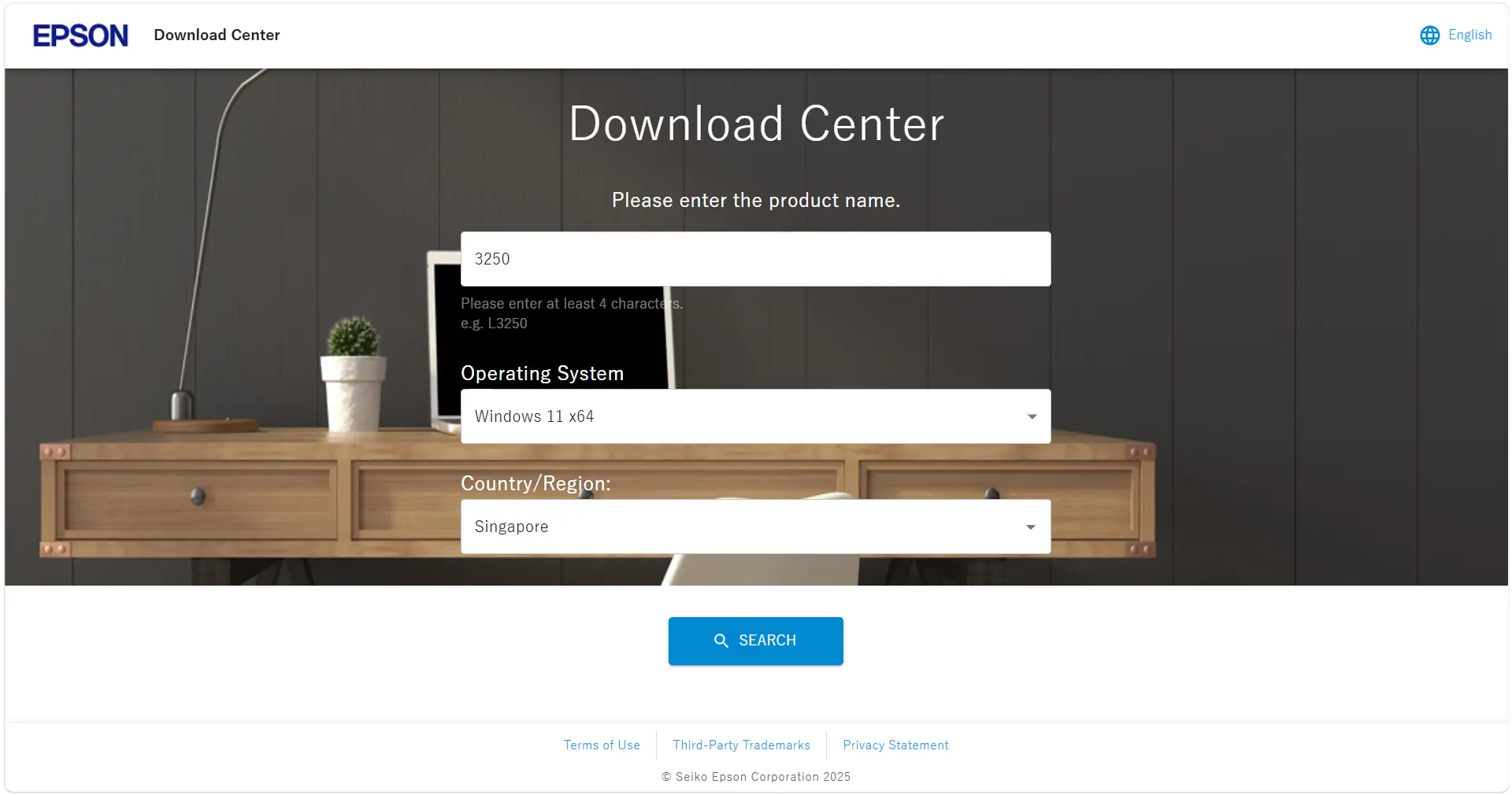
- Enter the complete printer model from the label, then open the exact product result.
- Open the product's
Downloadssection. - Confirm that the detected operating system matches your Windows version and System type.
- Choose the compatible Printer Driver entry and download it.
- Open the downloaded file, follow its prompts, and restart Windows only if requested.
For a driver-only update, compare the standalone Printer Driver listing with any combo installer. A combo package may include extra software and is not necessarily the newest standalone driver.
Verification: Open the printer's Printing preferences and confirm that the expected Epson model options are present. Then repeat the model-specific feature or application task that failed before the update.
Method 3: Add an Epson Driver with the Legacy Windows Wizard
When to use: Use this last-resort method for an older wired or local printer that is already installed, after Windows Update and Epson Support do not provide a workable result.
- Open
Settings > Bluetooth & devices > Printers & scannersin Windows 11, orSettings > Devices > Printers & scannersin Windows 10. - Select
Printer server propertiesunder Related settings. - Open the
Driverstab and selectAdd.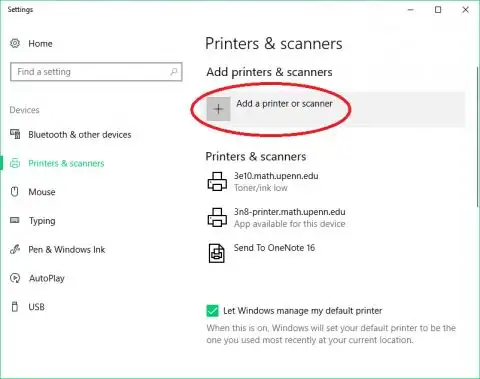
- Select
Next, then choose the processor architecture that matches the PC. - On Printer Driver Selection, select
Windows Updateand wait for the model list to refresh. - Select
Epsonas the manufacturer and choose the exact printer model. - Select
Next, thenFinish.
Verification: Return to the Drivers tab and confirm that the selected Epson driver appears under Installed printer drivers. This verifies the package was added, not that the printer was installed.
Method 4: Diagnose and Fix Epson Driver Update Problems with Fionn Printer Driver
When to use: Choose this configured method when the exact Epson model or failure source is unclear and you want the recommended low-effort option.
- Launch / Scan:
Launch Fionn Printer Driver and click “Scan Now” to scan your computer for printer drivers and related issues.

- Scan system:
Wait while Fionn Printer Driver scans your system for installed printers, drivers, and common printer issues.

- One-Click Fix:
After the scan finishes, click “One-Click Fix” to automatically install or repair the required printer driver.

- Complete repair and verify:
Wait for the repair to finish and confirm that the printer issue has been fixed successfully.

Avoid Common Update Mistakes
- Do not treat “best driver already installed” as an Epson version check. Device Manager can show that result while Epson lists a different model package.
- Check Windows protected print mode if a vendor driver disappears. On Windows 11 24H2 or later, enabling Windows protected print mode removes third-party drivers and uses the modern Windows print stack. A managed PC may require an administrator.
- Do not change several layers at once. Updating a driver, switching ports, and clearing a queue together hides which action worked.
- Test twice. A Windows test page checks the basic print path; the original job checks the application and model-specific features.
Conclusion
Start with Windows Update for a routine Epson printer driver update, then use Epson Support when you need an exact model package or missing print options. Reserve the legacy wizard for an older printer already installed in Windows. Verify the result with a test page and the original print task; one can pass while the other still fails. If the problem remains, record the error, connection type, Windows architecture, and whether one or every application is affected. When the model or failure source is still unclear, use the structured Fionn Printer Driver method above.
FAQ
Why is there no Epson driver under Optional updates?
Optional updates appears only when Windows has an applicable update to offer. An empty list is not an error and does not confirm that the installed driver is Epson's newest model-specific package. Search the exact model on Epson Support if you need to compare available packages.
Should I uninstall the old Epson driver before updating?
Usually, no. Install the compatible update over the existing driver unless Epson's model-specific instructions require removal. Uninstall first when the current package is damaged, duplicate printer entries persist, or Epson Support explicitly tells you to perform a clean reinstall.
Does updating the Epson printer driver also update firmware?
No. A printer driver controls communication between Windows and the printer, while firmware runs on the printer itself. Epson may list them separately. Check the download type before installing anything, and follow firmware instructions exactly because interrupting a firmware update can affect the device.
Why did Windows remove the Epson driver I installed?
Windows protected print mode can remove third-party printer drivers when it is enabled. Check that setting on Windows 11 24H2 or later. If an organization controls it through policy, contact the administrator rather than repeatedly reinstalling a driver Windows cannot use in that mode.
How do I verify that an Epson printer driver update worked?
Print a Windows test page, then retry the document, application, paper size, or finishing option that failed before. The test page checks the basic print path; the original task checks the feature you actually need. Also confirm that Windows shows the intended Epson printer and driver.


