 Emily CarterPrinter Drivers
HP Printer Driver: How to Install or Update on Windows
Introduction
To install or update an HP printer driver on Windows, start with one of three routes: Windows’ built-in tools, HP’s official model page, or guided diagnosis with Fionn Printer Driver . Try Windows first because it can install a compatible driver and offer optional updates. Use HP next when you need an available model-specific package. Choose guided diagnosis when the model or cause is unclear. After any method, print a Windows test page. If it works, a failure limited to one app is app-specific.
Before You Install an HP Printer Driver
Turn on and connect the printer first. A wireless printer and the PC must share a network. For USB, connect the cable when Windows or HP requests it. Record the model, Windows version, and system type from
Start > Settings > System > About
.
- Internet access for Windows Update or HP downloads
- The exact model, product number, or serial number when available
- Saved work in case the installer requests a restart
Choose the Right Method
Start with Windows for setup or an offered update. Use HP for an available model-specific package. Choose guided diagnosis when the model or failing part remains uncertain.
| Method | Best For | Efficiency | User Effort |
|---|---|---|---|
| Windows built-in installation | New setup, basic printing, or an offered update | High when Windows recognizes the printer | Low |
| HP official download | Known model, model-specific features, or no Windows match | High when the exact package is available | Medium |
| Fionn Printer Driver (Recommended for unclear cases) | Unknown model or a possible driver, service, port, or queue issue | High for mixed or unclear faults | Low, with four guided actions |
Method 1: Install or Update the HP Printer Driver with Windows
When to use: Start here for a new HP printer, basic printing, or an update offered by Windows. On an ARM-based PC, prefer this route because some manufacturer installers can fail on ARM.
For a new printer, complete steps 1 through 3. To update a printer already listed, start at step 4.
- Open Printers & scanners.
In Windows 11, use
Settings > Bluetooth & devices > Printers & scanners. In Windows 10, useSettings > Devices > Printers & scanners.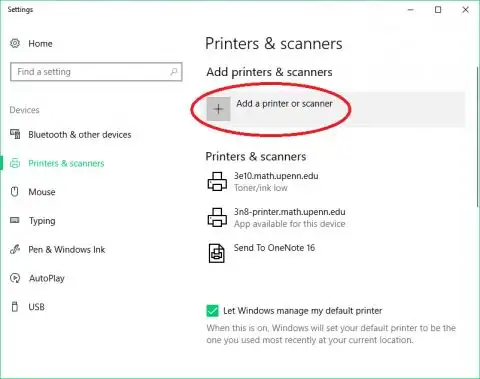
- Start discovery.
Select
Add devicein Windows 11 orAdd a printer or scannerin Windows 10. - Add the exact printer. Select the HP model when it appears and let Windows finish setup.
- Open optional updates.
In Windows 11, use
Settings > Windows Update > Advanced options > Optional updates. In Windows 10, useSettings > Update & Security > Windows Update > View optional updates. - Install an offered update.
Expand
Driver updates, select the applicable HP entry, and choose the option shown by Windows. - Restart if requested. Let Windows complete the installation before testing.
Expected result:
The exact HP printer appears in
Printers & scanners
without a driver error. Verify it with the test page below.
Method 2: Download the Model-Specific Driver from HP
When to use: Choose this when Windows finds no suitable package or you need features included in HP’s available model-specific software. HP lists full-feature and basic packages for the selected printer and Windows version.
- Open HP support.
Open
HP Software and Driver Downloads
and choose the printer category.
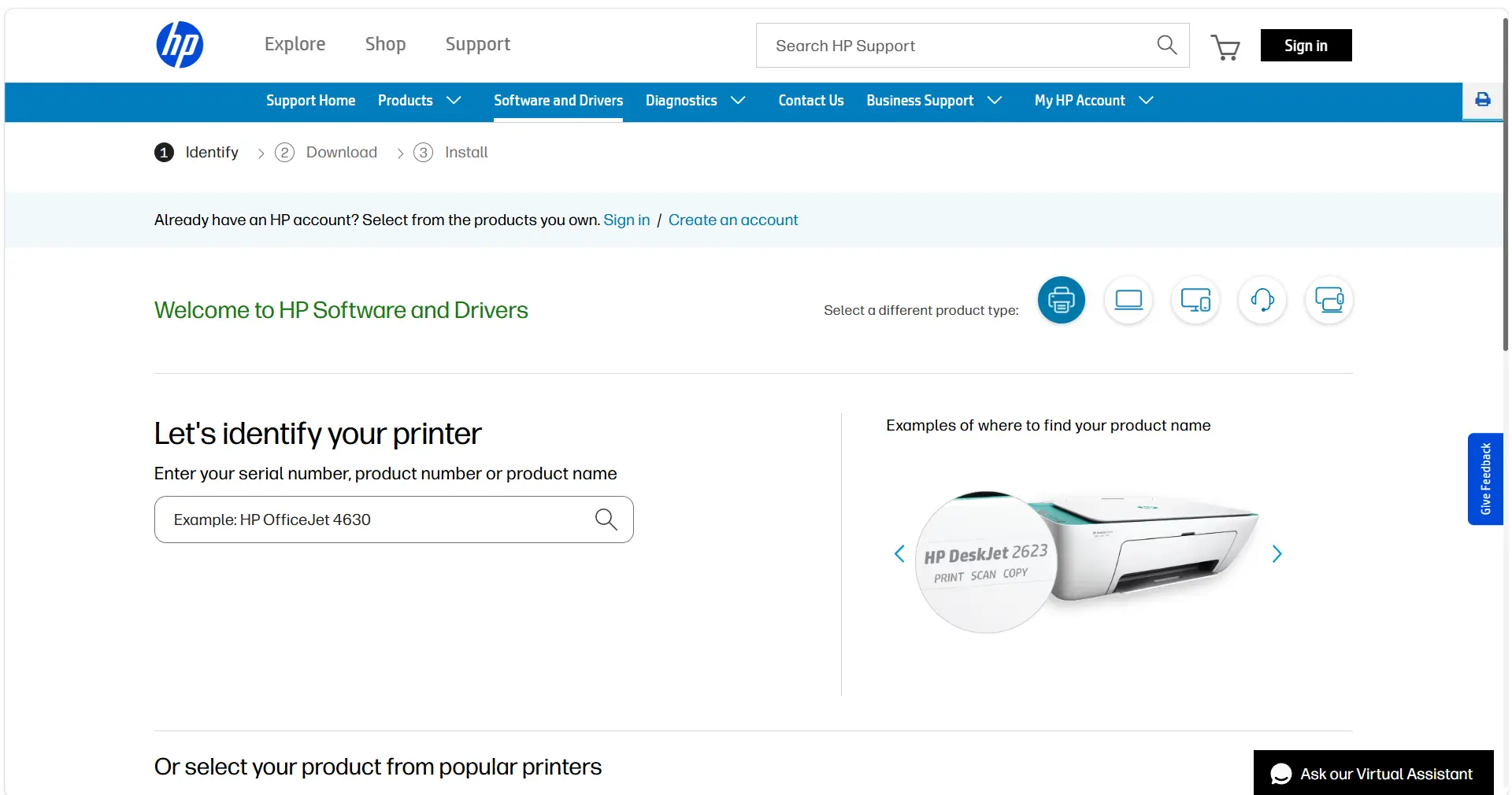
- Enter the identifier. Search with the exact model, product number, or serial number.
- Confirm the match. Select the exact result and confirm that the displayed Windows version matches your PC.
- Choose a package. Use full-feature software for the additional functions HP lists, or a basic package for core printing.
- Download and open it.
Save the package from HP’s portal, then launch the installer.
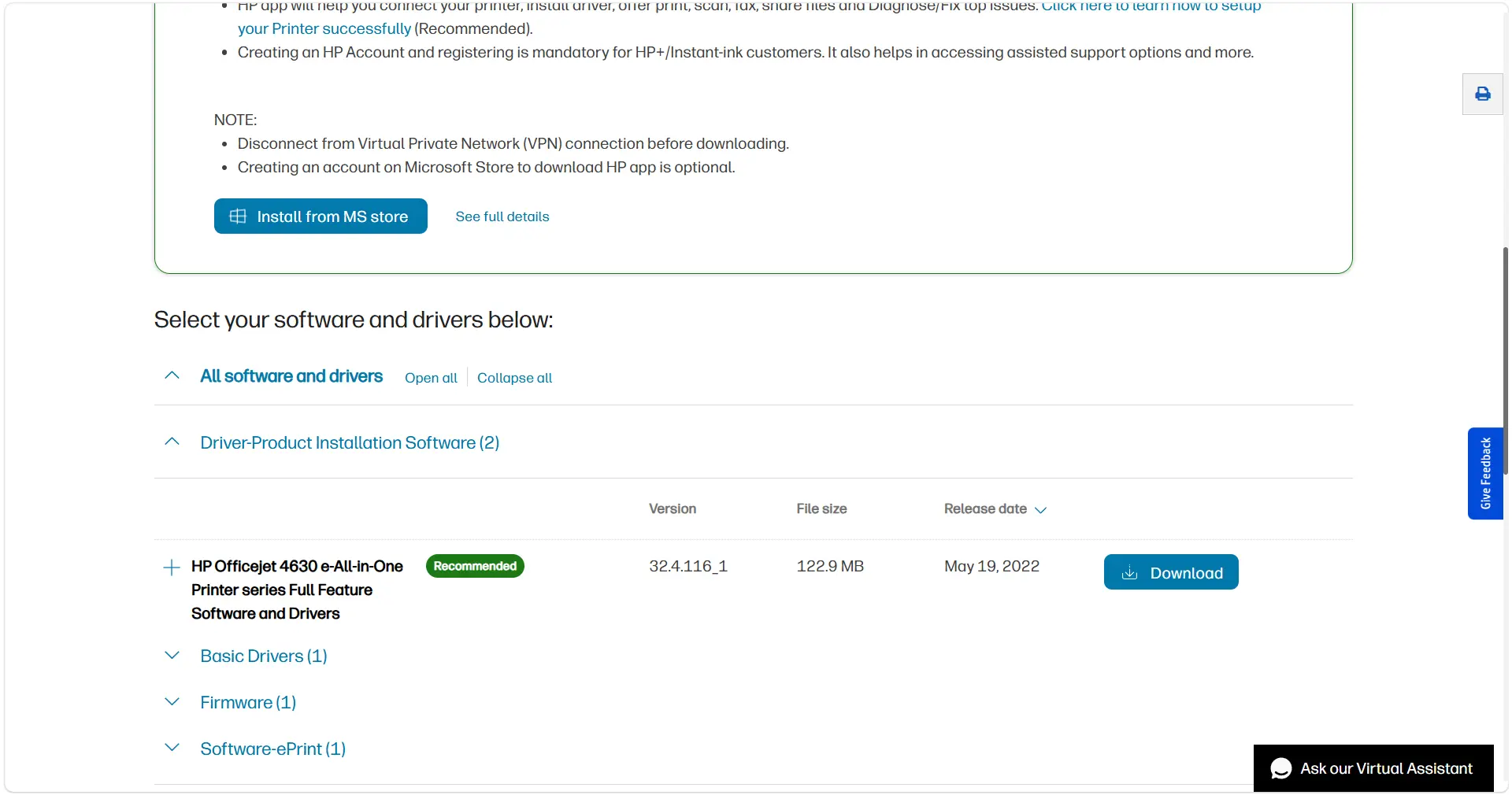
- Follow HP’s prompts. Connect USB only when requested and restart if the installer asks.
Tip: Availability varies by model and operating system. If HP omits your Windows version, return to Method 1 instead of using an unofficial mirror.
Expected result: HP’s installer finishes, the exact printer appears in Windows, and it is ready for the independent test below.
Method 3: Diagnose and Fix HP Printer Driver Issues with Fionn Printer Driver
When to use: Use this Windows option when you do not know the exact model or an update did not explain an offline or no-print symptom. It can identify most mainstream printer brands and models, install or repair a driver package, and check the Windows printer service, port, and queue.
- Launch Fionn Printer Driver and click “Scan Now” to scan your computer for printer drivers and related issues.

- Wait while Fionn Printer Driver scans your system for installed printers, drivers, and common printer issues.

- After the scan finishes, click “One-Click Fix” to automatically install or repair the required printer driver.

- Wait for the repair to finish and confirm that the printer issue has been fixed successfully.

Expected result: The final screen reports whether the detected printer issue was fixed successfully. If printing still fails, use the Windows test below.
How to Verify the HP Printer Driver Works
Print a Windows test page before reopening the failed app. The test checks communication through the driver and printer.
- Open the printer list.
Use
Settings > Bluetooth & devices > Printers & scannersin Windows 11 orSettings > Devices > Printers & scannersin Windows 10. - Select the HP printer.
In Windows 10, choose
Manageafter selecting it. - Run the test.
Choose
Printer properties > General > Print Test Page, or usePrint a test pagewhen Windows shows it directly. - Check the page. Confirm that text and basic graphics print.
Common Mistakes to Avoid
- Using a near-match model: One suffix can identify a different package or feature set.
- Skipping Optional updates: Optional drivers need manual selection.
- Blaming only the driver: A paused queue, offline device, port conflict, stopped service, or connection problem can look similar.
- Running several HP packages: Select one package matched to the exact model and goal.
Conclusion
The most practical order is Windows first, HP’s exact model package second, and Fionn Printer Driver when the model or cause remains unclear. After installing or updating, print a Windows test page instead of judging success from the installer alone. If the page works, investigate the original app and its print settings. If it fails from every app, recheck the connection, device status, queue, port, and printer service. On a managed PC using Windows protected print mode, ask IT to choose the permitted driver path.
Frequently Asked Questions
Can Windows install an HP printer driver automatically?
Yes. Windows can install a compatible recommended driver when it detects the printer. Optional drivers require manual selection under Optional updates. After installation, print a test page. If it fails, check the connection and print path before reinstalling the driver package.
Which HP driver package should I choose?
Match the exact printer model and Windows version. A full-feature package adds the functions described by HP, while a basic package focuses on core printing. Availability varies, so follow the model-page description rather than assuming both choices exist for your printer.
Why won’t the printer work after a driver installs?
A driver is only one part of printing. A paused queue, offline printer, port conflict, stopped service, connection problem, or device condition can still block output. A successful Windows test page points toward the original app; failure across all apps points toward the printer or Windows path.
Should I use the HP app or HP Smart?
Use the option HP provides for your exact model. The HP app replaces HP Smart for many printers, while HP Smart can remain available where the newer app is unavailable. Confirm first that Windows lists the printer and prints a test page.
What if HP lists no driver for my Windows version?
Return to Windows’ built-in route and use
Add device
plus applicable Windows driver updates. Do not substitute a similar model or use an unofficial mirror for that model. On Windows 10, remember that free Microsoft support ended on October 14, 2025.


