 Emily CarterPrinter Drivers
If your Epson printer driver won't install, first check whether Windows recognizes the device. Then try the built-in installation process, download the package for your exact model from Epson, or remove a conflicting installation. The fourth option is diagnosis with Fionn Printer Driver . Start with Windows tools because they require fewer steps. If the error occurs in the Epson installer, use the official package or perform a clean reinstallation. Print a test page after each method—seeing the printer in the device list does not prove that its driver works.
Why the Epson printer driver won't install
The failure usually relates to a particular stage of installation rather than one universal cause. Windows may not detect the connected printer, the downloaded package may not match the model or system architecture, or a previous installation may prevent the new driver from registering. An older package may also become incompatible after a Windows update.
- The printer is not detected: Check the power, USB cable, or whether the computer and printer are connected to the same network.
- The installer does not start or exits with an error: Confirm your Windows edition, system type, and exact Epson model.
- The printer appears in Windows but does not print: Remove the device and install it again.
- The error appeared after an update: Replace the old driver with a compatible version.
How to choose the right method
| Method | When to use it | Effectiveness | User involvement |
|---|---|---|---|
| Install through Windows | The device is detected, but its driver is missing | High for compatible built-in drivers | Low |
| Official Epson package | You know the exact model and need its specific features | High when the correct system is selected | Moderate |
| Clean reinstallation | An old or incomplete installation is causing a conflict | Depends on the cause of the failure | Moderate |
| Fionn Printer Driver | The cause is unclear or you need automatic driver selection | Automates detection, installation, and verification | Low |
Method 1: Install the printer through Windows
When to use it: Try this method first if the printer is turned on and connected by USB or is on the same network as your computer. Microsoft recommends adding the device with Windows' built-in tools, including when the manufacturer's installer does not work on an ARM-based computer.
- In Windows 11, open
Start → Settings → Bluetooth & devices → Printers & scanners. In Windows 10, openSettings → Devices → Printers & scanners.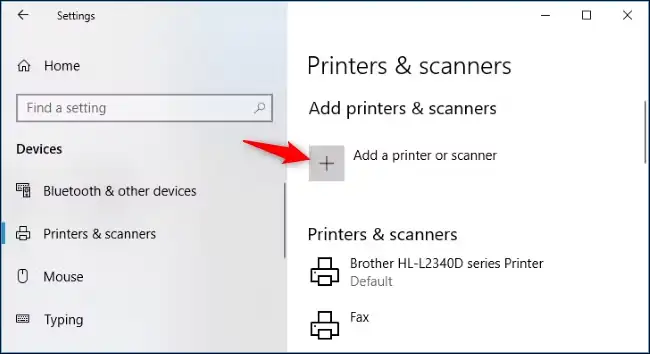
- Select “Add device” and wait for the search to finish.
- Select the detected Epson printer and complete the installation.
- If the device is not found, choose the manual addition option and select the appropriate connection type.
- Open the installed printer's properties and print a test page.
Verification: This method worked if the test page prints without an error and the printer is no longer shown as unavailable.
For detailed instructions, see Microsoft's official guide to fixing printer connection and printing problems .
Method 2: Download the driver for your exact model from Epson
When to use it: Use this approach if Windows installed only a basic driver, did not find the device, or you need the official package to access model-specific features.
- Find the model number on the printer and write it down in full.
- Open the
official Epson support section
.
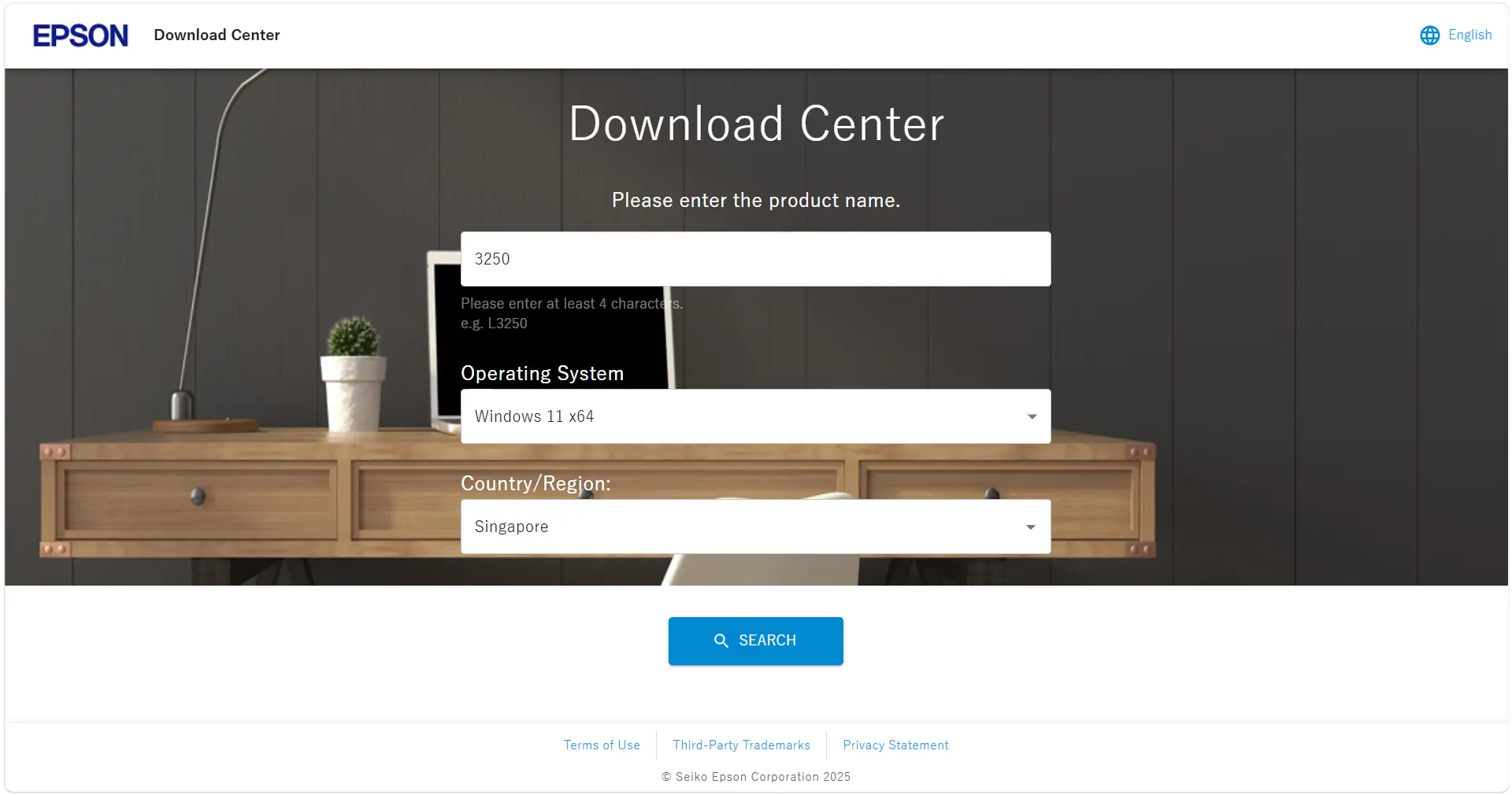
- Enter the exact model and open the corresponding device page.
- Verify the selected operating system manually. Epson warns that automatic operating system detection may be inaccurate.
- Download the appropriate driver or installation package and run the downloaded file.
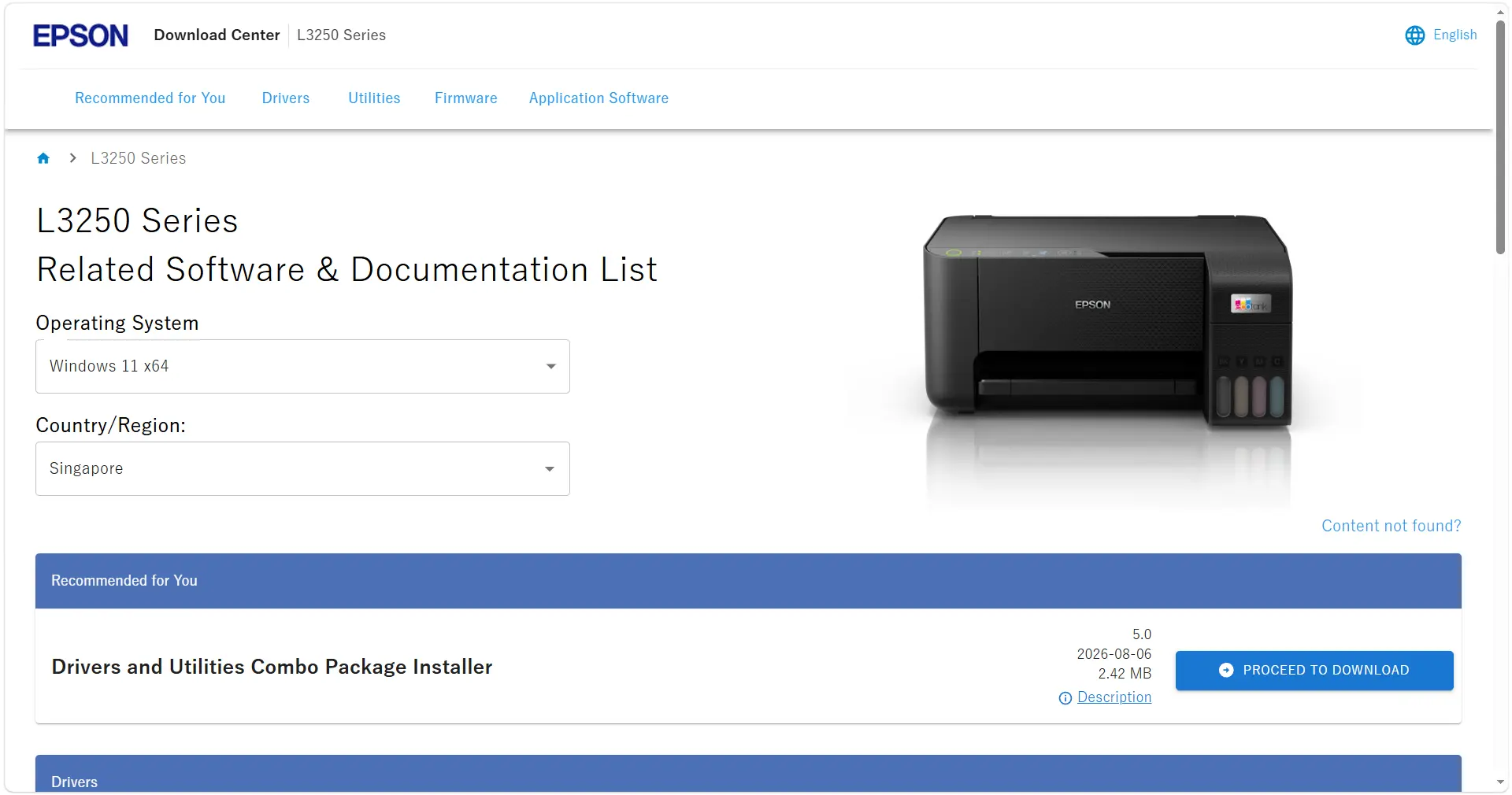
- Follow the installer's instructions, then print a test page.
Verification: The correct Epson model should appear in the printer settings, and the test page should move through the queue and print successfully.
Method 3: Remove the conflicting installation and reinstall the driver
When to use it: Perform a clean reinstallation if the printer is already present in Windows, the installation was interrupted, or the problem began after replacing or updating the driver.
- Open
Settings → Printers & scanners. - Select the affected Epson printer and choose “Remove.”
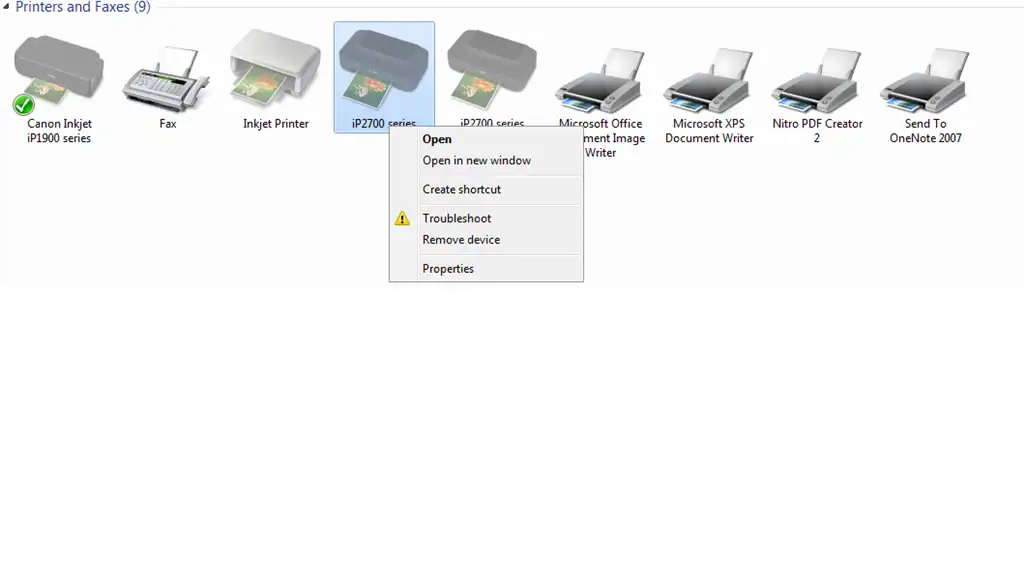
- Remove the associated Epson application through
Settings → Apps → Installed appsif it remains after the failed installation. - Restart the computer to finish removing components that were in use.
- Repeat Method 1 or install the verified package for your exact model using Method 2.
Verification: After adding the printer again, only one working instance should appear. Send a test page and make sure the print job does not remain stuck in the queue.
Method 4: Diagnose and fix the problem with Fionn Printer Driver
When to use it: This method is suitable when the exact cause is unclear, the model is difficult to identify manually, or you need to check related printing problems along with the driver. The Windows application automatically recognizes most common models, selects a driver, and checks the device, print service, port, and queue.
- Launch Fionn Printer Driver and select “Scan Now” to check your computer for printer drivers and related issues.

- Wait while Fionn Printer Driver checks the system, installed printers, drivers, and common printing problems.

- When the scan is complete, select “One-Click Fix” to install or repair the required printer driver automatically.

- Wait for the repair to finish and confirm that the printer problem has been resolved successfully.

Verification: After the procedure is complete, check the device status again and send a test page. Some features, including driver resources and automatic fixes, require membership; a seven-day trial is available.
What to check after installation
A successful installer message is only an intermediate result. Perform a quick check to distinguish a repaired driver from a separate connection or printing problem.
- Windows displays the correct model rather than a duplicate or unknown device.
- The printer is turned on, not paused, and not marked as offline.
- The test page moves through the queue without getting stuck.
- For a network connection, the computer and printer are accessible on the same network.
- If the driver is installed but the printer does not print, check the queue, port, and print service separately.
This distinction is an important diagnostic step: a working driver cannot resolve a lost connection, a stopped queue, an incorrect port, a paper jam, or another condition affecting the device itself.
Conclusion
If your Epson printer driver won't install, first add the printer through Windows. Next, download the package for your exact model from Epson's official support page. If there are signs of an old or incomplete installation, remove the device and install it again. When the source of the error is difficult to identify, Fionn Printer Driver can reduce manual troubleshooting and check related printing components. Confirm every method's result with a test page rather than relying only on the installer's success message. If the error persists, save its code, your printer model, Windows version, and system type, then provide that information to Epson support.
Frequently asked questions
Why does Windows detect my Epson printer, but the driver won't install?
Detecting a device and installing a compatible driver are separate stages. The package may be unsuitable, a previous installation may be causing a conflict, or the driver may be incompatible with your Windows version. First remove the existing printer instance, restart the computer, and install it again through Windows or with the official Epson package.
How do I know which Epson driver I need?
Write down the complete model number shown on the printer. Select that exact model on Epson's official support page, then manually verify your Windows version and system architecture. Do not use a package for a similar model unless Epson explicitly confirms compatibility.
Can I install an Epson printer without the Epson installer?
Yes, if Windows has a compatible built-in driver. Open Printers & scanners, select “Add device,” and complete device detection. Epson also provides instructions for installing the built-in Windows driver for models without a separate package.
What should I do if the Epson installer does not work on an ARM-based computer?
Microsoft notes that the manufacturer's installer may fail to add a printer on some ARM-based computers. Use Windows' built-in option under Settings → Bluetooth & devices → Printers & scanners. If Windows cannot find the model, check its support page for an ARM-compatible package.
Why won't my Epson printer print after I install the driver?
The cause may be unrelated to the driver. Check the power and connection, printer status, print queue, selected port, and Windows print service. If a test page does not print, troubleshoot the observed failure instead of repeatedly installing the same package without diagnosis.


