 Emily CarterData Recovery
Introduction
Recovering files from a formatted USB drive is possible only while the old data has not been overwritten. Stop copying files to the USB, disconnect it, and save any recovered data to a different disk. This guide covers three methods: checking Windows copies, checking whether another backup exists, and using the recommended Fionn Data Recovery scan when no usable copy is available. Start with the least invasive option, then move to a read-only scan.
Quick Method Comparison
| Method | Best For | Efficiency | User Effort |
|---|---|---|---|
| Method 1: Previous Versions or File History | A Windows copy already exists | Fast when available | Low |
| Method 2: Check USB visibility and backups | The device is detected or another copy may exist | Varies | Low to medium |
| Method 3: Fionn Data Recovery (Recommended) | No backup exists and the formatted USB needs scanning | Designed for scanning and preview | Medium |
Method 1: Check Previous Versions or File History
When to use: Choose this method if the files were previously copied to a Windows folder protected by File History or another backup feature. It does not reconstruct data directly from the formatted USB.
- Connect the USB drive without copying new files to it.
- Open the Windows folder that previously contained the files.
- Right-click the folder, choose
Properties, and openPrevious Versionsif it is available. - Select a dated version, choose
Opento inspect it, and copy needed files to a different disk.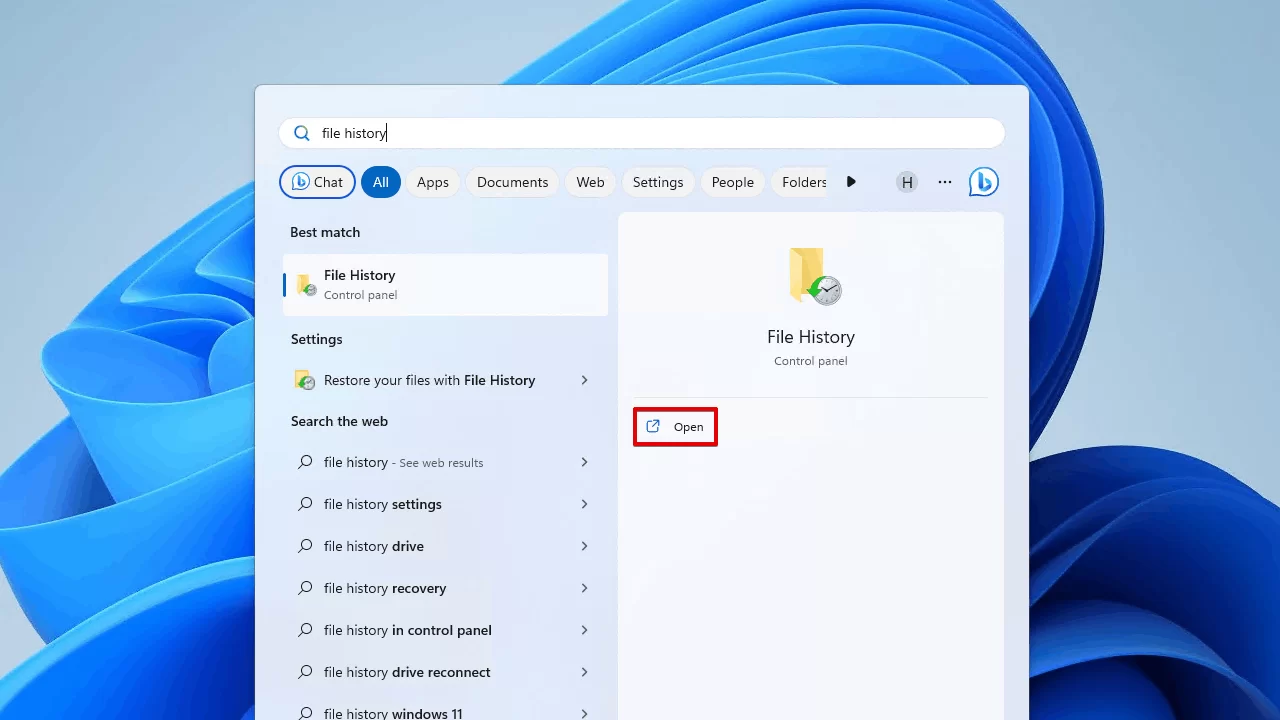
Method 2: Check USB Visibility and Other Copies
When to use: Use this method when the USB appears in File Explorer, Disk Management, cloud storage, or another computer, but the expected files are not visible.
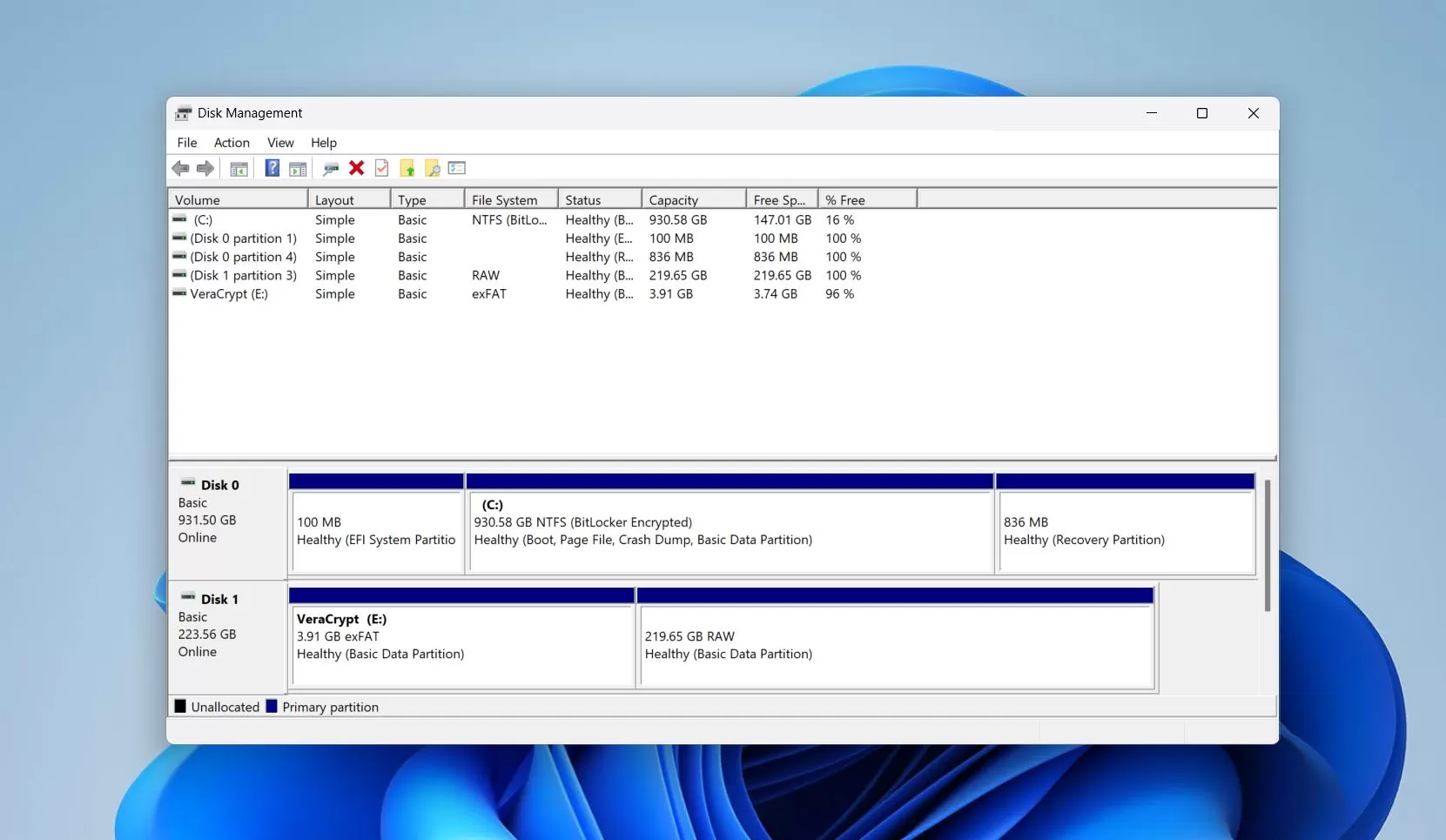
- Open File Explorer and check whether the USB has a drive letter.
- If it is missing, open
Disk Managementand check whether Windows detects the device and its capacity. - Check Windows backup folders, cloud-sync folders, or another computer for a duplicate copy.
- Do not format, initialize, or save new data to the USB while deciding what to do next.
A detected drive is not proof that its previous file records are intact. If no usable copy exists, move to a read-only recovery scan.
Method 3: Fix Formatted USB Files with Fionn Data Recovery
When to use: This Recommended option fits a formatted USB with no usable backup. Fionn Data Recovery is a Windows desktop tool that scans external storage, supports USB drives, provides quick, deep, and RAW scans, and lets you filter and preview results before recovery.
- Launch Fionn Data Recovery and select the recovery option for the type of data or storage location you want to recover.

- Start the automatic scan and wait while Fionn Data Recovery searches the selected location for deleted or lost files.

- After the scan finishes, browse the results and preview the files to select the data you want to restore.

- Select a destination folder to save the recovered files, then start the recovery process.

Select the formatted USB as the source in step 1. If a quick scan finds nothing, continue with a deep or RAW scan. Search by filename, location, type, time, or size, and preview important files before restoring them. Save results to another disk to reduce overwrite risk.
Tips and Common Mistakes
- Stop using the USB immediately after the format or data loss.
- Do not initialize or reformat a device that shows the wrong capacity.
- Keep recovered files on a separate internal or external disk.
- If the USB disconnects repeatedly, stop repeated repair attempts and consider specialist recovery help.
Conclusion
To recover files from a formatted USB drive, first check Windows history and other backup locations. If the USB is detected but the files remain unavailable, avoid formatting and new writes. When no backup exists, the Fionn Data Recovery scan can help you select the USB, run quick, deep, or RAW scanning, preview results, and restore files to another disk. Verify recovery by opening representative documents, photos, or videos. If the device is unstable or files are incomplete, stop using it and seek professional advice.
FAQ
Can formatting permanently remove USB files?
Formatting removes or replaces file-system records, while later use can overwrite the underlying data. Stop writing to the USB before attempting recovery.
Can I recover files without software?
Only when another copy exists, such as File History, Previous Versions, cloud storage, or a backup. Windows has no universal built-in undelete process for every formatted USB.
Why must recovered files go to another disk?
Saving to the source USB creates new writes that can overwrite sectors containing recoverable data.
What if a quick scan finds nothing?
Continue with a deep or RAW scan, then filter and preview the results. RAW results may lack original filenames or folder paths, so verify important files before using them.
Which file types can Fionn Data Recovery scan?
Documented types include images, videos, audio, documents, email, databases, and compressed files. Results depend on the USB condition and whether data has been overwritten.


