 Emily CarterData Recovery
Introduction
If a file was replaced by a newer version, recovery depends on whether Windows, a cloud service, or another tool kept an earlier copy. Stop editing the affected drive first, then try the four methods below in order: check built-in version history, restore a previous version, check a separate backup, and finally scan the storage with Data Recovery. No method can restore data that has already been physically overwritten, so early action matters.
Quick Method Comparison
| Method | Best For | Efficiency | User Effort |
|---|---|---|---|
| File History or backup copy | Protected folders with versioned backups | High | Low |
| Previous Versions | Files with restore points or shadow copies | Medium | Low |
| Cloud or external backup | Files synchronized or copied elsewhere | High | Medium |
| Fionn Data Recovery (Recommended) | No usable backup; scan for recoverable remnants | Variable | Medium |
Choose by scenario: If only one app shows the wrong content, check that app’s version history first. If several files changed after a disk event, use a backup or recovery scan. If the drive is making unusual noises or disconnecting, stop and consider professional hardware service before repeated scans.
Method 1: Check File History or a Backup Copy
When to use: Use this method when File History, Windows Backup, or an organization’s backup system was enabled before the replacement.
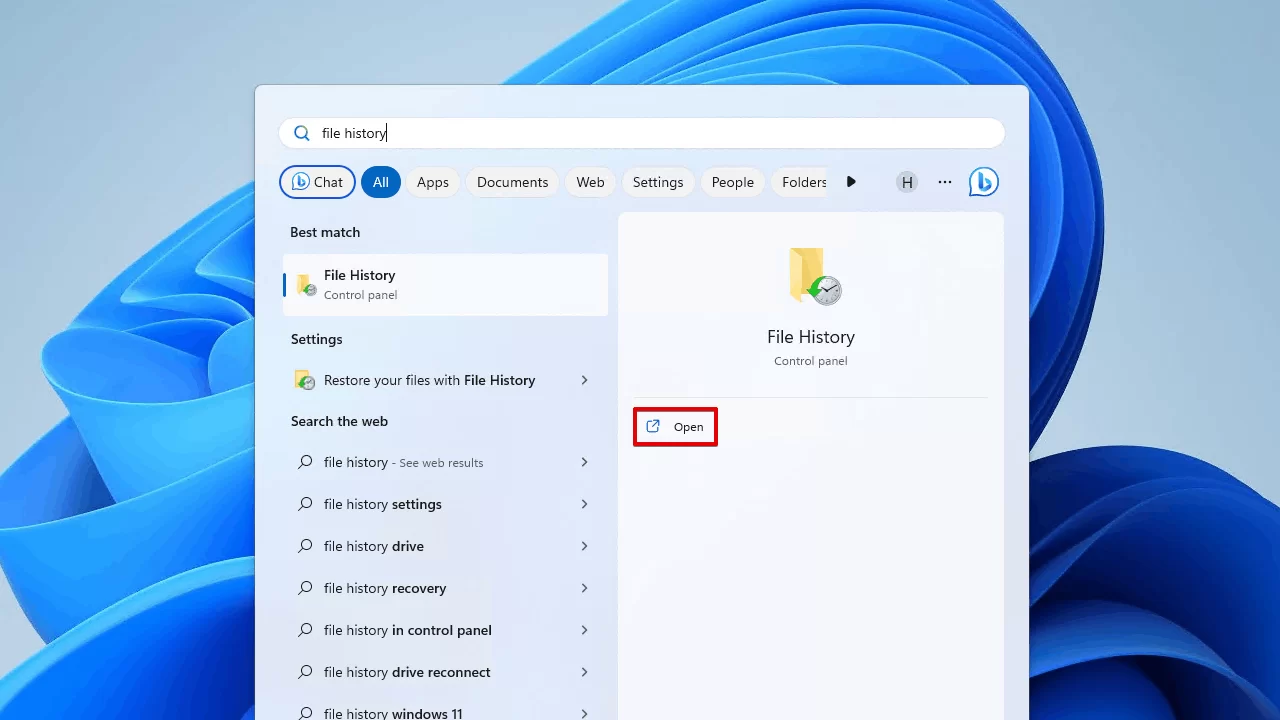
- Open the folder that contained the overwritten file.
- Search your available backup location for the same filename and an earlier date.
- In File History, choose the folder, browse older versions, and select the copy you need.
- Restore the copy to a different folder, then open it and confirm its contents.
Method 2: Restore a Previous Version
When to use: Try this when the file or its parent folder has Windows restore points or shadow-copy versions.
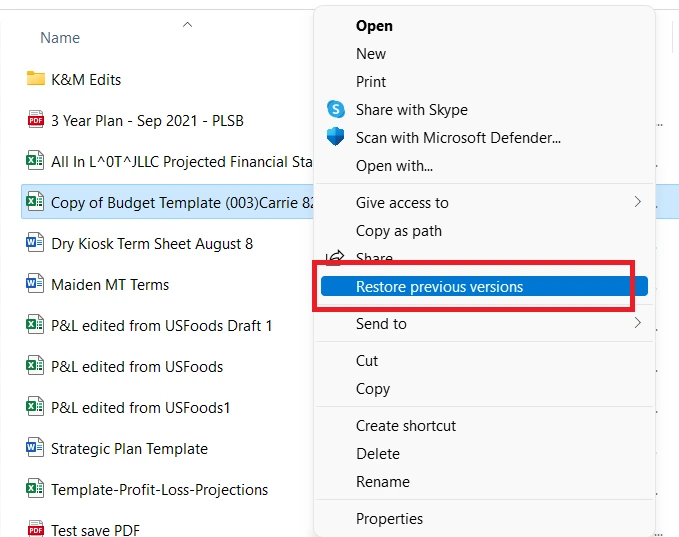
- Right-click the file or its containing folder in File Explorer.
- Select Properties , then open the Previous Versions tab.
- Review the listed dates and choose Open to inspect a version before the overwrite.
- Copy the verified file to another location instead of replacing the current copy.
If the tab is empty, Windows has no available version for that path; move to the next method.
Method 3: Check Cloud or External Backups
When to use: Use this path when the file was synchronized to a cloud service or copied to an external disk before it changed.
- Pause synchronization on the affected computer so the newer version does not propagate.
- Open the service’s official version-history or trash view, if available.
- Locate the earlier file and download or copy it to a separate local folder.
- Open the recovered copy and compare its modified date and contents with what you expected.
Method 4: Fix how to recover an overwritten file with Fionn Data Recovery (Recommended)
When to use: Choose this method when no usable backup exists and the storage device is still detected by Windows. Fionn Data Recovery scans locally in read-only mode, supports local disks and external media, and lets you preview results before recovery.
- Launch Fionn Data Recovery and select the recovery option for the type of data or storage location you want to recover.

- Start the automatic scan and wait while Fionn Data Recovery searches the selected location for deleted or lost files.

- After the scan finishes, browse the results and preview the files to select the data you want to restore.

- Select a destination folder to save the recovered files, then start the recovery process.

Use the result filters for filename, location, type, time, or size to narrow a large scan. If a quick scan does not find the earlier content, continue with deep or RAW scanning when available in your plan. Save output to another disk to avoid writing over recoverable sectors.
Tips and Common Mistakes
- Stop saving, downloading, or installing software on the affected drive.
- Recover to a different physical disk or USB device.
- Keep the original file untouched until the recovered copy passes an application-level check.
- For SSDs, continued use may trigger background cleanup, so begin recovery promptly.
Conclusion
Start with the least invasive source that existed before the overwrite: File History or another backup, then Previous Versions, followed by cloud or external history. If those checks produce no verified copy, a read-only scan with Data Recovery can help locate remnants while preserving the original drive. Always preview recovered data and save it elsewhere. If every method fails, stop further writes and seek a qualified recovery service, especially when the device is unstable or not detected.
FAQ
Can I recover a file after pressing Save over it?
Sometimes. Recovery is possible when a backup, version history, temporary copy, or unallocated data still contains the earlier content. If new data has physically replaced those sectors, software recovery may not reconstruct the file.
Does File History recover every overwritten file?
No. File History must have been enabled and must include the file’s folder in its backup scope. Check the available dates before relying on it.
Should I install recovery software on the same drive?
Avoid it when possible. Installation and downloads create writes that can overwrite remnants. Install and run recovery tools from another drive or use a different computer.
Why save recovered files to another disk?
Writing recovered output to the source disk can overwrite other recoverable sectors. A separate destination preserves more of the remaining evidence.
What if the drive is not detected?
Do not repeatedly reconnect a clicking or unstable drive. Disconnect it and obtain professional advice; repeated power cycles can worsen hardware problems.


