 Emily CarterDLL Errors
The
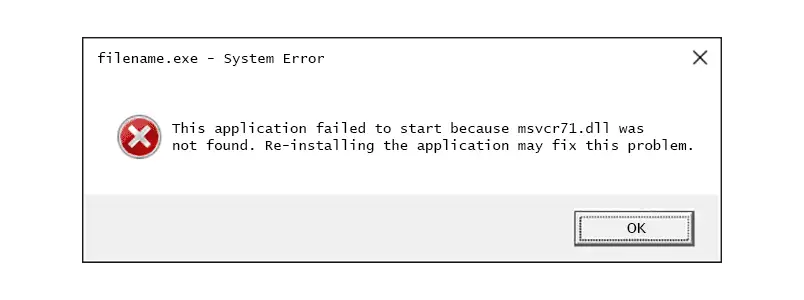
msvcp71.dll missing
message usually means the application cannot find a legacy Microsoft C++ library where it expects it. Start by repairing or reinstalling the application that shows the error. If Windows files may also be damaged, run DISM followed by System File Checker. For a guided scan across DLL and related system issues,
Fionn DLL Fixer
is a practical option. This guide covers three methods in that order and explains when to use each one.
Quick Method Comparison
| Method | Best For | Efficiency | User Effort |
|---|---|---|---|
| Repair or reinstall the affected app | Only one application reports the file | Often quick | Low |
| DISM and SFC | Several Windows components or apps show file errors | Moderate | Medium |
| Use Fionn DLL Fixer (Recommended) | Unclear causes, multiple DLL issues, or guided diagnosis | Streamlined | Low to medium |
Method 1: Repair or Reinstall the Application
When only one program fails, its installer is the best first source for the expected runtime files. Microsoft’s Windows repair guidance provides Repair options for many installed applications, while a full reinstall can restore files that were removed or damaged. This approach also preserves the application’s expected file version and companion dependencies.
When to use: Choose this method when the error appears after launching one desktop program or game, while other applications work normally.
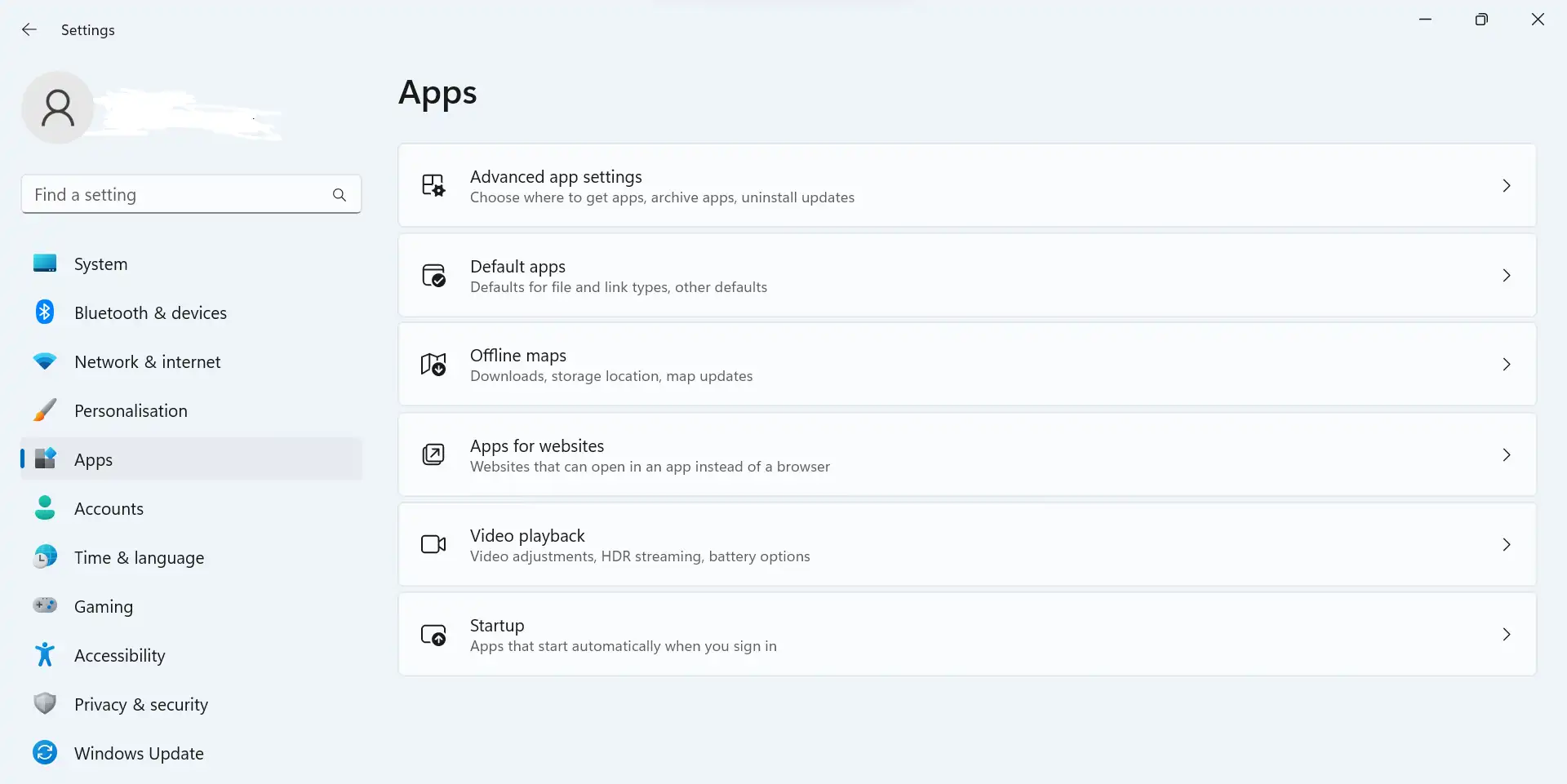
- Open Settings and select Apps .
- Open Installed apps , find the affected application, and open its menu.
- Select Advanced options , then choose Repair if Windows provides that option.
- Start the application again and check whether the msvcp71.dll message has disappeared.
- If Repair is unavailable or fails, uninstall the application, restart Windows, and reinstall it from the publisher’s original installer or official download page.
Expected result: The application starts without the missing-file prompt. If the same message returns immediately, the problem may involve broader Windows or dependency files.
A useful diagnostic distinction is scope: one failing application points toward its installation package, while several unrelated applications failing at once points toward system integrity or shared dependencies. This distinction prevents unnecessary system-wide changes.
Method 2: Run DISM and System File Checker
Microsoft recommends running Deployment Image Servicing and Management (DISM) before System File Checker (SFC) when Windows components may be missing or corrupted. DISM repairs the Windows image; SFC then checks protected system files. These tools are most relevant when multiple programs show DLL errors or Windows itself behaves abnormally.
When to use: Use this method after an update, unexpected shutdown, malware cleanup, or when more than one application reports missing or damaged system files.
- Install pending Windows updates, then restart the computer.
- Search for Command Prompt , right-click it, and select Run as administrator .
- Enter the following command and press Enter:
DISM.exe /Online /Cleanup-image /Restorehealth - Wait for the operation to complete successfully. It can take several minutes.

- In the same administrator window, enter:
sfc /scannow
- Wait until verification reaches 100 percent, then restart Windows.
- Open the application that displayed the error and test it again.
Microsoft explains that SFC can replace corrupted protected files with cached copies, but it cannot guarantee that an application-specific legacy runtime will be restored. If SFC reports no integrity violations and the application still fails, return to Method 1 or use the guided option below.
Microsoft’s System File Checker instructions document the DISM-before-SFC order and the expected completion messages.
Method 3: Diagnose and Fix msvcp71.dll missing with Fionn DLL Fixer
Recommended for guided diagnosis: Fionn DLL Fixer is designed for Windows DLL and system issue detection. Its documented capabilities include full or category scans, one-click and manual repair, and a post-repair recheck. It can help when the cause is unclear or when DLL, runtime, and system-component problems appear together.
When to use: Choose this method when several possible dependencies are involved, you want a guided scan, or the first two methods did not identify the cause. Fionn DLL Fixer is a Windows desktop application; its free version shows three free attempts, while VIP unlocks DLL, DX, runtime, and system repair benefits.
- Launch Fionn DLL Fixer. The software automatically scans your PC for DLL and system issues and displays the detected results when the scan is complete.

- After the scan finishes, click
Repair
to start fixing all detected DLL and system issues automatically.

- Wait while the repair is in progress. During this process, the button changes to
Fixing
until all issues have been repaired.

- When the repair is complete, click
Ok
in the confirmation dialog. If prompted, restart your computer before checking whether the problem has been resolved.

- If the issue still persists after restarting, click
Recheck
to perform another scan. If new issues are found, click
Repair
again to fix them.

After the recheck, launch the original application and repeat the same action that produced the error. Fionn DLL Fixer can diagnose missing, damaged, version-mismatched, and System32-path-related DLL issues, but the application may still require its own vendor installer when a private, application-specific file is involved.
The recheck is more informative than simply reopening the program: it separates a repaired file from a remaining dependency problem. If the second scan is clean but the app still fails, record the exact error text and contact the application publisher or Fionn support.
Tips and Common Mistakes
- Record the exact filename and the application that displays it before changing files.
- Match the repair method to the scope of the failure: one app suggests app repair; many apps justify system checks.
- Do not assume that installing a newer Visual C++ package will provide every legacy library. Microsoft’s current redistributable guidance covers supported modern MSVC versions, while older applications may use their own bundled runtime.
- Restart after a successful repair when Windows or the repair tool requests it, then test the original application.
For current runtime information, consult Microsoft’s Visual C++ Redistributable and runtime FAQ . It explains compatibility for modern Visual Studio versions without claiming that a current package replaces every legacy file.
Conclusion
For a one-app failure, repair or reinstall the affected application first. When several programs or Windows components show errors, run DISM and then SFC from an administrator Command Prompt. If you need guided diagnosis across DLL and system issues, Fionn DLL Fixer provides a documented scan, repair, restart, and recheck workflow. Verify the result by launching the original application and repeating the action that triggered the message. If the error remains after a clean recheck, preserve the exact error text and seek support from the application publisher or Fionn.
FAQ
What is msvcp71.dll?
msvcp71.dll is a legacy Microsoft C++ library used by some older Windows applications. A missing-file message means the program cannot locate the version it expects. Current Visual C++ redistributable guidance focuses on newer supported runtime families, so reinstalling the affected application is usually the most direct way to restore its required legacy files.
Should I download msvcp71.dll from a DLL website?
No. A filename alone does not prove that a download is authentic, compatible, or safe. Use the application’s original installer, Windows repair tools, or a documented repair utility instead. If a publisher provides an official prerequisite package, obtain it from that publisher’s HTTPS site and follow its installation instructions.
Why didn’t SFC fix the error?
SFC repairs protected Windows system files, not every file shipped inside an application folder. Microsoft recommends DISM before SFC because DISM supplies the repair source for the Windows image. If both scans complete successfully but one program still reports msvcp71.dll missing, repair or reinstall that program.
When should I use Fionn DLL Fixer?
Use Fionn DLL Fixer when the cause is unclear, multiple DLL or runtime issues appear, or you prefer guided scanning and rechecking. Its documented workflow includes five ordered actions: scan, repair, wait for fixing, confirm and restart if prompted, then recheck and repair again if needed.
Will restarting Windows always solve the problem?
No. Restarting completes some pending repairs and reloads libraries, but it cannot replace a missing application file by itself. Restart after DISM/SFC or a repair tool when prompted, then test the original application. If the same message remains, continue with the next applicable method rather than repeating restarts.


