 Emily CarterPrinter Drivers
Introduction
If Windows detects your printer but it is not printing, the connection to the device has been established, but the job is being blocked farther along the printing process. Common causes include a paused queue, offline mode, a stopped printing service, an unsuitable driver, or the condition of the device itself. The four methods below begin with simple checks and Windows diagnostics, followed by using Fionn Printer Driver , clearing the queue, or reinstalling the driver. Send a short test page after each method.
How to Choose a Method When the Computer Detects the Printer but Does Not Print
The symptom you observe can help you avoid unnecessary actions. If only one application cannot print, first check which device is selected in that application. If jobs remain in the queue from every application, proceed to clearing the queue. If the problem began after a Windows update or printer replacement, focus on the driver.
| Method | When to Use It | Effectiveness | User Involvement |
|---|---|---|---|
| Windows checks and diagnostics | The cause is not yet known | High for simple issues | Low |
| Fionn Printer Driver | You need a unified check of the device, driver, and printing environment | High for driver or printing-process problems | Low |
| Clear the queue and restart the service | Jobs are stuck or do not disappear | High for queue problems | Medium |
| Update or reinstall the driver | The problem began after an update or device replacement | High for an incompatible driver | Medium |
Method 1: Check the Printer Status and Run Windows Diagnostics
When to use it: start with this method if the cause is unclear, the device was recently connected, or Windows displays it without an obvious error.
- Make sure the printer is turned on, paper is loaded in the tray, and its control panel does not show a paper jam, open cover, or low-supplies message.
- Open
Start → Settings → Bluetooth & devices → Printers & scanners. - Select the correct printer and set it as the default if documents are being sent to another printer.
- Open the queue and make sure printing is not paused and the device is not set to offline mode.
- In Windows 11, run the printer troubleshooter through the Get Help app and apply only the fixes suggested by the system.
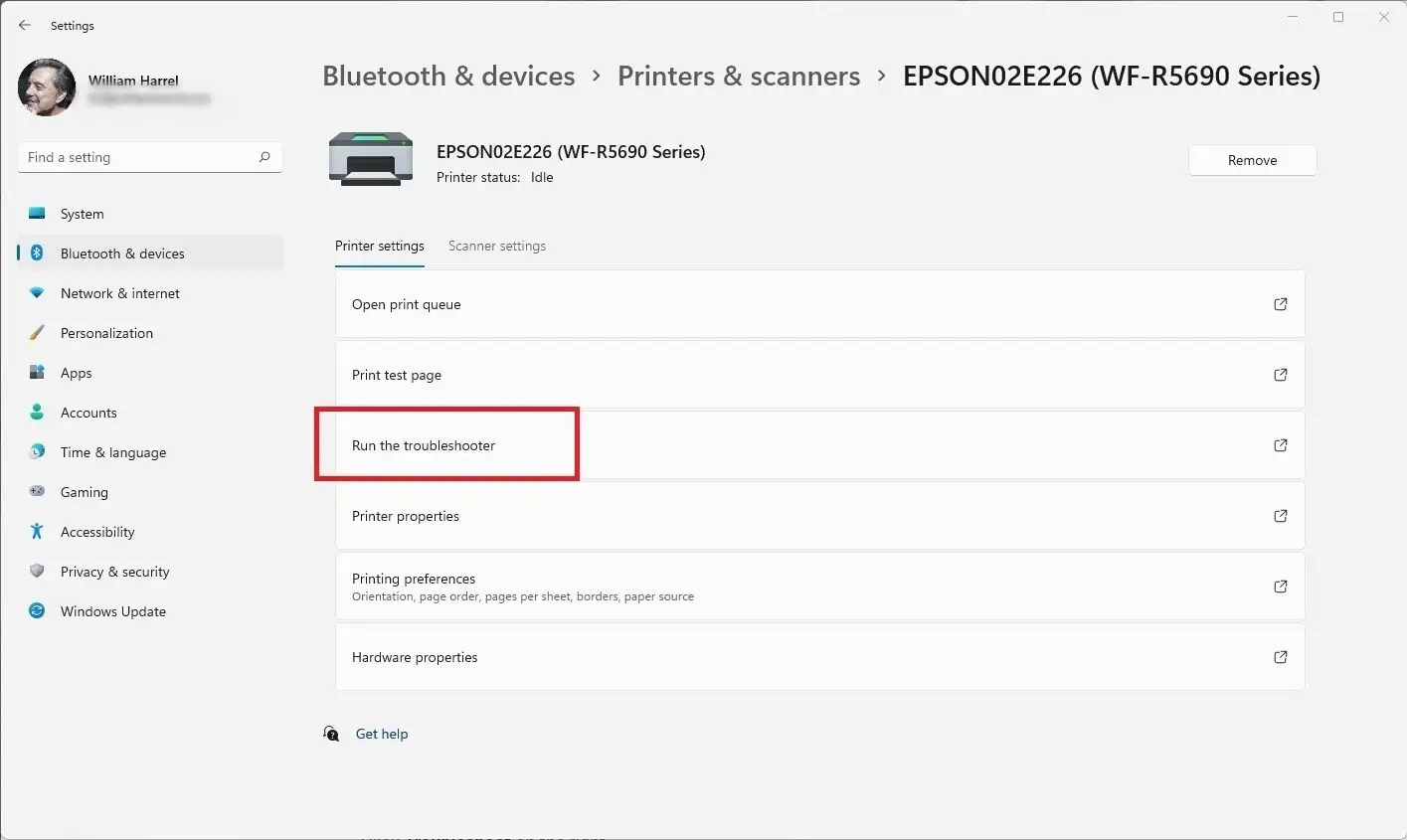
- Send a test page from the printer properties.
How to verify the result: the new job should appear in the queue, move to processing, and disappear after it prints.
Microsoft recommends beginning Windows 11 diagnostics with the troubleshooter in the Get Help app and its guidance for resolving printing problems .
Method 2: Diagnose and Fix the Problem with Fionn Printer Driver
When to use it: this method is suitable when you want to check installed printers, drivers, and related problems in sequence without manually searching for the cause. It is the recommended practical option when basic Windows diagnostics do not provide a clear result.
- Launch Fionn Printer Driver and click “Scan Now” to check the computer for printer drivers and related problems.

- Wait while Fionn Printer Driver checks the installed printers, drivers, and common printing problems.

- After the scan finishes, click “One-Click Fix” to install or repair the required printer driver automatically.

- Wait for the repair to finish and confirm that the printer problem has been fixed successfully.

How to verify the result: send the test page again and confirm that the job moves through the queue. The product can also check the device status, port, Windows service, and unfinished jobs, so compare its result with an actual printout.
Method 3: Clear the Queue and Restart the Printing Service
When to use it: use this method if documents remain in the queue, appear as paused, or a new job cannot proceed after an older one.
- Open
Start → Settings → Bluetooth & devices → Printers & scanners. - Select the printer and open its print queue.
- Cancel all stuck jobs and wait until the list is empty.
- Press
Win + R, enterservices.msc, and confirm.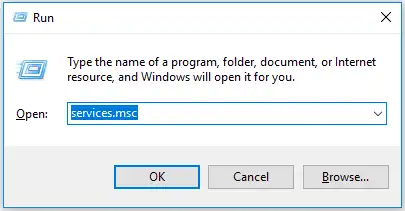
- Find the Print Spooler service and select Restart.
- Send one small document again.
How to verify the result: the new job should not remain pending or in an error state. Microsoft's official guidance for Print Spooler service errors confirms that the spooler processes jobs and that a service failure can leave documents in the queue.
Method 4: Update or Reinstall the Printer Driver
When to use it: choose this method if printing stopped after a Windows update, the device was replaced, or the system reports that the driver is unavailable or incompatible.
- Open
Start → Settings → Windows Updateand check for available updates, including optional driver updates. - Open Device Manager and expand the printer section.
- Select the correct device, open its shortcut menu, and choose Update driver.
- If updating does not help, remove the device under Printers & scanners.
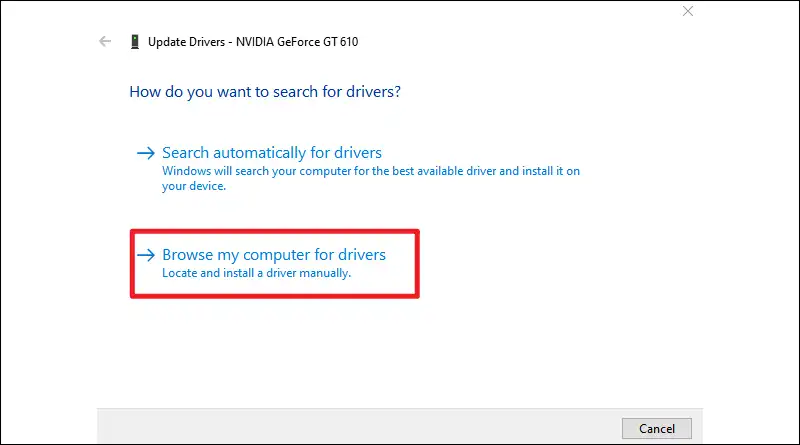
- Restart the computer and add the printer again through Printers & scanners.
- If Windows cannot find a suitable package, use the driver for the exact model and system architecture from the manufacturer's official website.
How to verify the result: the printer should appear without a warning icon, and the test page should move through the queue. Microsoft notes that compatibility problems can occur after updates or when a driver was not designed for the installed version of Windows; details are available in its official printer-driver compatibility guide .
How to Verify the Result and Find the Remaining Cause
Test printing with one short job after each method. If the Windows test page prints but a file from one application does not, restart the application, select the correct printer, and try a simple document. This separates a system-wide failure from a problem with a particular file or application.
If jobs disappear from the queue but the printer does not respond, check its display, cable or network connection, and selected port. If jobs remain in the queue from every application, return to the printing service and driver. Separating the problem by its observable result reduces unnecessary reinstallations.
Conclusion
When Windows detects a printer but it is not printing, begin by checking the device status, printer selection, and built-in diagnostics. If the cause remains unclear, Fionn Printer Driver can check the driver and related printing components in one process. Stuck documents require clearing the queue and restarting the service, while a failure after an update calls for checking the driver. Only a successfully printed test page confirms the result. If it still does not print after all four methods, record the message on the printer display, the queue status, and the device model, then contact the manufacturer's support team.
Frequently Asked Questions
Why does the printer appear in Windows but not accept print jobs?
Device detection and job transfer are separate stages. A printer can remain visible when the queue is paused, the printing service is not responding, the wrong port is selected, or the driver is incompatible. Check the queue and device status first, followed by the service and driver.
What should I do if only one application cannot print?
Select the correct printer in the application's print dialog and try a simple new document. Then close the application completely and reopen it. If the Windows test page prints, the system-level components are probably working, so focus your checks on the application or source file.
Can I delete every job from the print queue?
Yes, if the jobs are stuck and can be sent again. Canceling them deletes documents that have not yet printed, so save the source files first. After clearing the queue, restart Print Spooler and send only one test page.
When should I reinstall the printer driver?
Reinstallation is appropriate if the problem began after a Windows update, printer replacement, or incompatible-driver message. Do not start with it when there is a paper jam, offline status, or stuck job because those causes require different methods.
Can Fionn Printer Driver help if the printer is detected?
It can help when detection works but the problem involves the driver or other checkable components in the printing process. The program scans installed printers, drivers, and common problems, after which it can install or repair the required driver. Physical faults require a separate check.


