 Emily CarterPrinter Drivers
A printer spooler error can come from one blocked print job, a stalled Windows printing service, or a driver problem. Start with the symptom: a stuck job means clear the queue; several apps unable to print means restart Print Spooler; a repeating error means check the printer driver. If the cause is unclear, Fionn Printer Driver provides a guided way to check the printing environment.
Symptoms of a Printer Spooler Error
- A job remains on Printing , Error , or Deleting .
- Later jobs do not print because one document is blocking the same queue.
- Documents from several apps remain in the queue or do not print.
- Windows shows the driver as unavailable, or the problem began after a printer or driver change.
The scope of the failure is the quickest clue: one document usually points to the queue, while several apps failing points to Print Spooler or the driver.
Quick Diagnosis Checklist
- One job will not cancel and blocks later jobs: go to Method 1.
- Several apps cannot print, or the queue does not open normally: go to Method 2.
- The error returns after restarting the service, Windows reports a driver problem, or the issue started after a change: go to Method 3.
- You cannot tell whether the issue is the queue, service, device status, or driver: use Method 4 for guided checks.
Quick Method Comparison
| Method | Best For | Efficiency | User Effort |
|---|---|---|---|
| Clear the queue | One stuck print job | High for a blocked queue | Low |
| Restart Print Spooler | Several apps cannot print | High for a stalled service | Low |
| Check or update the driver | Recurring errors or driver warnings | Targeted | Medium |
| Fionn Printer Driver | An unclear cause across the printing environment | Guided | Low |
Method 1: Clear the Stuck Print Queue
When to Use
Use this method for one stuck document that prevents later jobs from printing. It is not intended to diagnose a service that repeatedly stops.
Step-by-Step Guide
- Open Settings , select Bluetooth & devices , then select Printers & scanners .
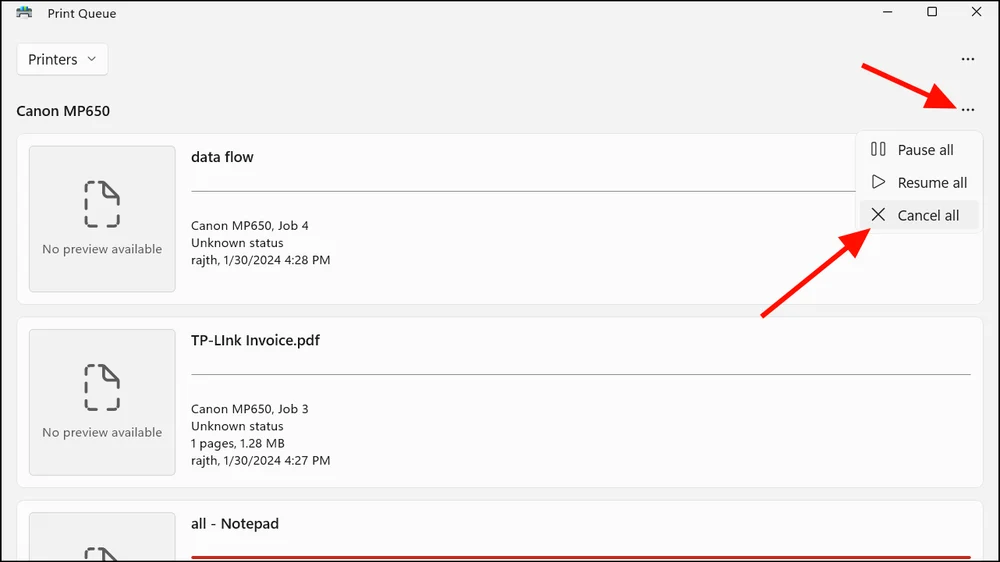
- Select the affected printer and open its print queue.
- Select the stuck job and choose Cancel .
- After the job disappears, send a short test document.
How to Verify
The old job is gone, the new job moves through the queue, and the printer produces the test document.
Method 2: Restart the Print Spooler Service
When to Use
Use this method when several applications cannot print, the queue will not open normally, or Print Spooler is not running.
Step-by-Step Guide
- Press
Windows
+
R
, type
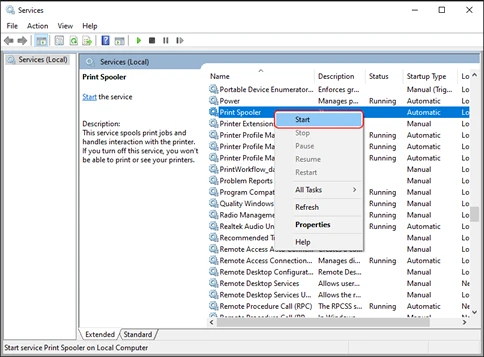
services.msc, and select OK . - Find Print Spooler in the Services list.
- Right-click
Print Spooler
and select
Restart
.
- Open the printer queue and send a short test document.
How to Verify
Print Spooler shows Running , and the test job leaves the queue and prints.
If restarting Print Spooler does not clear the problem, stop the service, clear pending files inside
%WINDIR%\System32\spool\PRINTERS
, and start the service again. For detailed reset steps, use the dedicated Print Spooler or stuck queue troubleshooting article.
Method 3: Check or Update the Printer Driver
When to Use
Use this method when a spooler error repeatedly returns, Windows reports that the driver is unavailable, or printing failed after a driver or printer change.
Step-by-Step Guide
- Confirm the exact model name of the affected printer from its label or Windows printer details.
- Check the printer driver for that exact model and install an available update through Windows or the printer manufacturer's official driver resource.
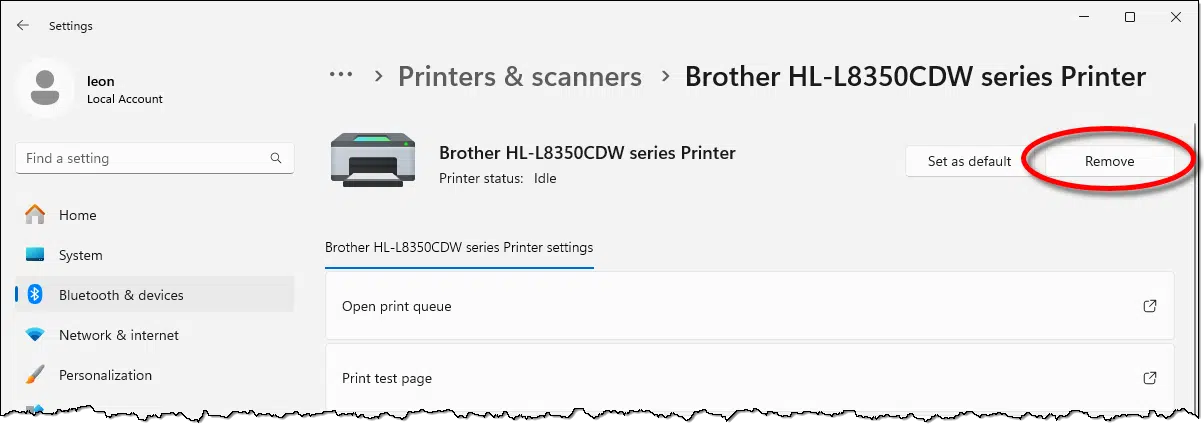
- If updating does not help, open Settings , select Bluetooth & devices , then select Printers & scanners .
- Select the affected printer and choose Remove .
- Add the printer again with the correct driver.
- Restart Windows and print a test page.
How to Verify
Windows lists the printer without a driver warning, and the test page prints after the restart.
Method 4: Fix Printer Spooler Errors with Fionn Printer Driver
When to Use
Use this recommended guided method when the cause is unclear or you want one workflow to check installed printers, drivers, and common printer issues. It can scan printer drivers and related issues, then install or repair a required printer driver through its workflow.
Step-by-Step Guide
- Launch Fionn Printer Driver and click “Scan Now” to scan your computer for printer drivers and related issues.

- Wait while Fionn Printer Driver scans your system for installed printers, drivers, and common printer issues.

- After the scan finishes, click “One-Click Fix” to automatically install or repair the required printer driver.

- Wait for the repair to finish and confirm that the printer issue has been fixed successfully.

How to Verify
After the workflow reports completion, open the printer queue and send a short test document. Confirm that the job leaves the queue and the printer produces it.
Verification Checklist
- The affected printer is visible in Windows without an unavailable driver warning.
- Print Spooler shows Running if you used Method 2.
- A new test job enters the queue and disappears after printing.
- The printer produces the test document without a printer spooler error.
- A second application can also print a small document.
Conclusion
Use the smallest fix that matches the symptom. Clear the queue when one job is stuck, restart Print Spooler when several apps cannot print, and repair the driver when the error returns or Windows reports a driver issue. If the cause is not obvious, Fionn Printer Driver can help check the driver and related printing conditions in one workflow. Verify the result with a new test document, then test from a second app. If printing still fails, contact the printer manufacturer or Microsoft Support with the exact error and the steps already tried.
FAQ
What does a printer spooler error mean?
It means Windows is having trouble handling print jobs. A stuck job, a stopped Print Spooler service, and a driver issue can produce similar symptoms.
Will restarting Print Spooler delete my documents?
It does not delete the original documents, but queued jobs can be interrupted. Save the document and resend it if the job does not continue.
Why does only one document cause a spooler error?
One problematic job can block its queue. Cancel that job, then test with a short plain-text document before sending the original file again.
Why does the spooler error return after a restart?
A recurring error can indicate that the driver needs attention. Confirm the exact printer model, update the matching driver, and remove and re-add the printer if the update does not help.


