 Emily CarterPrinter Drivers
A printer stuck in queue is usually resolved in this order: cancel the stuck job, restart Print Spooler, clear pending spool files only if necessary, then check the printer driver if the problem keeps returning. Start with the least disruptive option and submit just one small test document after each fix.
Symptoms
- A document remains at “Printing,” “Deleting,” or “Error” and will not disappear.
- New documents wait behind one stalled job instead of reaching the printer.
- The printer appears online, but the Windows queue does not progress.
- Several apps are affected, or the queue works briefly and then freezes again.
If the queue is empty but nothing prints, first check the printer status and its USB, Wi-Fi, or network connection. That situation is not primarily a stuck-queue problem.
Quick Diagnosis Checklist
- The job can be canceled: use Method 1, then retry one small document.
- The job stays on “Deleting”: restart Print Spooler with Method 2. Use the advanced reset only if the restart does not clear it.
- The queue repeatedly freezes: use Method 3 to update or reinstall the driver after a spooler reset.
- The queue is empty but printing still fails: check printer status and connection before treating the issue as a queue problem.
Quick Method Comparison
| Method | Best For | Efficiency | User Effort |
|---|---|---|---|
| Cancel queued jobs | One job that still accepts cancellation | Fast | Low |
| Restart Print Spooler | A job stuck on “Deleting” | Fast | Low |
| Clear spool files | A job that remains after restarting the service | High | Moderate |
| Update or reinstall driver | Recurring freezes across jobs or apps | Moderate | Moderate |
| Fionn Printer Driver | Checking the printer environment and driver workflow | Guided | Low |
Method 1: Cancel the Pending Print Jobs
When to Use
Use this first when the printer is available and the queue contains jobs that still offer a Cancel option.
Step-by-Step Guide
- Open Settings , then select Bluetooth & devices and Printers & scanners .
- Select the affected printer and choose
Open print queue
.
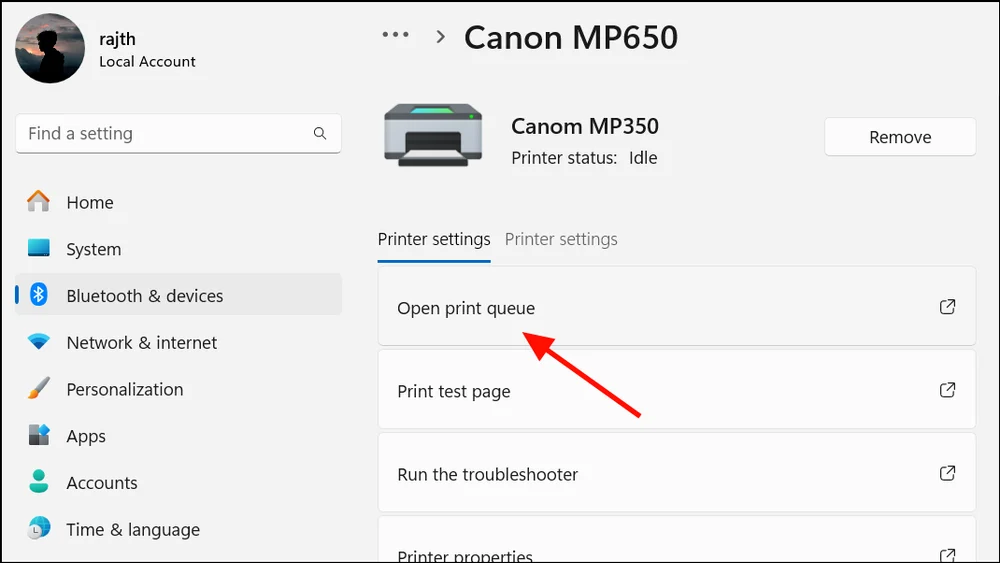
- Select each pending document and choose
Cancel
, or use
Cancel all
when available.
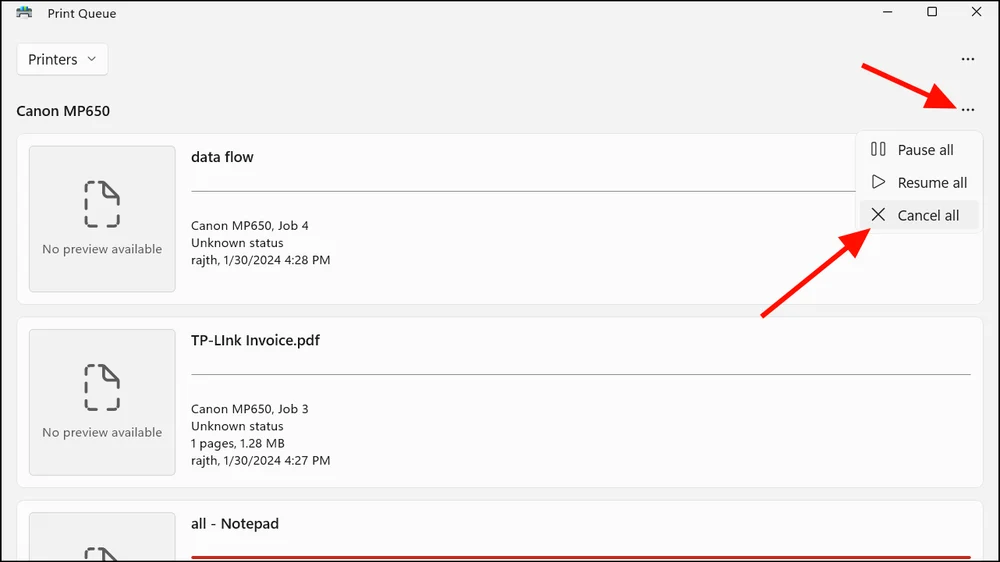
- Wait for the queue window to show no documents.
How to Verify
Send one small test document. It should leave the queue and print. If the first job remains on “Deleting,” stop sending new jobs and continue to Method 2.
Method 2: Reset the Print Spooler and Clear Its Files
When to Use
Use this method when a job cannot be canceled or remains on “Deleting.” Start with a simple Print Spooler restart; use the advanced reset only when the restart does not clear the queue.
Step-by-Step Guide
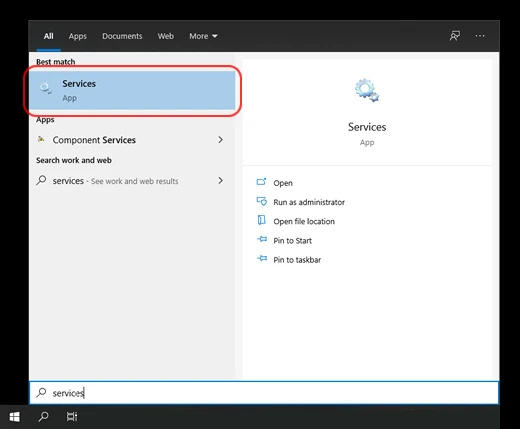
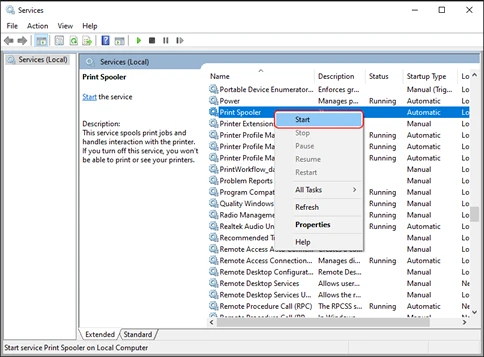
- Search for Services from the taskbar and open the Services app.
- Find Print Spooler , right-click it, and select Restart .
- Open the printer queue and check whether the stuck job has cleared.
- If the job remains, right-click
Print Spooler
again and select
Stop
.
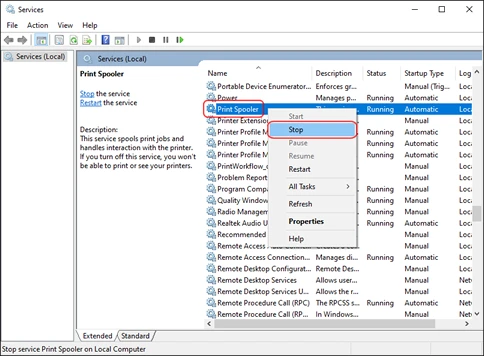
- Open File Explorer and enter
%WINDIR%\System32\spool\PRINTERSin the address bar. - Delete only the pending spool files inside the
PRINTERSfolder; do not delete thePRINTERSfolder itself. - Return to Services, right-click Print Spooler , and select Start .
How to Verify
Reopen the Windows print queue. It should be empty, and a new test page should move through the queue normally.
Method 3: Update or Reinstall the Printer Driver
When to Use
Use this method only when the queue repeatedly freezes, the issue returns after a spooler reset, or multiple print jobs or apps are affected. Do not reinstall a driver immediately because one print job is stuck.
Step-by-Step Guide
- Open Device Manager from the Start menu.
- Expand Printers or Print queues and select the affected printer.
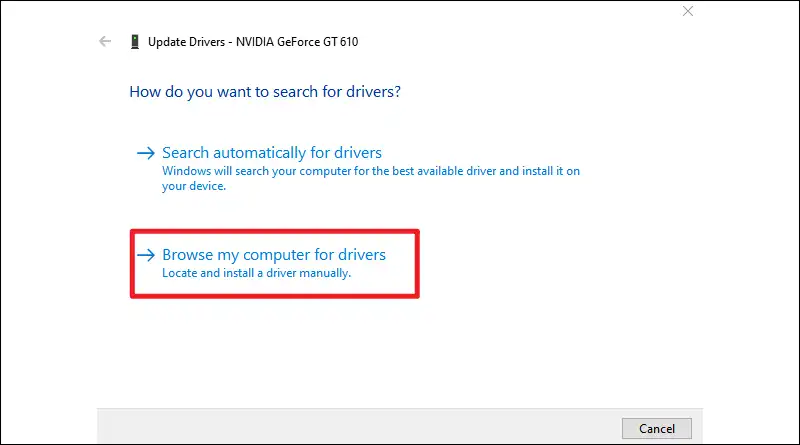
- Select
Update driver
and follow the Windows prompts.
- If the problem persists, remove only printer entries you recognize as old or duplicate.
- Install the current driver supplied by the manufacturer for the exact printer model.
- Restart Windows before testing the printer again.
How to Verify
Print a Windows test page and then a small document from an affected app. Neither job should create a new stuck queue entry. See Microsoft’s printer connection and printing troubleshooting page for current Windows guidance.
Method 4: Fix a Printer Stuck in Queue with Fionn Printer Driver
When to Use
Use this guided option when repeated queue or driver problems need a broader check. Fionn Printer Driver can scan installed printers, drivers, and common printer issues, including unfinished or paused queue jobs and Windows Printer Service status.
Step-by-Step Guide
- Launch Fionn Printer Driver and click “Scan Now” to scan your computer for printer drivers and related issues.

- Wait while Fionn Printer Driver scans your system for installed printers, drivers, and common printer issues.

- After the scan finishes, click “One-Click Fix” to automatically install or repair the required printer driver.

- Wait for the repair to finish and confirm that the printer issue has been fixed successfully.

How to Verify
Open the Windows queue and submit a test page. Confirm that the job does not remain paused or unfinished and that the page prints.
Verification Checklist
- The affected printer queue is empty before you send a new job.
- A Windows test page prints and disappears from the queue.
- A small document from the app that originally failed prints successfully.
- No new entry remains on “Error,” “Deleting,” or “Printing” for an extended period.
- After restarting Windows, the queue still accepts and completes a new test job.
Conclusion
For a printer stuck in queue, begin by canceling the stalled job. If it will not leave the queue, restart Print Spooler, then clear only the pending files inside the spool folder if restarting is not enough. Move to driver updates or reinstallation only when freezes recur after the reset or affect multiple jobs and apps. Fionn Printer Driver is a guided option for checking the printer environment and driver workflow. Confirm the result with a Windows test page and a small document from the affected app. If both fail with an empty queue, contact the printer manufacturer or Microsoft support with the model and observed status.
FAQ
Why does a print job stay on Deleting?
The job may still be held by Print Spooler. Restart the service first, then clear its pending spool files only if the job remains.
Will resetting Print Spooler delete my documents?
No. It removes pending print-job files, not the original documents saved on your computer. You may need to send those documents to the printer again.
Should I update the driver if only one document is stuck?
Usually no. Cancel the job and reset Print Spooler if needed. Update or reinstall the driver when queue failures recur or affect multiple jobs or apps.
What if the queue is empty but nothing prints?
Check the printer’s status, power, paper, and USB, Wi-Fi, or network connection. Then print a Windows test page; an empty queue with a failed test page points beyond a stuck queue.


