 Emily CarterPrinter Drivers
If your print spooler keeps stopping , clear a stuck print queue first. If queued jobs cannot be removed, reset Print Spooler and clear its pending spool files; if the service starts normally but stops again when you print, focus on the printer driver for the printer that triggers it.
Symptoms
- Print Spooler shows as stopped in Services or stops shortly after starting.
- Documents remain in a printer queue, cannot be cancelled, or disappear without printing.
- The failure begins only after a job is sent to one specific printer.
- Printing works from one app but causes the service to stop from another app or with one document.
- Multiple Windows apps cannot print because the shared Windows printing path is unavailable.
The timing of the stop is useful evidence. A service that stops before any job is submitted points to a Windows or service-level issue. A service that stops only after a job reaches one printer makes that printer's driver or printer path the first item to check.
Quick Diagnosis Checklist
- Stuck print job: Clear the queue and restart Print Spooler with Method 1.
- Jobs cannot be removed: Stop Print Spooler, clear pending spool files, and start the service with Method 2.
- Spooler starts but stops when printing: Identify the affected printer and update or reinstall its exact-model driver with Method 3.
- Cause unclear: Use Fionn Printer Driver to check the printer, driver, Windows printer service, port, and queue conditions in one workflow.
Method 1: Clear the Print Queue and Restart Print Spooler
When to Use
Use this when the affected printer queue contains pending documents or the issue began after a failed print job.
Step-by-Step Guide
- Open Settings , then select Bluetooth & devices and Printers & scanners .
- Select the affected printer and choose Open print queue .
- Cancel every pending document in the queue.
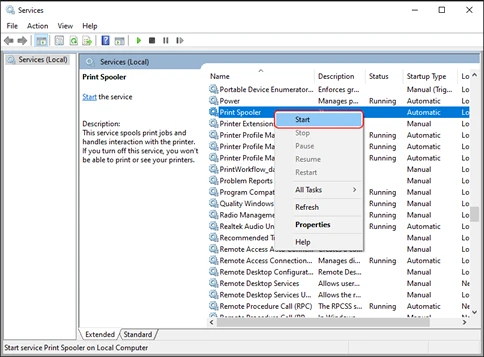
- Search for
Services
, open it, right-click
Print Spooler
, and select
Restart
.
How to Verify
Confirm that the queue is empty, then send a small test document. Print Spooler should remain running after the job completes. Microsoft documents queue clearing and service restarting in its Print Spooler troubleshooting guidance .
Method 2: Reset the Service and Remove Stuck Spool Files
When to Use
Use this when queue items will not cancel or restarting Print Spooler alone does not keep the service running.
Step-by-Step Guide
- Open Command Prompt as an administrator.
- Stop Print Spooler.
net stop spooler - Open
C:\Windows\System32\spool\PRINTERSin File Explorer. - Delete only the pending spool files inside the
PRINTERSfolder. Do not delete thePRINTERSfolder itself.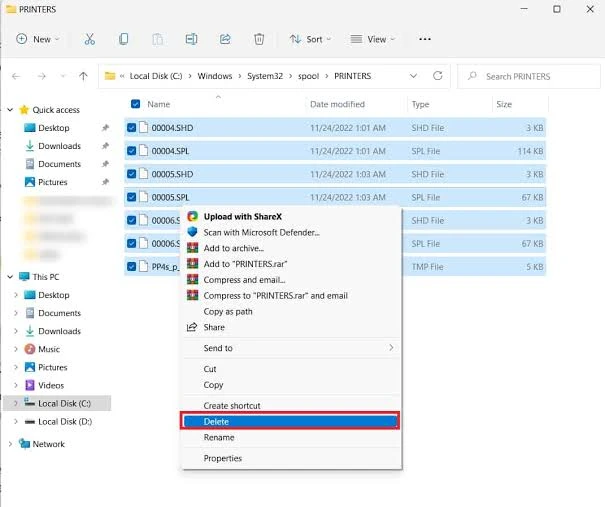
- Start Print Spooler.
net start spooler
How to Verify
In Services, confirm that Print Spooler shows Running . Submit one short test job and confirm that it leaves the queue.
Method 3: Update or Reinstall the Problem Printer Driver
When to Use
Use this when Print Spooler remains running until a print job is submitted, then stops. Find which printer triggers the failure before changing drivers.
Step-by-Step Guide
- Start Print Spooler, then submit one small test job to one printer at a time to identify the printer that triggers the stop.
- Check the affected printer's entries in Settings or Device Manager and remove only entries you have confirmed are duplicate or obsolete.
- Update or reinstall the driver for that exact printer model from the printer manufacturer's official support resource.
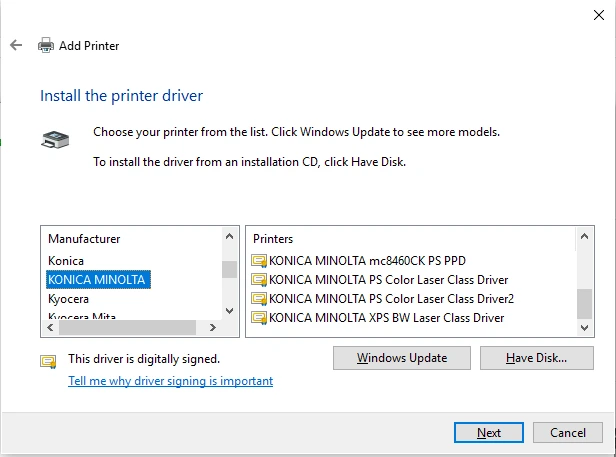
- Restart Windows.
- Submit one small test job to the same printer.
How to Verify
Confirm that the test job leaves the queue and Print Spooler remains running. If the failure appears only with another printer, repeat the identification step rather than removing unrelated drivers.
If Print Spooler Still Keeps Stopping
- Stops before any job is submitted: treat this as a Windows or service-level issue.
- Stops only when printing to one printer: focus on that printer and its driver.
- Stops after one document or app: test another document and another app to isolate the trigger.
- Works after a queue reset but fails again: check the driver and printer path that receives the next job.
Method 4: Diagnose and Fix the Problem with Fionn Printer Driver
When to Use
Use this when the cause is unclear or when you want a guided check of the printing environment. Fionn Printer Driver can scan installed printers, drivers, and related issues, then provide a repair or driver-installation workflow; results should still be verified with a test print.
Step-by-Step Guide
- Launch Fionn Printer Driver and click “Scan Now” to scan your computer for printer drivers and related issues.

- Wait while Fionn Printer Driver scans your system for installed printers, drivers, and common printer issues.

- After the scan finishes, click “One-Click Fix” to automatically install or repair the required printer driver.

- Wait for the repair to finish and confirm that the printer issue has been fixed successfully.

How to Verify
Send a small job to the affected printer. Confirm that the printer responds, the queue clears, and Print Spooler stays running.
Verification Checklist
- Print Spooler shows Running in Services.
- The affected printer queue has no pending or stuck documents.
- A small test document leaves the queue and reaches the printer.
- Print Spooler remains running after the job, not only before it is submitted.
- If relevant, a second document or app does not reproduce the stop.
Conclusion
Start with the visible queue, because a stuck job is the fastest condition to rule out. If it cannot be removed, stop Print Spooler, clear only the pending files inside the spool folder, and start the service again. When the service stops only after a job is submitted, identify the exact printer and repair its exact-model driver instead of deleting unknown drivers. For a broader guided check, Fionn Printer Driver can help review the printer environment. Verify every repair with a small test job and confirm the service remains running; if it stops before jobs are submitted, contact Microsoft support or your organization's IT support.
FAQ
Why does Print Spooler stop again after I restart it?
A pending job can retrigger the problem, or the failure can occur only when a particular printer driver processes a new job. The timing of the stop helps separate those paths.
Does clearing the spool folder delete my documents?
No. It removes pending print-job files from the queue, not the original documents. You must submit those documents again.
Should I remove every old printer driver?
No. Remove only entries you have confirmed are duplicates or obsolete. An unfamiliar driver may support another local or shared printer.
What if only one app or document stops Print Spooler?
Test a different document and app. If printing works elsewhere, the specific document, app, or its print settings may be the trigger.


