 Emily CarterData Recovery
The archive is either in unknown format or damaged means the extraction program cannot correctly recognize or read the archive; the message alone does not prove permanent damage. An unknown or unsupported format may be mislabeled, unsupported by the current extractor, or not be an archive at all, while a damaged archive may be incomplete, missing required volumes, or contain unreadable archive structures.
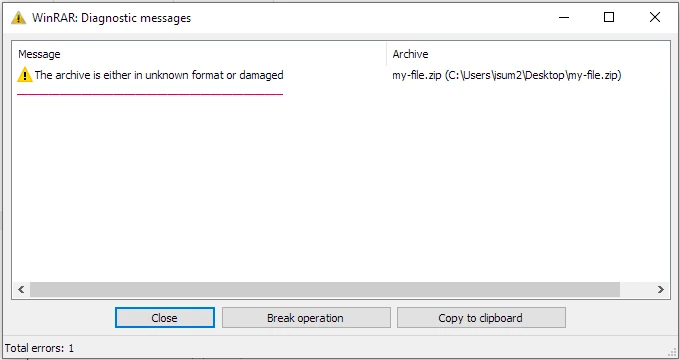
Symptoms
- An extraction program refuses to open one archive and shows the error.
- The file has an archive-like extension, but the program cannot display its file list.
- A file list appears, but extraction later reports CRC, Data, or Password errors.
- One tool fails while another can open the same file, or multiple compatible tools fail on it.
Quick Diagnosis Checklist
| What you observe | Likely direction | Next step |
|---|---|---|
| File is smaller than the source copy | Incomplete transfer | Use Method 1. |
| Filename and actual format do not match | Wrong or unsupported format | Use Method 2. |
| One compatible extractor fails and another works | Compatibility or format-handling difference | Use Method 2. |
| Multiple compatible extractors fail | Archive structure, transfer, or corruption is more likely | Check Method 1, then Method 3. |
| Multipart archive has missing parts | Incomplete volume set | Obtain every required volume before extracting. |
| File list is visible but extraction fails with CRC or Data Error | Extraction-stage problem | Troubleshoot that specific error separately. |
| Known damaged RAR or ZIP archive, or an earlier working copy exists | Repair or restore path | Use Method 3. |
| Original local files were deleted or lost | Local data recovery path | Use Method 4. |
Unknown Format vs Damaged Archive: How to Tell
The error message cannot determine whether an archive is unsupported or damaged. Use the source documentation to identify the actual file type, use a compatible extractor to assess format support, and compare source-provided size or checksum information to assess transfer integrity.
- Wrong actual format: verify the file type against source documentation.
- Unsupported compression format: try an up-to-date compatible extractor.
- Incomplete transfer: compare size and checksum, then obtain a fresh copy.
- Missing multipart volumes: collect the complete numbered volume set.
- Unreadable archive structure: investigate archive damage or an earlier copy.
- File list visible but extraction fails: treat CRC, Data, or Password messages as a separate extraction-stage scenario.
Quick Method Comparison
| Method | Best For | Efficiency | User Effort |
|---|---|---|---|
| Download a fresh copy | Downloaded, copied, or transferred archives | High | Low |
| Use the intended extractor | Known format or inconsistent results between tools | High | Medium |
| Repair or restore an earlier copy | Known RAR/ZIP damage or an available working version | Variable | Medium |
| Recover local source files | Deleted or lost originals on local storage | Variable | Low |
Method 1: Download a Fresh Copy
When to Use
Use this when the archive came from a download, attachment, cloud transfer, removable device, or other source that can provide the file again.
Step-by-Step Guide
- Keep the failed archive unchanged so you can compare it later.
- Check the file size published by the trusted source or sender.
- Compare a published checksum if one is available.
- Download or copy a replacement from the original trusted source and save it separately.
- Open the replacement and confirm it can display its file list and extract expected files.
How to Verify
The separate replacement opens, lists the expected contents, and extracts usable files. Matching file size alone does not prove archive integrity; a published checksum provides stronger confirmation when available.
Method 2: Open the Archive with Its Intended Extractor
When to Use
Use this when the source identifies an archive format or extraction application, or when the file may not match its filename extension.
Step-by-Step Guide
- Check the actual archive format against the source documentation or sender instructions.
- Get an up-to-date compatible extractor from its official publisher.
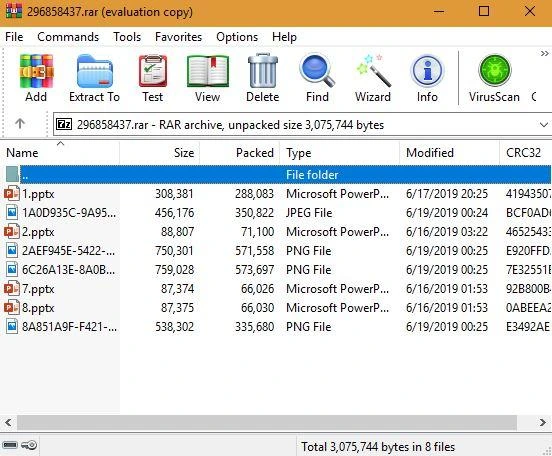
- Open the archive from within that extractor and check whether it displays a file list.
- When appropriate, compare the result in another compatible extractor.
- Investigate any CRC, Data, or Password message separately if the file list appears but extraction fails.
How to Verify
If one tool fails and another opens the archive, the result points to a compatibility or format-handling difference. If multiple compatible tools fail on the same file, investigate incomplete transfer, archive structure, or corruption instead.
Method 3: Try Archive Repair or Restore an Earlier Copy
When to Use
Use archive repair only when the file is confirmed as a RAR or ZIP archive and you have kept the original. Use an earlier copy when a known working archive exists in backup storage or version history.
Step-by-Step Guide
- Keep the damaged original unchanged.
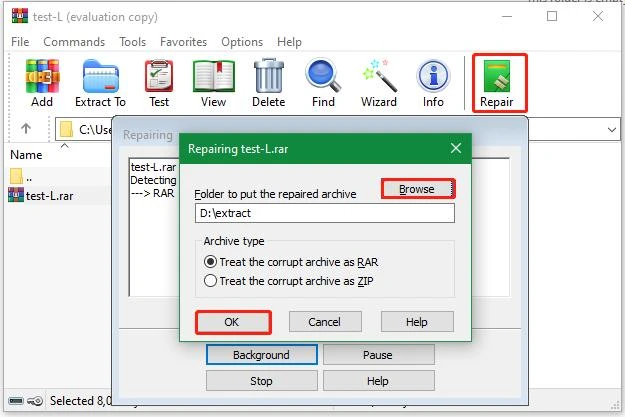
- For a confirmed RAR or ZIP archive in WinRAR, select the archive and use Tools → Repair archive , or the supported Repair command.
- Save the repair result to a separate location.
- Test the repaired archive and verify extracted files.
- If repair is unavailable or fails, check backup locations, file/version history, and other saved copies.
- Copy an earlier working archive to a separate destination and test its contents before replacing anything.
How to Verify
A repaired or earlier archive should display its expected file list and extract readable files to a new folder. WinRAR Repair is an attempt, not a guaranteed fix: support and results depend on the format and damage, and RAR recovery records can improve repair chances when present.
Method 4: Recover Source Files with Fionn Data Recovery
When to Use
Use this route only when original files or a usable previous archive existed on local storage and were later deleted, lost, or affected by formatting or storage problems. Fionn Data Recovery does not directly repair invalid archive headers or restore missing internal archive data from a single damaged internet download that never existed locally.
Step-by-Step Guide
- Launch Fionn Data Recovery and select the recovery option for the type of data or storage location you want to recover.

- Start the automatic scan and wait while Fionn Data Recovery searches the selected location for deleted or lost files.

- After the scan finishes, browse the results and preview the files to select the data you want to restore.

- Select a destination folder to save the recovered files, then start the recovery process.

How to Verify
Open recovered files from the separate destination and confirm the required content is present and readable. Stop writing to the affected device and save recovered files to a different disk to reduce overwrite risk.
Verification Checklist
- The chosen archive displays an expected file list in a compatible extractor.
- The archive extracts to the selected separate folder without the original error.
- Several extracted files open correctly in their normal applications.
- For recovery results, the required local source files are readable from the separate destination.
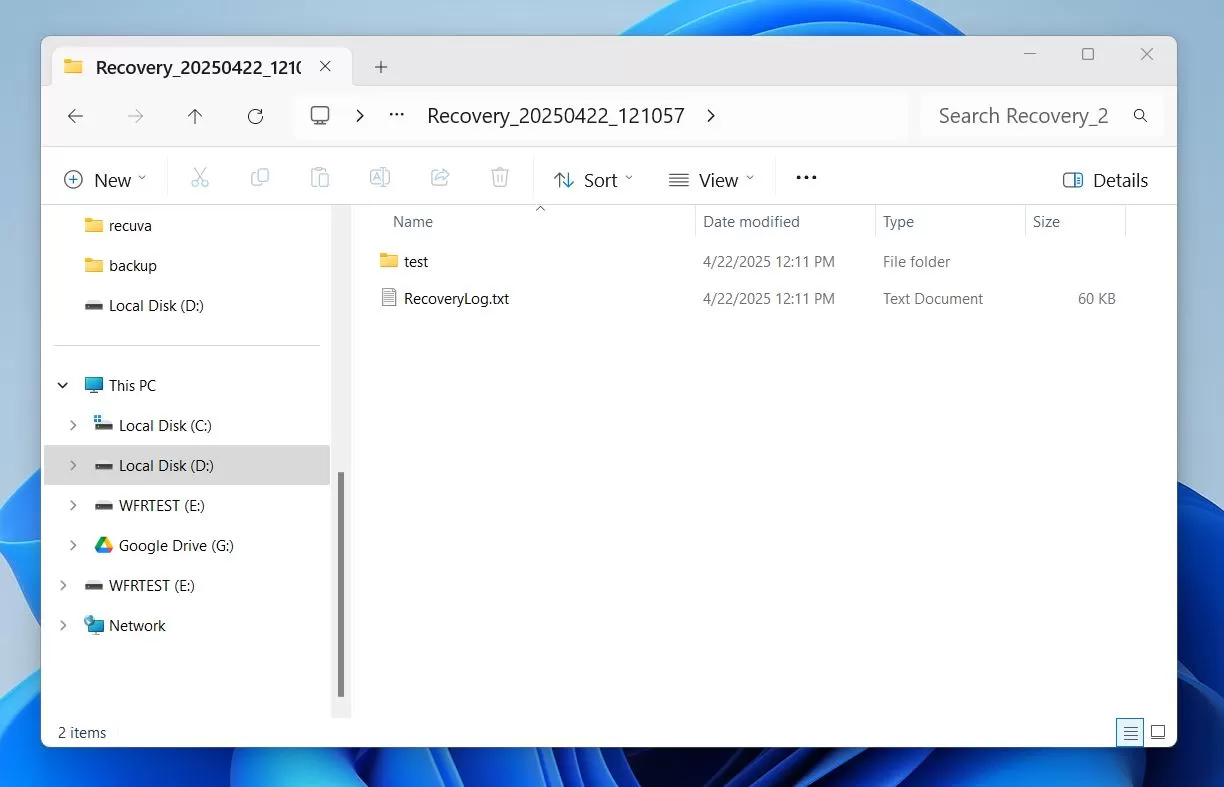
- The original failed archive remains available until the replacement, repair, or recovered files are verified.
Conclusion
Start by checking the source, actual file format, transfer integrity, and every required multipart volume. A fresh copy is usually the fastest test for a suspicious transfer; a compatible extractor then separates format handling from archive failure. For confirmed RAR or ZIP damage, try supported repair or restore an earlier copy without overwriting the original. Use Fionn Data Recovery only when locally stored originals or earlier archives were deleted or lost. If compatible tools still cannot read the file, ask the archive creator for a verified replacement or support guidance.
FAQ
What does the archive is either in unknown format or damaged mean?
It means the extraction program cannot correctly recognize or read the archive. The message does not by itself prove permanent corruption; the file may be mislabeled, unsupported, incomplete, or missing multipart volumes.
Why does WinRAR say the archive is damaged when another extractor can open it?
The two programs may handle a format or archive feature differently. If another compatible extractor displays the file list and extracts expected files, the result suggests a compatibility difference rather than conclusive archive damage.
Can WinRAR repair a damaged RAR or ZIP archive?
WinRAR can attempt repair for supported RAR or ZIP archives, but success is not guaranteed. Repair results depend on the archive format and the type of damage; RAR recovery records can improve the chance of repair when present.
Can missing multipart archive files cause this error?
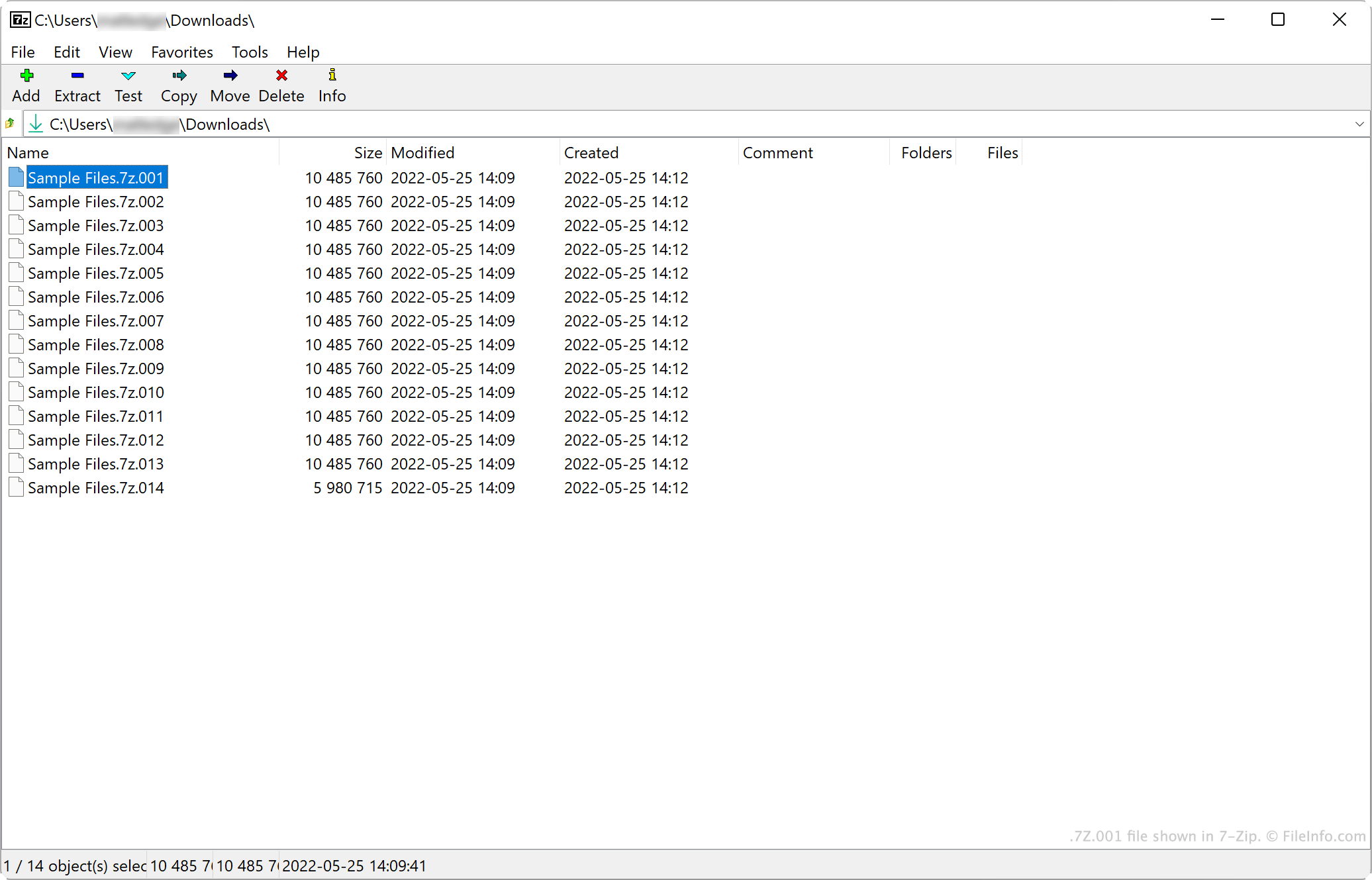
Yes. A split archive requires its complete set of numbered volumes, such as .part1.rar and .part2.rar or .7z.001 and .7z.002. Obtain all required parts and keep them together before extraction.
Can data recovery repair a damaged archive?
No. Data recovery does not repair invalid archive headers or missing internal data. It may help recover a deleted local archive or the original local files when those items previously existed on affected storage.


