 Emily CarterData Recovery
The message
cannot open file as 7z archive
usually means that 7-Zip cannot read the file structure. Common causes include an incomplete download or copy, damaged data, a missing part of a multipart set, a file with the
.7z
extension that is actually another format, or an invalid 7z file. First, determine whether the file list is visible: if it is not, check the archive itself; if the list is visible but extraction fails, that is a separate scenario. The three options below range from obtaining the archive again to finding lost original files.
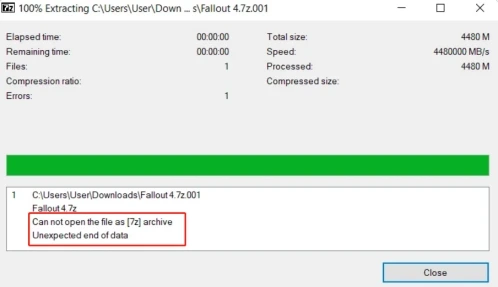
Error symptoms
- 7-Zip reports that it cannot open the file as an archive and does not display its contents.
- One 7z archive will not open even though other 7z archives open normally.
- The file transfer may have been interrupted, or the local size differs from the size at the source.
- The folder contains
.7z.001,.7z.002, and similar files, but one part is missing. - The file list is visible, but an error appears only during extraction or a password is requested.
If only one file will not open, the problem usually relates to that file. If several known-good archives will not open, check the installed archiver and its configuration.
Quick diagnosis: cannot open file as 7z archive
| Observation | Conclusion | Next step |
|---|---|---|
| 7-Zip does not display any files | Check transfer completeness, structure, actual format, and archive parts. | Method 1 or 2 |
| Other 7z archives open normally | The issue is likely specific to this file. | Method 1 |
The name ends in
.7z.001
,
.7z.002
| This is a multipart archive; all parts must be in the same folder. | Method 1 |
| Several compatible archivers cannot read the file | The file or archive structure is likely damaged or invalid. | Method 2 |
| Contents are visible, but extraction fails | This is not the same as being unable to open an archive. | Check the password and extraction error separately |
| A replacement copy is unavailable and the originals were deleted from storage | The original files may be searched for outside the archive. | Method 3 |
Method 1: Get the original archive again
When to use it
Use this method if the 7z archive will not open, the file list is unavailable, the transfer may not have completed, or the archive is split into parts.
Steps
- Keep the original copy and do not replace it until the new copy has been verified.
- Compare the local file size with the size at the source or provided by the sender, if that size is known.
- Download the archive again or copy it again, making sure that the transfer finishes.
- If files
.7z.001,.7z.002,.7z.003are present, make sure that every part is in the same folder. - Start opening the multipart set from the first part,
.7z.001, or from the part specified by the sender.
How to verify the result
The check is successful when the archiver displays the expected file list and a test file can be extracted and opened. Matching the source size is useful, but does not by itself prove that the archive is fully intact.
Method 2: Check the archive format and structure
When to use it
Use this approach when it is unclear whether the file is a valid 7z archive or when transferring it again did not help. It helps distinguish a file issue from a problem with one application.
Steps
- Confirm with the sender or source that the file is intended to be a 7z archive.
- Check the filename for signs of a multipart set and make sure all parts are beside the first part.
- Create a duplicate of the file for testing without altering the only copy.
- Open the duplicate with another trusted local application that supports 7z.
- If several compatible applications cannot read the file, treat the archive or file itself as likely damaged or invalid.
How to verify the result
If another compatible application displays the file list, the problem may be with the specific archiver. If no application can read the list, requesting a clean copy from the source is more practical than changing the extension or attempting to extract data that is not available.
What to do if the archive is damaged
A damaged 7z archive cannot always be fully repaired. Before testing anything, make a duplicate and do not alter the only copy. If the sender or original download location is available, a clean copy is preferable to repair attempts.
Whether individual files can be obtained depends on which part of the structure is damaged and what data remains readable. Do not expect a guaranteed archive repair.
Method 3: Recover original files with Fionn Data Recovery
When to use it
Use this method only when a working archive copy cannot be obtained, the archive cannot provide the needed files, and the originals previously existed on a local HDD or SSD, external drive, USB drive, SD card, or similar storage and were later deleted or lost. Fionn Data Recovery does not repair the internal structure of a damaged 7z archive: in this scenario, it searches for original files that existed outside the archive.
Steps
- Launch Fionn Data Recovery and select the location where the original files were previously stored.

- Scan the selected storage device for deleted or lost files.

- Browse the results and preview files that match the original files you need.

- Choose a destination folder on another drive and save the selected files.

How to verify the result
Open the recovered file from the destination folder in an appropriate application. Do not save results to the original storage device: new writes can overwrite data that has not yet been found. This method cannot help if the originals were never stored on the user's device and only a downloaded archive copy ever existed.
Verification checklist after the fix
- The archiver displays the file list without reporting that it cannot open the archive.
- All parts of the multipart archive are in one folder.
- The newly obtained file matches the available information from the source.
- At least one extracted file opens and contains the expected data.
- When searching for originals, the recovered file opens from the new destination folder.
Conclusion
Start with the key distinction: no file list points to transfer, structure, format, or missing-part issues; a visible list with failed extraction requires separate password and content checks. First obtain a clean copy and collect every part of a multipart set, then compare the behavior in another compatible archiver. If the archive cannot be restored from its source and the originals were deleted from local or external storage, Fionn Data Recovery may help find those original files. Complete any path by opening an extracted or recovered file; if the error persists, contact the sender or the archiver's official support.
Frequently asked questions
Why does 7-Zip say it cannot open the file as an archive?
Most often, the program cannot read the file structure because of an incomplete transfer, damage, an incorrect actual format, or a missing part of a multipart set.
What should I do if a .7z.001 file will not open?
Make sure all parts with the same base name are in one folder. Open the first part,
.7z.001
, rather than subsequent files.
Can a damaged 7z archive be recovered?
Some data may remain readable, but a complete repair is not guaranteed. When possible, obtain a clean copy from the original source.
Why does a file have a .7z extension but not open?
An extension does not confirm the internal format. The file may not be a 7z archive, may have been renamed, may be damaged, or may have downloaded incompletely.
Can an incorrect password cause this error?
Usually not when the file list is not displayed at all. Check an incorrect password when archive contents are visible but protected files cannot be extracted.
Can original files be recovered if the archive is damaged?
Yes, but only if the originals were previously on accessible local or external storage and were deleted or lost. This searches for original files; it does not repair the archive.


