 Emily CarterData Recovery
If you see cannot open file as archive , the file may have the wrong extension, an incomplete download, unsupported archive settings, or damage. Start with checks that do not alter the file: confirm what you received, obtain an intact copy, and then try a compatible extraction tool. If the archive was deleted, lost, or became inaccessible after a storage problem, recovery is a separate path. This guide covers four methods, ordered from the quickest diagnosis to file recovery.
Symptoms
- An extraction program reports that it cannot open the file as an archive.
- The file opens in one program but not another, or no extraction program recognizes it.
- The archive listing is empty, incomplete, or fails while extracting a particular item.
- The file size is unexpectedly small after a download, copy, email transfer, or sync operation.
- Several archives from the same source fail, while unrelated archives still open normally.
A failure limited to one file usually points to that file or its transfer. Failures across many archives can point to a file-association or extraction-tool compatibility issue. The message alone does not prove that Windows itself is damaged.
Quick Diagnosis Checklist
- Check the filename and source. If the extension does not match the file you expected, use Method 1.
- Compare the file size with the source. If a download, copy, or attachment seems incomplete, use Method 2.
- Try a second compatible extraction tool. If the file type appears correct but one program rejects it, use Method 3.
- Decide whether the original is missing or inaccessible. If the archive was deleted, lost after formatting, or is on a problem storage device, use Method 4.
Quick Method Comparison
| Method | Best For | Efficiency | User Effort |
|---|---|---|---|
| Confirm file type | A suspicious filename or unknown sender | High | Low |
| Get an original copy | Small, interrupted, or recently transferred files | High | Low |
| Use a compatible tool | One extraction program rejects a correctly identified file | Medium | Medium |
| Recover a previous copy | Deleted, lost, formatted, or inaccessible archive data | Depends on remaining data | Medium |
Method 1: Confirm the File Type and Extension
When to Use
Use this method when the archive came from an unfamiliar source, has a generic filename, or was renamed before you received it.
Step-by-Step Guide
- Locate the file in File Explorer and record its full filename.
- Check the file extension and compare it with the file type stated by the sender or download page.
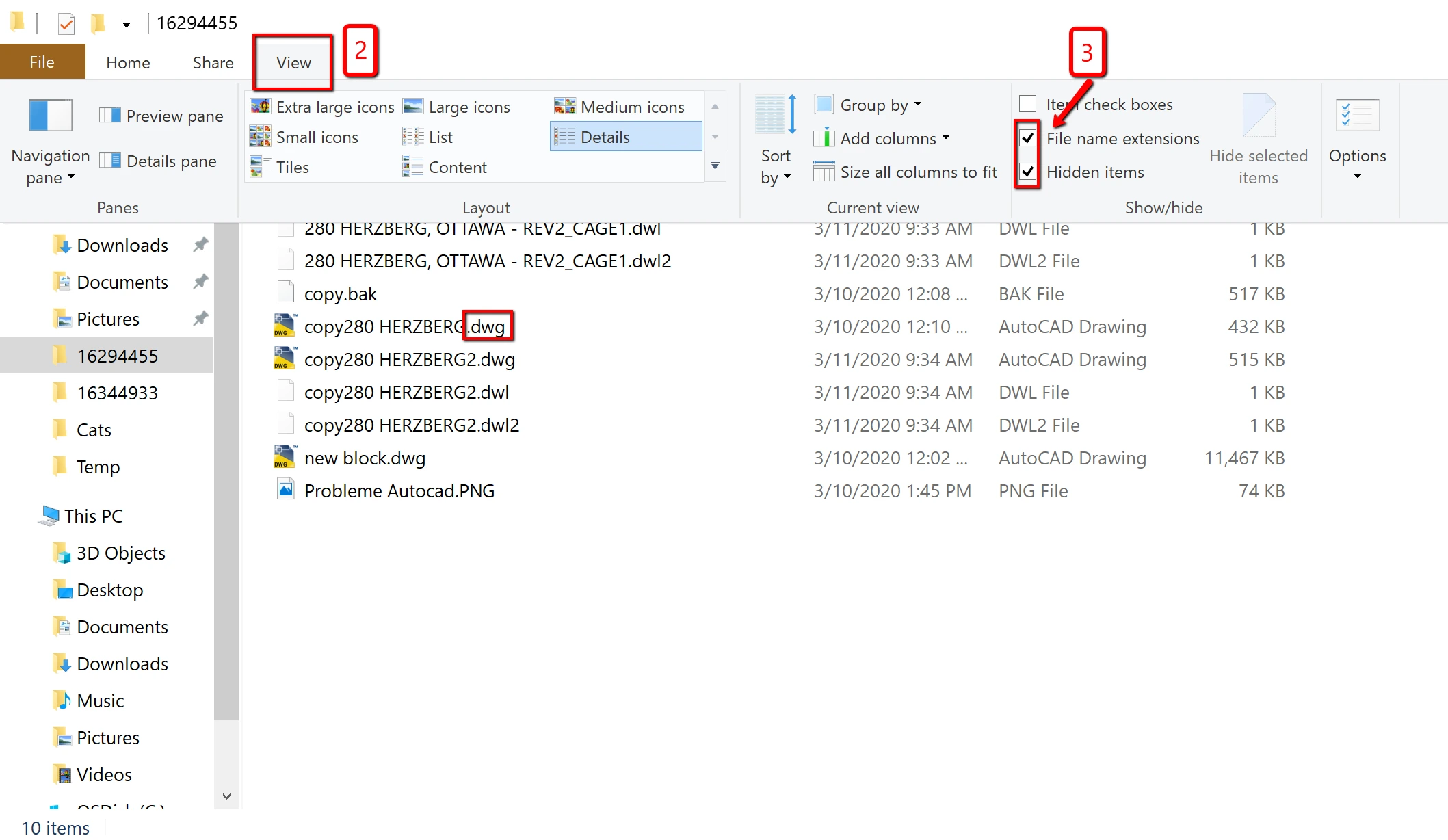
- Ask the sender or source owner to confirm the intended archive format when the extension is unclear.
- Restore the confirmed extension only if the original source verifies that extension.
How to Verify
The filename matches the source’s stated format, and an appropriate extraction tool identifies it as that format rather than returning the same generic archive error.
Method 2: Get a Complete, Original Copy
When to Use
Use this method when the file was downloaded, copied, attached to an email, or synchronized shortly before the error appeared.
Step-by-Step Guide
- Keep the failing file unchanged so you can compare it later.
- Check the source location for the expected file size or a newly available original copy.
- Download or copy the archive again from the original source.
- Save the replacement under a different filename and open that replacement with your extraction tool.
How to Verify
The replacement completes its transfer and displays the archive’s file list or starts extraction without the cannot-open message.
Method 3: Open the Archive with a Compatible Extraction Tool
When to Use
Use this method when the extension and file size look plausible, but the current program does not recognize the archive or stops before listing its contents.
Step-by-Step Guide
- Identify the archive format from the confirmed filename or source documentation.
- Choose an extraction tool that explicitly supports that format.
- Open a copy of the archive in the compatible tool.
- List the contents before extracting files to a new folder.
How to Verify
The tool displays a readable file list. Extract one non-critical item first and confirm that the extracted file opens as expected.
Method 4: Recover a Previous Copy with Fionn Data Recovery
When to Use
Use this path when the archive or its original copy was deleted, lost, or became unavailable after a formatting or storage issue. It does not promise to repair an archive that remains present but has invalid internal data. To reduce overwrite pressure, stop saving new data to the affected storage location where possible. Fionn Data Recovery scans locally in read-only mode and supports recovery from local disks and external storage.
Step-by-Step Guide
- Launch Fionn Data Recovery and select the recovery option for the type of data or storage location you want to recover.

- Start the automatic scan and wait while Fionn Data Recovery searches the selected location for deleted or lost files.

- After the scan finishes, browse the results and preview the files to select the data you want to restore.

- Select a destination folder to save the recovered files, then start the recovery process.

How to Verify
Open the recovered archive from the separate destination folder. Confirm that its contents can be listed, then extract and open one or more files. Saving recovery results to a different disk helps avoid overwriting data on the affected location.
Verification Checklist
- The archive opens without the cannot-open-file-as-archive message.
- The extraction tool shows a plausible list of folders and files.
- A test extraction completes to a separate folder.
- At least one extracted document, image, or other expected file opens normally.
- If you recovered a copy, the recovered archive is stored away from the affected location.
Conclusion
Start by confirming the file type, because an incorrect extension or unexpected file is not an archive-repair problem. Next, replace a possibly incomplete transfer with an original copy. When the archive is valid but one application rejects it, use a tool that supports the confirmed format and test extraction. If the original archive is gone or the storage location is affected, Fionn Data Recovery provides a recovery workflow with scan results and file preview. Verify success by listing the contents and opening extracted files. If no original copy opens, contact the archive’s creator or the relevant official support channel.
FAQ
Why does an archive file have the right extension but still will not open?
An extension is only a label. The underlying file may be incomplete, may not be the expected format, or may contain damaged archive data. Compare it with the original source before changing anything.
Will renaming the extension fix an archive error?
Usually no. Rename an extension only when the original source confirms that the filename was mislabeled. Renaming does not rebuild missing or damaged archive data.
How can I tell whether the download is incomplete?
Compare the received file size with the source’s stated size, or use a published checksum when available. Downloading the file again from the original source is a practical confirmation step.
Should I try another extraction program?
Yes, after confirming the format. A second compatible tool can show whether the issue is limited to the first program’s format support. It cannot make a genuinely incomplete file whole.
Can I recover an archive that was deleted from an external drive?
Recovery may be possible if recoverable data remains on the device. Avoid writing new data to that device, scan it, preview candidate files, and save any recovered archive to another disk.


