 Emily CarterData Recovery
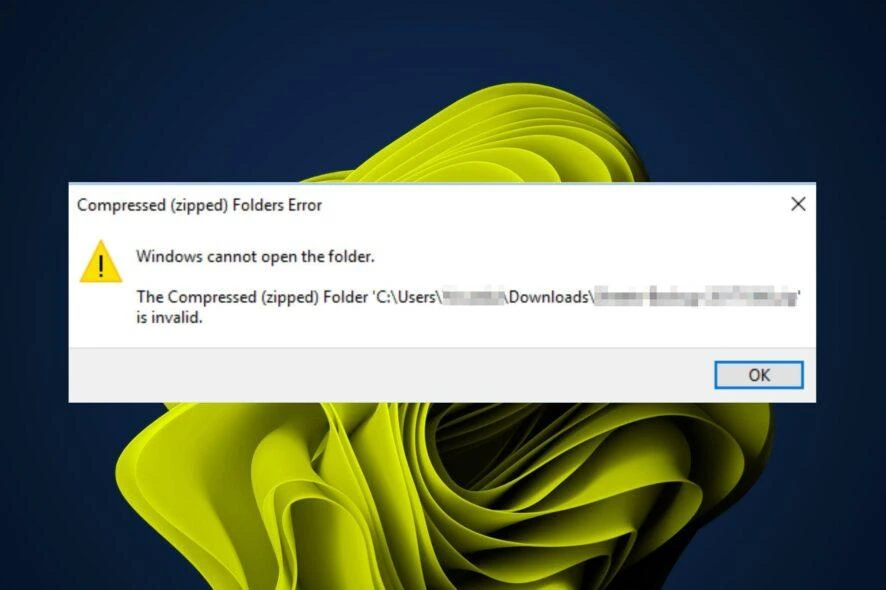
If you cannot open file as zip archive , its internal directory structure may be unreadable, the transfer may be incomplete, the real format may differ from its extension, or the extractor may not support an archive feature. ZIP archives normally use a central directory and an End of Central Directory record to locate entries; if either is missing, damaged, or unreadable, an extractor may fail to open the archive.
Symptoms
- Windows File Explorer or an extraction app reports an invalid ZIP archive, unreadable archive, data error, or header error.
- The ZIP file won't open after downloading, emailing, copying, or moving it to removable storage.
- One ZIP fails while other ZIP files open normally, indicating a file-specific problem rather than a Windows-wide issue.
- The file list appears, but one or more files fail during extraction with a CRC, data, or password error.
Quick Diagnosis Checklist
| What you observe | Likely cause | Next step |
|---|---|---|
| The ZIP is smaller than the source-provided size. | Incomplete transfer. | Use Method 1. |
| File Explorer cannot open it, but 7-Zip can. | Compatibility or format-handling difference. | Use Method 2. |
| Multiple compatible tools cannot list files. | Damaged ZIP structure, wrong format, or incomplete data. | Use Method 2, then Method 3 if ZIP format is confirmed. |
| The file list is visible but extraction fails. | A specific CRC, data, or password error. | Record the error and use Method 3 or obtain a complete copy. |
| Archive creation did not finish. | The central directory or end record may be incomplete. | Use Method 1 or Method 3. |
| An earlier working ZIP exists. | A usable prior version is available. | Use Method 3. |
| A locally stored ZIP was deleted or lost. | Lost local data. | Use Method 4. |
Quick Method Comparison
| Method | Best For | Efficiency | User Effort |
|---|---|---|---|
| Download or copy again | An incomplete ZIP download or transfer | High when a trusted source is available | Low |
| Verify format and test another extractor | Uncertain file type or one-app failures | High for diagnosis | Low |
| Repair or restore an earlier copy | Confirmed ZIP damage with no replacement | Variable | Moderate |
| Recover a lost local ZIP | Deleted or lost archives on supported local storage | Depends on recoverability | Moderate |
Why a ZIP File Cannot Be Opened
A ZIP file can have a valid
.zip
extension but still lack the internal structures an extractor needs to locate its files. The central directory lists archived entries, while the End of Central Directory record helps the extractor find that list.
An interrupted download or unfinished archive-creation process can leave those records incomplete. A corrupted ZIP file can also retain a visible filename while its directory information is unreadable.
Finally, an extension alone cannot verify the actual archive format. Different extractors can support different ZIP features, so comparing File Explorer with a compatible extractor helps separate compatibility issues from structural damage.
Method 1: Download or Copy the Archive Again
When to Use
Use this method when the ZIP came from a website, email, shared folder, USB drive, or another source where transfer completion is uncertain.
Step-by-Step Guide
- Keep the failed ZIP unchanged.
- Check the original source for an expected file size or checksum.
- Download or copy a new ZIP from the trusted source.
- Save the replacement separately from the failed file.
- Compare the size and checksum when available.
- Test whether the file list appears and expected files extract.
How to Verify
A successful replacement lists the expected files and extracts them without errors. File size alone does not prove integrity; a matching source-provided checksum is stronger evidence.
Method 2: Verify the ZIP Format and Test Another Extractor
When to Use
Use this method when the source is uncertain, the filename may have been changed, or File Explorer cannot open the ZIP archive.
Step-by-Step Guide
- Check whether the source actually provided the file as a ZIP archive.
- Try opening the ZIP in Windows File Explorer.
- If Windows cannot open it, test a copy with an up-to-date compatible extractor such as 7-Zip.
- Check whether the file list appears.
- Use the available Test function to check the archive.
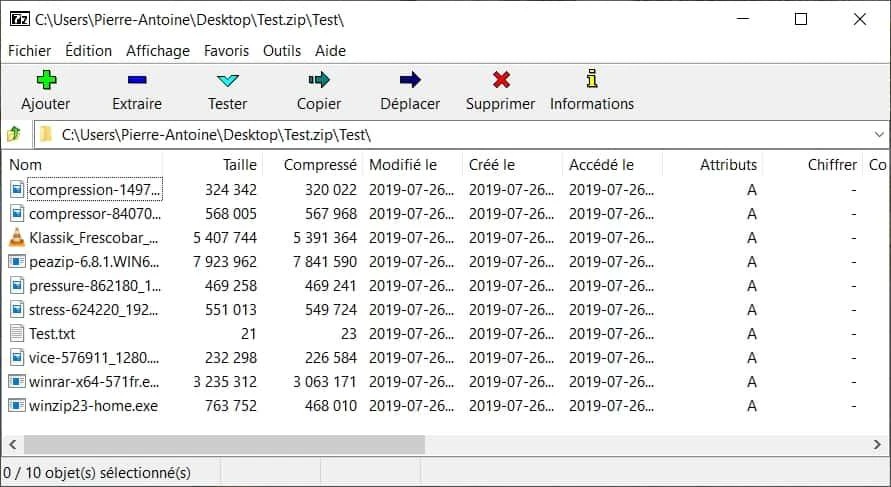
- Record any specific CRC, Data, Header, or unsupported-method error.
How to Verify
If Windows fails but 7-Zip succeeds, the result suggests a compatibility or format-handling difference. If multiple compatible tools cannot list contents, investigate damaged or incomplete ZIP structure. If the list appears but extraction fails, troubleshoot the recorded extraction-stage error.
Method 3: Repair the ZIP or Restore an Earlier Copy
When to Use
Use this method only after confirming the file is a ZIP archive, when a complete replacement is unavailable, its structure may be damaged, or an earlier usable copy may exist.
Step-by-Step Guide
- Keep the original ZIP unchanged.
- Open WinRAR and select the confirmed ZIP archive.
- Choose
Tools
→
Repair archive
.
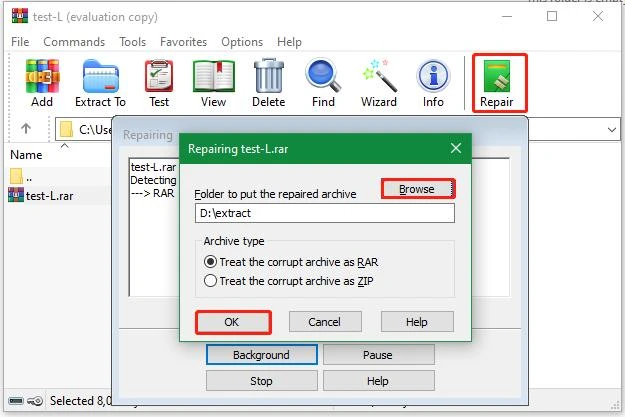
- Save the repair result separately.
- Test the resulting archive and verify extracted files.
- Restore an earlier usable copy from a backup, sent attachment, cloud version history, or original device when one exists.
How to Verify
Verify the repaired or restored archive by listing its contents and opening extracted files. ZIP repair is not guaranteed: repairing directory information does not guarantee restoration of compressed file data. A working backup is often more reliable.
Method 4: Recover a Lost ZIP File with Fionn Data Recovery
When to Use
Recommended only when a previous ZIP archive or its original source files existed on supported local storage and were later deleted, lost, or affected by formatting or storage problems. It does not apply to an incomplete internet download whose missing data was never stored locally. Fionn Data Recovery does not reconstruct missing ZIP central-directory information or directly repair a corrupted ZIP archive.
Step-by-Step Guide
- Launch Fionn Data Recovery and select the recovery option for the type of data or storage location you want to recover.

- Start the automatic scan and wait while Fionn Data Recovery searches the selected location for deleted or lost files.

- After the scan finishes, browse the results and preview the files to select the data you want to restore.

- Select a destination folder to save the recovered files, then start the recovery process.

How to Verify
Open the recovered ZIP from the different destination folder, then confirm that it lists contents and that at least one extracted file opens correctly.
Verification Checklist
- The archive opens without an invalid ZIP archive or unreadable-directory error.
- The file list contains expected folders and filenames.
- The extractor test completes without relevant errors, or any remaining error is recorded.
- A sample file extracts to a separate folder and opens normally.
- The verified working ZIP remains separate from failed originals and repair output.
Conclusion
When you cannot open file as zip archive, first obtain a complete copy and compare a source-provided checksum when possible. Next, confirm that the source identifies a real ZIP and compare File Explorer with a compatible extractor. If the ZIP format is confirmed but the structure is damaged, try ZIP repair without changing the only original, or restore an earlier working copy. For a deleted local archive, Fionn Data Recovery can help locate recoverable files, but it cannot repair missing ZIP structure. Verify every result by listing and extracting files; if all copies fail, request a new archive from its creator.
FAQ
Why can't I open a ZIP file even though it has a .zip extension?
The extension is only a filename label. The file may be incomplete, structurally damaged, another format, or a ZIP feature that the current extractor cannot handle.
What does a missing ZIP central directory mean?
The central directory helps an extractor find the archived entries. If it is missing or unreadable, the extractor may be unable to display the file list even when the file name ends in
.zip
.
Why can 7-Zip open a ZIP file that Windows cannot?
The two tools can differ in format handling and supported ZIP features. If 7-Zip opens and tests the archive successfully, the issue is more likely compatibility than missing archive data.
Can a damaged ZIP file be repaired?
Sometimes, but ZIP repair is not guaranteed. A repair may restore directory information without restoring damaged compressed data, so test extracted files and keep the original unchanged.
What if the ZIP file list is visible but extraction fails?
Note the exact CRC, data, password, or other extraction error. That result indicates the archive can be listed but one or more entries still need a complete replacement, a repair attempt, or a working earlier copy.
Can Fionn Data Recovery repair an invalid ZIP archive?
No. Fionn Data Recovery is for locating deleted or lost local files; it does not rebuild an invalid ZIP archive or reconstruct missing central-directory information.


