 Emily CarterData Recovery
If the USB drive still appears in File Explorer or Disk Management, stop saving anything to it and recover files to a different drive. Start with an existing backup if one is available; otherwise, use a recovery tool while Windows can still detect the USB drive. This guide covers three paths: restoring a known-good copy, using Windows File Recovery, and scanning the USB drive with Fionn Data Recovery. If the drive is physically broken, repeatedly disconnecting or repairing it can make professional recovery harder.
Quick Method Comparison
| Method | Best For | Efficiency | User Effort |
|---|---|---|---|
| Restore an existing backup | You have a copied or backed-up version | High | Low |
| Windows File Recovery | A detected USB drive with deleted or formatted files | Variable | High |
| Fionn Data Recovery (Recommended) | A detected USB drive when you need scan results and file previews | High | Low to moderate |
Method 1: Restore an Existing Backup
When to use: Use this first when the missing files were previously copied to another drive, a backup service, or a work-managed backup location. It restores a known copy without reading the damaged USB drive.
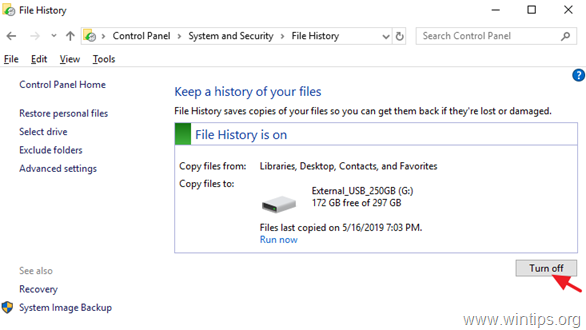
- Locate the most recent backup made before the files disappeared.
- Copy the needed files to a healthy internal drive or a different external drive.
- Open several restored files to confirm they contain the expected content.
Verification: Compare filenames, sizes, and opening behavior with what you expect. If no usable backup exists, continue to a recovery method.
Method 2: Use Windows File Recovery
When to use: Choose this command-line option when Windows assigns the USB drive a letter and the files were deleted, lost after formatting, or are on a corrupted volume. Microsoft supports recovery from USB storage. For FAT or exFAT USB drives, and for a corrupted or formatted drive, Microsoft recommends Extensive mode.
- Connect a separate destination drive with enough free space; it must not be the damaged USB drive.
- Check the USB drive letter and file system in File Explorer by right-clicking the drive and selecting Properties.
- Install and open Windows File Recovery from Microsoft.
- Run an Extensive recovery command, replacing
F:with the USB source andE:with the separate destination drive.
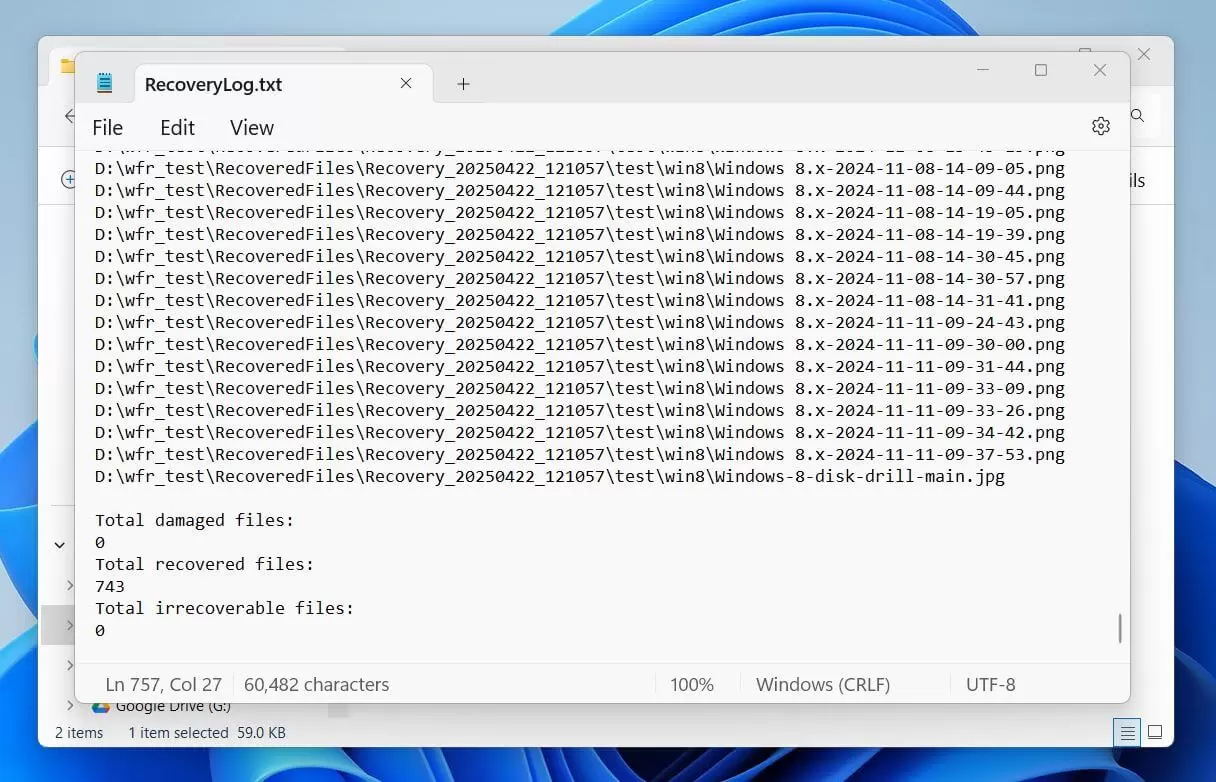
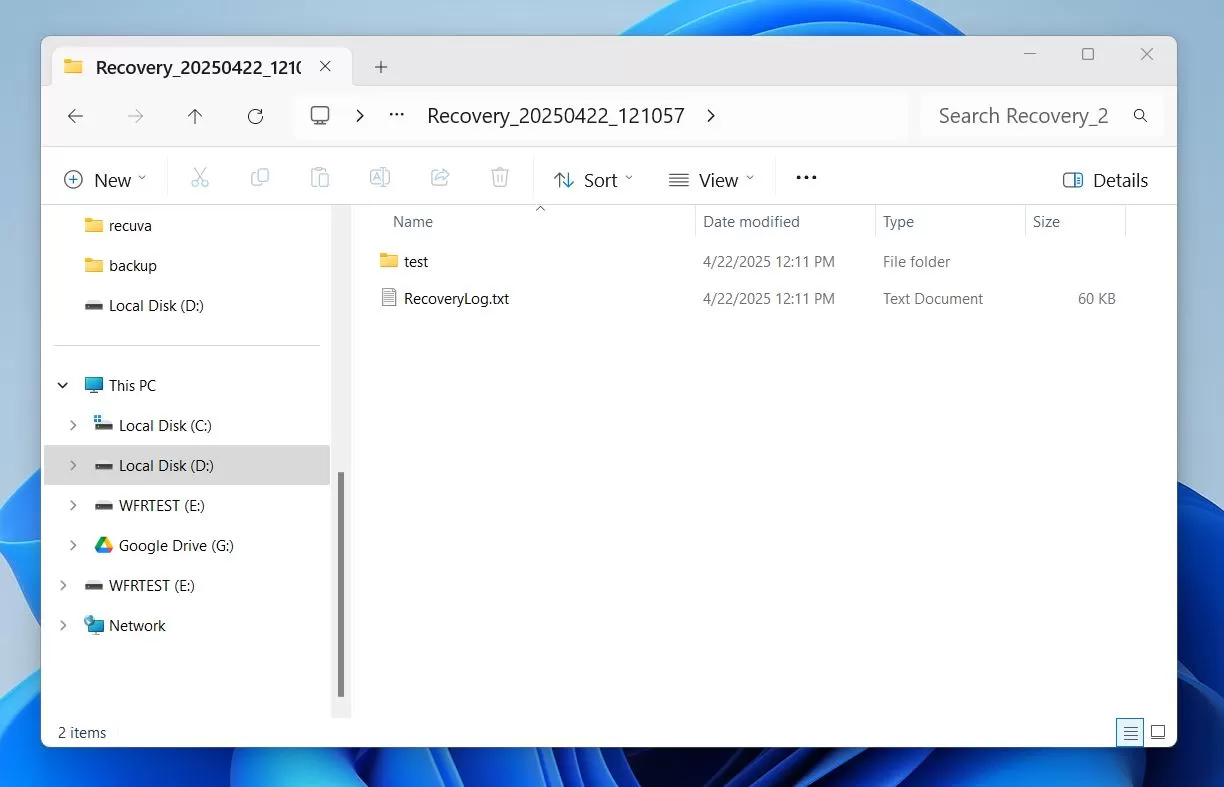
winfr F: E: /extensive /n *Verification: Windows File Recovery creates a time-stamped recovery folder on the destination drive. Review that folder and open representative files.
Method 3: Fix USB File Loss with Fionn Data Recovery
When to use: This is a practical option for a USB drive that Windows still detects when you want to browse scan results and preview files before restoring them. Fionn Data Recovery supports USB drives, can scan for lost files, and provides result filtering and previews.
- Launch Fionn Data Recovery and select the recovery option for the type of data or storage location you want to recover.

- Start the automatic scan and wait while Fionn Data Recovery searches the selected location for deleted or lost files.

- After the scan finishes, browse the results and preview the files to select the data you want to restore.

- Select a destination folder to save the recovered files, then start the recovery process.

Verification: Open recovered files from the destination folder. Previewing files before recovery can help you choose files whose content appears intact.
Conclusion
For the best chance of success, first restore a verified backup. If the USB drive is detected but the files are missing, use Windows File Recovery when you are comfortable with a command-line workflow, especially for a formatted, corrupted, FAT, or exFAT drive. For a scan-and-preview workflow, Fionn Data Recovery can help recover files to a separate location. Verify recovery by opening representative documents, photos, or videos. If Windows cannot detect the USB drive or the connector, casing, or electronics are damaged, stop attempting repairs and contact a professional data-recovery service.
Frequently Asked Questions
Can I recover files from a USB drive that asks to be formatted?
Possibly, if Windows still detects the drive. Do not accept the format prompt. Use a recovery approach that saves results to a different drive.
Can I save recovered files back to the damaged USB drive?
No. Saving to the source USB drive may overwrite lost data. Always select another internal or external destination drive.
Which Windows File Recovery mode should I use for a USB drive?
Microsoft recommends Extensive mode for FAT and exFAT devices, and for a corrupted or formatted disk. For recently deleted files on NTFS, Regular mode may be a starting point.
What if the USB drive is not detected by Windows?
Software recovery requires Windows to detect a storage device. Avoid repeated connection attempts if the drive is physically damaged; professional assessment may be the appropriate next step.


