 Emily CarterData Recovery
If you formatted a drive by mistake, stop using it immediately and avoid saving anything back to it. Recovery is more likely when the old data has not been overwritten. This guide explains four methods: check Windows recovery options, use a backup, run Windows File Recovery, and use Fionn Data Recovery (Recommended) for a guided scan-and-preview workflow. Start with the least invasive option that matches your situation, then verify restored files from a separate destination.
Prerequisites and immediate precautions
- Stop copying, downloading, installing, or formatting on the affected disk.
- Prepare a second disk with enough free space for recovered files.
- If the disk is making unusual noises or disconnecting, limit use and consider professional recovery.
Quick Method Comparison
| Method | Best For | Efficiency | User Effort |
|---|---|---|---|
| Check Previous Versions | A folder had restore points before formatting | Fast | Low |
| File History or backup | You already maintained a backup | Variable | Low |
| Windows File Recovery | Command-line recovery when backups are unavailable | Variable | High |
| Fionn Data Recovery (Recommended) | Formatted local or external storage needing scan, filtering, and preview | Guided | Low |
Choose by scenario: use a backup when one exists; try Windows tools when the volume is still readable; use a scan-and-preview workflow when the format removed normal paths or the device is external.
Method 1: Check Previous Versions
When to use: The files were stored in a Windows folder protected by File History or restore points, and the folder still appears.
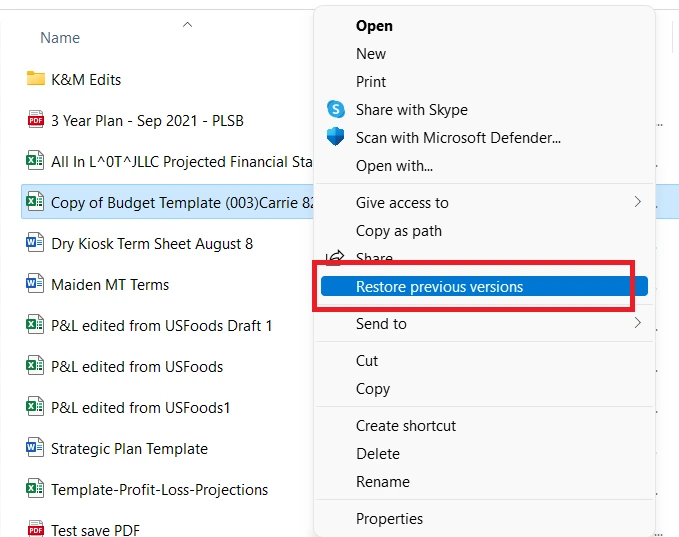
- Open File Explorer and browse to the folder that contained the files.
- Right-click the folder, choose
Properties, then openPrevious Versions. - Select a dated version, choose
Opento inspect it, and copy needed files to another disk.
Expected result: An earlier folder version is available and the files open normally.
Note: A freshly formatted volume may not retain accessible previous versions. If the tab is empty, continue without writing to the source.
Method 2: Restore from File History or another backup
When to use: You have an external backup, File History copy, cloud-synced folder, or system image created before formatting.
- Connect the backup device or sign in to the backup service used before the format.
- Open its restore interface and select a backup dated before the formatting event.
- Restore files to a different destination, then open representative documents, photos, or videos to verify them.
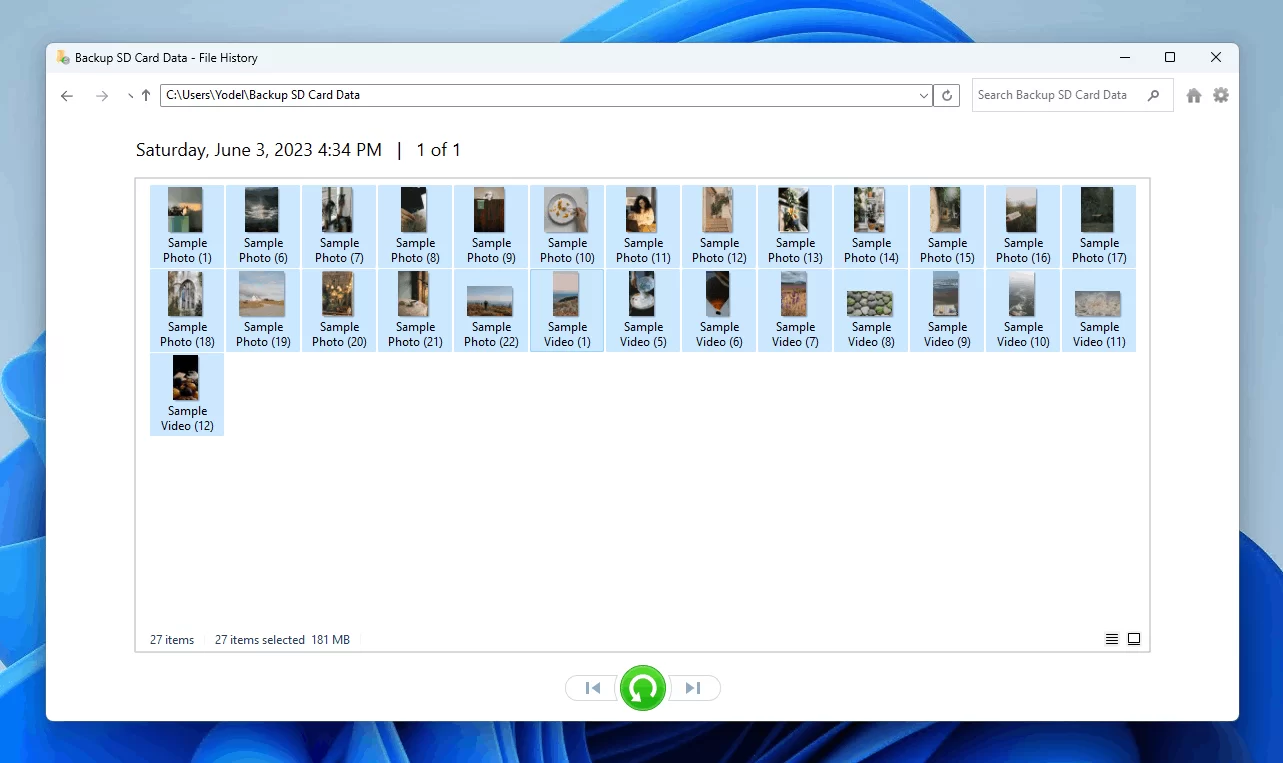
Expected result: The restored copy contains the needed files and opens without errors.
Method 3: Use Windows File Recovery
When to use: No usable backup exists, the source drive is still detected, and you can work with a command-line utility. Windows File Recovery uses a separate source and destination drive.
- Install Windows File Recovery from the Microsoft Store on a healthy system drive.
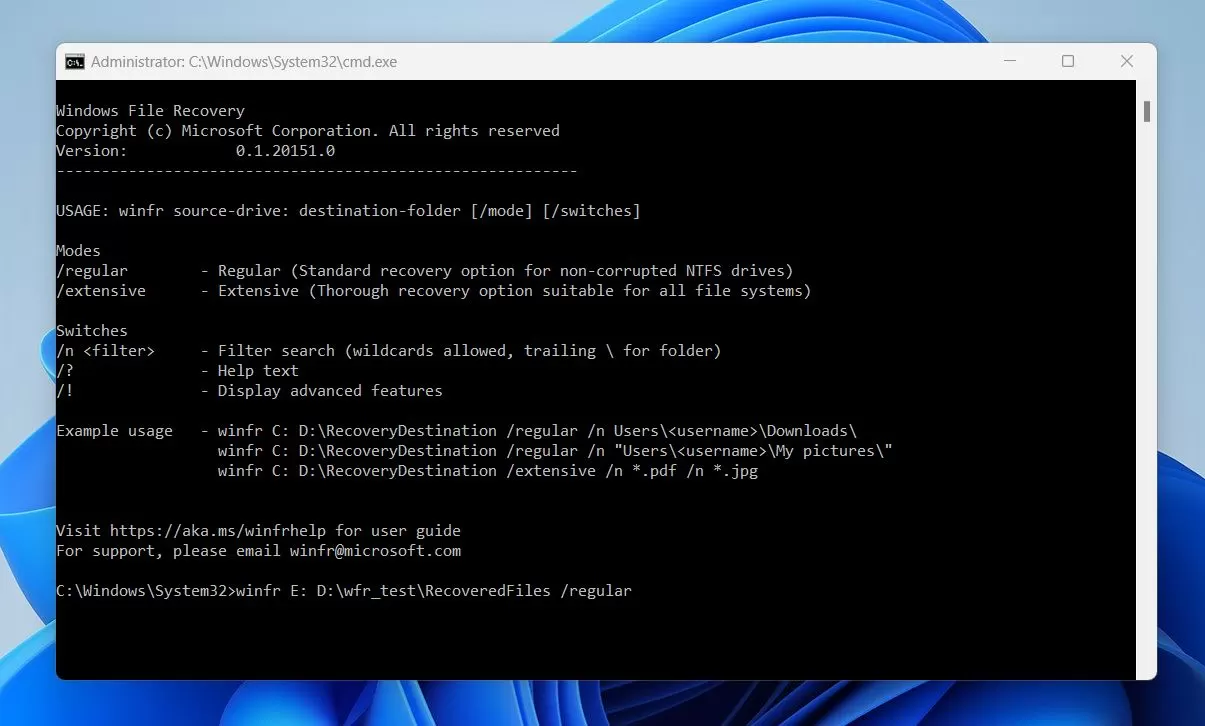
- Connect a destination drive and note the source and destination drive letters in File Explorer.
- Run a recovery command that matches the file system and loss scenario, following Microsoft’s current syntax and mode guidance.
- Review the recovered output on the destination drive and open several files to check integrity.
Expected result: Recovered files appear in the destination location, although original names or folders may not always be preserved.
Method 4: Fix formatting loss with Fionn Data Recovery
Recommended for: A formatted local disk, external hard drive, USB drive, SD card, or camera card where you need guided scanning, filtering, and preview before recovery. Fionn Data Recovery scans locally in read-only mode and does not upload files, according to the supplied product facts.
- Launch Fionn Data Recovery and select the recovery option for the type of data or storage location you want to recover.

- Start the automatic scan and wait while Fionn Data Recovery searches the selected location for deleted or lost files.

- After the scan finishes, browse the results and preview the files to select the data you want to restore.

- Select a destination folder to save the recovered files, then start the recovery process.

Use the quick scan first. If the target is missing, continue with deep scan or RAW scan by file signature. You can filter results by name, location, type, time, and size, and pause or resume a deep scan. Save every recovered file to a different disk.
Expected result: The files you select are written to the separate destination and can be checked without changing the source device.
Tips and common mistakes
- Do not reinstall software or download large files onto the formatted volume.
- Connect the affected device directly and keep it stable during a scan.
- Preview several files from different folders before trusting a recovery result.
- If a scan finds nothing, stop repeated experiments and reassess whether the device is failing physically.
Conclusion
To recover data after formatting, first stop writes and check whether a backup or previous version can restore the files. If no backup exists, Windows File Recovery is a command-line option when the drive remains readable. For formatted internal or external storage that needs filtering and preview, Fionn Data Recovery provides a guided scan workflow and supports saving results elsewhere. Verify recovery by opening representative files from the destination, not the source. If the device disconnects, makes unusual sounds, or remains unreadable, minimize further use and seek a specialist.
FAQ
Can data be recovered after a quick format?
Sometimes. Recovery depends on whether new data has overwritten the old sectors and whether the storage device remains readable. Stop writing immediately and scan from another system or destination.
Should I format the drive again before recovery?
No. A second format can overwrite metadata or data that recovery tools need. Preserve the device and work from a separate destination.
Why must recovered files be saved to another disk?
Saving to the source can overwrite sectors that still contain recoverable fragments, reducing the chance of a usable result.
What is the difference between quick, deep, and RAW scans?
A quick scan checks common file-system structures, a deep scan searches more thoroughly, and a RAW scan looks for known file signatures. Deep and RAW scans can take longer and may return less original folder information.
Which devices can Fionn Data Recovery scan?
The supplied product facts list local disks, external hard drives, USB drives, SD cards, and camera memory cards. Supported file categories include images, video, audio, documents, email, databases, and compressed files.
CTA
If you need a guided way to scan a formatted device, explore Fionn Data Recovery and keep the recovery destination separate from the source.


