 Emily CarterPrinter Drivers
If an HP Laser 107a is not detected, appears offline, or will not print, first confirm the exact model, your Windows version, and whether the printer is connected by USB. Then use one of the routes below to install or repair the driver. Fionn Printer Driver is a practical first option when you want a scan for driver and print-environment issues; HP Support and Windows Settings remain useful manual alternatives.
A completed installation is not the same as a working printer. Finish by printing a Windows test page. If the page does not print, check the cable connection, print queue, and printer status before downloading another driver.
Before You Start
- Confirm that the label on the printer says HP Laser 107a , not a similarly named model.
- For a USB setup, connect the printer directly to the Windows PC, turn it on, and make sure paper is loaded.
- Note whether the problem is a missing printer, an unavailable driver, or a printer that is installed but cannot print. These symptoms point to different next checks.
Quick Method Comparison for the HP Laser 107a Driver
| Method | Best For | Efficiency | User Effort |
|---|---|---|---|
| Fionn Printer Driver | Unclear driver or printing issue | Scan-led | Low |
| HP Support | Choosing the driver offered for the exact model and Windows version | Manual | Medium |
| Windows Settings | A powered USB printer that Windows has not added | Built into Windows | Low to medium |
Method 1: Install the Driver with Fionn Printer Driver
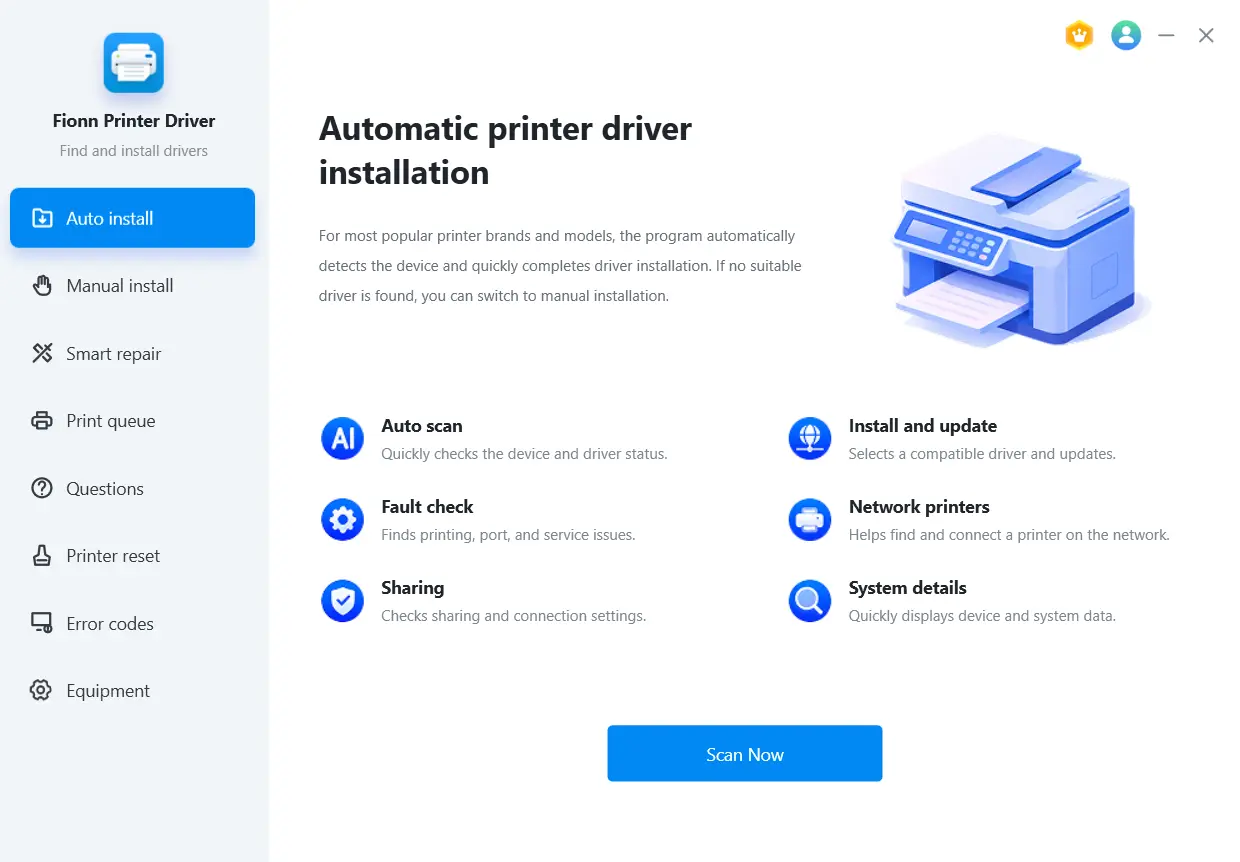
Use Auto install in Fionn Printer Driver to look for a matching driver. Check the exact printer model before installing.
- Turn on your printer and connect it to your computer. Open Fionn Printer Driver, select Auto install in the sidebar, and click Scan Now.
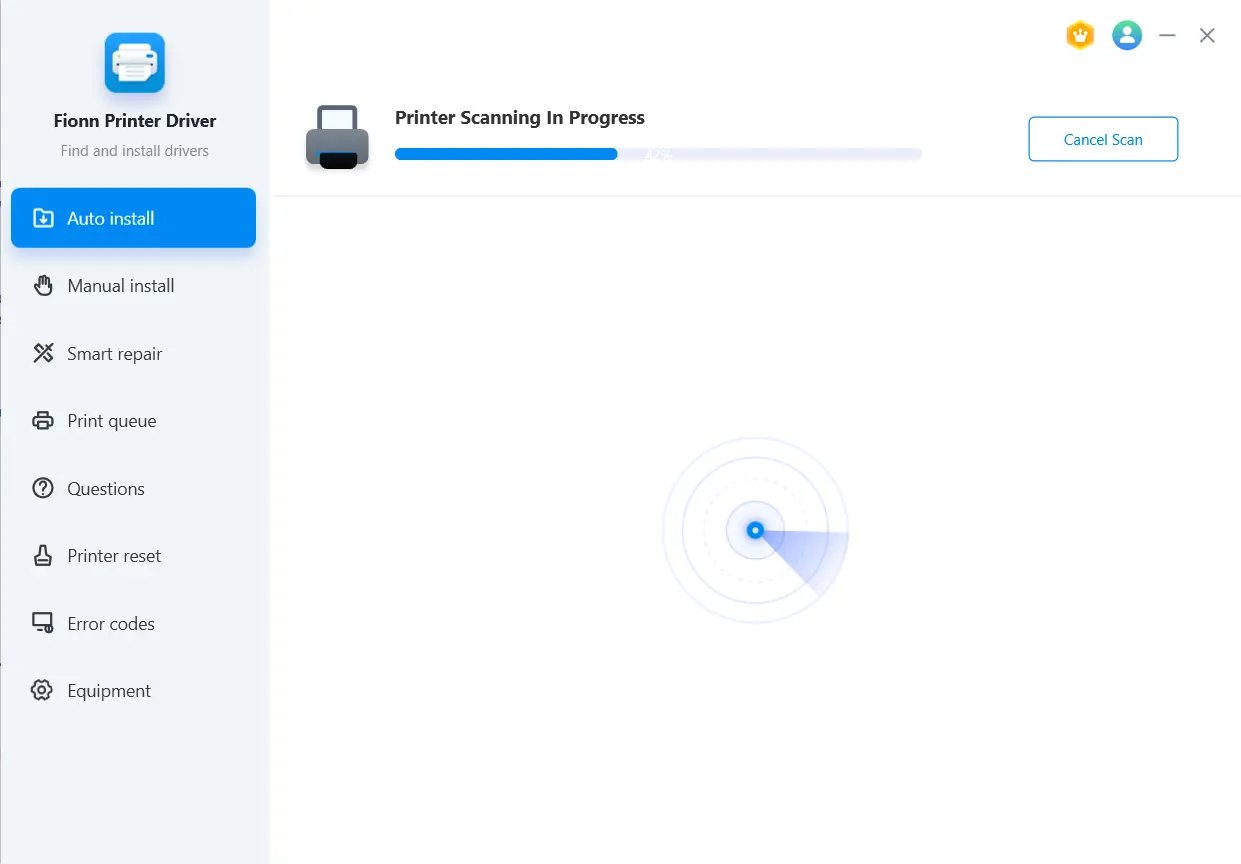
- Keep the printer connected while the scan runs. Wait for the detected printer and the driver list to appear.
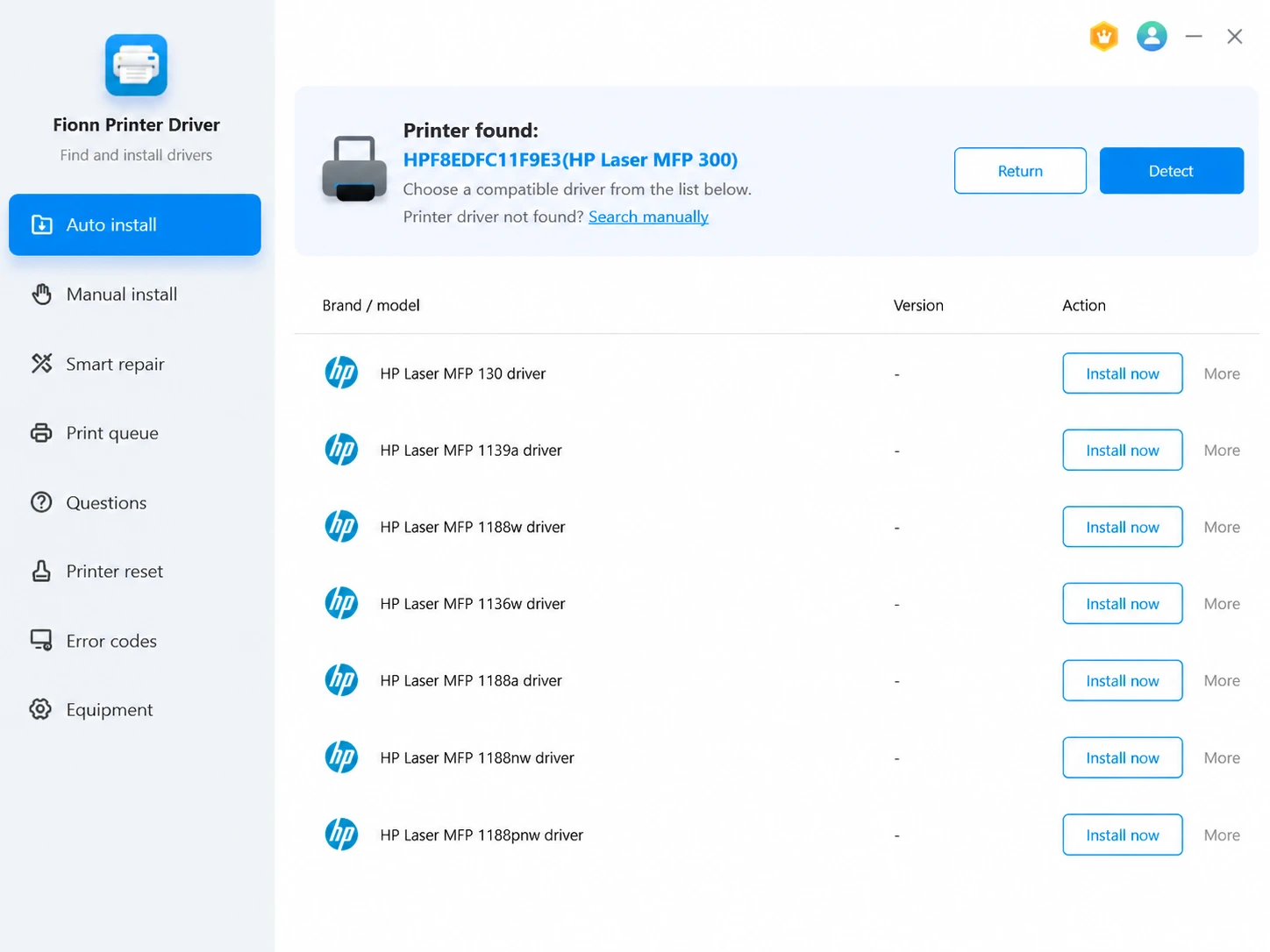
- Confirm the printer’s exact model, then click Install now next to the matching driver. If you don’t see a match, click Search manually and look up the full model name.
- When the dialog shows Download Complete, click Install & Fix Drivers and follow the prompts. After installation, print a test page from Windows to confirm the printer works.
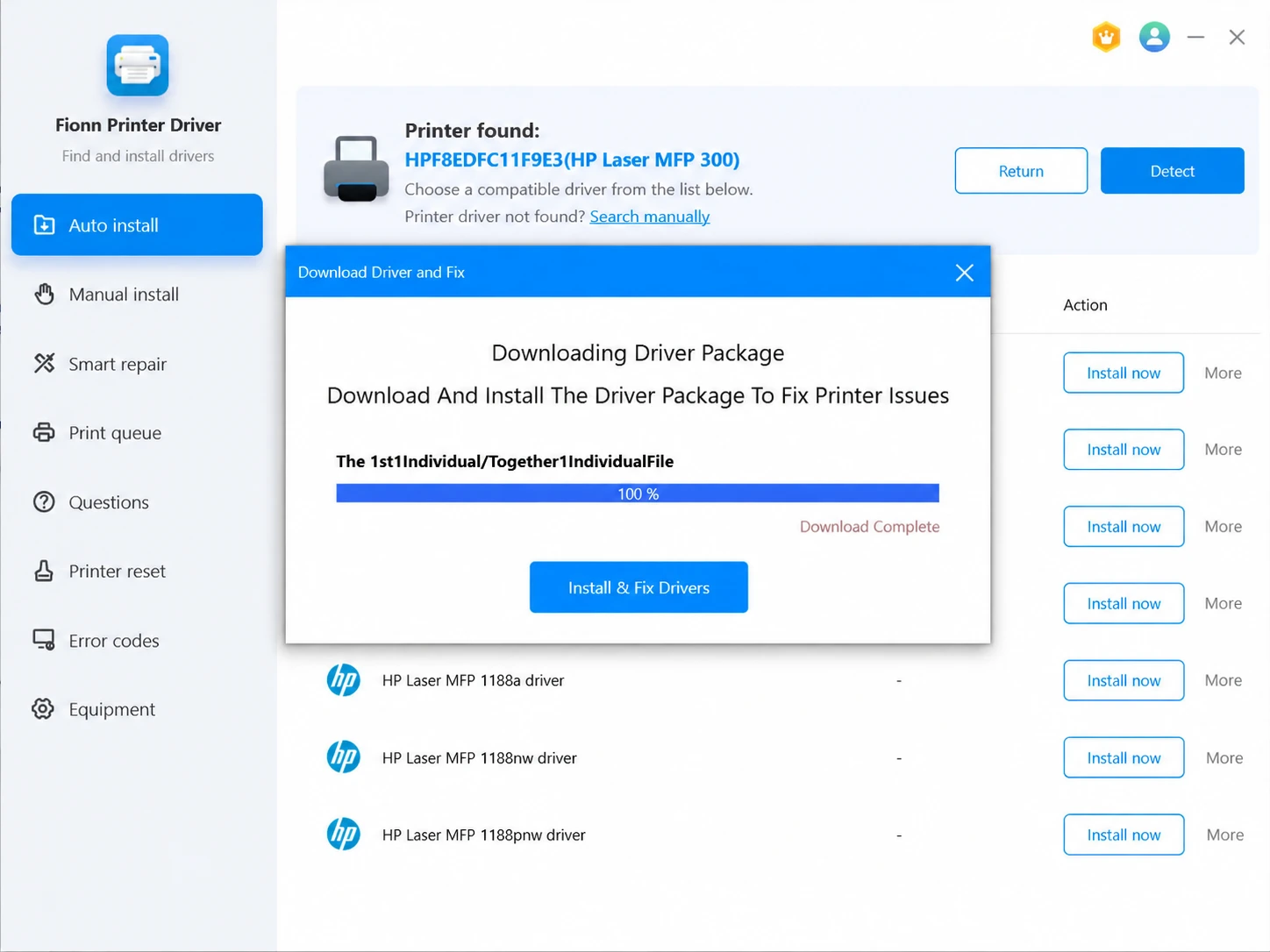
A scan result shows that the software operation completed; the Windows test page is the practical confirmation that the HP Laser 107a can print.
Method 2: Get the Driver from HP Support
Use this route when you prefer the manufacturer’s download page or need to select the operating system yourself. Start at the official HP Laser 107 series software and driver page . Confirm the model is HP Laser 107a and select the Windows version shown on your PC before choosing an offered installation option.
- Open the HP support page and check the selected product and operating system.
- Select only a driver or installation option explicitly offered for that model-and-Windows combination.
- Run the downloaded installer and follow its on-screen instructions.
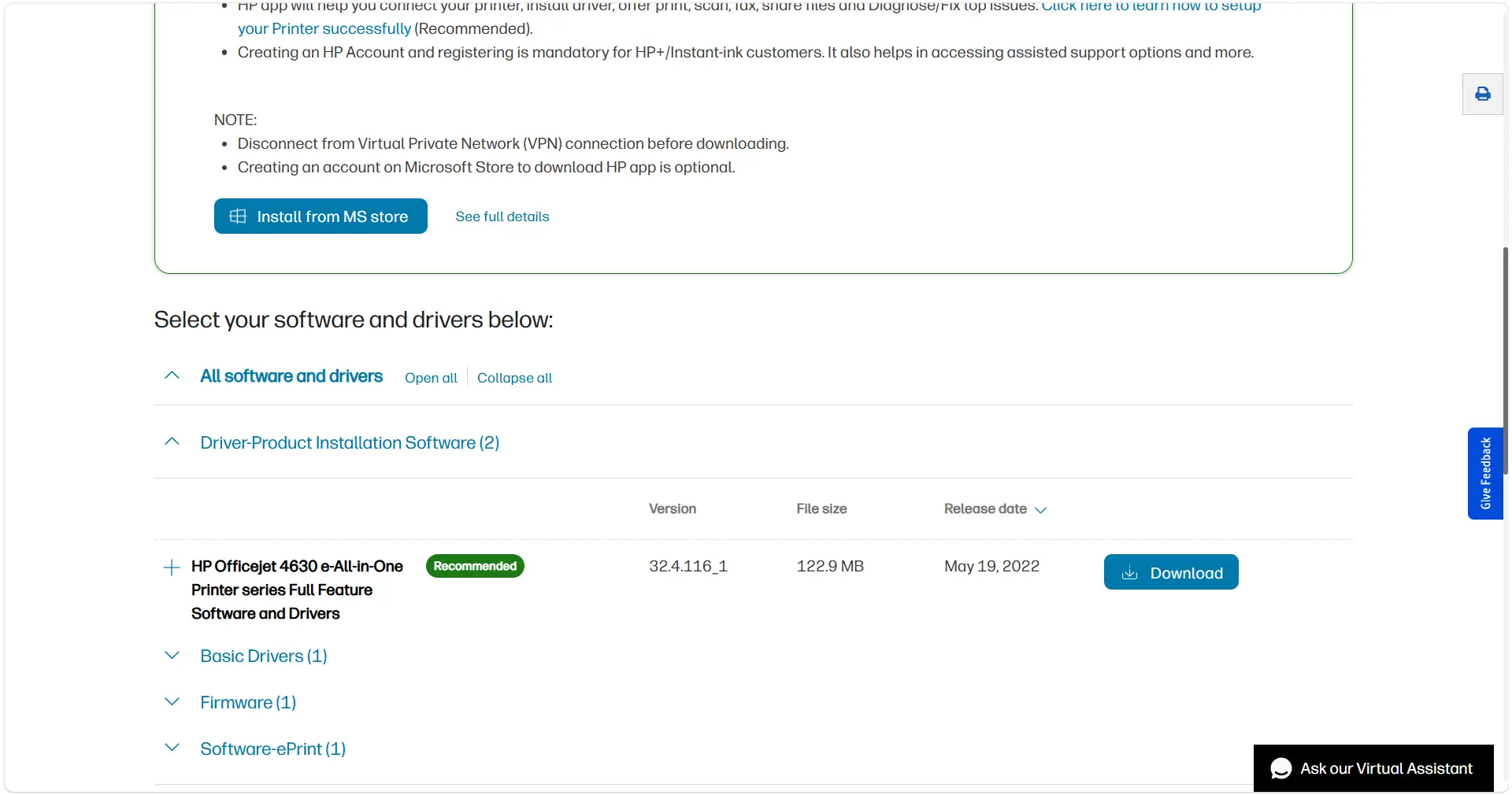
- When installation finishes, print a Windows test page.
Method 3: Add the Printer Through Windows Settings
Use Windows Settings when the printer is connected directly to the PC but is absent from the installed-printers list. Microsoft recommends Windows Update for downloading, installing, and updating printer drivers.
- Connect the powered-on HP Laser 107a to the Windows device, such as by USB.
- Open Settings, go to Printers & scanners, and select the control to add a printer or scanner.

- Select Add device beside the HP Laser 107a when it appears.
- If it is not found, select the manual-add option and follow the Add Printer window instructions.
- After installation, check Windows Update for an available driver update and print a Windows test page.
Microsoft documents this add-printer route for Windows 10 and Windows 11. The printer should appear in the installed-printers list after a successful addition.
If Windows Still Cannot Find the Printer
For a USB-connected printer, secure the cable at both ends and try another USB port. Microsoft identifies connection problems, outdated drivers, and incorrect printer settings as possible causes of printer-not-found or printer-not-recognized errors.
- If the printer is listed but documents do not print, inspect the print queue for paused or unfinished jobs.
- If Windows reports the printer as offline, confirm its physical state and connection before changing drivers.
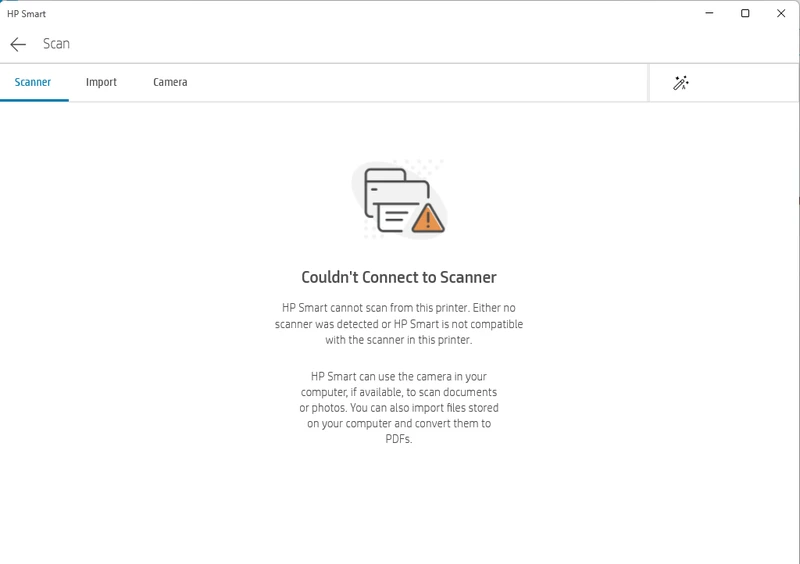
- If recognition fails after a connection check, restart the Print Spooler from Services, then try adding the printer again.
Conclusion
For an unclear HP Laser 107a Driver problem, start with Fionn Printer Driver to scan for driver and print-environment issues. Choose HP Support when you want the manufacturer’s model-and-Windows selection route, and use Windows Settings to add a directly connected printer that is missing from Windows. In every case, verify the result with a Windows test page. If that test fails, revisit the USB connection, queue, Print Spooler, and device status rather than assuming the driver alone is the cause. You can also return to Fionn Printer Driver to check driver and printer conditions together.
Frequently Asked Questions
Where can I download the HP Laser 107a Driver?
Use HP’s official software and driver page for the HP Laser 107 series. Confirm that the page identifies the correct model and select your Windows version before choosing an offered installer.
Why is my HP Laser 107a not detected by Windows?
A loose USB connection, a problematic USB port, an outdated driver, or incorrect printer settings can prevent recognition. Check the cable at both ends, try another USB port, and then use Windows Settings to add the printer.
Should I use HP Support or Windows Update?
Use HP Support when you want to choose a manufacturer-provided option for the exact model and operating system. Windows Update is Microsoft’s recommended channel for downloading, installing, and updating printer drivers after the printer is added.
Does a successful driver installation prove the printer works?
No. A completed installer or repair operation only confirms that the software step finished. Print a Windows test page to verify that the printer can actually receive and produce a job.
What should I do if the printer is installed but will not print?
Check whether the printer is offline, whether the queue contains paused or unfinished jobs, and whether the Print Spooler is running. Also confirm that the HP Laser 107a is selected as the printer for the document.


