 Emily CarterDLL Errors
Introduction
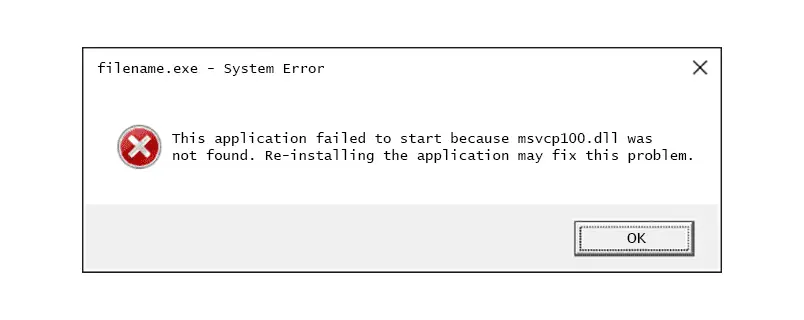
The “msvcp100.dll missing” message means Windows or an application cannot load a required dynamic-link library. The failure may appear as “msvcp100.dll was not found,” a startup crash, or a game that closes before its main window opens. This guide provides three methods: Windows integrity checks, application repair or reinstallation, and the Fionn DLL Fixer workflow. Start with Method 1 when several programs fail, use Method 2 when only one installation is affected, and choose Method 3 when you want a guided scan and repair cycle.1009
Quick Method Comparison
| Method | Best For | Efficiency | User Effort |
|---|---|---|---|
| Windows integrity checks | Several apps show DLL or system errors | Moderate | Medium; command-line steps |
| Repair or reinstall the affected app | One app or game fails after an install or update | Often fast | Low to medium |
| Fionn DLL Fixer (Recommended) | Unclear causes, multiple dependencies, or repeated errors | Guided scan and repair | Low; automated workflow |
Method 1: Run Windows System Integrity Checks
When to use: Choose this method if more than one application reports missing or damaged DLL files, or if the problem began after a Windows change. These built-in checks examine protected system files and the component store.
- Save your work and open Windows Terminal (Admin) or Command Prompt (Admin) from the Start menu.
- Run the System File Checker command:
sfc /scannow - Wait until the scan reaches 100%, then read the result message.
- If SFC reports that it could not repair some files, run the component repair command:
DISM /Online /Cleanup-Image /RestoreHealth

- Restart Windows and test the application that displayed the error.
Expected result: If corrupted Windows components caused the message, the application should start without the missing-file prompt. If only one program still fails, continue with Method 2.
Method 2: Repair or Reinstall the Affected Application
When to use: Use this method when the error is limited to one app or game, especially after an interrupted installation, update, or file cleanup. A clean application repair can restore files that belong to that installation.
- Close the affected application and any launcher associated with it.
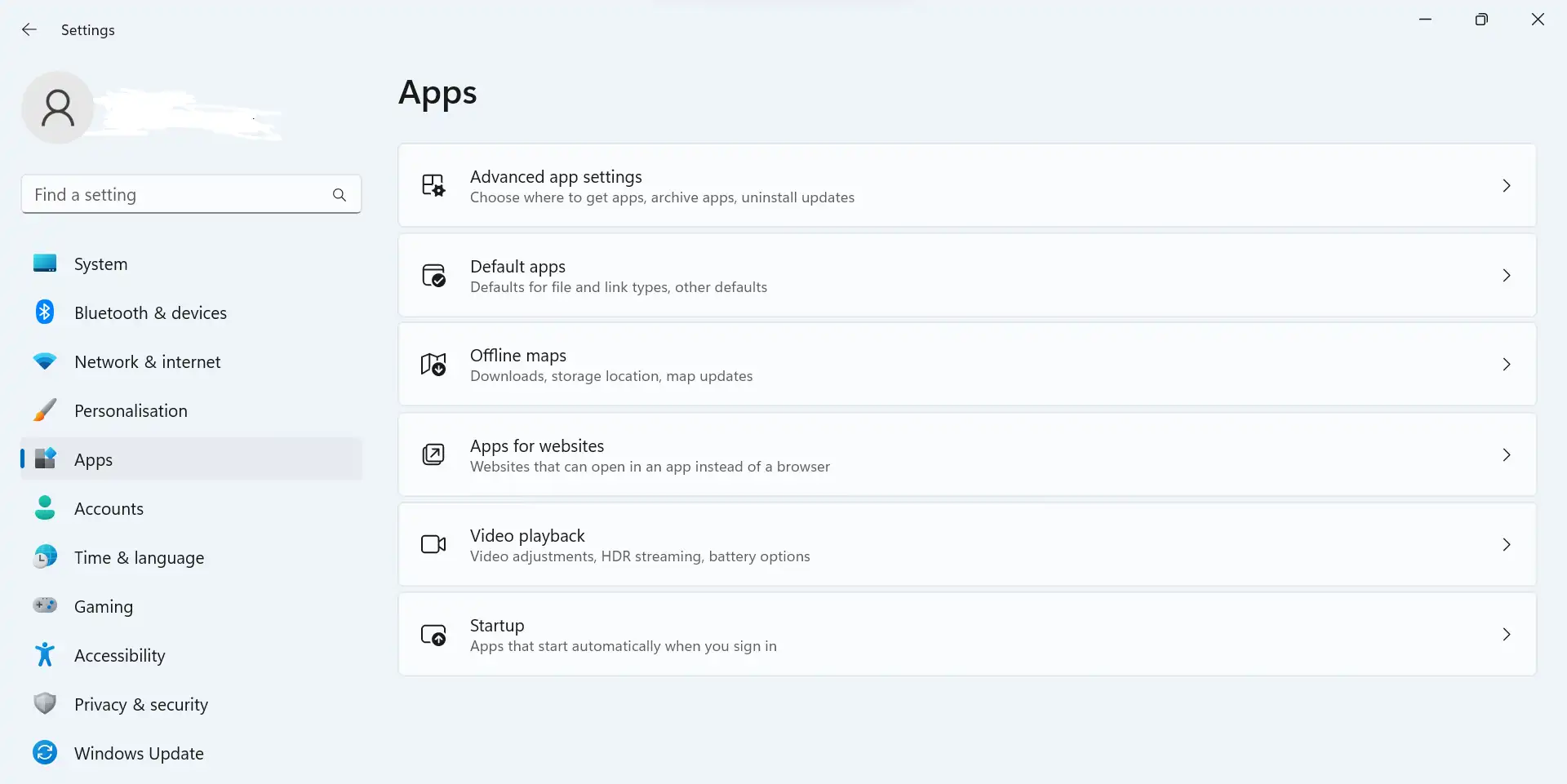
- Open Settings > Apps > Installed apps , select the affected program, and check whether a Repair or Modify option is available.
- Run the available repair option, then restart the program.
- If no repair option exists or the message remains, uninstall the application from the same settings page.
- Restart Windows, then reinstall the application using its original, trusted installer.
- Launch the program and confirm that the error no longer appears.
.webp)
Expected result: The application should recreate its local files and load normally. This method may not resolve a wider Windows component problem affecting multiple programs.
Method 3: Diagnose and Fix msvcp100.dll missing with Fionn DLL Fixer
When to use: This is the Recommended option when the cause is unclear, several dependencies may be involved, or manual checks have not solved repeated startup failures. Fionn DLL Fixer is a Windows desktop application that scans for missing, damaged, version-mismatched, and System32-path-related DLL issues. It also checks application crashes, access conflicts, startup failures, and dependency-loading problems.
- Launch Fionn DLL Fixer. The software automatically scans your PC for DLL and system issues and displays the detected results when the scan is complete.

- After the scan finishes, click
“Repair”
to start fixing all detected DLL and system issues automatically.

- Wait while the repair is in progress. During this process, the button changes to
“Fixing”
until all issues have been repaired.

- When the repair is complete, click
“Ok”
in the confirmation dialog. If prompted, restart your computer before checking whether the problem has been resolved.

- If the issue still persists after restarting, click
“Recheck”
to perform another scan. If new issues are found, click
“Repair”
again to fix them.

Expected result: The affected app or game should start after repair and any requested restart. Test the original task, then use the recheck step if the message returns.
Plan limits: The product knowledge lists three free attempts in the free version; VIP access unlocks DLL, DX, runtime, and system repair benefits. Review the available plan before starting a paid repair.
Tips and Common Mistakes
- Match the repair to the symptom: one failing app points to Method 2; multiple failing apps point to Method 1 or Method 3.
- Keep the original error wording. “Missing,” “not found,” and “version mismatch” can indicate different underlying conditions.
- Restart when a method requests it. A repaired file may not be loaded by an already-running process.
- Do not copy msvcp100.dll from another computer. Different Windows builds or application requirements can make that file unsuitable.
- If the error remains after a recheck, contact the product’s support channel or the application publisher with the scan result and exact message.
Conclusion
Fix the “msvcp100.dll missing” error in a controlled order. Run Windows integrity checks when failures affect multiple programs, repair or reinstall a single affected application when the problem is isolated, and use the guided Fionn DLL Fixer workflow when diagnosis spans DLLs, runtimes, or system components. Verify the result by restarting when prompted and launching the original app or game again. If the message persists, run Recheck in Fionn DLL Fixer or provide the exact error and scan findings to support. Avoid untrusted DLL download sites throughout the process.
FAQ
What does msvcp100.dll do?
It is a DLL that an application may request during startup. The message means Windows cannot provide the file or a compatible copy at the expected location; it does not identify the complete cause by itself.
Why does the error affect only one program?
An isolated failure often points to that application’s installation, update, or local dependency files. Repairing or reinstalling the affected program is a practical first step in that scenario.
Will System File Checker always restore the file?
No. SFC repairs protected Windows files when it finds corruption. If the missing component belongs to an application installation, use the application repair or reinstall method instead.
When should I run Recheck in Fionn DLL Fixer?
Run Recheck after the repair completes and you have restarted if prompted. It scans again for remaining issues; if new issues appear, the workflow instructs you to select Repair again.
Can I use Fionn DLL Fixer on macOS or Linux?
The supplied product information lists Windows desktop support, including a Microsoft Store packaging project. No macOS or Linux support is confirmed here.


