

How to Use a Voice Changer in Steam Games (Step-by-Step Guide)
2026-03-12 16:30:28

Create Unique Gaming Voices for Steam & Discord – Tips for Engaging Voice Changers
2026-03-06 15:13:55
Enhance Twitch & YouTube Streams with Multi-Character Voice Acting – VoxMagic
2026-02-26 15:53:54

AI Voice Changer vs Text-to-Speech: STS vs TTS Explained for Creators & Gamers
2026-01-30 10:34:54

Real-Time Voice Gender Change on PC | AI Voice Changer for Gaming & Streaming
2025-12-12 10:27:28
How to Use a Voice Changer in Steam Games (Step-by-Step Guide)
2026-03-12 16:30:28
Voice chat is a core part of modern multiplayer games. Whether you're coordinating tactics in competitive shooters or chatting casually in social games, your voice often matters more than text.
Sometimes players want to sound more entertaining, protect their identity, or simply try something new during gameplay. This is where a voice changer for Steam games can make the experience more fun and engaging.
In this guide, you'll learn how to set up and use a voice changer in Steam games, along with practical tips for gaming, streaming, and social play.

Step-by-Step: Setting Up a Voice Changer for Steam
Most voice changers work by creating a voice changer microphone or virtual audio device, allowing Steam to detect and transmit your modified voice.
Step 1: Install a Voice Changer
First, install a voice changer on your PC. Tools like VoxMagic Voice Changer allow real-time voice effects and are designed for gaming and streaming environments.
After installation, launch the software and ensure your microphone is connected.
Step 2: Select the Correct Input Device
Open your voice changer settings and configure:
- Input Device: your microphone
- Output Device: virtual audio device created by the software
This virtual device will transmit your modified voice to games.
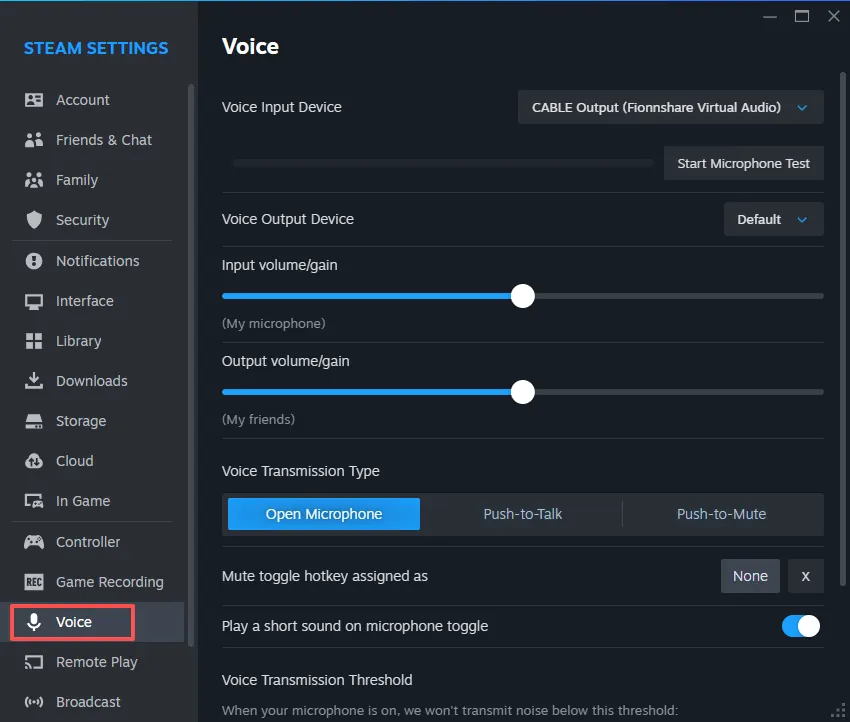
Step 3: Configure Steam Voice Settings
Now connect the voice changer to Steam.
- Open Steam
- Go to Settings
- Click Voice
- Under Microphone Device, choose the virtual audio device
- Use Test Microphone to confirm the effect
Once configured, Steam will receive your modified voice instead of your raw microphone audio.
Step 4: Configure Voice Input in Games
Some games also allow voice input selection.
Example setup:
CS:GO / Counter-Strike
Settings → Audio → Voice Input Device → Select the virtual microphone.
Many Steam games automatically detect the same device, including:
- Apex Legends
- PUBG
- Dota 2
- Among Us
After selecting the device, your voice effects will work in real time during matches.
Popular Voice Effects for Steam Games
Different voice styles work better in different game types.
Competitive Games (FPS / MOBA)
Fast-paced games benefit from clear communication. To achieve this, many players use a deep voice changer for team leadership roles.
Recommended styles:
- Deep commander voice for team leadership
- Light robotic tone for futuristic shooters
These effects keep communication clear while adding personality.
Party & Social Games
Games like Among Us, Garry’s Mod, or social VR titles are perfect for creative voices.
Popular options include:
- Cartoon voices
- Character voices
- Funny exaggerated tones
If you're interested in creating creative voice styles for games and chats, you can also check our guide on creating unique gaming voices for Steam and Discord.
Streaming & Content Creation
Streamers often use voice changers to improve audience engagement.
For example:
- Robot voices for sci-fi streams
- Character voices during roleplay games
- Different voices for different stream segments
If you're creating streaming content, you may also want to explore multi-character voice acting for Twitch and YouTube streams, which can significantly improve viewer interaction.
Tips for Smooth Voice Changing in Games
To avoid issues during gameplay, follow these best practices.
1. Keep Latency Low
Close unnecessary background audio software to prevent voice delay.
2. Adjust Mic Levels Carefully
If your voice sounds too quiet or distorted, adjust the microphone gain in both your voice changer and Steam settings.
3. Use Hotkeys for Effects
Many voice changers allow hotkey switching between voice presets, which is useful during gameplay.
4. Test Before Matches
Always test your microphone before joining competitive matches to ensure teammates hear you clearly.
Final Thoughts
Using a voice changer in Steam games can completely change how you interact with teammates, audiences, and online communities. It adds humor to casual sessions, enhances immersion in role-playing games, and creates more engaging streaming content.
Whether you're experimenting with creative voices or simply looking for a bit more privacy during online matches, learning how to use a voice changer with a real-time tool like VoxMagic can make your gaming experience more dynamic.
With the right setup and a few voice presets, you can transform ordinary voice chat into something far more memorable.


 Fionn
FionnCopyright © 2026 Wonderful Apps Limited.
 English