 Emily CarterAuto Clicker
Introduction
If you need to record a repetitive sequence of clicks and keystrokes, the first Windows option to consider is Fionn Auto Clicker: it combines recording and replay, editing, export, and hotkeys. For Mac, it is more practical to start with Macro Recorder. If automation needs to be written in code, AutoHotkey is suitable; for cross-platform visual assembly, consider Actiona, with an important Wayland limitation.
Below is a comparison of capabilities, limitations, and licensing models.
Best options by task
- For recording everyday actions in Windows: Fionn Auto Clicker — mouse and keyboard recording, replay, editing, and export; it also supports image, color, and text recognition.
- For Windows and Mac without writing scripts: Macro Recorder — an editor, visual click context, window position restoration, and OCR.
- For Windows automation with logic and macro distribution: Jitbit Macro Recorder — an editor, conditions, image search, C# snippets, and EXE compilation.
- For fully customizable code-based automation: AutoHotkey — a free, open-source scripting language for hotkeys and input simulation.
- For multiple desktop operating systems and JavaScript: Actiona — a graphical action editor with optional JavaScript, but not for Wayland systems.
Quick comparison table
Fionn Auto Clicker
For Windows, this is a practical choice when you need both simple click replay and recording of a complete keyboard-and-mouse workflow. The tool records mouse and keyboard actions, replays, edits, and exports them; it supports hotkeys, scripts, schedules, and image, color, and text recognition.
Its main advantage is moving from a set interval and coordinates to a recorded process without changing programs. You can set replay to run a specified number of times or continuously.
The free option is limited to three attempts. Membership is required for unlimited clicks, recording, scripts, and schedules.
It suits a Windows user who needs to first record a repeatable process and then, when necessary, add recognition-based conditions. Fionn Auto Clicker
How to use recording and replay
- Open the keyboard and mouse recording section, set a recording name, select capture for clicks, intervals, scrolling, and movement, then select “Start recording” or press F7.
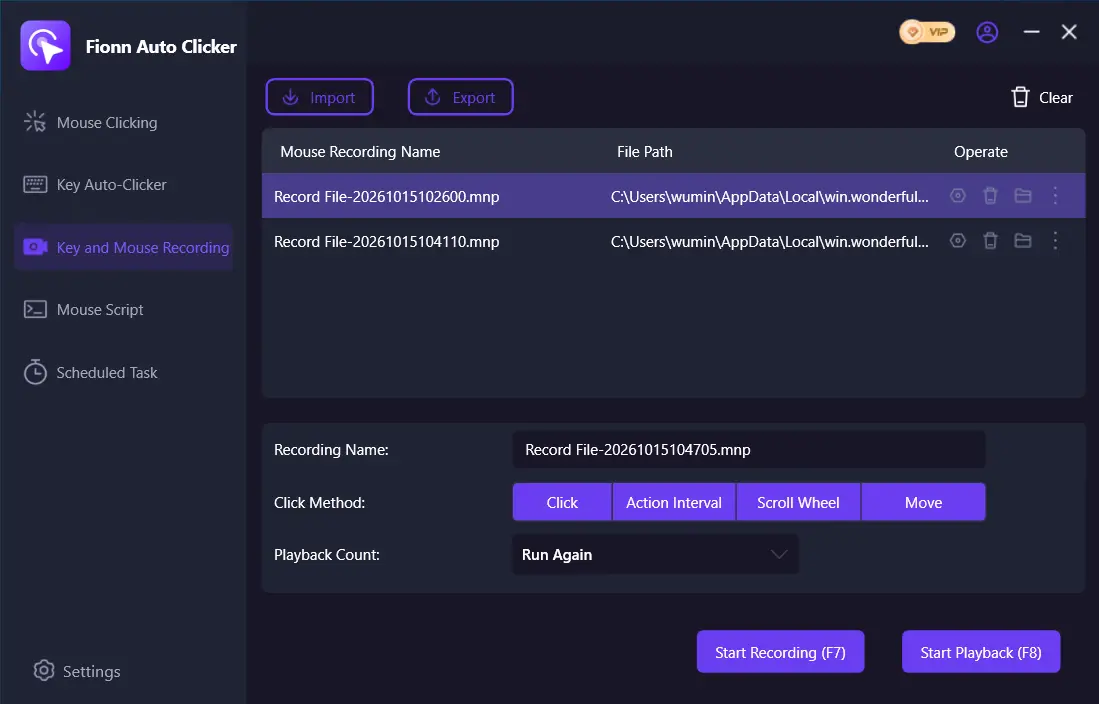
- Perform the required actions. During recording, the button changes to “Stop recording”; F7 is also available.
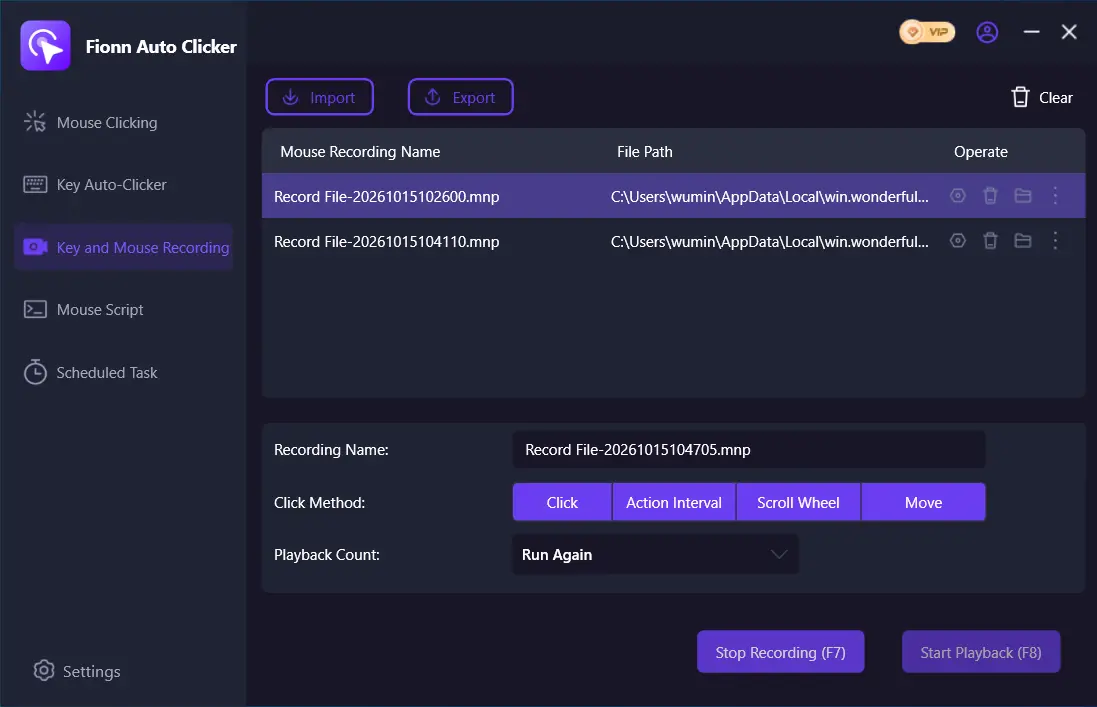
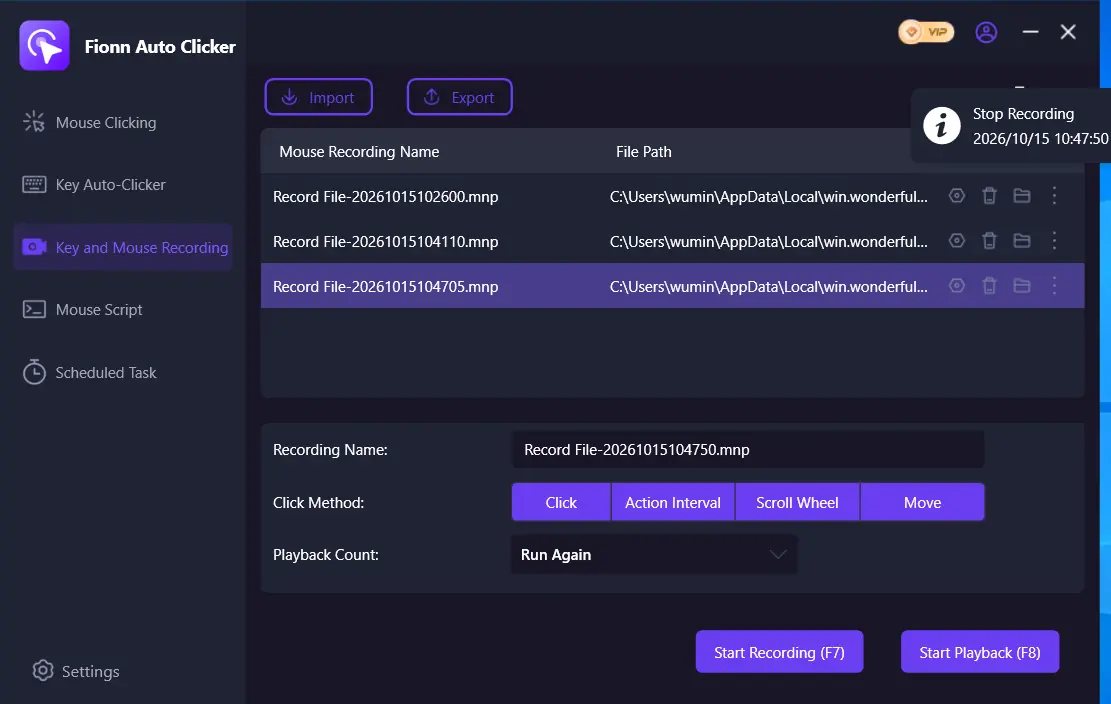
- Select “Stop recording” or press F7, confirm that the recording appears in the list, and select it for replay.
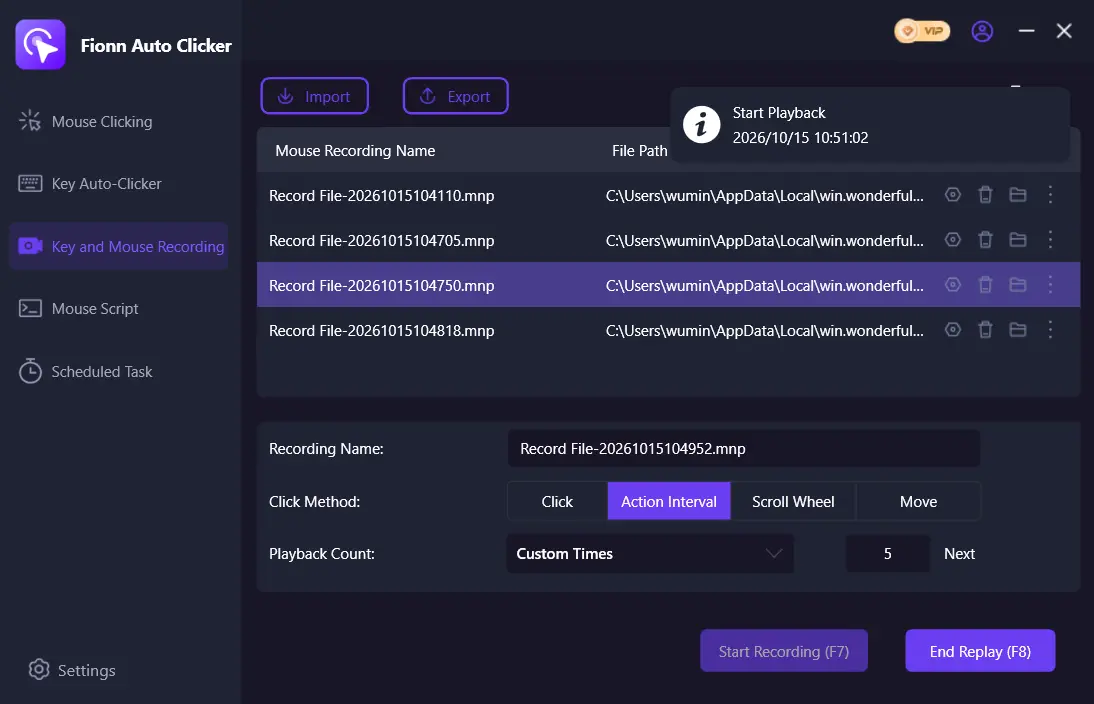
- Set the number of replays; for a specific count, choose a custom number. Select “Start replay” or press F8, and select “End replay” or press F8 to stop.
Macro Recorder
Choose Macro Recorder if you need a no-code recorder on Windows or Mac. It records and replays mouse and keyboard input and offers an editor, OCR, hotkeys, scheduling, and web automation. Official Macro Recorder page .
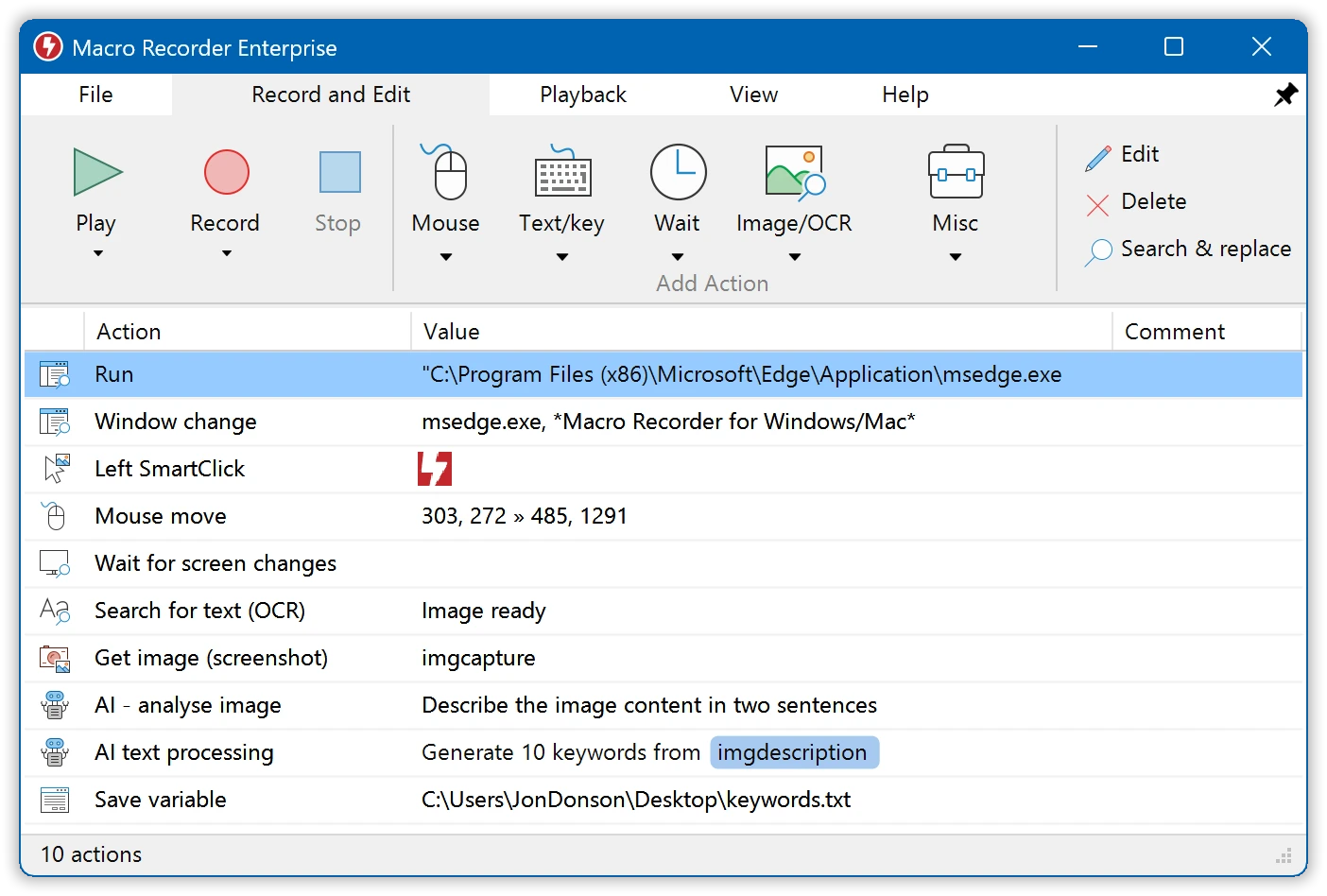
Visual click context and restoration of window position and size reduce replay dependence on unchanged screen coordinates.
Advanced features and professional use require a license key; an internet connection is required briefly to authorize it.
This is the most straightforward alternative for a Mac user or a Windows user who values visual positioning and a ready-made editor.
Jitbit Macro Recorder
Consider Jitbit Macro Recorder on Windows if a recorded macro may later need conditions or C# snippets. It records, edits, and replays macros, can search for images, use hotkeys, and compile a macro into an EXE. Official Jitbit Macro Recorder page .
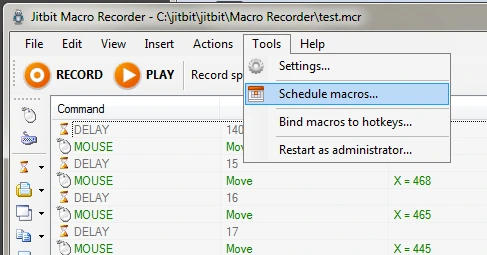
A full-featured editor and EXE compilation offer more ways to expand a workflow than a simple recorder.
The trial period and its restrictions are not specified. An infinite-repeat setting does not transfer to a compiled EXE: it requires an explicit repeat command.
It suits people who start with visual recording but plan to add logic or distribute a compiled macro.
AutoHotkey
Choose AutoHotkey for Windows when writing custom logic matters more than recording actions. It is a free GNU GPLv2 scripting language that defines hotkeys and sends simulated keystrokes and clicks. Official AutoHotkey website .
Different input-send modes and flexible syntax let you adapt automation to a particular task.
Action recording and replay are not confirmed. Simulated input may not affect an active elevated window, and Ctrl+Alt+Del cannot be simulated.
It suits a user ready to write and maintain scripts rather than someone looking exclusively for a recorder.
Actiona
Actiona is useful for cross-platform desktop automation if assembling actions in an editor is sufficient and you may need to extend them with JavaScript. It simulates clicks and keystrokes, searches for images, waits for a pixel color, and manages windows. Official Actiona repository .
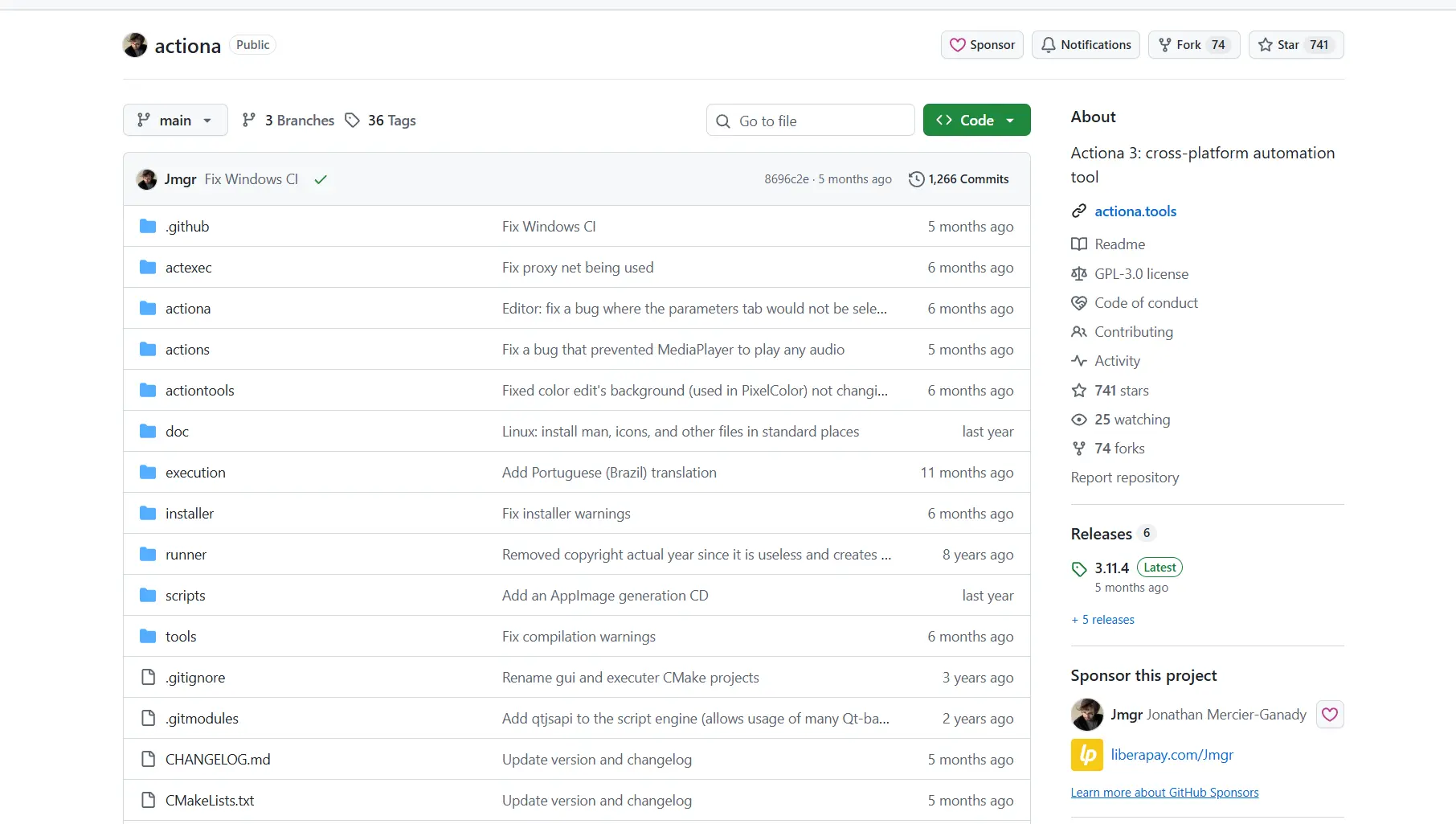
The combination of a simple editor and JavaScript lets you choose between visual assembly and more precise customization.
Actiona is not compatible with Wayland systems; some input mechanisms may require access to /dev/uinput. Recording, replay, and hotkeys are not confirmed.
It suits tasks on supported desktop operating systems when you need an action editor and optional JavaScript, but not Wayland.
How we compared them
We compared supported operating systems, input capture and replay, licensing, practical limitations, resilience to window changes, and extension options. For a recorder, the ability to inspect or edit a recording matters as much as clicks. For a scripting tool, input flexibility and access-rights limitations matter more. An unspecified price or feature was not treated as an assumption.
How to choose
Need a ready-made Windows recorder with keyboard and mouse recording? Start with Fionn Auto Clicker. Need Mac support and visual screen anchoring? Look at Macro Recorder. Need an EXE or C# on Windows? Compare Jitbit Macro Recorder. Ready to work with code? AutoHotkey offers more freedom but requires scripts. Need multiple operating systems, a simple editor, and JavaScript? Choose Actiona only outside Wayland.
Final verdict
For Windows and a recording-and-replay task, consider Fionn Auto Clicker first: its stated capabilities cover recording, replay, editing, export, and hotkeys. Keep in mind the model of three free attempts and membership for advanced features. Macro Recorder is a more suitable alternative for Mac or visual click context; Jitbit is for EXE and C#; AutoHotkey is for scripts; Actiona is for supported cross-platform automation outside Wayland.
Frequently asked questions
Can mouse and keyboard actions be recorded at the same time?
Yes. Fionn Auto Clicker, Macro Recorder, and Jitbit Macro Recorder support recording mouse and keyboard actions. For AutoHotkey and Actiona, recording and replay are not confirmed.
Which program works on Mac?
Among the compared tools, Macro Recorder supports Windows and Mac. Actiona is cross-platform, but it is not compatible with Wayland systems.
Why does replay not work in an administrator window?
For AutoHotkey, simulated input may not affect an active window running with elevated rights when the script is not elevated. This specific case is not described for the other products.
Can actions be replayed a fixed number of times?
Fionn Auto Clicker lets you set a custom number of replays. Macro Recorder supports replaying a recording as many times as needed. A compiled EXE from Jitbit requires an explicit repeat command.


