 Emily CarterAuto Clicker
Recording mouse movements and repeating actions helps you repeat a short sequence involving pointer movement, clicks, scrolling, and keystrokes. First, create a safe, short recording, play it back a limited number of times, and compare the visible result with performing the task manually.
Below is a method for Windows 10 and Windows 11 using Fionn Auto Clicker . The app supports recording and replaying clicks, delays, keystrokes, pointer movements, and scrolling.
When You Need Recording Instead of a Regular Auto Clicker
Choose recording with playback when the pointer path or a sequence of several actions matters. Regular auto clicking and action recording are separate modes: you do not need to configure regular auto clicking before recording.
Prepare for Recording
Open the window or document where automation is allowed, and define the visible result of one run in advance. For your first recording, use a test item where an incorrect click will not change important data.
Recording is a feature that may require membership. If this mode is unavailable, check your access in the app before you begin.
Record and Repeat Actions with Fionn Auto Clicker
This mode is suitable for a recurring local task that includes cursor movement.
- Open the
Keyboard and Mouse Recording
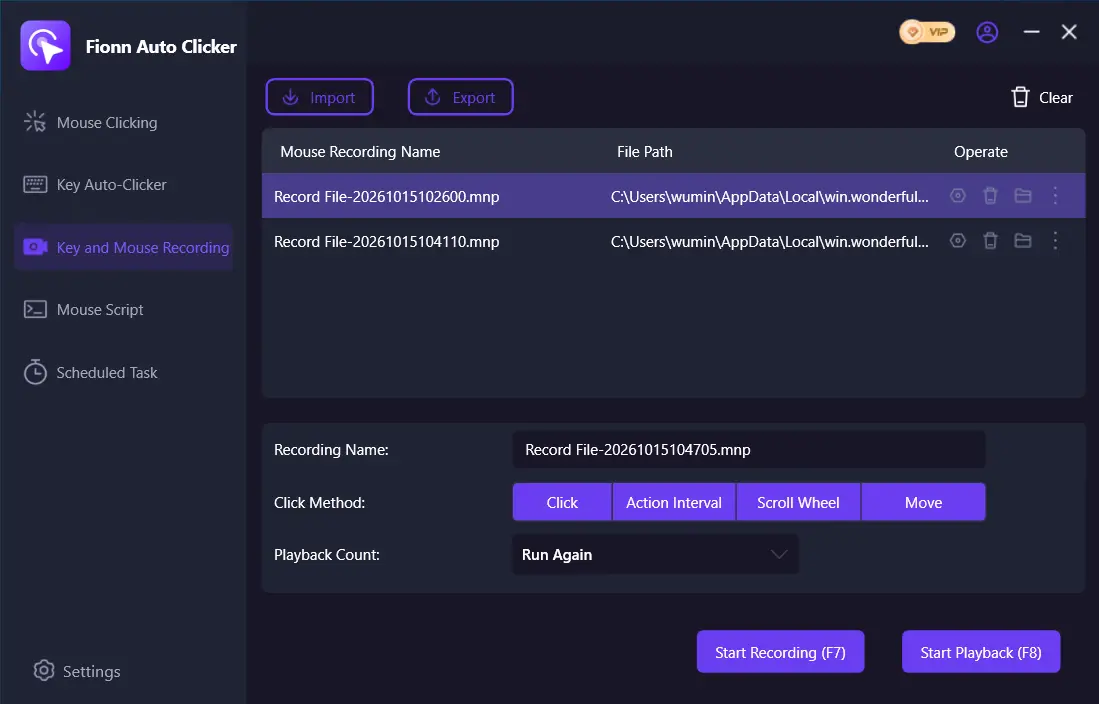
section, enter a recording name, and choose the action types to capture:
Click, Action Interval, Scroll Wheel, and Move
; then select
Start Recording
(F7)
.
First, manually confirm that the target item responds to physical input.
Identify the precise click position or the required key.
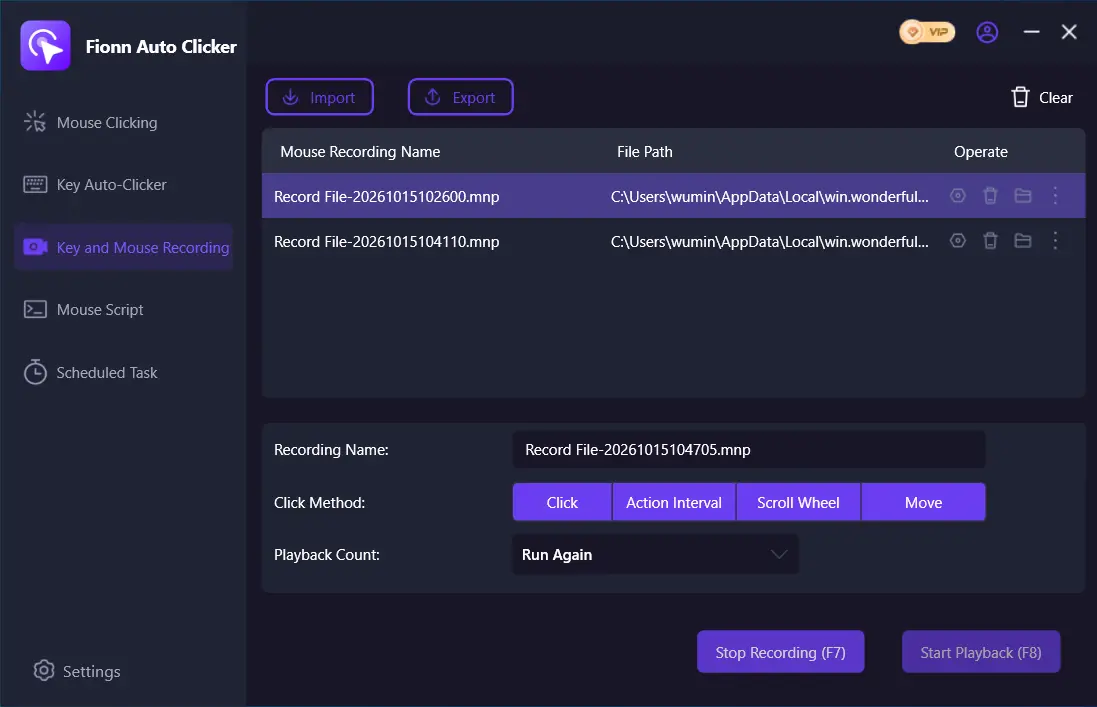
- Perform the actions you want to record. While recording is active, the button changes to
Stop Recording
(F7)
.
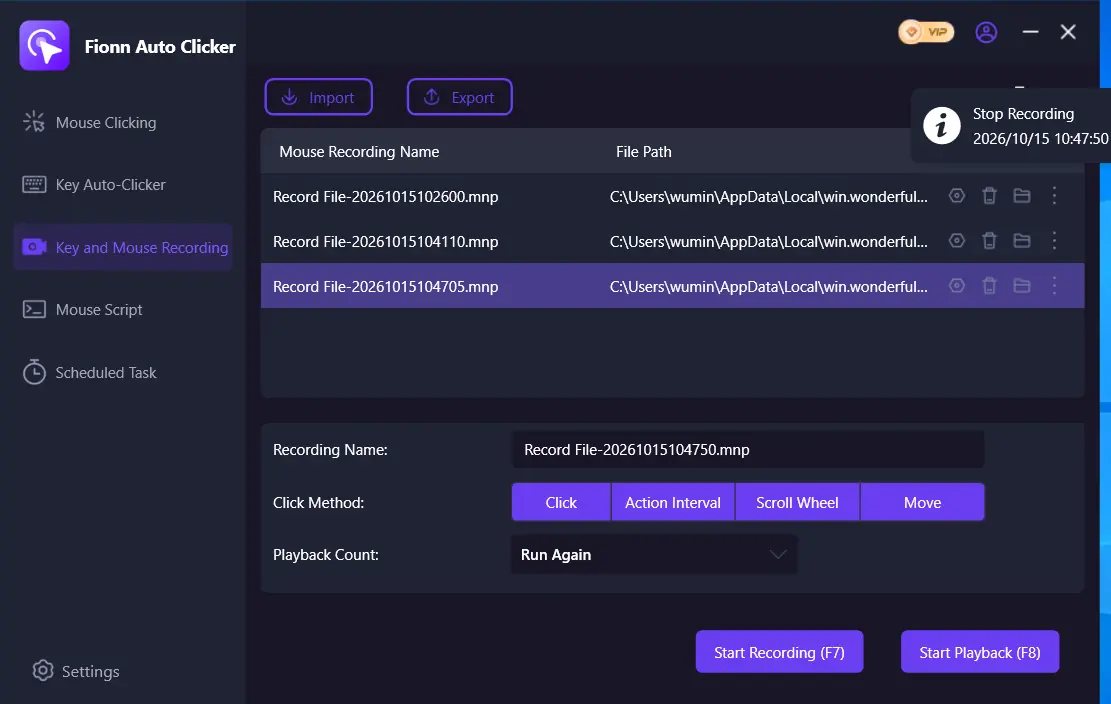
- Select
Stop Recording
or press
F7
, make sure the new recording appears in the list, and select it for playback.
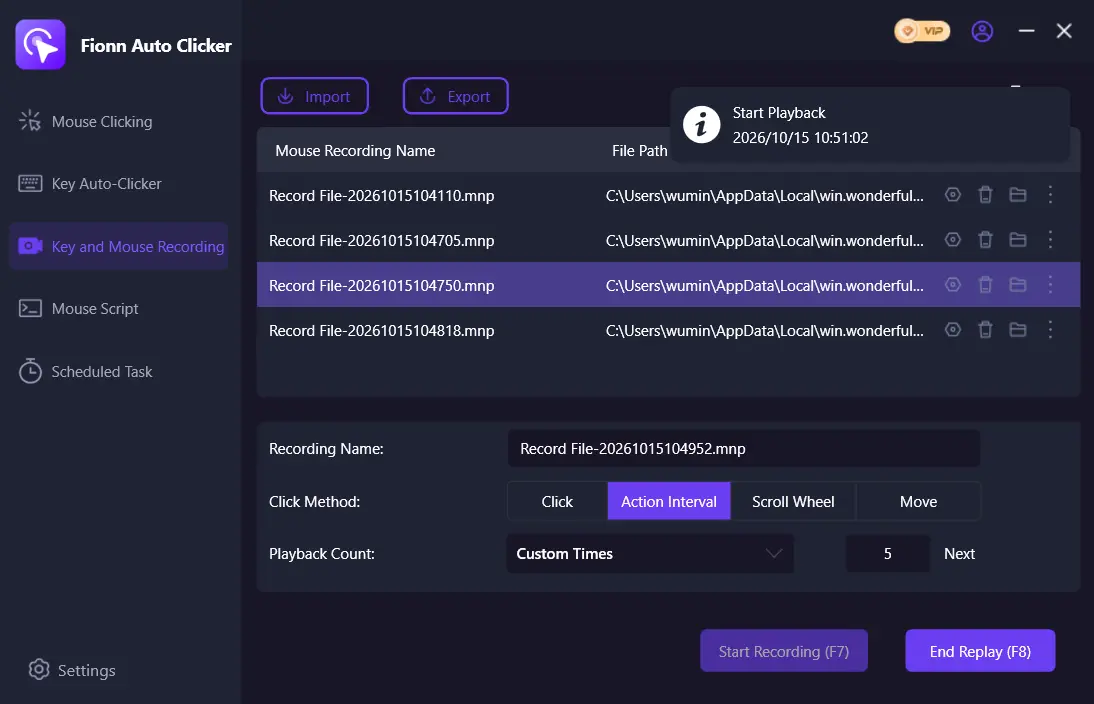
- Set the
Playback Count
; for a specific number of repeats, choose
Custom Times
and enter a number. Select
Start Playback (F8)
to play the selected recording. During playback, select
End Replay (F8)
to stop it.
For the first check, set a small, finite number of repeats.
Compare the visible result with the action performed manually.
After comparing, stop playback with End Replay or F8.
After saving, the recording should appear in the list. For the first check, set a small number of repeats and observe the result on a test item. If it differs from what you expect, stop playback and re-record a shorter segment.
If Playback Does Not Work as Expected
If the recording is missing from the list, finish the current recording using Stop Recording or F7 and make sure a new entry appears. Do not start playback until the correct recording is selected.
If you need a different number of repeats, select Custom Times again, enter a small number, and repeat the check. For troubleshooting, a short scenario with one or several repeats is safer than a long sequence.
If F7 or F8 does not work, check the app for a hotkey conflict. Fionn Auto Clicker supports separate global hotkeys for recording and playback, as well as conflict detection.
Conclusion
To record mouse movement and repeat actions, open Keyboard and Mouse Recording, enable Move , create a short recording, and save it. Then select Custom Times , set a finite number of repeats, and check the result on a test item before using it in your work.
Use Fionn Auto Clicker for this task when you need to record a sequence of movements and actions rather than a single click.
Frequently Asked Questions
Can I record only mouse movement?
Yes. In Keyboard and Mouse Recording, select the Move action type. You can also select Click, Action Interval, and Scroll Wheel at the same time if needed.
Can I repeat a recording a specific number of times?
Yes. Under Playback Count, select Custom Times , enter a number, and start playback with Start Playback (F8).
How do I stop playback?
While it is running, select End Replay or press F8 . Before switching to another window, make sure the automated actions have stopped.
Do I need to configure regular auto clicking before recording?
No. Regular auto clicking and recording with playback are separate paths. To record movements, open Keyboard and Mouse Recording directly.
Why might recording be unavailable?
Recording may require membership. Check your access status in the app; configuring regular auto clicking does not replace the sequence-recording mode.


