 Emily CarterAuto Clicker
Recording and replaying mouse and keyboard actions helps you repeat short desktop tasks without entering them manually every time. For a simple sequence on Windows, start by recording a few safe actions, save it, and run it once. Fionn Auto Clicker is suitable for recording and replaying actions with the F7 and F8 hotkeys; independent alternatives for other tasks are also covered below.
Do not record passwords, payment details, or actions that could irreversibly change files. Before running automation, close unnecessary windows and prepare a test document or another safe target.
Quick Comparison of Methods
| Method | Best for | What it provides | What to check |
|---|---|---|---|
| Fionn Auto Clicker | Short, repeatable mouse and keyboard sequences | Recording, saving, and replaying with hotkeys | That one replay produces the expected visible result |
| Macro Recorder | A standalone recorder for Windows or Mac | Recording movement, clicks, scrolling, keys, and text | The available way to run a saved macro in your version |
| Power Automate for desktop | Automating interface actions in Windows apps and web pages | Converting a recording into individual flow actions | The flow status after a local run |
Record and Replay Actions in Fionn Auto Clicker
This option is useful when you need to quickly save and repeat a short sequence on Windows. Fionn Auto Clicker supports recording and replaying mouse and keyboard actions, along with global hotkeys for recording and replaying. Recording access may depend on membership; the product also offers three free attempts.
First, make sure the target window responds to a physical click or keystroke.
Identify the click position or key to include in a short test sequence.
- Open the keyboard and mouse recording section. Enter a recording name, choose the action types to capture—clicks, action intervals, scrolling, and movement—and select Start Recording or press F7.
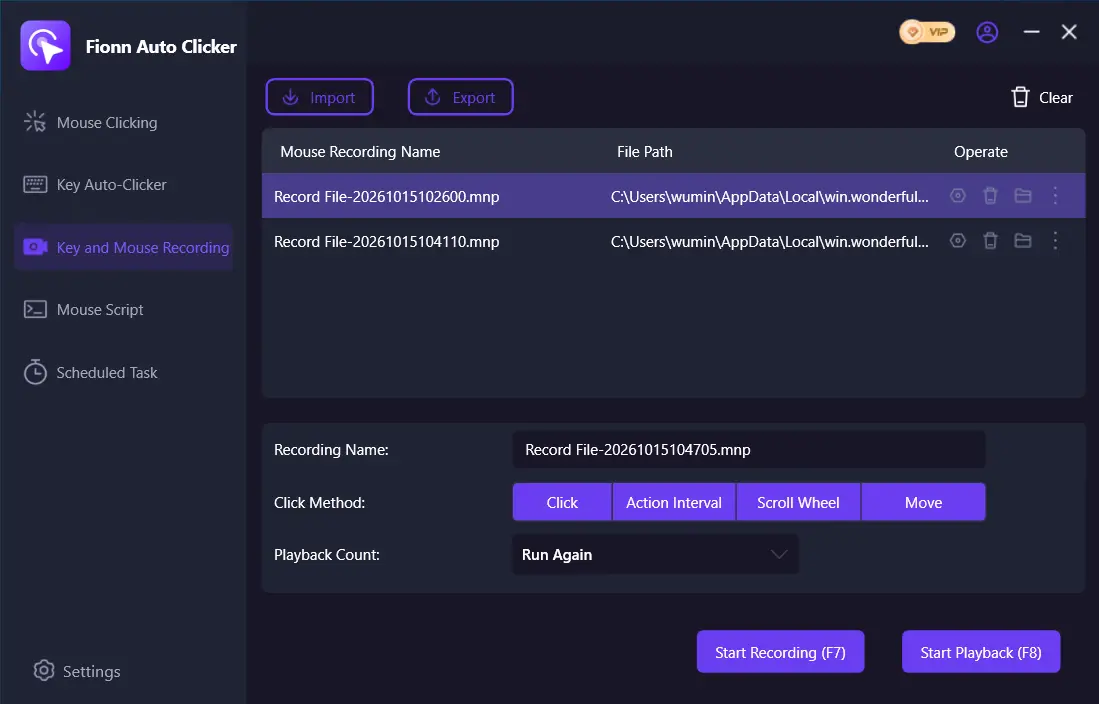
- Perform the actions you want to record. While recording is active, the button changes to Stop Recording with F7.
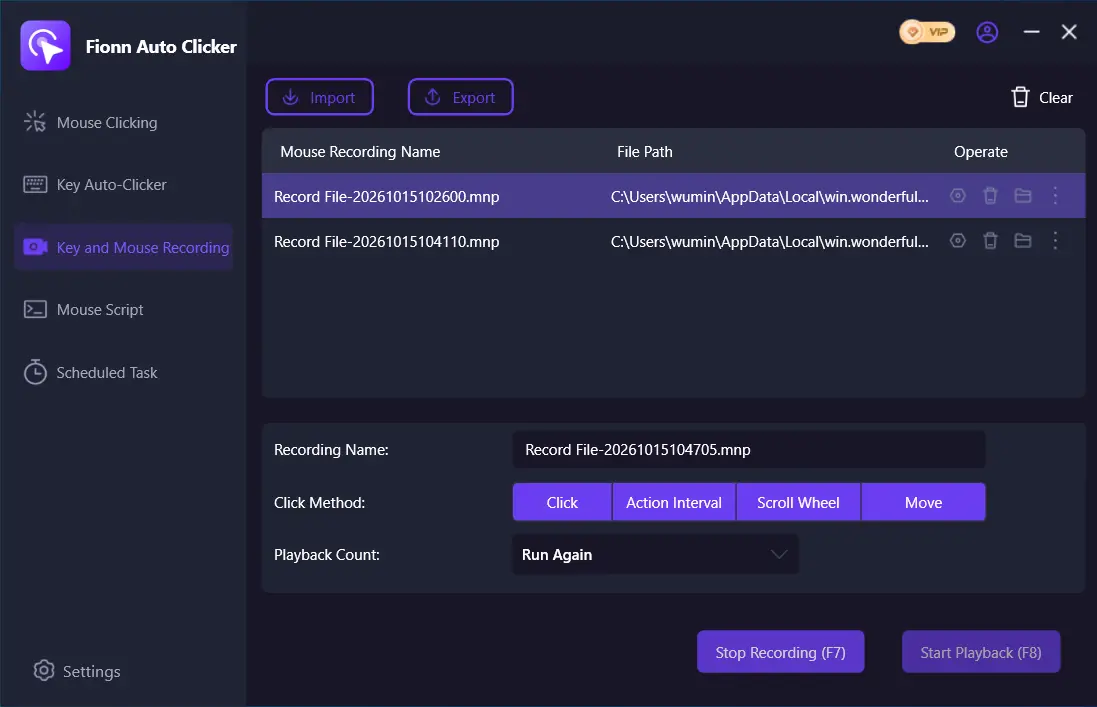
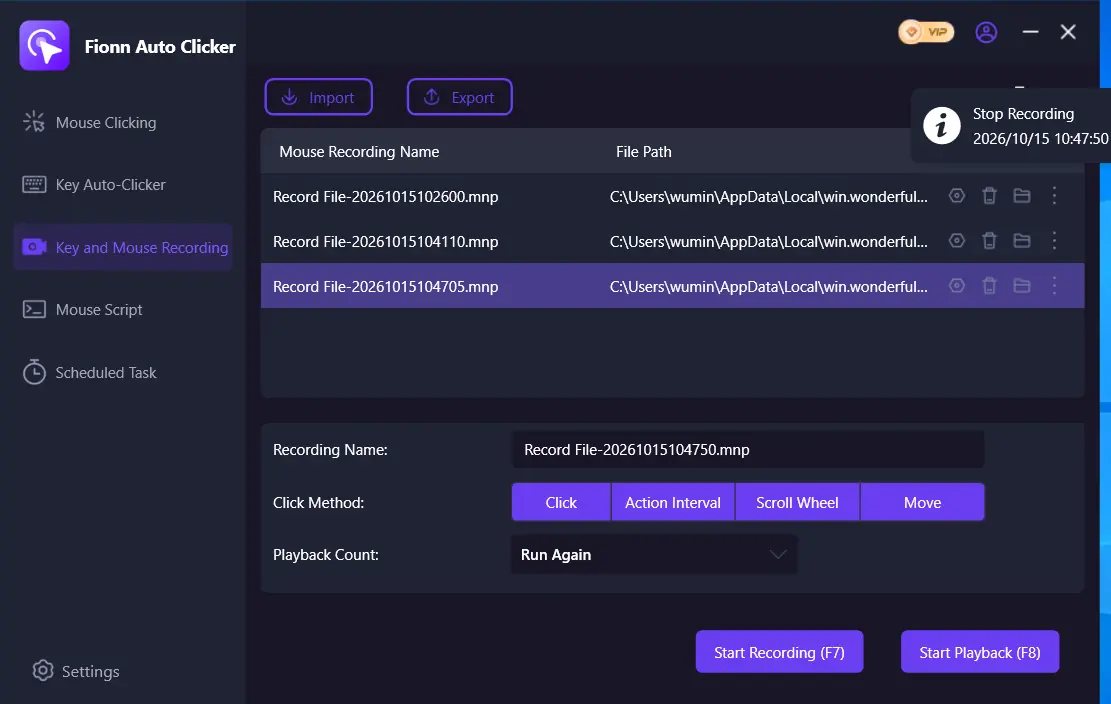
- Select Stop Recording or press F7. Confirm that the new recording appears in the list, then select it for replay.
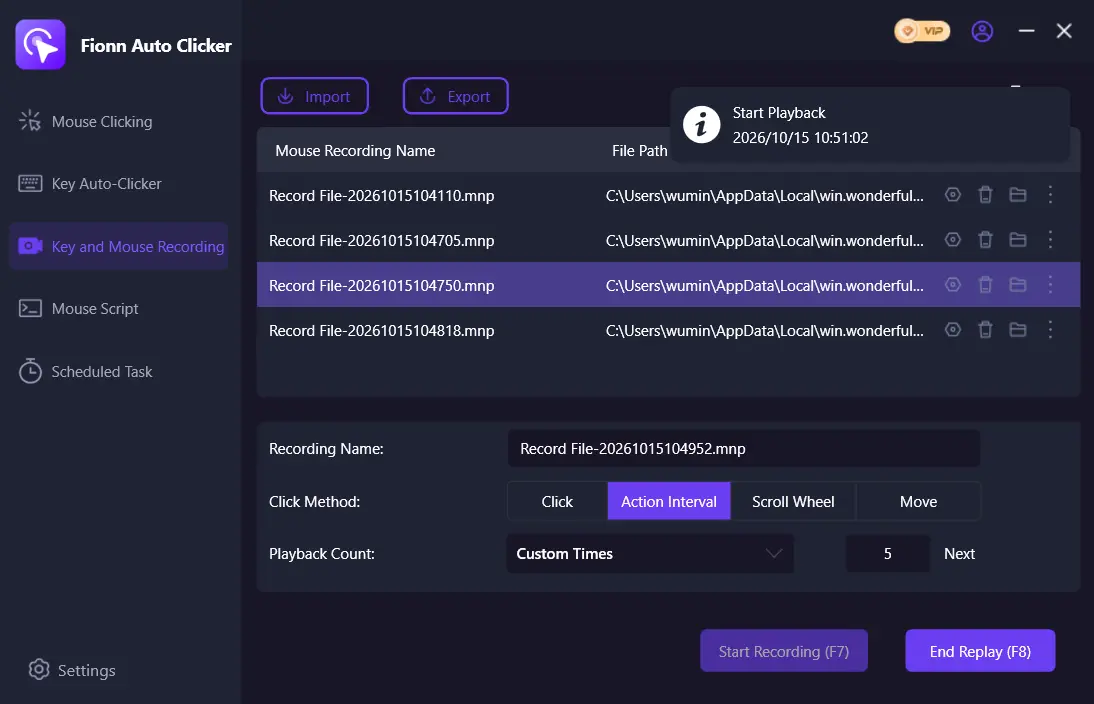
- Set the desired number of replays; for a specific number, choose a custom amount and enter the number. Select Start Replay or press F8 to run the selected recording. Run a short end-to-end test with one replay. Compare the visible result with the action performed manually. During replay, select Stop Replay or press F8 to stop it.
A successful result is when the saved recording appears in the list and one replay performs the same visible operation in the test target as manual input.
Record a Macro in Macro Recorder
Choose this option if you need a standalone recorder for Windows or Mac. According to the Macro Recorder documentation , it records mouse movements and clicks, scrolling, keystrokes, and text input; recorded actions can be replayed indefinitely.
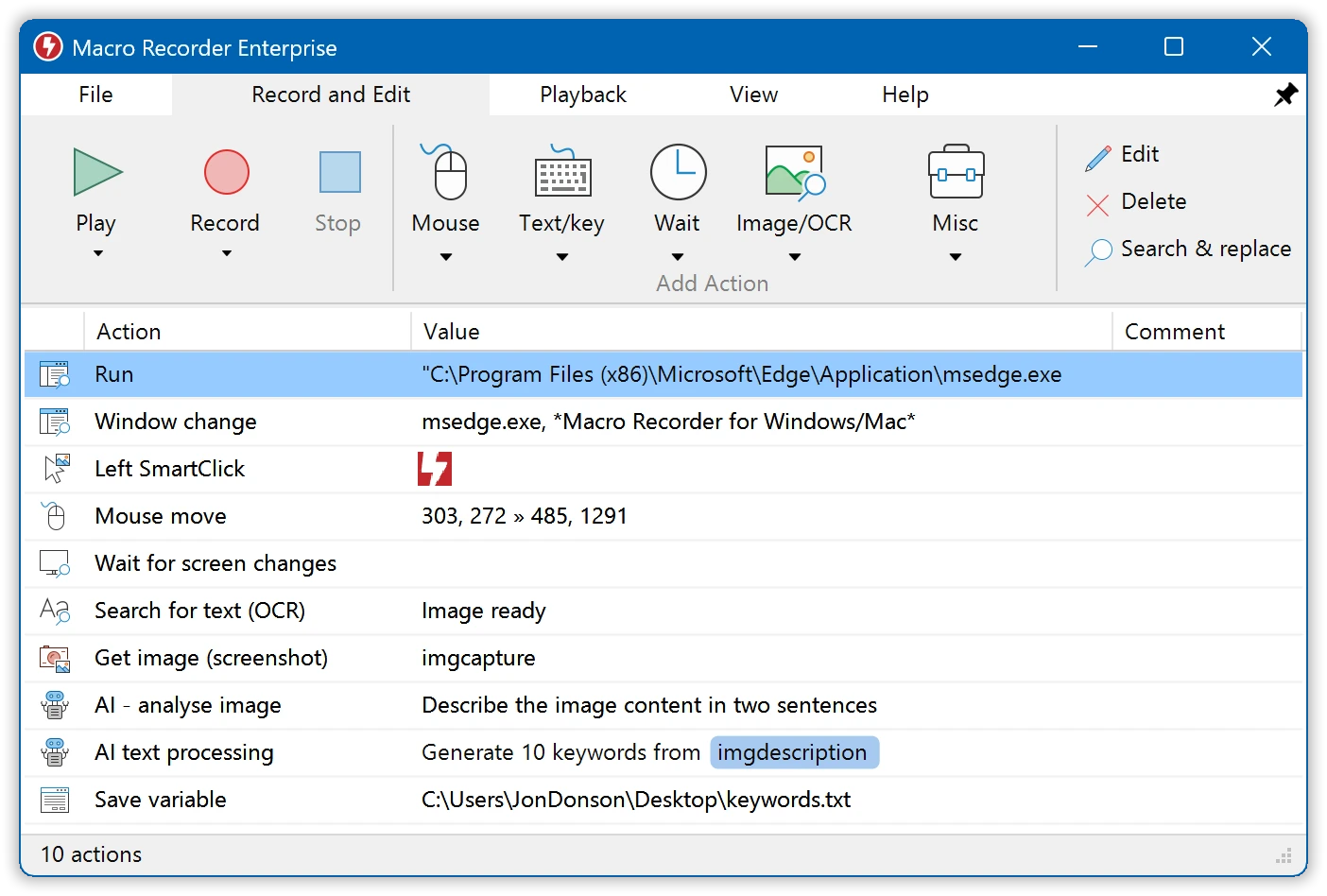
- Select Record in the main window or use the configured recording hotkey.
- Perform the required mouse and keyboard actions.
- Select Stop in the main window, choose Stop from the notification area icon, or use the configured hotkey.
- Confirm that the created macro is saved. Use the help for your version before running it.
If the target application runs with administrator privileges, run Macro Recorder with the same privileges: its documentation identifies this as a requirement for capturing input from elevated applications.
Record and Run a Flow in Power Automate for Desktop
This method is suitable when you need to record actions associated with interface elements in a desktop app or web page. The recorder creates separate UI and browser automation actions
.
- Create a new desktop flow and select Recorder in the designer pane.
- Select Record and perform the required actions in the app or on the web page.
- Select Done to convert the recorded steps into flow actions.
- In the console, select Start next to the required flow or on the command bar to run it locally while attended.
Check the flow status in the console. Microsoft notes that conditions and loops are not recorded, and unnecessary recorded actions may need to be deleted. Learn more about recording flows and running and viewing flow status in the console .
Conclusion
To quickly record mouse and keyboard actions, start with a short sequence and one replay in a safe target. If you need a direct record-and-replay workflow with F7 and F8, use Fionn Auto Clicker . Macro Recorder works as a standalone recorder, while Power Automate for desktop is suited to UI automation flows. After using any method, compare the first replay with the manual action and adjust the recording if the results differ.
Frequently Asked Questions
Can I record both mouse and keyboard actions in Fionn Auto Clicker?
Yes. Fionn Auto Clicker supports recording and replaying mouse and keyboard actions. The selected recording section lists settings for clicks, intervals, scrolling, and movement.
Which hotkeys are used for recording and replay?
In the described process, F7 starts and stops recording, while F8 starts and stops replay. Fionn Auto Clicker also supports global hotkeys and conflict detection.
Why does a Power Automate flow need editing after recording?
The recorder does not create conditions or loops. Microsoft also warns that unnecessary actions may appear in a recording and should be removed before using the flow.
What should I do if Macro Recorder does not record input in an app running as administrator?
Run Macro Recorder as an administrator. Its documentation states that the recorder must also run with elevated privileges to capture events from an application with those privileges.


