 Emily CarterPrinter Drivers
Printer Not Recognized by Windows? 5 Targeted Fixes
Introduction
When Windows does not recognize a printer, the device may be missing from Printers & scanners, appear with a warning, or accept jobs that never print. Common causes include a loose USB connection, different Wi‑Fi networks, incomplete registration, an unavailable driver, or a stalled Print Spooler. Work through these five methods in order: run the built-in troubleshooter, add or reinstall the printer, refresh its driver in Device Manager, restart Print Spooler for frozen queues, then use Fionn Printer Driver when model or driver diagnosis remains unclear.
What Does “Printer Not Recognized by Windows” Mean?
Check these prerequisites first
- Turn on the printer and clear any error on its display.
- For USB, secure both cable ends and try another USB port.
- For Wi‑Fi, place the printer and PC on the same network or SSID.
- For Bluetooth, enable Bluetooth on both devices and keep them within range.
| Observable symptom | Use this path | Why |
|---|---|---|
| Absent from Printers & scanners | Methods 1 and 2 | Discovery or registration is incomplete. |
| Printer or queue has a driver warning | Method 3 | The device entry may need a driver refresh. |
| Listed, but jobs freeze or apps hang | Method 4 | Print Spooler may be unresponsive. |
| Only one app cannot see it | Troubleshoot that app | Printing elsewhere shows Windows recognizes the device. |
Microsoft guidance checked September 9, 2026.
Quick Method Comparison
Choose the first row that matches what you see. The methods move from basic discovery to targeted repair.
| Method | Best For | Efficiency | User Effort |
|---|---|---|---|
| 1. Windows troubleshooter | Unknown cause | Automated diagnostic | Low |
| 2. Windows Add device | Missing or unusable Settings entry | Direct setup path | Low |
| 3. Driver refresh | Device Manager warning or unavailable driver | Targeted, multi-step | Moderate |
| 4. Print Spooler restart | Listed printer with frozen jobs | Short service reset | Moderate |
| 5. Fionn Printer Driver | Recommended when model, driver, or supported diagnostic category is unclear | Automated for supported checks | Low |
Method 1: Run the Windows Printer Troubleshooter
When to use: choose this built-in method when the cause is unclear. Microsoft directs Windows 10 and 11 users to the automated printer troubleshooter in Get Help.
- Search Windows for
Get Help, then open the app. - Enter
printer troubleshooterin the search box. - Follow the prompts and allow diagnostics if requested.
- Apply the action offered for the detected condition.
Verification:
in Windows 11, open
Printers & scanners > [printer] > Printer properties > General > Print Test Page
. In Windows 10, use
Printers & scanners > [printer] > Manage > Printer properties > General > Print Test Page
. Continue to Method 2 if the printer remains absent.
Method 2: Add or Reinstall the Printer in Windows
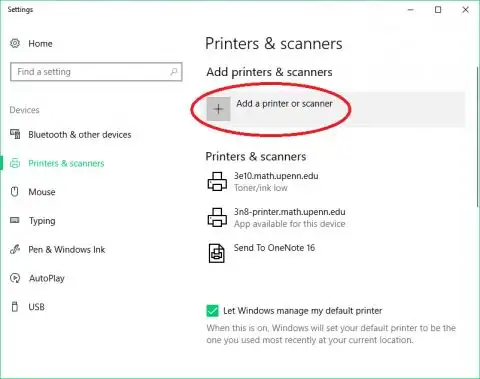
When to use: use this method when the printer is powered and connected but missing, or when its Settings entry is unusable. These steps follow Microsoft's Add or install a printer in Windows guidance.
- In Windows 11, open
Start > Settings > Bluetooth & devices > Printers & scanners. In Windows 10, useStart > Settings > Devices > Printers & scanners. - If an unusable printer entry exists, select it and choose
RemoveorRemove device. - Select
Add devicein Windows 11 orAdd a printer or scannerin Windows 10. - Allow several minutes for the device list to populate.
- Select the printer, then choose
Add Device. - If it stays missing, select
The printer that I want isn't listed. In Windows 11, chooseAdd a new device manually, select the option matching your connection, and complete the prompts.
Verification:
confirm the printer appears, then print a test page from Printer properties. Windows 10 may show
Manage
before Printer properties.
Method 3: Update or Reinstall the Printer Driver
When to use: use this method when Device Manager shows a warning icon, the printer is listed but the driver is unavailable, or printing stopped after a driver or Windows update.
- Right-click
Startand openDevice Manager. - Expand
PrintersandPrint queues. If neither contains the device, also checkOther devicesfor an unknown printer. - Right-click the printer entry and select
Update driver > Search automatically for drivers. Install any driver Windows finds. - If the update does not help, right-click the same entry, choose
Uninstall device, confirm, and restart the PC. Reconnect the printer so Windows can reinstall it. - When Windows cannot find a suitable package, return to
Update driver, chooseBrowse my computer for drivers, select the verified driver folder, and complete the wizard.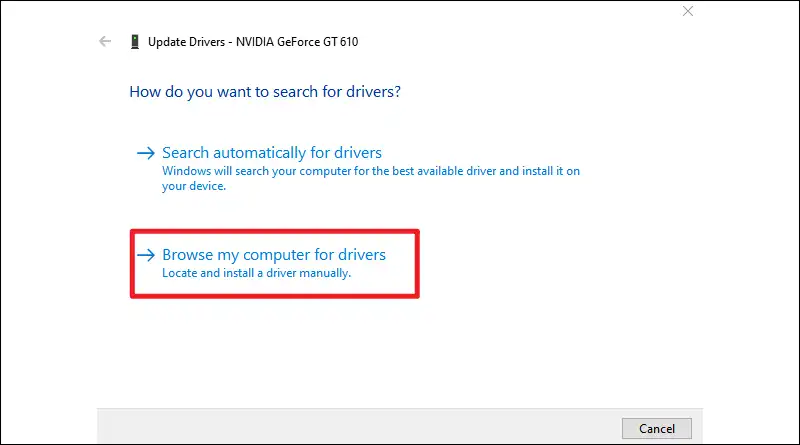
Verification:
reopen Device Manager and confirm the printer has no warning icon or unavailable-driver message. Then print a test page from
Printers & scanners > [printer] > Printer properties > General > Print Test Page
.
Method 4: Restart the Windows Print Spooler
When to use: use this advanced method when Windows lists the printer, but jobs freeze or apps hang while printing. Microsoft's Print Spooler repair guidance confirms that this service manages print jobs.
- Press
Windows key + R. - Enter
services.msc, then press Enter. - Locate
Print Spooler. - Right-click it, then select
Restart.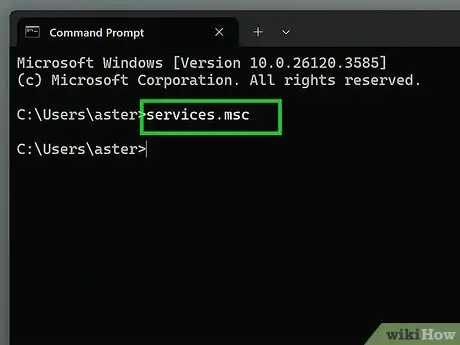
Verification: send one test page. The job should leave the queue and the page should print. If the device is absent, return to Method 2.
Method 5: Diagnose and Fix “Printer Not Recognized by Windows” with Fionn Printer Driver
When to use: use this Windows-only method when the printer model or required driver is unclear, or when a Windows Printer Service, port, queue, sharing, or device-status condition needs checking. Fionn Printer Driver can identify most mainstream printer brands and models and check these conditions.
Follow these four steps:
- Launch Fionn Printer Driver and click “Scan Now” to scan your computer for printer drivers and related issues.

- Wait while Fionn Printer Driver scans your system for installed printers, drivers, and common printer issues.

- After the scan finishes, click “One-Click Fix” to automatically install or repair the required printer driver.

- Wait for the repair to finish and confirm that the printer issue has been fixed successfully.

Verification: print a Windows test page. If it fails, continue with connection, queue, or Windows printing checks.
Conclusion
Start with discovery: run Get Help, then add or reinstall the printer in Settings. If Windows lists the device with a warning, refresh its driver in Device Manager. Restart Print Spooler only when jobs freeze or applications hang. Fionn Printer Driver is the recommended convenience option when the model, driver, or supported print-chain issue is unclear because it can scan and repair supported drivers and related conditions. After any repair, print a Windows test page to confirm the result. If printing still fails, recheck the cable or network, clear the queue, and investigate other Windows printing or application-specific issues.
Frequently Asked Questions
Why is my printer not showing in Printers & scanners?
Windows has not completed discovery or registration. Confirm power and connection, then use Method 1 followed by Method 2. For wireless models, verify that the PC and printer use the same SSID.
Why does Windows see my printer but say the driver is unavailable?
Windows registered the device but lacks a usable driver. Use Method 3 to update or reinstall the entry in Device Manager, then print a test page.
Why can my phone find the wireless printer when Windows cannot?
The phone and printer may share a network that differs from the PC's SSID, or Windows discovery may be incomplete. Check the PC's connected network, then run Method 1 and Method 2.
Will setting the printer as default make Windows recognize it?
No. A default setting chooses which already-installed printer receives jobs; it does not discover or register a missing device. Add the printer first, then set it as default if needed.
Do these steps still apply to Windows 10?
Yes, where a Windows 10 path is shown. Microsoft ended Windows 10 support on October 14, 2025, so it no longer receives free security fixes or technical support. Plan migration to a supported Windows version.


