 Emily CarterData Recovery
To recover corrupted SD card data, stop using the card immediately and avoid formatting it until you have tried to retrieve important files. Start by ruling out a reader or connection problem, then use Windows Error Checking when the card is still accessible. If a backup is unavailable, scan the card with recovery software and save any recovered files to a different drive. This guide covers four practical methods in that order.
Before You Start
A corrupted card may display a format prompt, show missing folders, or allow files to appear but not open. These symptoms do not always mean the data is gone. However, taking new photos, copying files to the card, or formatting it can overwrite data that recovery software may otherwise find.
- Remove the card safely and keep it protected from moisture and physical damage.
- Have a separate drive with enough free space for recovered files.
- If the card is physically cracked, hot, or repeatedly disconnects, stop repeated recovery attempts.
Quick Method Comparison
| Method | Best For | Efficiency | User Effort |
|---|---|---|---|
| Check the connection | The card is not detected or disconnects | Fast | Low |
| Windows Error Checking | The card opens but reports file-system errors | Moderate | Low |
| Restore from a backup | A recent copy exists elsewhere | Fast | Moderate |
| Fionn Data Recovery | Deleted, formatted, or inaccessible files | Thorough scan | Low |
Method 1: Check the SD Card Connection
When to use: Use this method when Windows does not recognize the card, the drive disappears, or the issue started after changing a reader, adapter, or USB port. A failing connection can look like card corruption.
- Remove the SD card from the current reader or adapter.
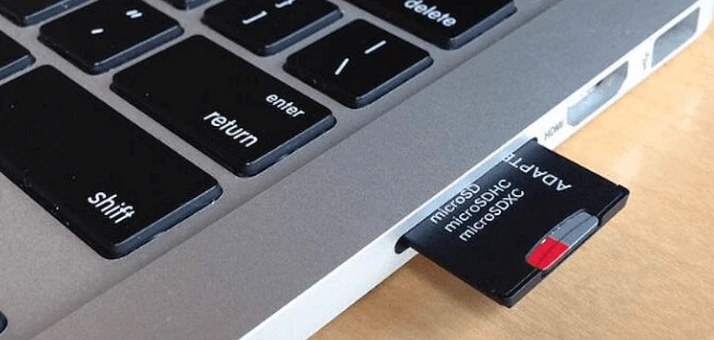
- Inspect the card contacts and adapter for visible debris or damage.
- Insert the card into a different compatible card reader or USB port.
- Open File Explorer and check whether the SD card receives a drive letter.
Verification: If the card opens in a different reader, copy accessible files to another drive. Replace the reader or adapter if the original connection remains unreliable.
Method 2: Use Windows Error Checking
When to use: Use Windows Error Checking when the SD card appears in File Explorer but Windows reports an issue, folders open slowly, or files behave unexpectedly. This method is for an accessible card with suspected file-system errors.
- Connect the SD card and open File Explorer.
- Right-click the SD card drive and choose Properties .
- Select the Tools tab.
- Select
Check
in the Error checking section and follow the prompt.
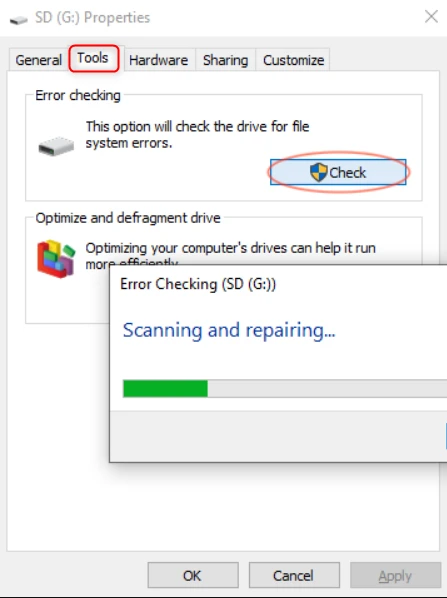
Verification: When the check completes, reopen the card and test several folders or files. If the files are still missing or unreadable, move to a backup or recovery scan rather than formatting the card.
Method 3: Restore Files from a Backup
When to use: Choose this path when the missing photos, videos, or documents were copied to a computer, external drive, or cloud storage before the card failed. A verified backup is usually the shortest recovery route and avoids further activity on the affected card.
- Locate the newest known copy of the missing files.
- Copy the required files to a healthy local or external drive.
- Open several copied files to confirm that their contents are usable.
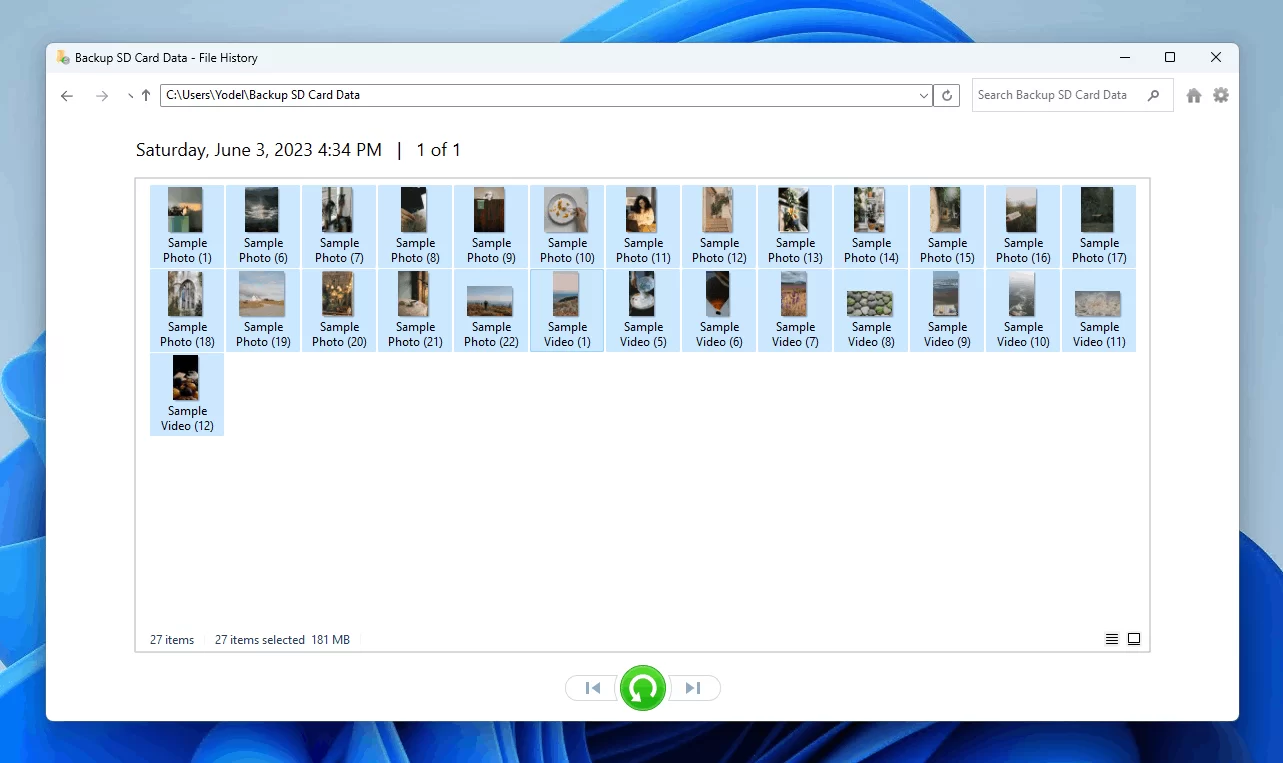
Verification: Confirm that the restored files open from the healthy drive and that their names, dates, or contents match what you need.
Method 4: Fix Corrupted SD Card Data with Fionn Data Recovery
When to use: Use this method for deleted, formatted, or inaccessible SD card data when a backup is unavailable. Fionn Data Recovery supports SD cards and camera memory cards, with scan results that can be filtered and previewed before recovery.
- Launch Fionn Data Recovery and select the recovery option for the type of data or storage location you want to recover.

- Start the automatic scan and wait while Fionn Data Recovery searches the selected location for deleted or lost files.

- After the scan finishes, browse the results and preview the files to select the data you want to restore.

- Select a destination folder to save the recovered files, then start the recovery process.

Verification: Open recovered copies from the selected destination folder. Check representative photos, videos, or documents before relying on them.
Tips to Avoid Further Data Loss
- Stop using the card as soon as files go missing or become unreadable.
- Do not recover files back to the same SD card.
- Keep a second copy of important camera-card files before deleting them from the card.
- Test the card after recovery before returning it to regular use.
Conclusion
Begin with another reader or USB port, since a poor connection can mimic a corrupted SD card. If Windows can still access the card, run Error Checking and test files afterward. Restore a backup whenever a current copy exists. For deleted, formatted, or inaccessible files, Fionn Data Recovery provides a scan-and-preview recovery path for SD and camera cards. Verify success by opening recovered files from a different destination drive. If the card has physical damage or repeatedly disconnects, seek specialist assistance rather than continuing to use it.
Frequently Asked Questions
Can corrupted SD card data be recovered?
It can sometimes be recovered, depending on the card condition, whether data has been overwritten, and whether file data remains detectable. Stop writing to the card as soon as possible.
Should I format a corrupted SD card before recovery?
No. Recover important files first. Formatting and later use can complicate recovery by changing the card’s file structure or overwriting recoverable data.
Why should recovered files be saved to another drive?
Saving recovered files to the affected card can overwrite files that have not yet been recovered.
What should I do if Windows asks me to format the SD card?
Do not format the card if you need its files. First test another reader, then use a recovery method that writes recovered files to a separate destination.
Can Fionn Data Recovery recover photos and videos from an SD card?
Fionn Data Recovery lists images and videos among its supported file types and supports SD cards and camera memory cards as recovery sources.


