 Emily CarterPrinter Drivers
Introduction
An HP printer driver update is usually appropriate when Windows cannot detect the printer, printing stopped after a Windows change, Device Manager reports a driver problem, or HP provides a model-specific fix. If the printer works normally, updating solely to obtain a newer version is rarely urgent. Start with Windows Update, try Device Manager for one affected printer, and use HP’s official download when Windows cannot find a suitable package. A driver tool is the fourth, optional method.
When Should You Update an HP Printer Driver?
Update the driver when there is an observable compatibility or communication problem—not as a routine response to every printing failure. A stuck queue, offline printer, wrong port, or stopped print service can prevent printing even when the driver is healthy.
This distinction is important: a driver controls communication between Windows and the printer, while printer firmware runs on the printer itself. Do not install a firmware package when the task only calls for a Windows driver update.
Before You Start
- Connect the printer by its normal USB, Ethernet, or Wi-Fi connection and turn it on.
- Save open work and sign in with an administrator account.
- Confirm the exact model or product number. HP notes that similar models in one series can have different features.
- Open
Device Manager > Printers > [printer] > Properties > Driverand record the provider, date, and version. - Create a restore point if the printer is business-critical or the current driver is difficult to obtain.
HP Printer Driver Update Methods Compared
| Method | Best use | Main limitation |
|---|---|---|
| Windows Update | Safest first check for recommended or optional drivers | May not offer HP’s newest model-specific package |
| Device Manager | One printer is missing or reports a driver error | Automatic search may return no newer driver |
| HP official download | Windows lacks the correct model-specific driver or features | Requires exact model and operating-system selection |
| Fionn Printer Driver | Optional scanning, driver matching, and print-chain checks | Third-party installation; membership applies to some capabilities |
Method 1: Update the Driver Through Windows Update
When to use
Use Windows Update first when the printer works imperfectly but Windows still recognizes it. Microsoft describes Windows Update as the preferred way to receive recommended drivers. Optional drivers require manual selection.
- In Windows 11, open
Settings > Windows Update. In Windows 10, openSettings > Update & Security > Windows Update. - Select Check for updates and let recommended updates finish.
- Open Advanced options > Optional updates > Driver updates . On Windows 10, select View optional updates if it appears.
- Select only the applicable HP printer driver, then choose Download and install .
- Restart Windows after installation.
Microsoft’s official Windows driver update instructions confirm that optional drivers are not installed automatically.
How to verify
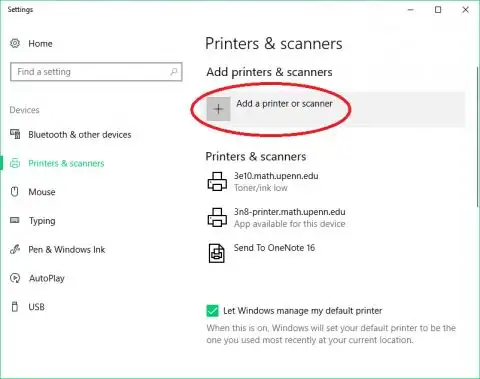
Return to the Driver tab in Device Manager and compare the recorded version. Print a Windows test page from
Settings > Bluetooth & devices > Printers & scanners > [printer] > Printer properties
. Windows 10 may place Printers & scanners under
Settings > Devices
.
Method 2: Update a Specific HP Printer in Device Manager
When to use
Choose Device Manager when one HP printer is affected, especially if it appears with a warning icon. This method targets that device rather than installing every available Windows update.
- Right-click Start and select Device Manager .
- Expand Printers . Check Print queues if the device is not listed there.
- Right-click the correct HP printer and select Update driver .
- Select Search automatically for drivers .
- Follow the prompts and restart Windows if requested.
If automatic search finds nothing, that result does not prove HP has no newer package. Microsoft recommends checking the hardware manufacturer’s website when Windows cannot locate a compatible update.
How to verify
Reopen the printer’s Driver tab and confirm that Device status reports normal operation. Then print from both a simple app, such as Notepad, and the application that originally failed. Success in one app but not another points away from a system-wide driver problem.
Method 3: Install the Driver From HP’s Official Website
When to use
Use HP’s download center when Windows cannot identify the printer, model-specific functions are missing, or Windows Update offers no suitable driver. This route gives you the clearest control over the model and package selected.
- Read the exact model or product number from the printer label or its existing device properties.
- Open the
official HP printer drivers and software page
.
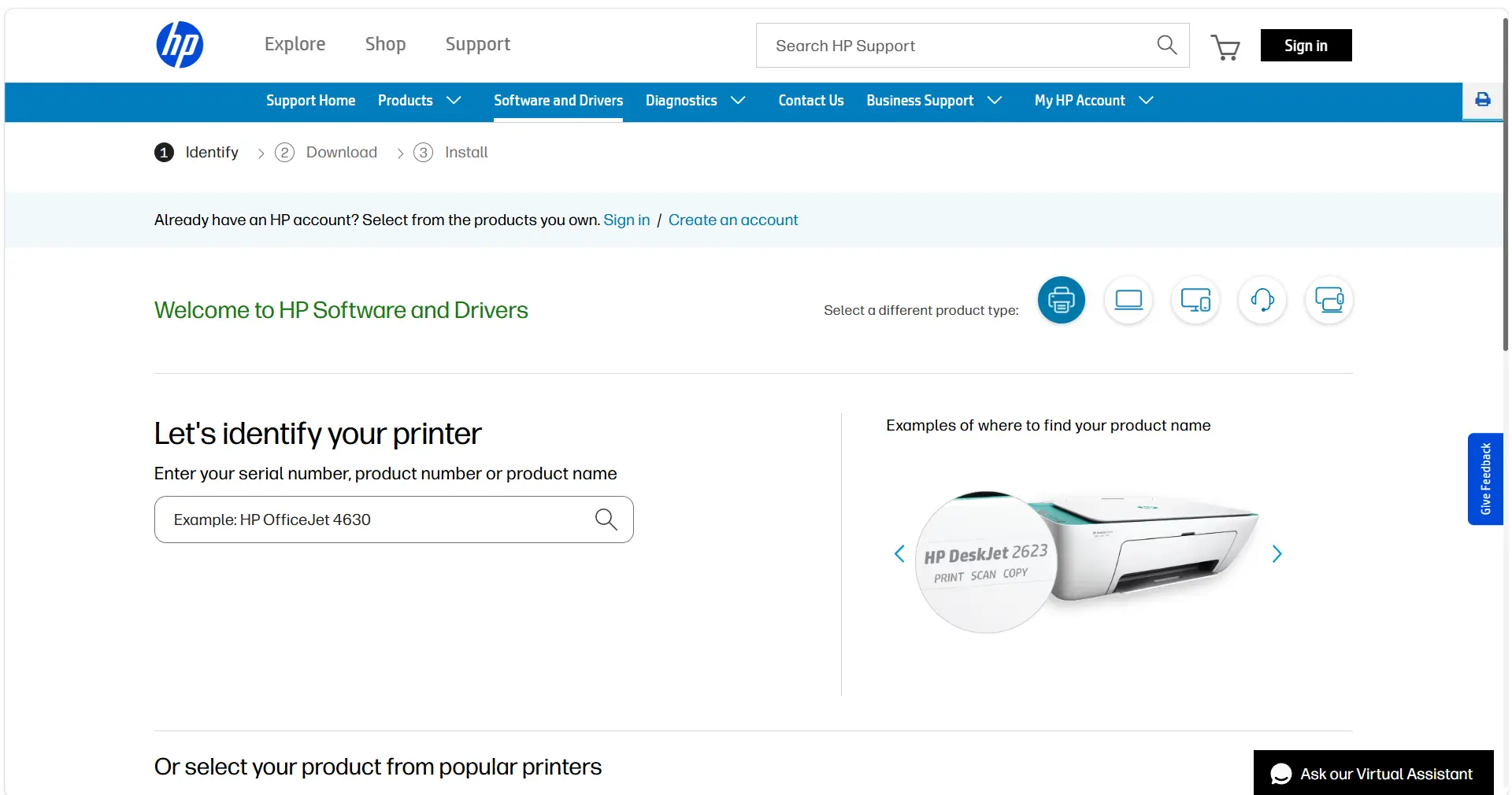
- Enter the product name, product number, or serial number and select the matching printer.
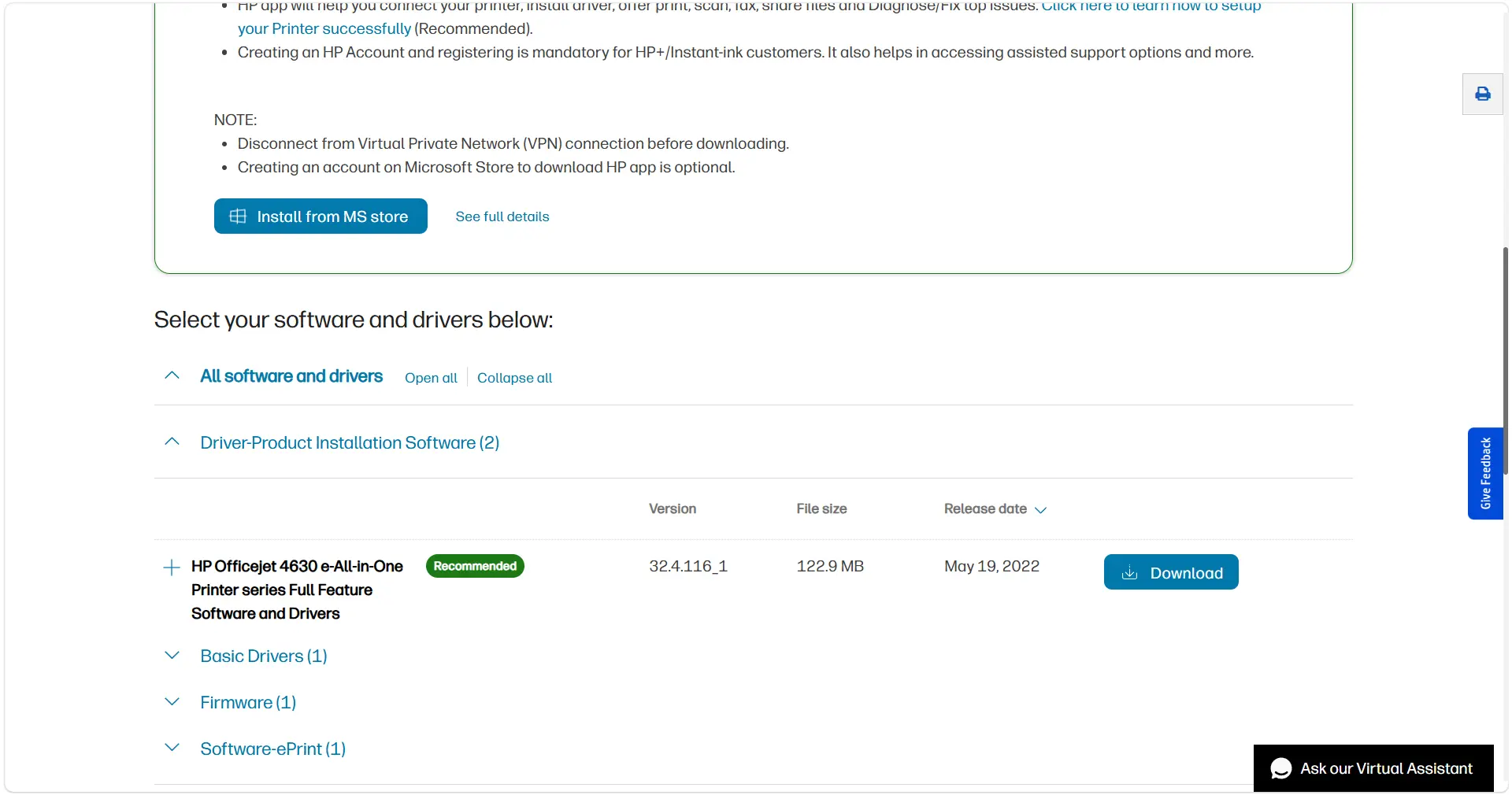
- Confirm the detected Windows version and choose a compatible driver offered for that model.
- Download the installer, open it, and follow HP’s prompts for the printer’s connection type.
- Restart Windows if prompted, then reconnect or re-add the printer when requested.
Note: Download drivers only from HP or another source you explicitly trust. A driver operates with elevated system access, so unofficial repackaged installers create unnecessary security risk.
How to verify
Check the Driver tab for the expected provider and version. Print a test page and test any model-specific feature you needed, such as duplex printing or scanning. A successful test page confirms printing, but it does not confirm every multifunction feature.
Method 4: Update With Fionn Printer Driver
When to use
This optional Windows method fits users who do not know the exact model or want to check the driver alongside the printer service, port, and queue. The product can detect available driver updates, match drivers automatically or manually, and identify several non-driver print conditions.
- Launch Fionn Printer Driver and click “Scan Now” to scan your computer for printer drivers and related issues.

- Wait while Fionn Printer Driver scans your system for installed printers, drivers, and common printer issues.

- After the scan finishes, click “One-Click Fix” to automatically install or repair the required printer driver.

- Wait for the repair to finish and confirm that the printer issue has been fixed successfully.

How to verify
Run the product’s detection again, confirm that the driver warning is cleared, and print a Windows test page. If the driver is current but printing still fails, review any detected service, port, queue, default-printer, or physical device-state issue instead of repeatedly reinstalling the driver.
What to Do If Printing Fails After the Update
If the problem began immediately after an update, a newer driver may be less compatible with that printer or Windows configuration. An update should produce a measurable improvement; if it does not, return to the known working baseline.
- Open Device Manager and expand Printers .
- Right-click the HP printer and open Properties > Driver .
- Select Roll Back Driver , choose a reason, and confirm.
- Restart Windows and print another test page.
Microsoft states that administrator permission is required for rollback. If Roll Back Driver is unavailable, Windows has no retained previous driver. Use the recorded version to find the prior compatible package through HP support.
Conclusion
For most users, the recommended order is Windows Update, Device Manager, and then HP’s official download center. Use a manual HP package when Windows cannot find the correct model-specific driver. Use Fionn Printer Driver only as an optional matching and diagnostic route after the official options are understood. Confirm success by checking the installed driver version, printing a Windows test page, and testing the feature that failed. If the issue started after updating, roll back the driver; if the driver tests correctly, investigate the queue, port, print service, connection, and printer status.
Frequently Asked Questions
Does Windows 11 update HP printer drivers automatically?
Windows 11 can install recommended printer drivers through Windows Update. Optional driver updates are not installed automatically, so check
Windows Update > Advanced options > Optional updates > Driver updates
. HP’s website remains the next source when Windows cannot find a compatible package.
Should I update an HP printer driver if the printer works?
Usually, no immediate update is needed when printing and all required features work reliably. Update when the release addresses a problem you have, adds required compatibility, or is recommended for your model. Record the working version first so you have a recovery reference.
Why does Device Manager say the best driver is already installed?
Device Manager reports the best driver available through its current search sources; it does not guarantee that HP has no newer model-specific package. Search HP’s official download page with the exact model or product number and confirm Windows compatibility before installing anything manually.
Can a driver update fix an offline HP printer?
It can help when Windows cannot communicate with the printer because the driver is missing or incompatible. However, offline status can also result from a disconnected network or cable, wrong port, paused queue, stopped print service, or device condition. Diagnose those signals before reinstalling a healthy driver.
What is the difference between an HP printer driver and firmware?
The driver runs in Windows and enables communication with the printer. Firmware runs inside the printer and controls the device itself. Treat them as separate updates: select a Windows-compatible driver for a driver problem, and install firmware only under HP’s model-specific instructions.


