 Emily CarterScreen Recording
To record WARDOGS without noticeable FPS drops, first check how smoothly the game runs without recording, then compare it with a short test clip. If the game slows down only during capture, check the recording settings; if it stutters without capture too, investigate game performance first. This helps you avoid confusing a drop in the game's FPS, dropped frames in the saved video, network latency, and audio-video desynchronization. No program can guarantee zero lag in every situation, but a consistent test can show what to change next.
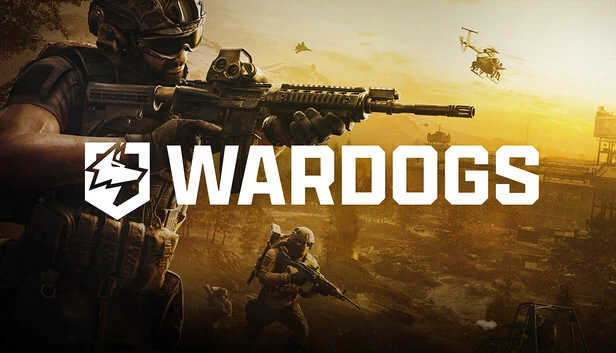
WARDOGS is a multiplayer tactical shooter from BULKHEAD with large-scale battles, vehicles, and destructible environments. Test your recording in combat, rapid movement, or destruction scenes, because game and capture load can peak there. The official WARDOGS Steam page lists 16 GB of RAM and GTX 1660- or RX 590-class graphics for the minimum configuration, as well as RTX 3070- or RX 6700 XT-class graphics for the recommended configuration. These requirements concern running the game, not guaranteed smooth gameplay recording.
How to Record WARDOGS Without Lag: Quick Diagnosis
| Observation | What to check | Next action |
|---|---|---|
| FPS is low without recording | Game performance | Investigate game load and PC settings first. |
| FPS drops only after recording starts | Capture and recording load | Check recording settings and repeat a short test. |
| The game is smooth, but the saved video stutters | Frame delivery to the file and output settings | Compare clips at another supported frame rate or quality setting. |
| Other players teleport while local FPS remains stable | Connection, packet loss, or the server | Do not automatically attribute the issue to recording. |
| Stutters are most noticeable during combat or destruction | Performance peaks in demanding scenes | Test a comparable demanding segment. |
| Video and audio do not match | Recording timing and audio sources | Check synchronization in the saved clip. |
Lag during game recording can come from WARDOGS performance, additional capture load, or problems in the finished video. Comparing in-game FPS with the smoothness of the saved clip helps you choose the next action. For a controlled Windows test, you can use Fionn Screen Recorder .
Method 1: Identify the Cause of Lag in WARDOGS
When to use: the cause is unclear, or you need to determine whether the game or only the recording is lagging. This method is for diagnosis, not precise benchmarking.
- Launch WARDOGS without recording.
- Observe the game's FPS and responsiveness.
- Play a demanding segment involving combat, fast movement, or destruction.
- Record a short comparable segment.
- Compare gameplay FPS and the smoothness of the saved video.
- Identify symptoms that appear only while recording.
Check the result: if FPS drops only during capture, move on to recording settings. If the game performs poorly without capture too, address the game or system cause first. If the game remains smooth but the file stutters, focus on saved-recording settings.
Method 2: Configure WARDOGS Recording in Fionn Screen Recorder
When to use: FPS or video quality worsens after capture begins and you need a controlled Windows test. Fionn Screen Recorder lets you choose an area, audio sources, frame rate, quality, and capture mode, then review the resulting file.
- Launch Fionn Screen Recorder and open the main recording screen.
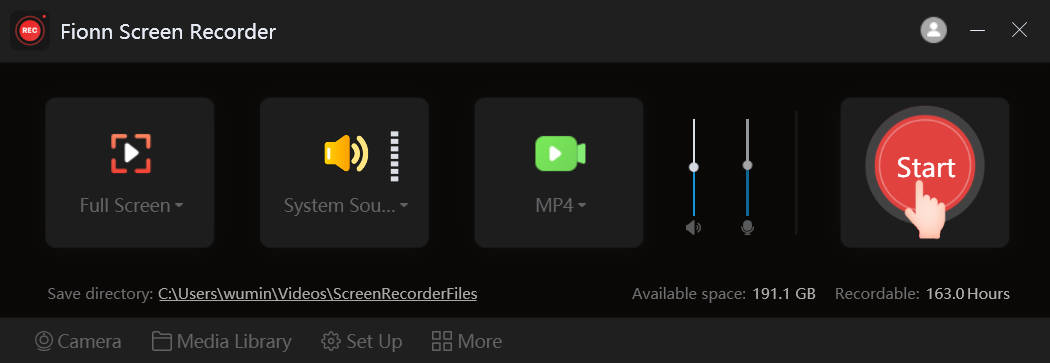
- Select an appropriate capture area: full screen, the WARDOGS window, or a custom region.
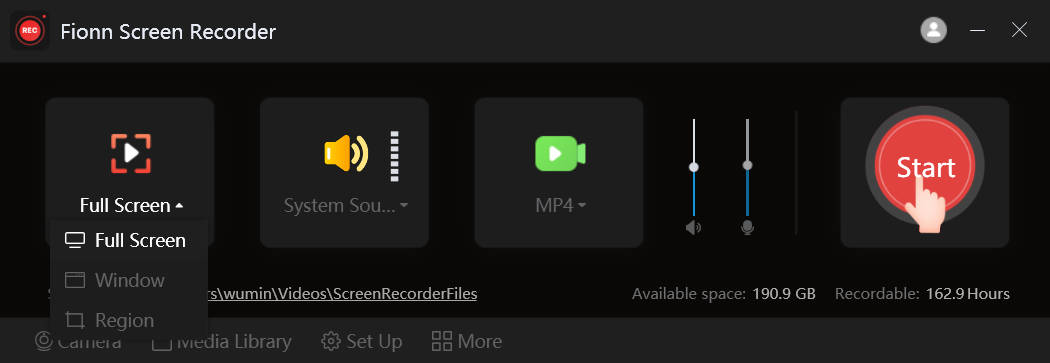
- Configure the short test: choose a supported recording frame rate, quality, and, where the interface offers it, a capture mode. On Windows 10 and later, DXGI can be one capture option to test for a gaming scenario; results depend on the PC configuration, the game's display mode, and software compatibility.
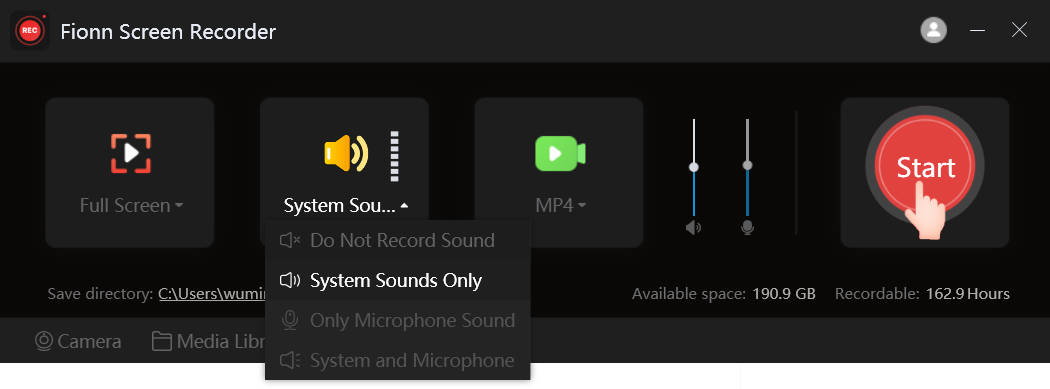
- Choose system audio, microphone audio, both sources, or no audio; if the setting is available, select the desired video format.
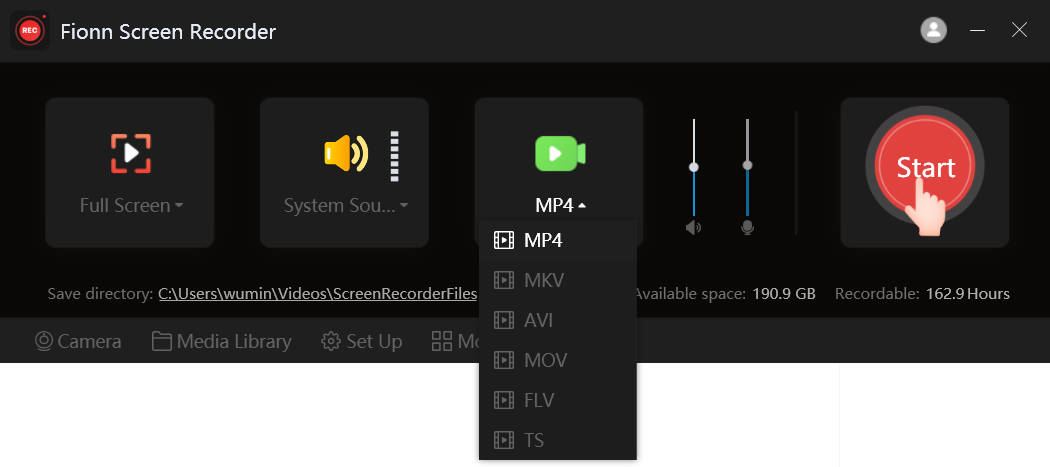
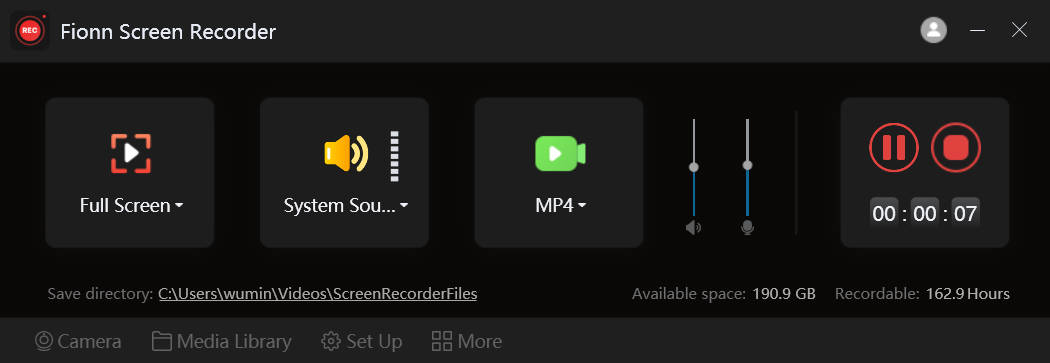
- Record a short WARDOGS segment with the same load as the diagnostic test, then stop the recording.
- Open the media library and check the clip's smoothness, audio, and synchronization.
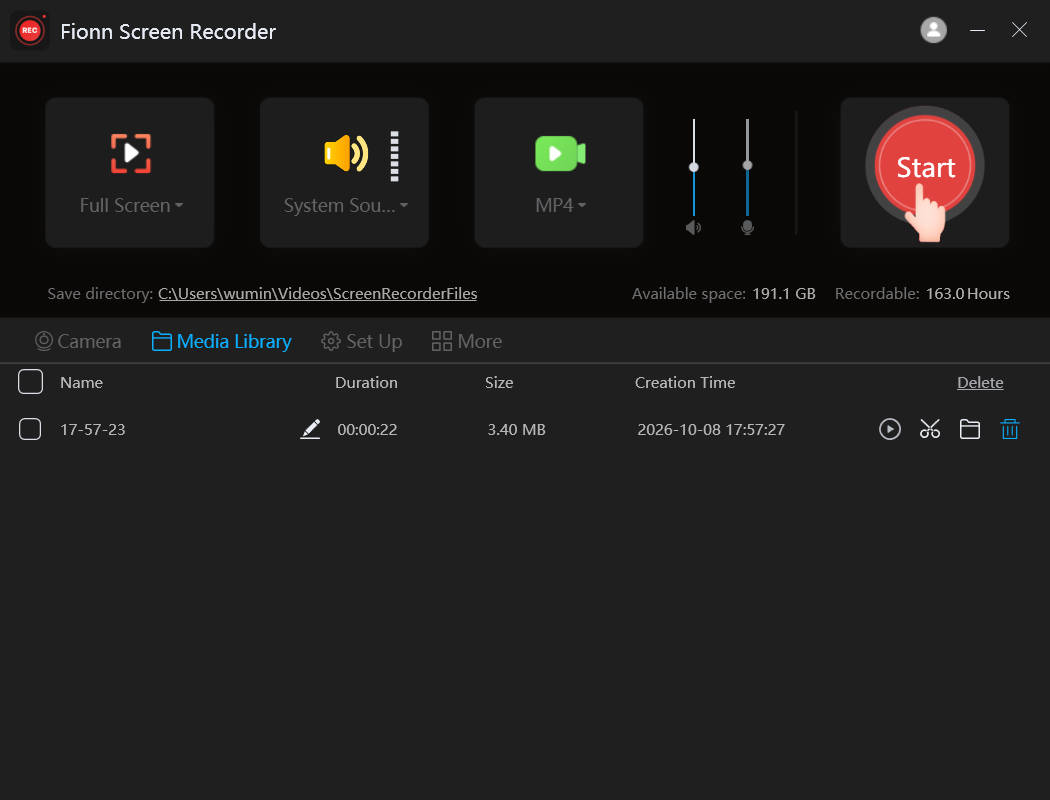
Check the result: an improvement means not only a smoother file but also no new noticeable FPS drop in a comparable scene. If only one measure changes, note it and adjust the next setting separately.
Which Recording Settings Should You Check If WARDOGS Stutters?
Change one setting at a time and record a short comparable segment. This shows what affected the result instead of producing a random combination of changes.
- Lower the recording frame rate if capture causes FPS drops.
- Reduce recording resolution or quality when the software supports these settings.
- Close unnecessary background applications to avoid competing load.
- Check whether the selected capture mode works with the game; test available GDI or DXGI options individually rather than assuming either will fix lag.
- Ensure the output drive has sufficient free space if the save location is configurable.
- Compare several short saved clips from similar scenes, rather than a single frame.
Conclusion
To record WARDOGS without stuttering, start by checking the game without capture, then record a short comparable segment and identify the symptom. If FPS drops only after recording begins, adjust supported settings in Fionn Screen Recorder : area, capture mode, FPS, quality, and audio. After every change, review the saved clip in a demanding scene and check synchronization. If the game stutters without recording or the problem appears network-related, recording should not be the sole focus of your diagnosis. This sequence produces more reliable results than trying to select one “perfect” setting immediately.
Frequently Asked Questions
Why does WARDOGS lag only while recording?
Capture may be adding load, but confirm this by comparing a similar segment with and without recording. Then check FPS, quality, capture area, and capture mode one setting at a time.
Why is the game smooth but the recorded video laggy?
In this case, the issue may involve frame delivery to the file or output settings rather than the game's FPS. Compare several short clips at another supported FPS or quality setting.
Should I choose 30 or 60 FPS for WARDOGS?
For fast movement, you can begin by testing 60 FPS if your system sustains it without noticeable drops. If stutters appear, test 30 FPS and assess both the game and the saved file.
Can high load during combat affect recording?
Yes. Combat, fast movement, and destruction can create peak load, so these scenes are useful for a comparable test.
How can I distinguish network lag from an FPS drop?
If the local image and FPS remain stable but other players teleport or actions arrive late, check your connection, packet loss, and server status. This is different from an FPS drop.
How do I check a WARDOGS recording in Fionn Screen Recorder?
Record a short demanding segment, open it in the Fionn Screen Recorder media library, and compare smoothness, dropped frames, and audio synchronization with the original gameplay.


