 Emily CarterScreen Recording
To record Gears of War: E-Day on Windows, choose a method that fits your needs: Xbox Game Bar works for a quick clip, Fionn Screen Recorder works for screen and audio recording with a clear sequence of steps, and OBS Studio works when you need detailed source settings. Below are three independent methods. First, decide whether you need a short clip, a recording with voice, or a flexible scene with multiple sources.
Comparison of Recording Methods
| Method | Best for | Efficiency | User effort |
|---|---|---|---|
| Xbox Game Bar | Quick gameplay clips | High | Low |
| Fionn Screen Recorder | Recording a game with a selected area and audio | High | Low |
| OBS Studio | Scenes with multiple sources | Depends on configuration | Medium |
Method 1: Record Gameplay with Xbox Game Bar
When to use it: You want to quickly save a gameplay moment without installing another app. Xbox Game Bar is available in Windows 10 and Windows 11 and is designed to capture games.
- Launch Gears of War: E-Day and go to the moment you want to record.
- Press
Win + Gto open Xbox Game Bar.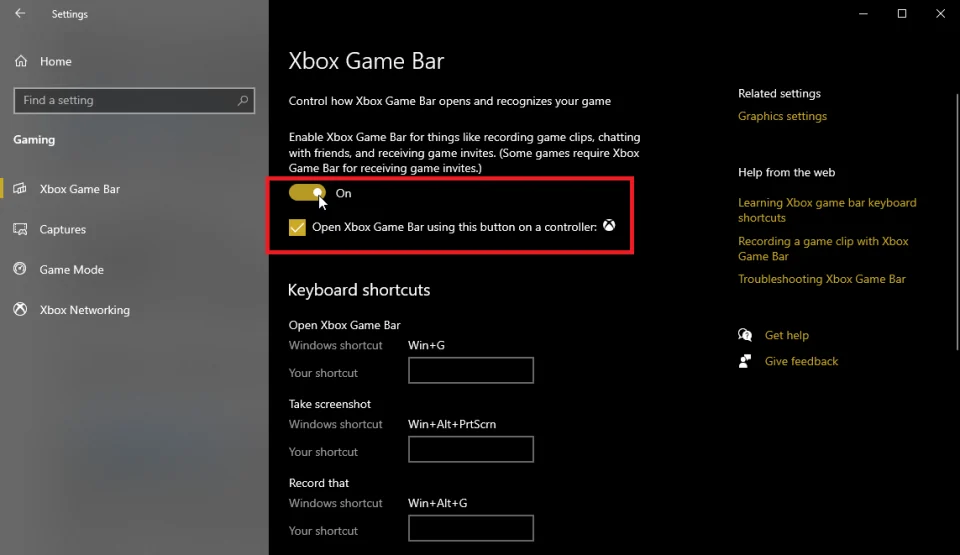
- In the Capture widget, click the Record button or use
Win + Alt + R. - To stop recording, press
Win + Alt + Ragain. - Open the notification for the completed recording and play the video to check the image and sound.
Method 2: Record Gears of War: E-Day with Fionn Screen Recorder
When to use it: You need to choose the full screen, a window, or an area, and explicitly select an audio source. This is the recommended option if you want to follow a short, step-by-step recording process.
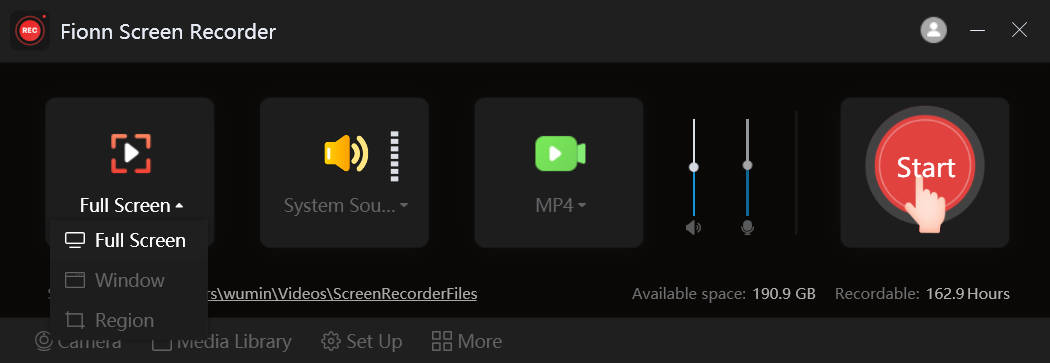
- Open Fionn Screen Recorder and choose the capture area: Full Screen, Window, or Region.

- Choose to record system audio, microphone audio, both sources, or no sound.

- Select MP4 or another video format before you start recording.

- Click Start to begin recording, then use Pause or Stop when you are finished.

- Open Media Library to play, edit, locate, or delete your recorded videos.

Check: In Media Library, open the video and make sure the entire game is visible and the selected audio tracks can be heard. If you need editing, the built-in editor lets you trim and export the recording.
Method 3: Record the Game with OBS Studio
When to use it: You plan to add several sources to a scene, such as the game, microphone, and webcam, and are prepared to configure them manually.
- Open OBS Studio and create a new scene.
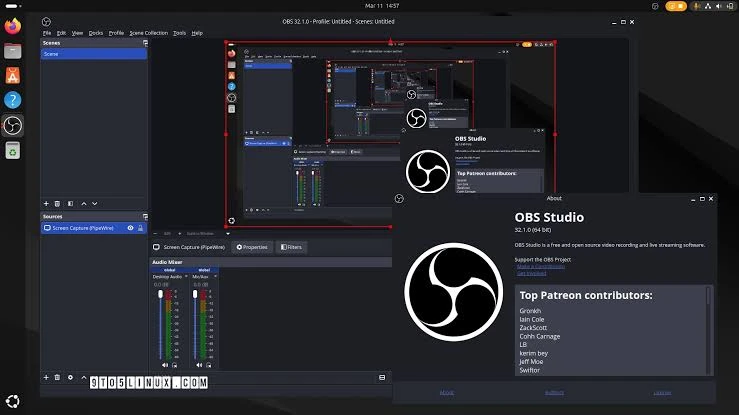
- In the Sources panel, add Game Capture and select the running game.
- Check the audio meters in the Audio Mixer and configure the sources you need.
- Open the output settings and choose where to save the recording.
- Click Start Recording, play the segment you need, then click Stop Recording.
- Open the saved file and check the video and audio.
Tips Before You Start Recording
- Close notifications and private windows if you are recording the entire screen.
- Make a 15–30 second test and listen to the system audio and microphone.
- For fast-paced gameplay, choose a frame rate your computer can maintain without noticeable drops while playing.
- Make sure you have enough free disk space: quality, frame rate, and duration increase file size.
Fionn Screen Recorder offers frame-rate settings from 1 to 60, along with video and audio quality options. Higher settings can increase hardware load and the size of the output file.
Conclusion
For a quick gameplay clip, start with Xbox Game Bar. If explicit selection of the area, format, and audio sources matters, use Fionn Screen Recorder. OBS Studio is suitable when recording requires a separate scene and manual source configuration. In every case, check a short test file before the main session: it should contain the game image, the audio you need, and acceptable smoothness. If capture does not start or audio is missing, recheck the selected source and run another short test.
Frequently Asked Questions
Can I record Gears of War: E-Day with game audio and my voice?
Yes, if the selected tool supports both sources. In Fionn Screen Recorder, you can choose system audio and microphone audio at the same time; check the result with a short test before the main recording.
Which method should I choose for a short gameplay clip?
Start with Xbox Game Bar. It is convenient when you need a quick capture of the active game without building a separate scene.
Why is there no sound in my recording?
Usually, the wrong source is selected or it is disabled. Check the audio settings in the recording app, then record a short clip and listen to it.
Do I need to record the entire screen?
No. If you want to hide notifications and other apps, choose to record the game window or a limited area when the selected tool supports it.
How can I reduce the size of a gameplay video?
Shorten the recording or reduce the quality and frame-rate settings. Then make sure the image remains acceptable for your purpose.


