 Emily CarterScreen Recording
To record gameplay video on Windows 10 or 11, choose a suitable method, configure the video and audio, and then review a short test file. Xbox Game Bar works well for a quick clip from one game, Fionn Screen Recorder lets you choose a capture area and audio source, and OBS Studio supports scenes with multiple sources. If you need one short segment after recording, you can trim and export it; combining multiple clips is a separate task.
How to Record Gameplay Video: Method Comparison
| Method | Best for | Editing one clip | Multiple clips | User effort |
|---|---|---|---|---|
| Xbox Game Bar | A quick clip from one game | Check the capabilities of the selected editor | A separate verified editor is required | Low |
| Fionn Screen Recorder | Screen or window recording with audio selection | Trimming and exporting one video are supported | The capability must be confirmed separately in the selected editor | Low |
| OBS Studio | Scenes with multiple sources | Check the capabilities of the selected editor | A separate verified editor is required | Higher |
Prepare Your Game and Make a 20–30 Second Test Recording
- Close notifications and programs that could display personal information on screen.
- Check your free storage space: a long recording at a high frame rate creates a large file.
- Decide whether you need voice: select a microphone for commentary and system audio for game sounds.
- Record 20–30 seconds and review the clip before starting your gameplay session.
Method 1: Record a Quick Game Clip with Xbox Game Bar
When to use it: you need a quick recording of a game window without a separate scene editor. Before a long recording, check whether capture is available for your version of Windows and game in the official Microsoft guide to recording game clips .
- Launch the game and switch to its window.
- Open Xbox Game Bar and the Capture widget by following Microsoft's instructions for your version of Windows.
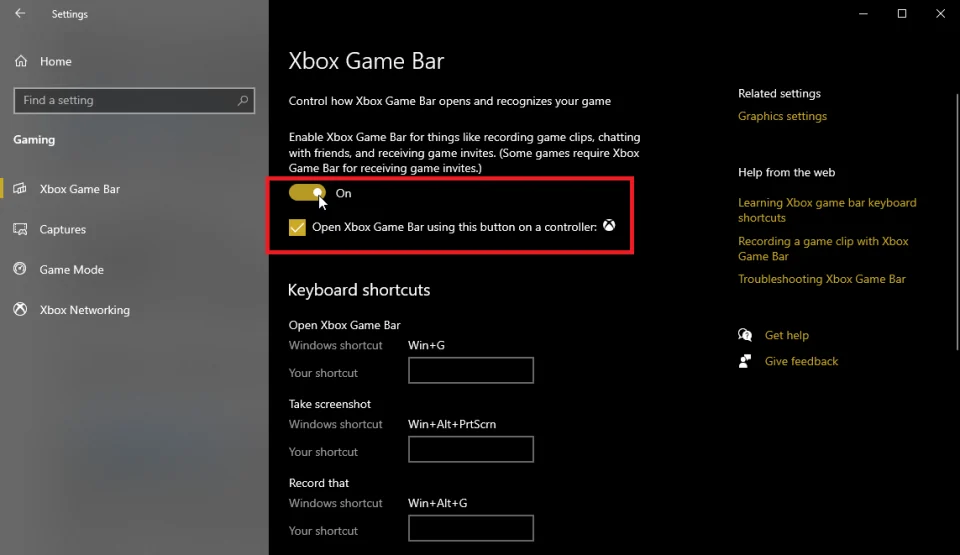
- Start recording the game clip using the available option in the widget.
- Play the required segment and stop capture.
- Open the finished clip and check the picture and audio.
Method 2: Record Gameplay with Fionn Screen Recorder
When to use it: you need to select the full screen, a window, or a region, and record system audio, microphone audio, or both. It is a practical option for gameplay with commentary if its settings suit your needs.
- Open Fionn Screen Recorder and choose the capture area: Full Screen, Window, or Region.

- Choose to record system audio, microphone audio, both, or no sound.

- Select MP4 or another video format before you start recording.

- Click Start to begin recording, then use Pause or Stop when you are finished.

- Open Media Library to play, edit, locate, or delete your recorded videos.

Check: play the video from the Media Library and make sure it includes game audio and voice if they were selected. The free version cannot save videos longer than two minutes, and the available resolution is 720P. Membership unlocks unlimited duration, 2K/4K, no watermark, and full recording modes.
Trim One Recorded Segment and Export It
This scenario applies to one video, not to combining multiple videos. After stopping the recording, open the required file in the built-in Video Editor, set the beginning and end of the segment, remove the unwanted part, and export the result. Then play the exported file and check the image, game audio, and voice.
Method 3: Record Gameplay in OBS Studio
When to use it: you need scenes, multiple sources, or separate control over game capture and audio. Before recording, compare source names and settings with the OBS Studio documentation for the Game Capture source .
- Install OBS Studio from the
official OBS Studio download page
and open the program.
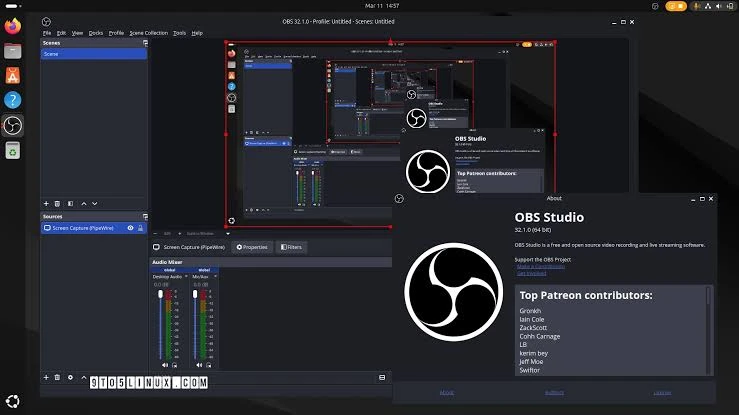
- Create or select a scene.
- Add a game capture source according to the current OBS documentation and select the running game or an appropriate mode.
- Check that the audio meters respond to game audio and the microphone if you need it.
- Start recording, play the segment, stop recording, and review the file.
If You Need to Combine Multiple Segments into One Video
Trimming one video sets its beginning and end, but it does not mean combining multiple recordings. Do not treat Fionn Screen Recorder as a clip-merging tool without separate confirmation. For a compilation, first check the capabilities of your selected editor or use another separately verified solution.
Check the Finished Recording and Fix Common Problems
- For typical gameplay, choose a stable frame rate before maximum quality: this can help reduce system load and file size.
- Before recording an episode, say a short phrase into the microphone and trigger sound in the game so you can more easily test both sources.
- If on-screen prompts or the interface matter to viewers, make sure the selected area does not crop the window edges.
- Check the first and last seconds, game audio, voice, and the file save location.
If the video has no sound: before recording again, check whether the correct source is selected: system audio, microphone, or both. Then make another short test and listen to the finished file before repeating the entire episode.
Conclusion
For a short recording of one game, start with Xbox Game Bar. If choosing a region and combining system audio with a microphone are important, use Fionn Screen Recorder ; OBS Studio is suitable for more complex scenes. After using any method, check the picture, audio, first and last seconds of the video, and save location. If you need one short segment, trim and export it; if you need multiple segments in one video, separately confirm the capabilities of the selected editor.
Frequently Asked Questions
Can I record gameplay with game audio and voice?
Yes. In Fionn Screen Recorder, select system audio and the microphone before you start recording. In OBS Studio, check that the corresponding audio mixer meters respond. Always perform a short check of the finished file.
Where can I find an Xbox Game Bar recording?
After stopping the recording, open the finished clip using the method stated in the notification or in the current Microsoft instructions for your version of Windows.
Which should I choose: Xbox Game Bar or OBS Studio?
Game Bar is more convenient for a quick clip without scene setup. OBS Studio is suitable when you need to work with scenes and multiple sources; compare specific settings with the OBS documentation before recording.
How do I trim one recorded video?
Open the video in the built-in Video Editor in Fionn Screen Recorder, set the start and end of the required segment, remove the unwanted portion, and export the file. Play it after export to check it.
Can I combine multiple clips in Fionn Screen Recorder?
This guide does not confirm that capability. Trimming one video is not the same as merging several videos; check the capabilities of the selected editor before creating a compilation.
Why does my video have no sound?
Most often, the required source was not selected before starting, or it was not reaching the program. Check the system audio and microphone selections, make another short test, and listen to the resulting file.


