 Emily CarterPrinter Drivers
If Windows says printer driver is unavailable, the printer may be connected but unable to use a compatible installed driver. Start with the connection and printer entry, then repair or reinstall the driver, and finally clear the print queue service if jobs are also stuck. This guide covers four repair paths, from simple Windows checks to a guided repair with Fionn Printer Driver . Test the printer after each method so you know which change resolved the issue.
Symptoms
- Windows lists the printer, but its status says that the driver is unavailable.
- A document remains in the print queue or never reaches the printer.
- The printer disappears after a USB, Wi-Fi, or Windows change.
- The problem affects one printer while other printers can still print.
- The printer is detected, but Windows cannot complete a driver update or installation.
The message does not prove that the driver alone is at fault. A disconnected USB cable, a computer and wireless printer on different networks, or a stalled queue can produce similar printing symptoms. Microsoft’s Windows guidance treats connection, removal and reinstallation, driver updates, and the Print Spooler as separate checks.
Quick Diagnosis Checklist
- The printer is off, disconnected, or missing from Windows: use Method 1. Confirm a USB connection or that the computer and wireless printer use the same network, then re-add the device.
- The printer appears in Windows but the driver status is unavailable: use Method 2. Update the device driver first; reinstall it if Windows cannot update it.
- Driver status is unavailable and documents are stuck: use Method 3 after Method 2. Restarting the Print Spooler addresses queued jobs; it does not replace a missing or incompatible driver.
- You do not know the exact printer model or want one guided scan of drivers and printer conditions: use Method 4.
Quick Method Comparison
| Method | Best For | Efficiency | User Effort |
|---|---|---|---|
| Reconnect and re-add | Printer missing or connection recently changed | High for discovery issues | Low |
| Update or reinstall driver | Printer is listed with an unavailable driver | High for driver-status issues | Medium |
| Restart Print Spooler | Queued jobs also remain stuck | Focused on queue problems | Medium |
| Fionn Printer Driver | Model matching and a guided driver-and-printer scan | Guided | Low |
Method 1: Reconnect and Re-add the Printer
When to Use
Use this method when Windows cannot reliably see the printer, the problem began after moving the printer, or the printer was recently changed from USB to Wi-Fi.
Step-by-Step Guide
- Turn on the printer and confirm that its display has no paper, cover, or jam alert.
- For a USB printer, reconnect the cable at both ends; for a wireless printer, confirm that the printer and computer use the same network.
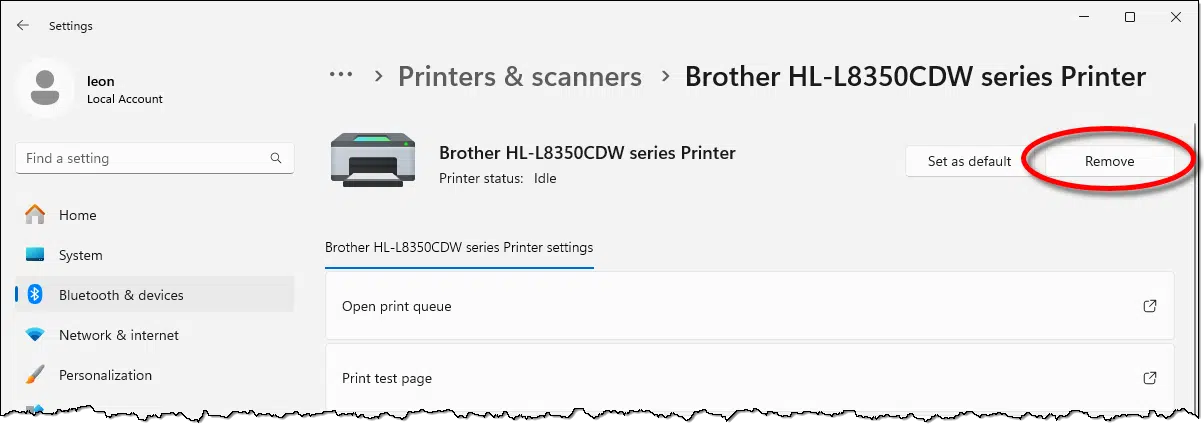
- Open Settings > Bluetooth & devices > Printers & scanners , select the affected printer, and choose Remove .
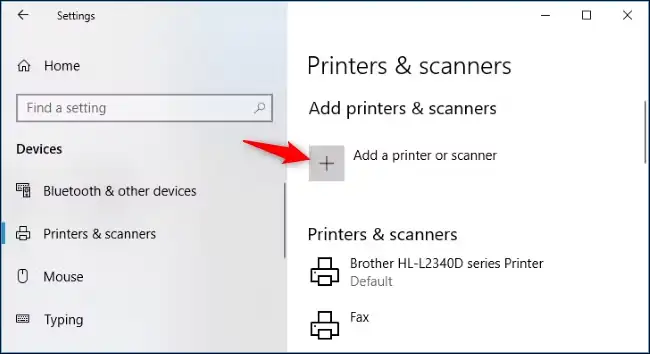
- Return to
Printers & scanners
, select
Add device
, and choose the printer when Windows finds it.
How to Verify
Open the printer in Printers & scanners. It should appear as an installed device rather than show an unavailable driver status. Print a test page or a one-page document.
Method 2: Update or Reinstall the Printer Driver
When to Use
Use this method when the printer is present but Windows explicitly reports an unavailable driver. It is the most direct Windows repair path for this status.
Step-by-Step Guide
- Open Device Manager from the Start menu.
- Expand Printers and select the affected printer.
- Right-click the printer and select Update driver .
- If no update resolves the status, right-click the printer again and select
Uninstall device
.
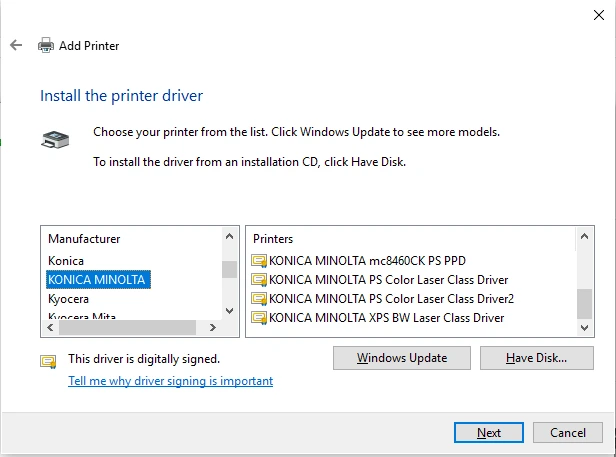
- Restart Windows so it can attempt to reinstall the printer driver, then return to Printers & scanners and add the printer if needed.
How to Verify
Check that the printer no longer shows an unavailable driver message. Then send a small document and confirm that it leaves the queue and prints.
Method 3: Restart the Print Spooler for Stuck Jobs
When to Use
Use this method when print jobs remain pending, the queue is paused, or printing still fails after the driver has been repaired. The Print Spooler manages the Windows printing queue.
Step-by-Step Guide
- Press
Windows + R
, enter
services.msc, and press Enter. - Find Print Spooler in the Services list.
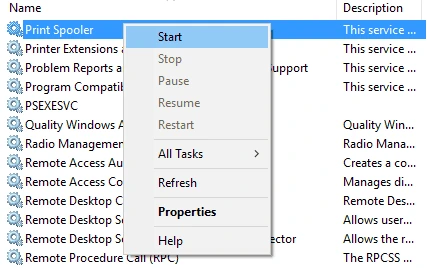
- Right-click
Print Spooler
and select
Restart
.
- Open the printer queue and remove only the jobs you recognize as failed or no longer needed.
How to Verify
Send one new test document. A successful check is that the new job enters the queue, leaves it, and prints; do not judge success by the absence of old jobs alone.
Method 4: Diagnose and Fix Printer Driver Is Unavailable with Fionn Printer Driver
When to Use
Use this recommended guided option when you need help identifying a printer driver or want the software to scan the printer, installed drivers, and common printer issues. Fionn Printer Driver supports automatic recognition for many mainstream printer brands, manual brand or model matching, driver installation and repair, and checks for printer service, port, queue, and device status.
Step-by-Step Guide
- Launch Fionn Printer Driver and click “Scan Now” to scan your computer for printer drivers and related issues.

- Wait while Fionn Printer Driver scans your system for installed printers, drivers, and common printer issues.

- After the scan finishes, click “One-Click Fix” to automatically install or repair the required printer driver.

- Wait for the repair to finish and confirm that the printer issue has been fixed successfully.

How to Verify
Reopen the printer list in Windows and print a test page. Confirm both that the unavailable-driver status is gone and that a newly submitted document completes.
Verification Checklist
- The printer appears in Windows under Printers & scanners.
- Windows no longer displays an unavailable driver status for that printer.
- A new test document leaves the print queue without remaining paused or pending.
- The printer produces the page, not merely a successful-looking queue entry.
- If the printer is shared or wireless, the intended computer can still select it and print.
Conclusion
For a printer driver is unavailable message, begin by confirming the connection and re-adding the printer. If Windows still lists the printer with an unavailable driver, update or reinstall that driver next. Restart the Print Spooler only when the queue is also part of the symptom. If model identification or several printer conditions are unclear, Fionn Printer Driver provides a guided scan and repair workflow. Verify every repair with a fresh test page. If the status persists, contact the printer manufacturer or Microsoft Support with the printer model and the steps already tried.
FAQ
Why does Windows say printer driver is unavailable?
Windows can show this status when it cannot use the installed driver for the printer. Connection changes, an incomplete installation, or a driver that needs updating can lead to the same result.
Will restarting the Print Spooler fix an unavailable driver?
It can clear queue-related symptoms, but it does not replace a missing or incompatible driver. Use it when documents are stuck as well as when the driver status is being repaired.
Should I remove the printer before reinstalling the driver?
Removing and re-adding the printer is useful when Windows cannot discover it correctly. If the printer is already present and only its driver status is unavailable, try updating the driver first.
What should I check before selecting a manual driver?
Confirm the exact printer brand and model. Choosing a driver for a similarly named model can leave the problem unresolved.


