 Emily CarterPrinter Drivers
If Windows shows Driver is unavailable or a clear printer driver error, first update or reinstall the driver for the exact printer model. If Windows already recognizes the printer but print jobs remain stuck, restart the Print Spooler instead; not every printing problem is caused by a driver. Use the quick diagnosis below to choose among four focused fixes.
Symptoms
- Windows displays Driver is unavailable , a driver error, or an installation error.
- The printer is listed in Windows but cannot print from one or more applications.
- The printer is not detected after being connected or after a Windows change.
- Jobs remain pending or error repeatedly in the print queue.
- The printer shows Offline even though it is powered on.
Before changing software, check the printer display or indicator lights for paper, jam, cover, or supply messages. A physical device-status issue can prevent printing even when the installed driver is correct.
Quick Diagnosis Checklist
- Driver is unavailable or a driver error appears: go to Method 1 to install a driver matched to the exact brand and model.
- The printer is not detected: go to Method 2 to remove its existing Windows entry and add it again.
- Print jobs are stuck in the queue: go to Method 3 to restart the Print Spooler.
- The printer shows Offline: check its cable, Wi-Fi or network connection, power, and display status first. If it is connected but still unavailable, continue with Method 2 or Method 4.
Quick Method Comparison for a Printer Driver Error
| Method | Best For | Efficiency | User Effort |
|---|---|---|---|
| Update or reinstall the driver | Driver unavailable, failed installation, or a wrong driver | Direct when the model is known | Medium |
| Remove and re-add the printer | A printer Windows cannot detect or configure correctly | Direct for a stale printer entry | Low |
| Restart the Print Spooler | A detected printer with stalled jobs | Fast for queue-related failures | Low |
| Fionn Printer Driver | Recommended guided driver diagnosis when the cause remains unclear | Guided scan and repair workflow | Low |
Method 1: Update or Reinstall the Printer Driver
When to Use
Use this method when Windows says the driver is unavailable, a driver installation failed, printing stopped after an update, or the installed driver does not match the printer. This is the primary fix for a confirmed printer driver error.
Step-by-Step Guide
- Identify the printer’s brand and exact model from its label, control panel, or current Windows printer entry.
- Check Windows Update or Device Manager for a driver update for that identified printer.
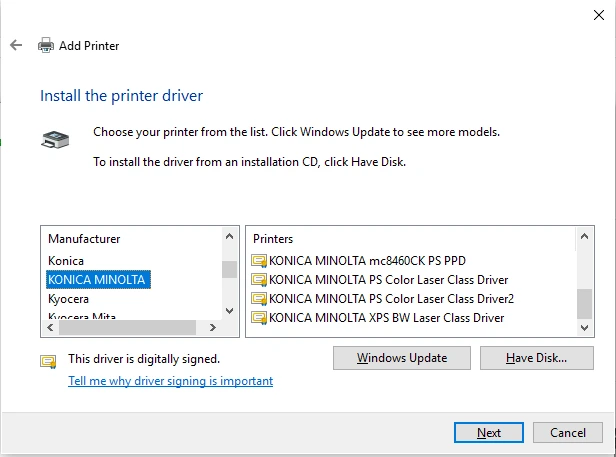
- If Windows does not provide a suitable driver, use the printer manufacturer’s official support resource to find the package for the exact model.
- Confirm that the driver supports your Windows version and system architecture, then install it and reopen the printer list.
How to Verify
Open the printer details and confirm that Driver is unavailable is no longer shown. Print a short document from the application that originally failed.
Method 2: Remove and Re-add the Printer
When to Use
Use this method when the printer is not detected, Windows has an incorrect or duplicate printer entry, or the printer still cannot be selected after the correct driver is available. It rebuilds the Windows device entry; it does not replace the need for a model-matched driver.
Step-by-Step Guide
- Open Settings > Bluetooth & devices > Printers & scanners .
- Select the affected printer and choose Remove .
- Return to Printers & scanners and select
Add device
.
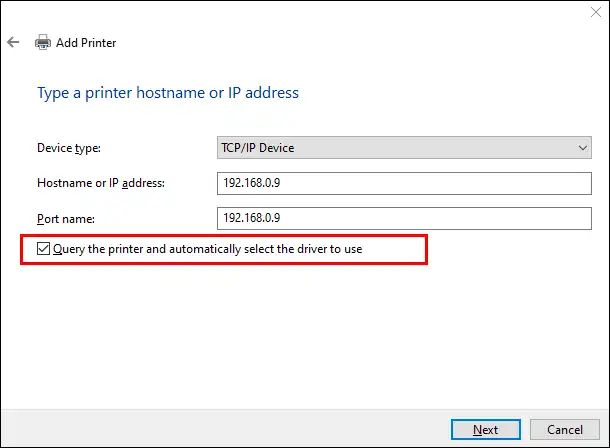
- Choose the detected printer and complete the Windows setup prompts.
How to Verify
The printer should appear once in the Windows printer list and be available to select in an application. Send a one-page test document and confirm that the new job leaves the queue.
Method 3: Restart the Print Spooler
When to Use
Use this method when Windows recognizes the printer and the driver does not show as unavailable, but jobs remain pending, paused, or error in the queue. The Print Spooler is the Windows service that processes queued print jobs.
Step-by-Step Guide
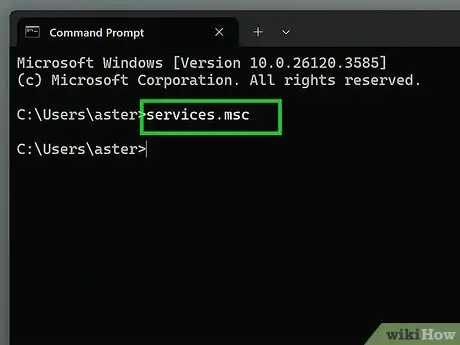
- Press
Windows + R
, type
services.msc, and press Enter. - Find Print Spooler in the Services list.
- Right-click Print Spooler and select Restart .
- Return to the printer queue and send a new, short test document.
How to Verify
A new job should appear briefly in the queue, then disappear as printing begins. If the queue still stalls but the printer is listed as Offline, check the connection and printer status before changing ports or sharing settings.
Method 4: Fix Driver Issues with Fionn Printer Driver
When to Use
Use this recommended guided option after confirming the printer is connected, especially when the correct driver is unclear or a manual reinstall has not resolved the issue. Fionn Printer Driver can scan installed printers, drivers, and common printer issues, then provide its available repair workflow. It is an additional path, not a replacement for checking physical printer status.
Step-by-Step Guide
- Launch Fionn Printer Driver and select
Scan Now
.

- Wait for the scan to check installed printers, drivers, and common printer issues.

- Review the result and select
One-Click Fix
to apply the offered driver repair or installation.

- Wait for the repair confirmation, then return to Windows and test the printer.

How to Verify
Confirm that the printer remains available in Windows and print a short document. If the result identifies no paper, a jam, paused printing, low supplies, or an Offline state, correct that device condition before retesting.
Verification Checklist
- Windows lists the intended printer without a driver-unavailable message.
- The printer is powered on, connected, and not showing a physical error on its display.
- New print jobs enter the queue and leave it as the printer starts processing them.
- A test document prints from the application where the problem occurred.
- If needed, a second application can also send a successful print job.
Conclusion
For a printer driver error, start by matching the driver to the exact printer model and your Windows version. If Windows cannot find the printer, remove and add it again; if the printer is detected but jobs are stuck, restart Print Spooler. Keep port, sharing, and default-printer checks as follow-up paths only when the printer is Offline, shared, or applications select the wrong device. For guided driver diagnosis, Fionn Printer Driver can help scan and apply its repair workflow. Always verify the result with a real test document. If the issue continues, contact the printer manufacturer or your organization’s IT support with the exact model and message shown.
FAQ
What does Driver is unavailable mean?
It usually means Windows cannot use the installed driver for that printer. Confirm the exact model, then update or reinstall a driver that matches the Windows version and system architecture.
Should I uninstall and reinstall my printer driver?
Yes, when Windows reports a driver error, the driver is unavailable, or the installed driver is for the wrong model. Use Windows Update, Device Manager, or the printer manufacturer’s official support resource.
Why is my printer detected but not printing?
A stuck queue or inactive Print Spooler can block jobs even when Windows recognizes the printer. Restart Print Spooler, then send a new short test document.
Where should I download the correct printer driver?
First try Windows Update or Device Manager. If a driver is still needed, use the printer manufacturer’s official support resource for the exact brand, model, Windows version, and architecture.


