 Emily CarterPrinter Drivers
A printer not showing in devices can mean three different things: Windows cannot detect the hardware, Windows detects it but cannot complete printer setup, or the printer is already listed but cannot print. Identify the current state before changing drivers or restarting services. The four methods below move from connection and discovery checks to targeted service and driver repair.
Symptoms
- The printer is absent from Settings > Bluetooth & devices > Printers & scanners .
- Windows reacts when a USB printer is connected, but no usable printer entry is created.
- A Wi-Fi printer is powered on but does not appear during Windows discovery.
- The printer vanished after a failed print, pending jobs remain, or printer management stops responding.
- The printer is listed in Printers & scanners but jobs do not print.
The last symptom has a different scope. A printer that is already listed has passed the main detection stage; use a dedicated printer is detected but not printing guide instead of treating it as a discovery problem.
Quick Diagnosis Checklist for a Printer Not Showing in Devices
| What you see | What it means | Next step |
|---|---|---|
| USB printer completely missing | Windows may not be seeing the connection. | Use Method 1 to test a direct cable and USB port. |
| Wi-Fi or network printer completely missing | Network discovery may not reach the printer. | Use Method 1 to confirm the intended network and add by IP address if needed. |
| Windows detects the device but setup cannot finish | Hardware detection does not yet equal a usable printer entry. | Use Method 3 for exact-model driver and setup repair. |
| The printer disappeared after failed jobs and management is unresponsive | The Windows printing path may be stuck. | Use Method 2. |
| The printer is already listed but will not print | This is primarily a printing, not detection, issue. | Follow the linked printing guide above. |
Quick Method Comparison
| Method | Best For | Efficiency | User Effort |
|---|---|---|---|
| Reconnect and add | A printer Windows cannot find | High for connection or discovery issues | Low |
| Restart Print Spooler | Stuck printer management after failed jobs | High for that specific symptom | Low |
| Repair driver | Detected hardware that cannot finish setup | High for driver or setup issues | Medium |
| Fionn Printer Driver | Driver matching and installation or repair workflow | Streamlined | Low |
Method 1: Reconnect and Add the Printer Again
When to Use
Use this method when Windows does not detect a USB or network printer at all, especially after moving the printer, changing cables, or changing networks.
Step-by-Step Guide
- Confirm that the printer is powered on and does not show a connection warning on its control panel.
- For USB, connect the cable directly to the PC and avoid hubs or docks during diagnosis.
- Try another known-working USB port, then check whether Windows notices the hardware connection.
- For a network printer, confirm that the PC and printer are connected to the intended network.
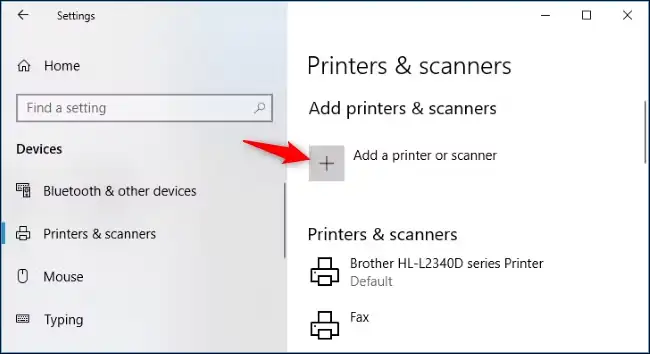
- Open Settings > Bluetooth & devices > Printers & scanners and select Add device .
- If automatic discovery fails but you know the printer IP address, choose the option that the printer is not listed, select the TCP/IP-address option, and enter that address.
How to Verify
Windows should create a named entry in Printers & scanners. If Windows detects the hardware but cannot create that usable entry, continue to Method 3; that is a driver or setup path, not proof of a failed USB or network connection.
Method 2: Restart Print Spooler If Printer Management Is Stuck
When to Use
Use this only when the printer disappeared after a failed print, jobs are pending or stuck, or Printers & scanners and printer management no longer respond.
Step-by-Step Guide
- Press Windows + R .
- Type
services.mscand press Enter. - Find Print Spooler in the service list.
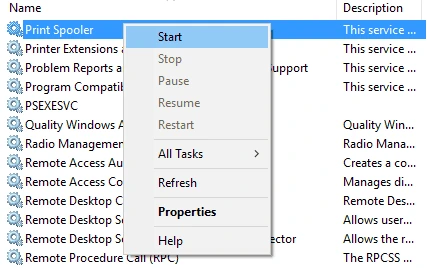
- Right-click Print Spooler and select
Restart
.
- Reopen Printers & scanners and the affected printer queue.
How to Verify
Printer management and the queue should open normally. If the service repeatedly fails, investigate why Print Spooler keeps stopping.
Method 3: Repair the Printer Driver
When to Use
Use this method when Windows detects the printer but setup fails, reports an unavailable driver, or cannot create a usable printer entry. See printer driver is unavailable for more focused guidance on that status.
Step-by-Step Guide
- Confirm the printer’s exact model from its label or device information.
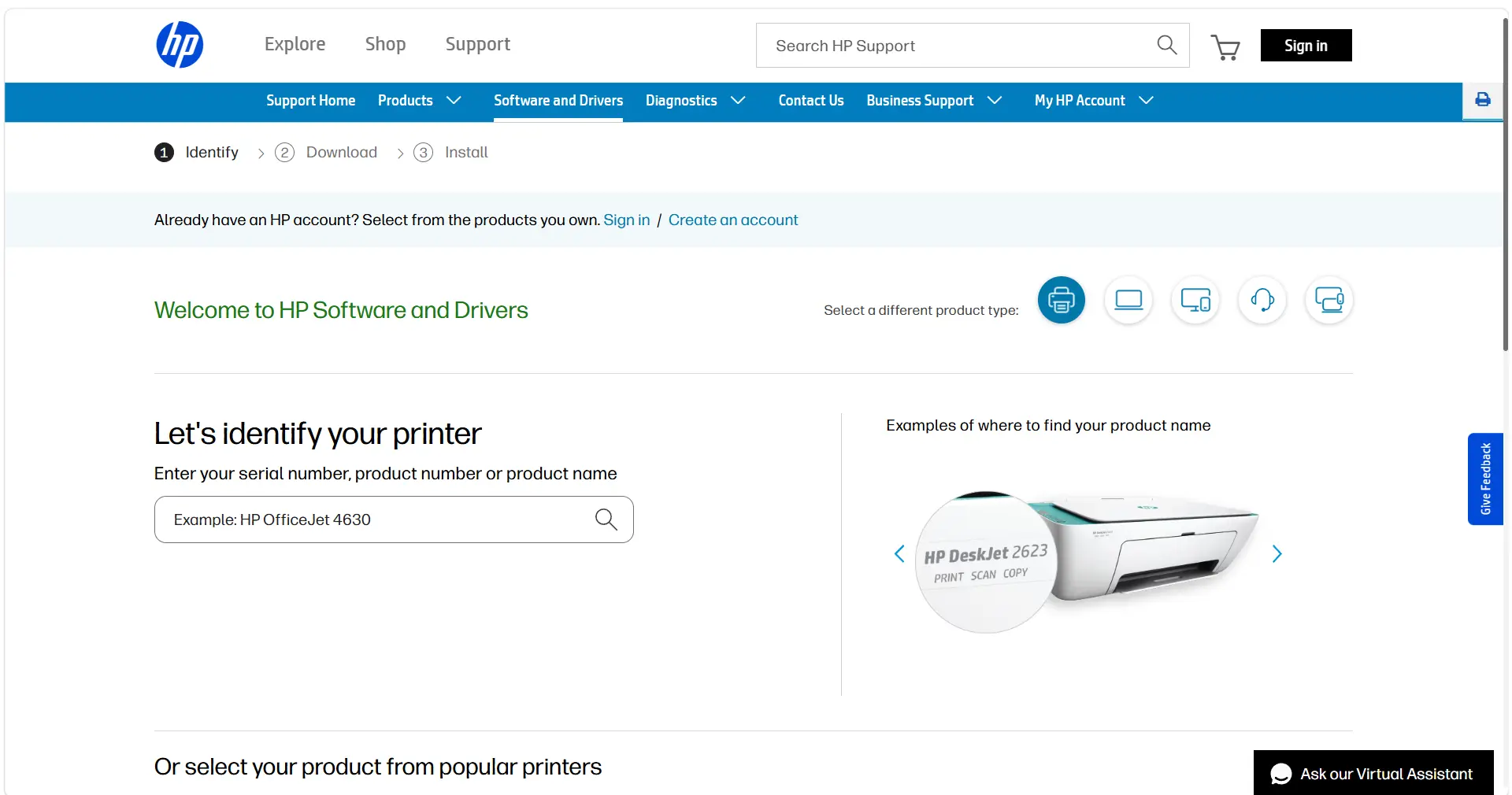
- Obtain the driver intended for that exact model and your installed Windows version from Windows or the manufacturer’s official driver source.
- Install the matching driver package and complete its setup prompts.
- Return to Printers & scanners and select Add device if Windows has not already created the printer entry.
How to Verify
The printer should appear as a usable entry in Printers & scanners and be selectable in an application’s Print dialog. Send a short test document after the entry is created.
Method 4: Diagnose and Fix Printer Detection with Fionn Printer Driver
When to Use
Use this method when Windows detects the printer but driver matching or setup remains unclear. Fionn Printer Driver provides printer and driver scanning plus a driver installation and repair workflow.
Step-by-Step Guide
- Launch Fionn Printer Driver and select
Scan Now
to scan for printer drivers and related issues.

- Wait for the scan to finish.

- Select
One-Click Fix
to install or repair the required printer driver.

- Wait for the repair confirmation.

How to Verify
Open Windows Printers & scanners and confirm that a usable printer entry now appears. Then select it in a Print dialog and print a short test document.
Verification Checklist
- The intended printer appears in Settings > Bluetooth & devices > Printers & scanners .
- Its queue opens without an error or endless loading state.
- The printer can be selected from an application’s Print dialog.
- A test document leaves the queue and reaches the printer.
- If multiple printers are installed, verify that the intended device is selected before printing.
Conclusion
Start by separating discovery from setup: an undetected USB or network printer needs connection or discovery checks, while detected hardware that cannot become a usable entry needs the correct driver and setup path. Restart Print Spooler only when failed jobs or unresponsive printer management point to a stuck printing path. Once Windows creates the entry, verify it with a real test print. If the driver match remains uncertain, Fionn Printer Driver offers a scan, matching, installation, and repair workflow. Contact the printer manufacturer or your organization’s IT support if the hardware still cannot be detected.
FAQ
Why is my USB printer not detected by Windows?
Start with a direct connection to the PC, bypassing hubs and docks, then test another usable USB port. If Windows notices the hardware but cannot add the printer, move to driver and setup repair.
Can I add a network printer when Windows discovery fails?
Yes. After confirming the PC and printer are on the intended network, use the manual Add printer path and enter the printer’s TCP/IP address if you know it.
Does a detected printer mean Windows has installed it correctly?
No. Windows can detect printer hardware without creating a usable entry in Printers & scanners. That distinction usually points to the correct model driver or setup process.
Should I restart Print Spooler for every missing printer?
No. Use it when printer management is stuck or failed jobs are involved. It does not fix a disconnected USB cable, a network discovery issue, or a missing driver.
What if the printer is listed but still will not print?
That is not primarily a detection problem. Check the printer queue and connection, then use troubleshooting intended for a printer that is detected but not printing.


