 Emily CarterPrinter Drivers
How to Install a Lexmark Printer on Windows 11 or 10
Introduction
To install a Lexmark printer on Windows 11 or 10, start in Windows Settings and let Windows detect the device and an available driver. If essential model-specific features are missing, install the official Lexmark printer driver. Use manual IP setup when a network printer is reachable but does not appear automatically. This guide covers four methods in that order, followed by end-to-end checks. For mixed driver, port, service, or queue symptoms, Fionn Printer Driver provides a recommended guided option after the official routes have been considered.
Before You Install a Lexmark Printer
Record the exact model and intended connection first. This avoids selecting a similar model or an old queue.
- Use the complete model name, not only the product family.
- Keep the printer powered on during detection and installation.
- Use a direct PC connection for USB setup. Keep both devices on the same network for network setup.
Quick Method Comparison
| Method | Best For | Efficiency | User Effort |
|---|---|---|---|
| Method 1: Windows Add device | First USB or same-network setup | High when detected | Low |
| Method 2: Lexmark driver package | Missing driver or model-specific features | High when the model is known | Medium |
| Method 3: Manual TCP/IP setup | Network printer with a known IP address | High when discovery fails | High |
| Method 4: Fionn guided diagnosis | Recommended for overlapping driver, service, port, or queue symptoms | High for a guided check | Low to medium |
Method 1: Add a Lexmark Printer with Windows Settings
Purpose: Use Windows discovery to add the printer and install an available driver. Microsoft’s printer installation guidance says Windows supports most printers without separate software.
When to use: Start here for a USB or same-network connection. Use this route first on an ARM-based PC.
- Turn on the printer.
- Connect the printer by USB, or confirm that the printer and PC use the same network.
- In Windows 11, open
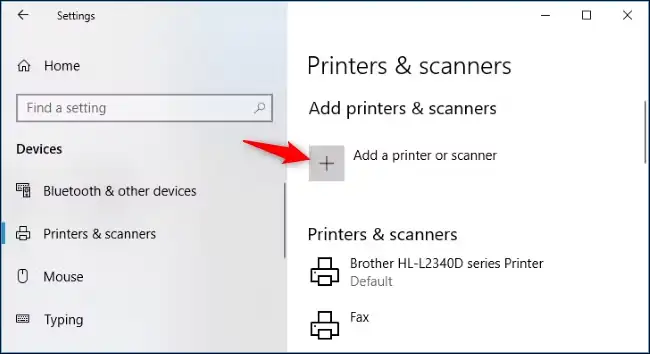
Start > Settings > Bluetooth & devices > Printers & scanners. In Windows 10, openStart > Settings > Devices > Printers & scanners. - Check whether the Lexmark printer is already listed.
- Select Add device in Windows 11 or Add a printer or scanner in Windows 10.
- Wait for Windows to finish searching.
- Select the intended Lexmark printer when it appears.
- If it remains absent, select Add a new device manually or The printer that I want isn’t listed .
- Complete the Windows prompts for the selected connection.
Verification: In Windows 11, select the printer, open Printer properties , and choose Print Test Page on the General tab. In Windows 10, select Manage first. A printed page confirms Windows communication.
Method 2: Install the Official Lexmark Driver Package
Purpose: Install the exact model’s manufacturer package when the Windows driver is unavailable or lacks needed supported features.
When to use: Choose this when Windows requests a driver, Method 1 fails, or basic printing works but model-specific controls are missing.
- Write down the printer’s complete model name.
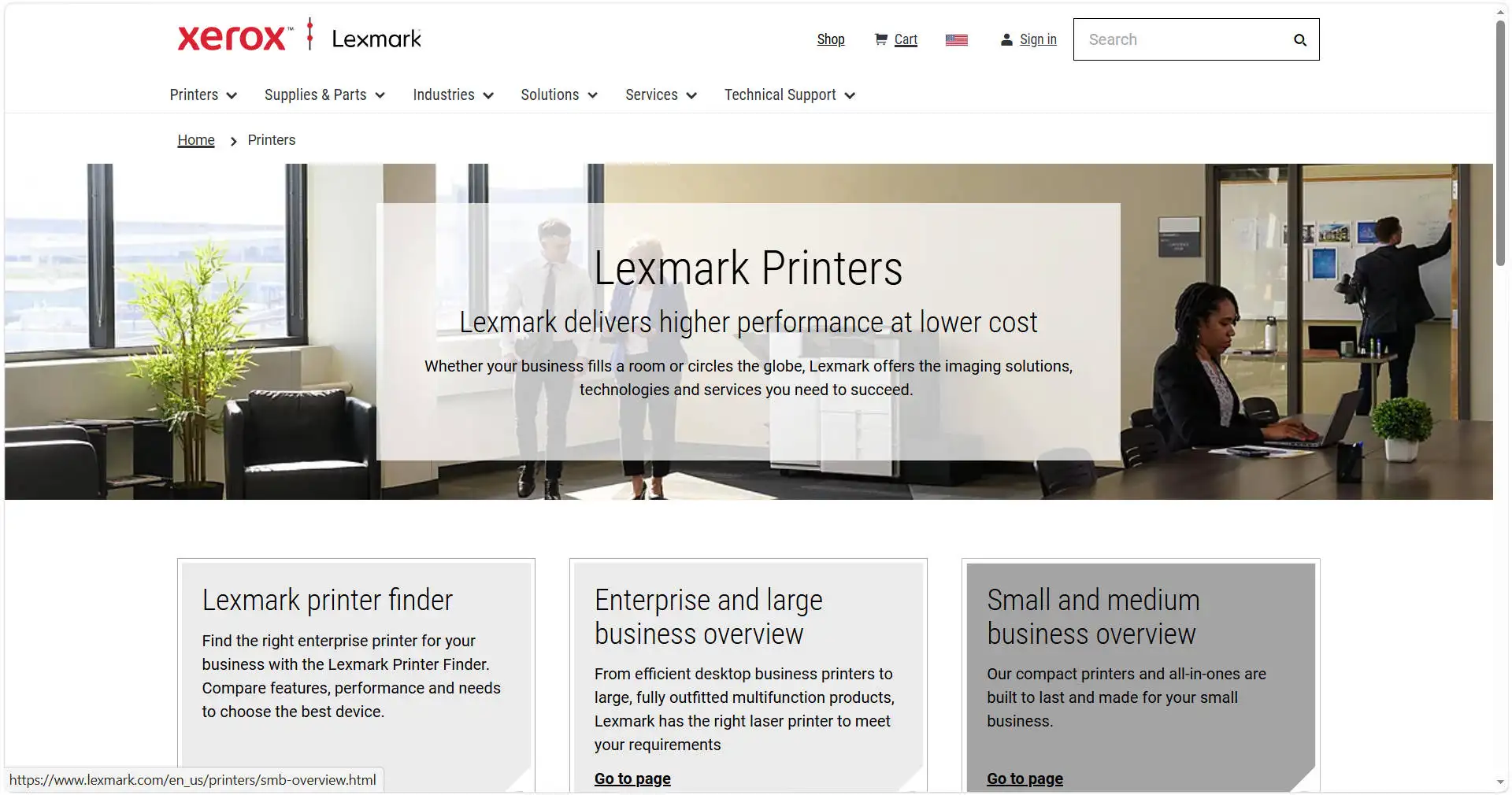
- Open Lexmark’s
Drivers & downloads page
.
- Enter the model in Search by Device Model .
- Select Find Drivers & Downloads .
- Confirm that the displayed operating system and version match the PC.
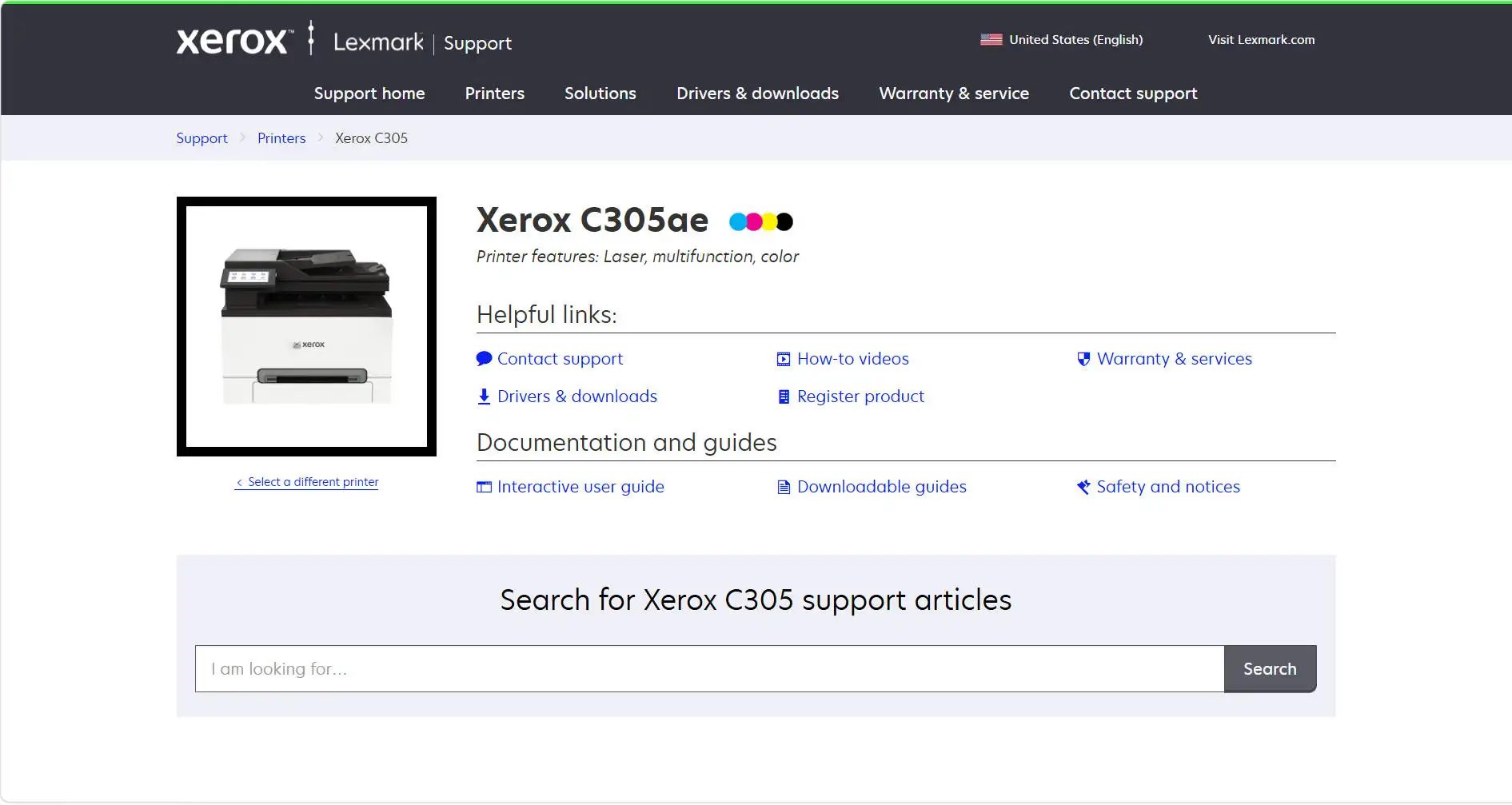
- Under
Recommended Driver
, select
Download Driver Package
.
- Complete any download or license prompt.
- Select Start Download if it appears.
- Open the downloaded installer.
- Follow the on-screen instructions for the printer’s actual connection type.
Verification: Confirm the exact model in Printers & scanners , print a Windows test page, and retry the model-specific control.
Method 3: Add a Network Lexmark Printer by IP Address
Purpose: Create a Windows print queue without automatic network discovery. A Lexmark model guide documents this TCP/IP route, although labels can vary. Confirm the same options in your model’s guide.
When to use: Use this when the network printer is online, automatic discovery fails, and you know its current IP address.
- Note the current IP address from the printer’s home screen or network information page.
- Confirm that the printer and PC use the same network.
- In Windows 11, open
Start > Settings > Bluetooth & devices > Printers & scanners. In Windows 10, openStart > Settings > Devices > Printers & scanners. - Select Add device or Add a printer or scanner .
- Wait for discovery to finish.
- Select Add a new device manually or The printer that I want isn’t listed .
- Choose Add a printer using an IP address or hostname .
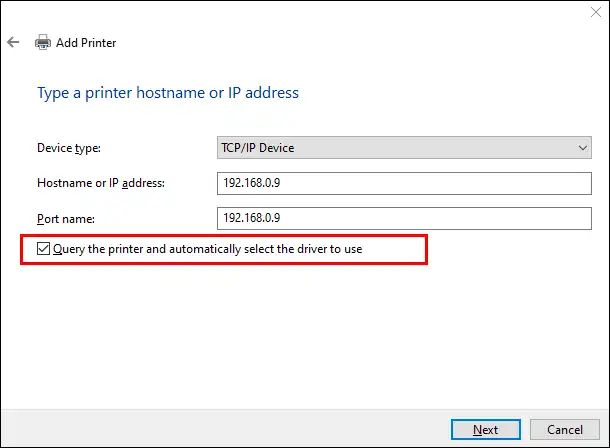
- Select TCP/IP Device .
- Enter the current address in Hostname or IP address .
- Select Next .
- Select the driver for the exact Lexmark model.
- If the exact driver is absent, install the official model package before retrying.
- Enter a recognizable printer name.
- Select Finish .
Verification: Print a test page from the new queue and confirm that the intended network printer produces it.
Method 4: Diagnose and Fix Lexmark Printer Setup Problems with Fionn Printer Driver
Purpose: Check the driver and Windows print chain in one guided workflow. Verified checks cover driver availability, Printer Service, ports, queues, sharing, default-device settings, and device status.
When to use: This is the recommended option when the correct driver is uncertain or several print-chain symptoms overlap. Confirm that any proposed driver matches the exact model.
- Select
Scan Now
in Fionn Printer Driver.

- Wait while Fionn scans.

- After the scan finishes, select
One-Click Fix
.

- Wait for the repair to finish and confirm success.

Verification: The method succeeds when Fionn reports that the repair finished successfully.
Verify the Lexmark Printer End to End
A listed device is only one checkpoint. Test Windows first, then the original app, to separate driver faults from app or file problems.
| Observed Result | What It Suggests | Next Action |
|---|---|---|
| Printer absent from Settings | Discovery is incomplete | Use Method 1, then Method 3 if its IP address is known |
| Test page prints; one app fails | The app, file, or selected queue needs checking | Select the intended printer and try another file |
| Basic printing works; custom controls are missing | A Windows class driver may be active | Use Method 2 for the exact model |
| Jobs pause or the device is offline | Another print-chain layer may be involved | Clear device alerts, then use Method 4 |
Support guidance checked September 8, 2026.
Conclusion
Install a Lexmark printer by starting with Windows Add device, the shortest supported path for USB and same-network connections. Use the official model package when Windows cannot supply the driver or supported controls are missing. Choose manual TCP/IP setup when discovery fails and the printer’s IP address is known. After any method, print a Windows test page and retry the original app. For overlapping driver, queue, service, port, or device-state symptoms, Fionn Printer Driver offers a guided check. Send persistent model-specific errors to Lexmark support with the exact model and displayed message.
Frequently Asked Questions
Do I need Lexmark software if Windows installs the printer?
Not always. If Windows installs the device and the required controls work, its driver may be enough. Install the official Lexmark package when Windows reports a missing driver or supported model-specific controls are unavailable. Match the package to the exact model and Windows version.
Why is my Lexmark printer listed but not printing?
A listing confirms registration, not the complete print path. Print a Windows test page first. If it fails, check the connection, device alerts, queue, port, service, and driver. If it works but one app fails, select the correct queue in that app and try another file.
Where can I find the exact Lexmark model number?
Check the control panel area, scanner base, or top cover. The location varies. Search with the model name, not only the product family. Do not confuse the serial number or machine type number with the model.
Can I still install a Lexmark printer on Windows 10?
Yes, the Windows 10 printer setup path still works, subject to support for the exact Lexmark model. However, Microsoft ended standard Windows 10 support on October 14, 2025. Windows 10 PCs continue to function, but ordinary technical support, software updates, and security fixes are no longer provided unless an applicable support program or edition changes that status.


