 Emily CarterPrinter Drivers
A missing or mismatched Canon Printer Driver can leave a printer unrecognized, offline, or unable to print. This guide gives you four methods: add the printer through Windows Settings, download the matching package from Canon’s official website, match and install a driver manually, or diagnose broader print-chain problems with Fionn Printer Driver .
Start with Windows discovery when the printer is ready and visible. Use Canon’s site when you want the manufacturer’s package, manual matching when you need precise control, and Fionn when the cause may involve services, ports, queues, sharing, or device state. Print a Windows test page after each path.
Prerequisites
- Use a Windows 10 or Windows 11 computer with permission to install device software.
- Turn on the Canon printer and connect it by USB or to the same network as the computer.
- Keep the printer’s exact model name available from its front panel, label, or existing printer entry.
- Save open work, close print jobs, and ensure an internet connection if a driver package must be downloaded.
Quick Method Comparison
| Method | Best For | Efficiency | User Effort | Technical Complexity |
|---|---|---|---|---|
| Windows Settings | A powered-on Canon printer that Windows can detect | Fast | Low | Low |
| Canon official website | The manufacturer package for a known model | Moderate | Medium | Medium |
| Manual model matching | An exact model and architecture are known | Moderate | Medium | Medium |
| Fionn Printer Driver (Recommended) | Model uncertainty or several driver and print-chain symptoms | Streamlined | Low | Low |
Method 1: Add the Canon printer in Windows Settings
When to use: Choose this method when the printer is powered on, connected, and likely to appear in Windows discovery. It is the shortest path for a straightforward setup.
- Open Settings from the Start menu.
- Select
Bluetooth & devices
, then open
Printers & scanners
.
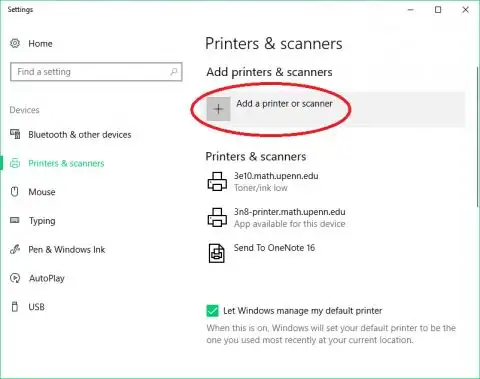
- Click Add device and wait while Windows searches for nearby printers.
- Select the Canon printer when its name appears, then follow the on-screen prompts to add it.
- Open the new printer entry, choose Printer properties or Print a test page , and verify that Windows can send a test job.
Method 2: Download and install the Canon Printer Driver from the official Canon website
When to use: Use this path when you know the complete Canon model and want the manufacturer-provided package, or when Windows does not offer a suitable driver.
- Read the printer’s complete model name, including any series or suffix, from the label, front panel, or existing Windows entry.
- Open Canon’s official support website and search for that exact model.
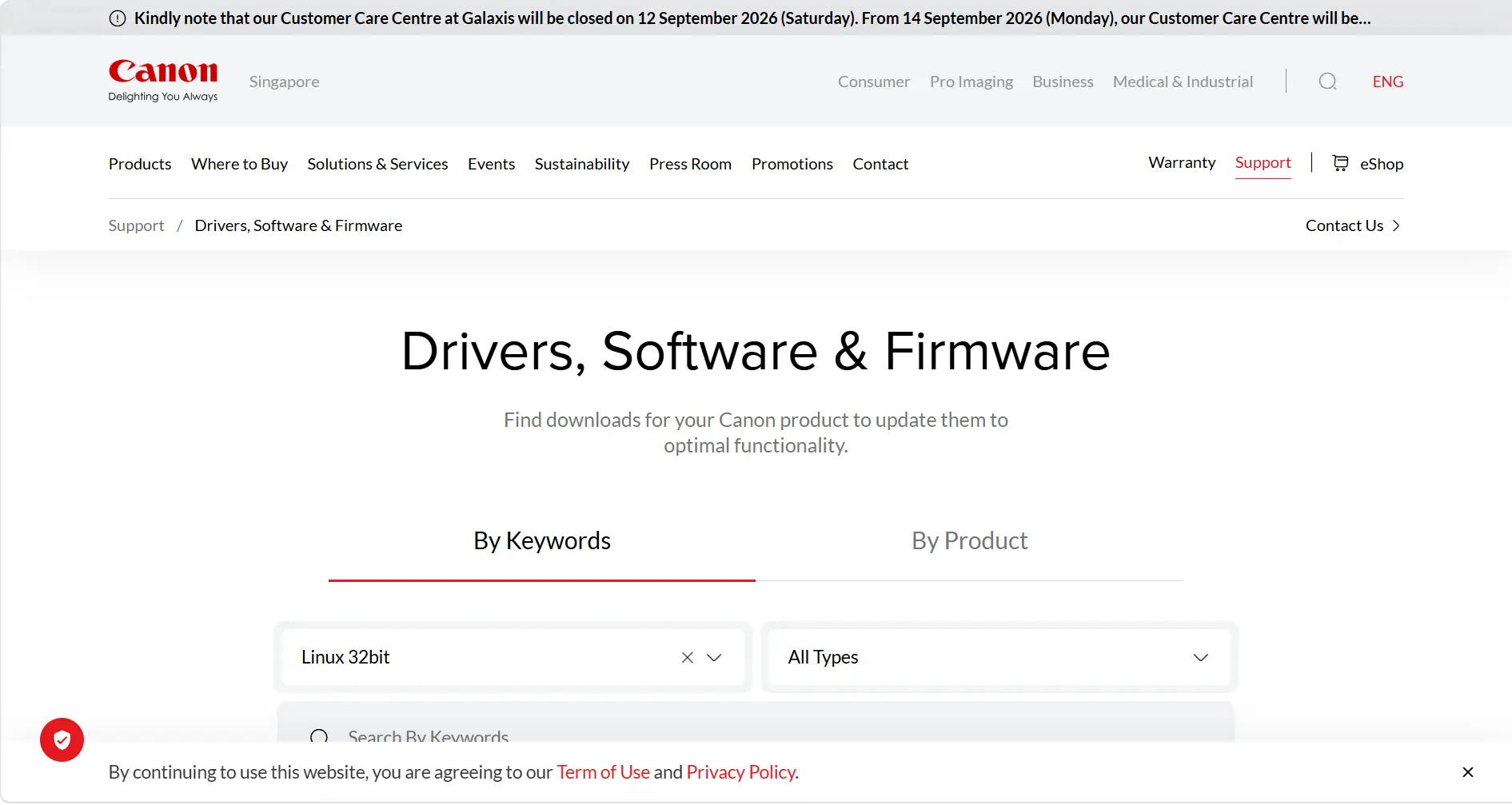
- On the model’s support page, locate the area for Drivers or Software .
- Filter or select the entry that matches your Windows version and system architecture, such as 32-bit or 64-bit, when those choices are provided.
- Download the matching driver package, then run the downloaded installer.
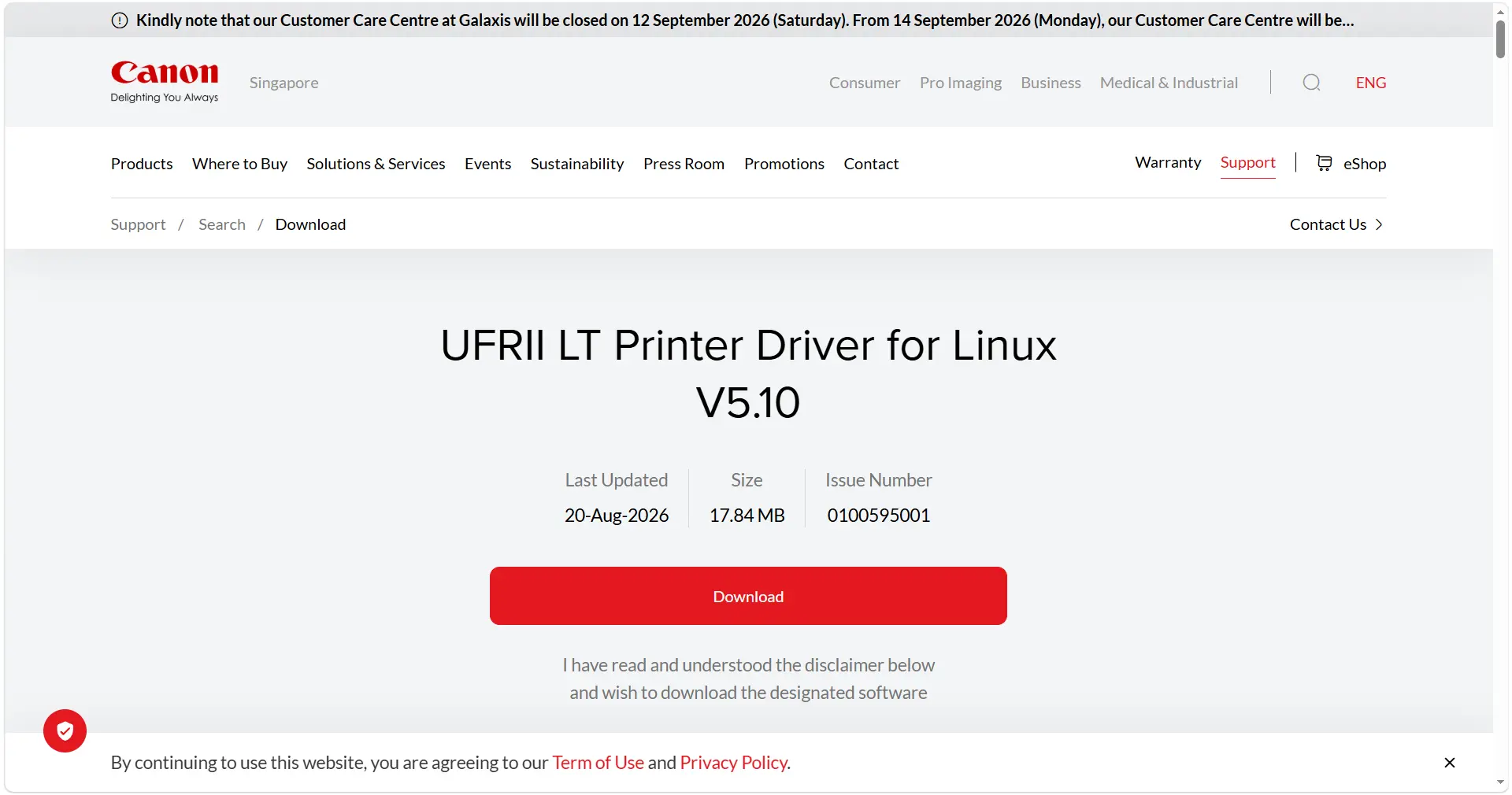
- Follow the installer’s prompts to complete setup, connecting or selecting the printer when requested.
- Return to Settings > Bluetooth & devices > Printers & scanners , open the Canon printer, and print a test page.
Method 3: Match and install the driver manually
When to use: Use manual matching when Windows discovery fails, you have a confirmed model, and you need to choose a local or previously downloaded package yourself.
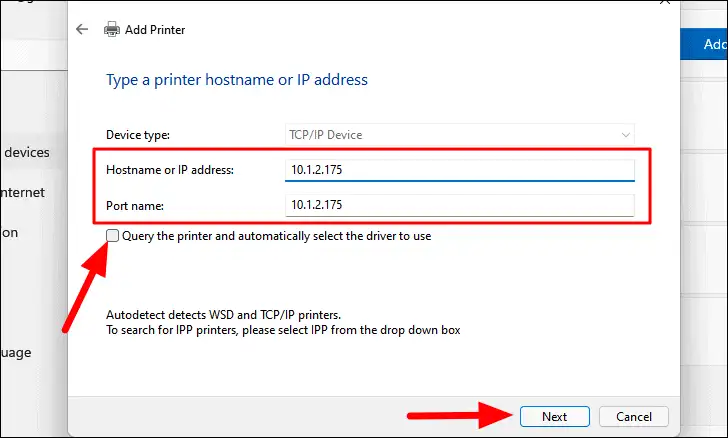
- Read the full model name from the printer label, front panel, or existing Windows printer entry; include any series or suffix.
- Open Settings > System > About and note whether System type is 64-bit or 32-bit Windows.
- Prepare the driver package that matches the exact model, Windows version, and architecture.
- Open the available driver installer or manual driver-selection interface and follow its prompts to associate the package with the printer.
- Allow installation to complete, then return to Settings > Bluetooth & devices > Printers & scanners .
- Select the Canon printer and print a test page to verify the driver.
If no exact model is offered, stop before installing a guess. Recheck the label and architecture, then use Method 4 to inspect available candidates and related Windows print conditions.
Method 4: Diagnose and Fix Canon Printer Driver Issues with Fionn Printer Driver
When to use: This is the Recommended option when you are unsure which Canon driver fits, when installation has completed but printing still fails, or when multiple symptoms appear. Fionn Printer Driver can automatically recognize many mainstream printer brands and models, accept manual brand or model input, download driver packages, and perform installation or repair. Its checks also cover Windows Printer Service status, ports, print-queue tasks, sharing permissions, default-printer settings, and device conditions such as offline, paused, paper jam, low consumables, or low memory.
- Launch Fionn Printer Driver and click
Scan Now
to scan your computer for printer drivers and related issues.

- Wait while Fionn Printer Driver scans your system for installed printers, drivers, and common printer issues.

- After the scan finishes, click
One-Click Fix
to automatically install or repair the required printer driver.

- Wait for the repair to finish and confirm that the printer issue has been fixed successfully.

After the repair, print a Windows test page and then print from the application that originally failed. If the printer remains offline, use the scan results to distinguish a driver issue from a port, queue, service, sharing, or device-state issue.
Tips and best practices
- Record the exact Canon model and Windows architecture before every update; this prevents a near-match package from replacing the correct driver.
- After installation or an update, print a Windows test page and one document from the application that originally failed.
- If only one application cannot print, test another application before reinstalling the driver; an application-specific problem points away from the system-wide driver.
- If every application fails, check whether the printer is offline, paused, out of paper, jammed, low on consumables, or low on memory, because these device states can block output even with a working driver.
- For network setups, confirm the printer and computer remain on the same network before changing drivers or ports.
Conclusion
Use the four paths in order of fit: start with Windows Settings for a discoverable printer; use Canon’s official website for a known model and manufacturer package; choose manual matching when you must select a confirmed package yourself; and use the Recommended Fionn Printer Driver method when symptoms span the driver and wider print chain. Verification is complete only when a Windows test page and a document from the previously failing application print successfully. If either test fails, note whether the failure affects one app or every app, then continue with the method that addresses that cause.
FAQ
How do I identify the correct Canon Printer Driver?
Read the complete model name from the printer label or front panel, including series suffixes. In Settings > System > About , note the Windows version and 32-bit or 64-bit system type, then select a Canon package matching all of those details.
Can Windows install a Canon Printer Driver automatically?
Yes. Open Settings > Bluetooth & devices > Printers & scanners , select Add device , and choose the discovered printer. Windows may install a compatible driver automatically; print a test page afterward to confirm the result.
How do I download a Canon Printer Driver from Canon’s official website?
Search Canon’s official support website using the exact model name, open the matching support page, find the Drivers or Software area, choose the package for your Windows version and architecture, download it, run the installer, and verify the printer with a test page.
Why is my Canon printer offline after the driver was installed?
Check power, cable or network connection, and whether the printer is paused or offline in Windows. Also review the print queue and confirm the intended printer is the default. If all applications fail, use Method 4 to check the Windows Printer Service, ports, queue, sharing permissions, and device status.
What should I do if no matching model appears?
Do not install a similar model. Recheck the label and system type, then search Canon’s support resources again using the exact model and Windows details. If the model is still unavailable, use Fionn Printer Driver’s manual matching option to review local driver candidates.
How can I tell whether the driver or an application is at fault?
Print a Windows test page and then print from a second application. If the test page and another application work, the original application is the likely source; if both fail, investigate the driver and broader print chain with Method 4.
CTA
Need help identifying or repairing a Canon Printer Driver on Windows? Learn about Fionn Printer Driver to review its automatic recognition, manual model matching, driver installation and repair, and checks for services, ports, queues, sharing, default-printer settings, and device status. Use it alongside Windows Settings, Canon’s official installation path, or manual matching based on the symptom you observe.


