 Emily CarterDLL Errors
Introduction
The
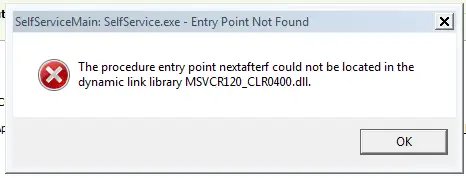
msvcr120_clr0400.dll missing
message means Windows could not load a DLL required by the application you opened. The filename alone does not prove which vendor or runtime package is responsible, so avoid downloading a random copy from an unofficial DLL site. This guide gives you three methods: repair the affected application, check Windows system files, and use the
Fionn DLL Fixer
workflow. Start with Method 1 when one app fails; use Method 2 when several programs show DLL errors; choose the Fionn method when you want guided scanning and repair.
Quick Method Comparison
| Method | Best For | Efficiency | User Effort |
|---|---|---|---|
| Method 1: Repair or reinstall the app | One application or game fails | Often quick | Low to medium |
| Method 2: Windows system checks | Several apps or Windows components fail | Diagnostic | Medium; command-line steps |
| Method 3: Fionn DLL Fixer (Recommended) | Unclear causes or multiple dependency errors | Streamlined scan and repair | Low; guided interface |
Method 1: Repair or Reinstall the Affected Application
Use this method when the error appears in only one program and began after an update, interrupted installation, or file cleanup. Reinstalling from the publisher’s installer replaces files in the application’s own folder and preserves a clear link between the repair and the failing program.
- Close the affected application and any launcher associated with it.
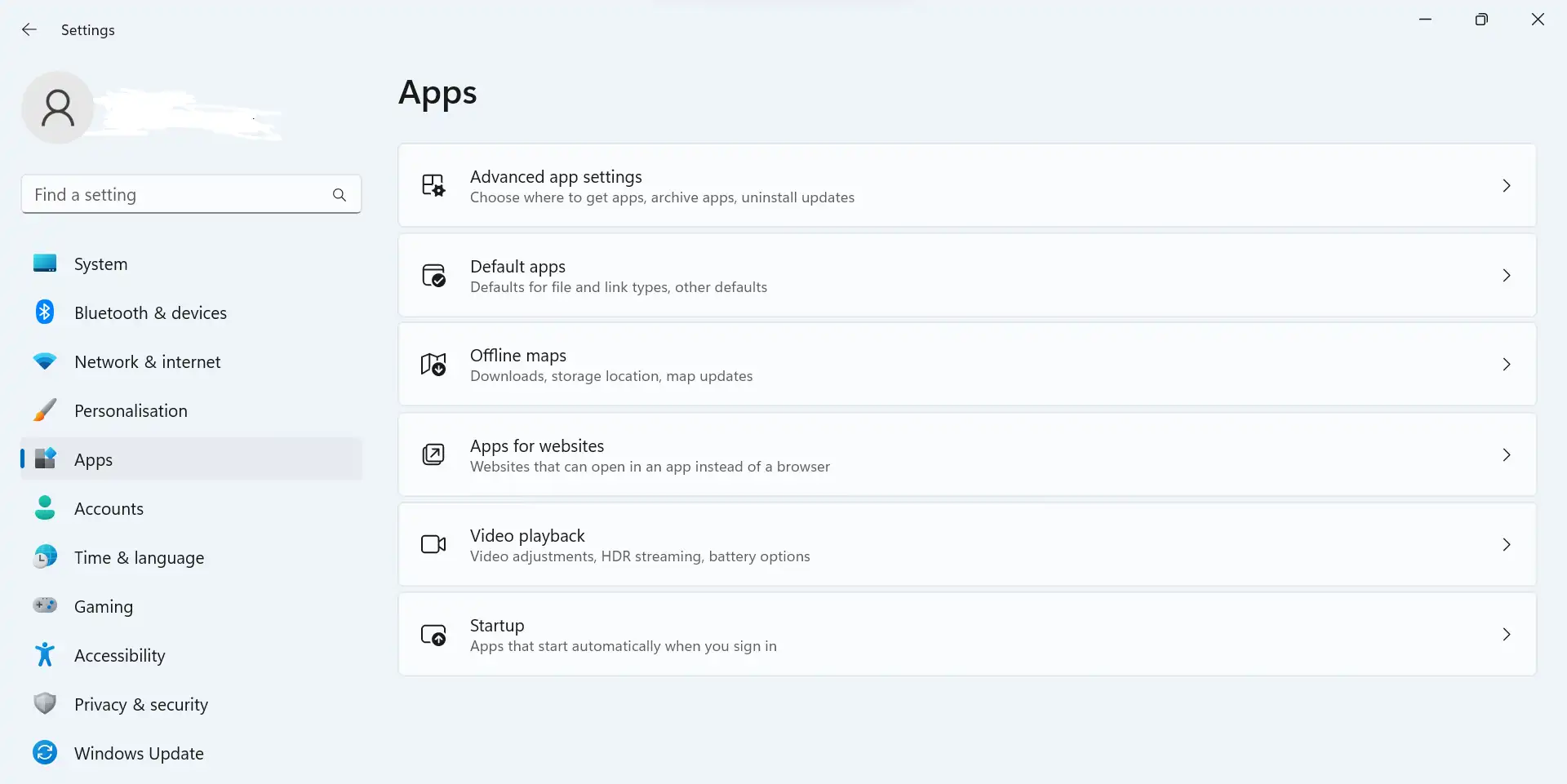
- Open Settings > Apps > Installed apps , select the affected program, and choose Repair when that option is available.
- If Repair is unavailable or the error remains, uninstall the program.
- Restart Windows, then install the latest installer supplied by the application’s publisher.
- Open the program again and confirm that the original error no longer appears.
When this is not enough: If other applications also report missing DLL files, the problem may extend beyond one installation. Continue with Method 2 or Method 3 instead of copying a DLL into the application folder.
Citation capsule: Application repair is the most targeted first response when a single program reports a missing DLL. It restores the program’s packaged files without guessing which standalone DLL download matches your Windows architecture, application version, and installation path.
Method 2: Run Windows System File Checks
Choose this method when multiple programs fail, Windows components behave abnormally, or the problem followed a system update. Windows includes System File Checker and Deployment Image Servicing and Management commands that can detect and repair protected system files. These commands may not repair a third-party application’s private DLL, but they can identify broader corruption.
- Save your work and open Windows Terminal (Admin) or Command Prompt (Admin) .
- Run this command and wait for it to finish:
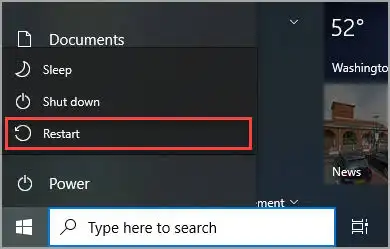
sfc /scannow - Read the result. If Windows repaired files, restart the computer and test the affected application.
- If System File Checker reports that it could not complete repairs, run:
DISM /Online /Cleanup-Image /RestoreHealth
- After DISM completes, run
sfc /scannowagain, restart Windows, and retest.
Citation capsule: System checks are appropriate for a pattern affecting several applications or Windows components. SFC examines protected files, while DISM repairs the Windows component store that SFC relies on; neither command should be presented as a guaranteed fix for every application-specific DLL.
Method 3: Fix msvcr120_clr0400.dll missing with Fionn DLL Fixer (Recommended)
Fionn DLL Fixer is a practical option when the cause is unclear or several dependency checks are needed. Its documented capabilities include scanning for missing, damaged, mismatched, and System32-path DLL issues, plus checking application crashes, startup failures, and dependency loading problems. The product supports Windows desktop use and offers scan, repair, and recheck functions.
- Launch Fionn DLL Fixer. The software automatically scans your PC for DLL and system issues and displays the detected results when the scan is complete.

- After the scan finishes, click
Repair
to start fixing all detected DLL and system issues automatically.

- Wait while the repair is in progress. During this process, the button changes to
Fixing
until all issues have been repaired.

- When the repair is complete, click
Ok
in the confirmation dialog. If prompted, restart your computer before checking whether the problem has been resolved.

- If the issue still persists after restarting, click
Recheck
to perform another scan. If new issues are found, click
Repair
again to fix them.

After rechecking, launch the original program and test the action that produced the message. Fionn DLL Fixer displays three free attempts in its free version; VIP unlocks DLL, DX, runtime-library, and system-repair access. If the issue remains after recheck and restart, use the product’s support channel.
Tips and Common Mistakes
- Record which application, Windows account, and action triggered the message.
- Note whether one program or several programs are affected before changing system files.
- Restart after repairs when Windows or the tool requests it; locked files may not be replaced until reboot.
- Keep the original installer available so you can reverse an unsuccessful application reinstall.
These observations create a useful decision trail. If the error returns immediately after a clean reinstall, broaden the check to Windows components or use a guided scan rather than repeating the same installer step.
Conclusion
For a single affected application, repair or reinstall that application first. For failures across multiple programs, run SFC and, if needed, DISM before testing again. When the cause spans DLL files, runtime dependencies, or system paths, the recommended guided option is
Fionn DLL Fixer
. Verify success in two ways: complete the tool’s recheck when applicable, then launch the original program and repeat the failed task. If
msvcr120_clr0400.dll missing
still appears, preserve the scan results and contact support rather than downloading an unverified DLL.
FAQ
What does “msvcr120_clr0400.dll missing” mean?
It means Windows could not load a DLL that the requested application expects. The filename does not identify a confirmed vendor or package by itself. Check whether one program or several are affected, then use the targeted application repair or broader system-check method described above.
Should I download msvcr120_clr0400.dll from a DLL website?
No. An isolated download may have the wrong version, architecture, or modification, and it can hide the original installation problem. Use the affected application’s official installer, Windows system checks, or Fionn DLL Fixer’s documented scan-and-repair workflow instead.
When should I run SFC and DISM?
Run them when multiple applications fail, Windows features show corruption, or the error follows a system update. SFC checks protected Windows files; DISM repairs the component store. They are diagnostic system tools and may not replace a DLL private to one third-party application.
Why is a restart sometimes required after repair?
Windows may keep a DLL in use while an application or service is running. Restarting closes those handles and lets repaired files load on the next session. Always retest the original application after restarting, then run a recheck if your repair tool provides one.
Can Fionn DLL Fixer repair this error automatically?
Fionn DLL Fixer can scan for missing, damaged, mismatched, and System32-path DLL issues, then apply its documented Repair workflow and recheck. Results depend on the detected condition. The free version shows three free attempts, while VIP unlocks DLL, DX, runtime-library, and system-repair access.


