 Emily CarterDLL Errors
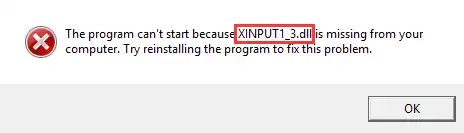
If Windows says “xinput1_3.dll not found,” the affected game or app is usually missing the legacy XInput 1.3 component supplied through a DirectX redistributable. Start with the official DirectX Runtime installer—preferably the copy in the game’s Redist or DirectX folder. If that does not help, repair or reinstall the affected software, then check whether the failure is limited to one app or points to an architecture or path mismatch. The methods below are ordered from the most direct fix to broader diagnosis; stop when the program launches normally.
For a centralized check of additional Windows dependency issues, Fionn DLL Fixer can help with diagnosis on Windows. It is a diagnostic option and does not replace the official DirectX installer.
Quick method comparison
| Method | Best for | Efficiency | User effort |
|---|---|---|---|
| 1. Official DirectX Runtime | An older game that was just installed | High | Low |
| 2. Repair or reinstall | Only one program fails | Medium | Medium |
| 3. Scope and architecture checks | Several apps fail or messages vary | Diagnostic | High |
| 4. Fionn DLL Fixer (Recommended) | Dependencies are spread across Windows | High for triage | Low to medium |
Method 1: Fix xinput1_3.dll not found with the official DirectX Runtime
When to use: The error appeared after installing an older game, or the installer includes a prerequisites folder.
- Close the game or app showing the message.
- Open the game’s installation folder, original media, or game-library files and look for
Redist,DirectX, or “Prerequisites.”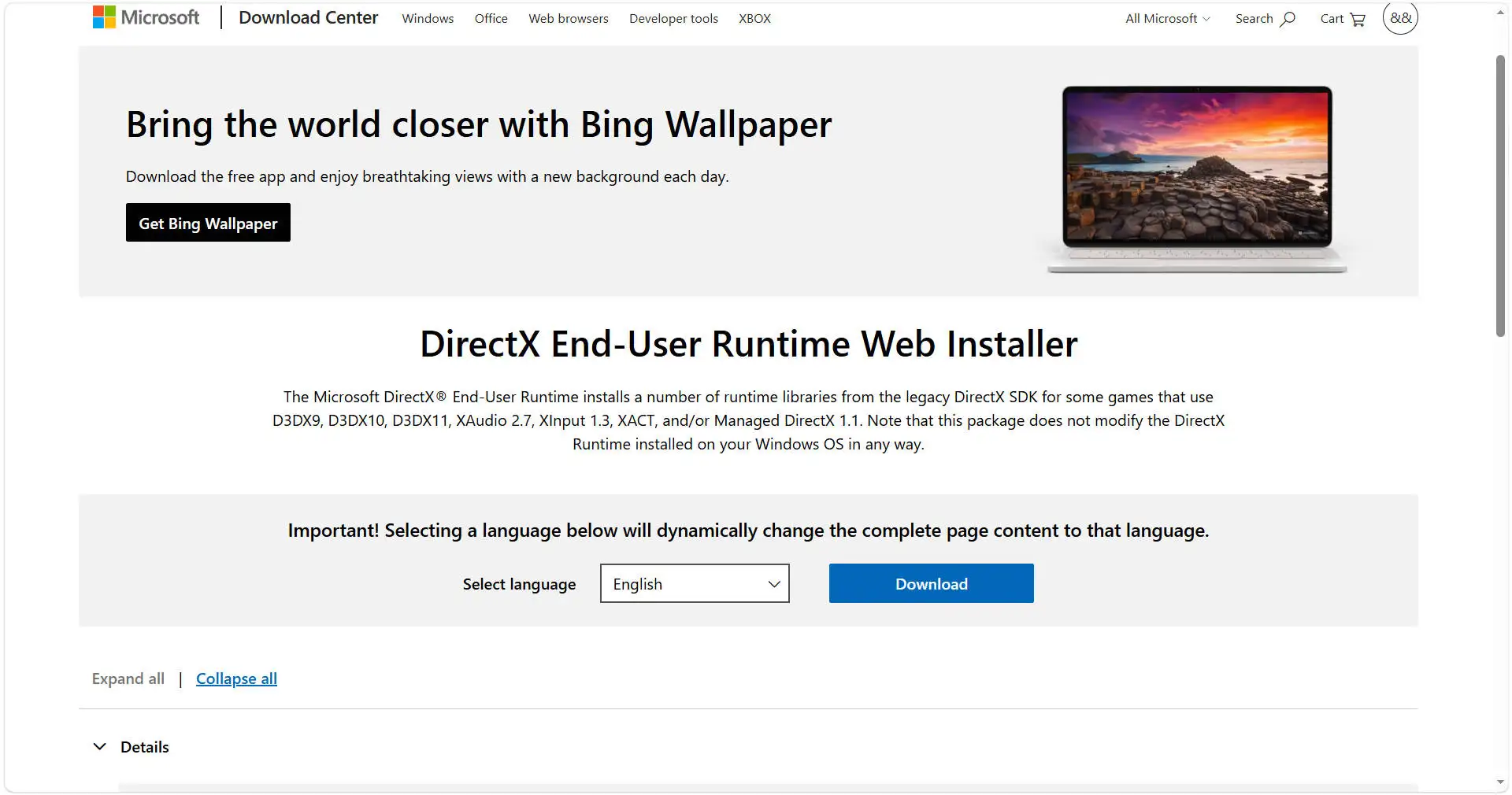
- Run the official DirectX Runtime installer supplied by the publisher and complete its prompts.
- If the game does not include the package, download the installer from the official Microsoft DirectX SDK information page, rather than searching for an individual DLL.
- Restart Windows, open the program again, and repeat the action that triggered the error.
Expected result: The program starts without requesting xinput1_3.dll. Microsoft documents XInput 1.3 as a legacy redistributable associated with the DirectX SDK, while newer Windows versions do not guarantee every older runtime file (Microsoft Learn: XInput Versions).
Method 2: Repair or reinstall the game or app
When to use: Only one program shows the error and no DirectX installer is visible. Repair restores files and dependencies from the original installation.
- Back up important settings, saves, or project files.
- Open Windows Settings, choose Apps, and locate the affected program.
- Select Advanced options and choose Repair when available.
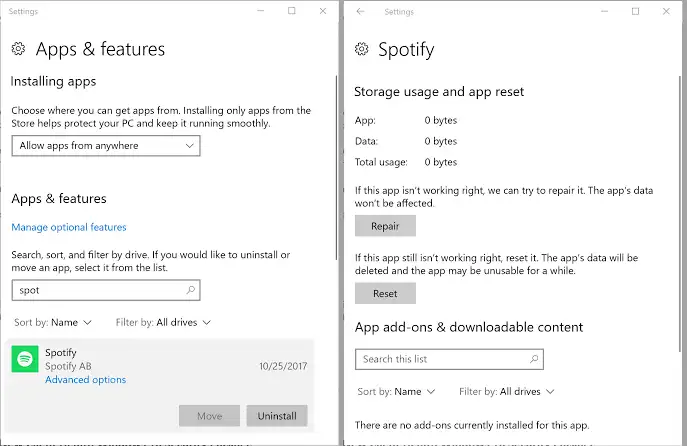
- Launch the program and test the function that previously failed.
- If Repair is unavailable or unsuccessful, uninstall the software and reinstall it from the same official source.
XInput 1.3 was distributed through the legacy DirectX SDK, whose final redistributable release was published in June 2010 (Microsoft Learn: Where is the DirectX SDK?). An older game installer can therefore still be required on a computer with a newer DirectX version.
Method 3: Check scope, architecture, and DLL path
When to use: Two or more programs fail, the message returns after reinstallations, or it changes to “not designed for Windows.” These signs suggest a shared dependency, wrong version, or 32-bit/64-bit mismatch.
- Write down the exact filename and copy the complete error message.
- Test another XInput-based app to determine whether the failure is isolated or system-wide.
- Check the publisher’s specifications to confirm whether the executable is 32-bit or 64-bit.
- Verify that the component is installed where the program expects it; do not manually move files between
System32andSysWOW64. - Record any new runtime message after repair, including the app, version, and time of failure.
This distinction saves time: an isolated failure points back to Method 2, while a system-wide failure supports dependency triage before reinstalling several games.
Method 4: Diagnose and fix with Fionn DLL Fixer
When to use: You need to inspect several Windows, DirectX, or XInput dependencies and want fewer manual searches. Fionn DLL Fixer can detect missing, damaged, incompatible DLLs and System32 path-related issues.
- Open Fionn DLL Fixer and run a full scan or the category related to the error.

- Review the error, warning, and normal items in the report.

- Select the indicated component and use the option to download the missing item and run Smart Repair.

- When the process finishes, run another scan to confirm the component status.

- Restart the computer if the issue continues; if it still fails, contact product support with the scan report.

The free version shows three attempts; VIP modules cover DLL, DX, runtimes, and system repair. Confirm the result by opening the affected game or app.
Common mistakes when fixing the file
- Downloading
xinput1_3.dllfrom an unofficial site. - Renaming another XInput version to imitate the requested file.
- Mixing 32-bit and 64-bit files.
- Ignoring the game’s
RedistorDirectXfolder. - Testing only a shortcut instead of opening the original executable after repair.
Conclusion
Start with the official DirectX Runtime in the game’s Redist or DirectX folder. If one program still fails, repair or reinstall that software. When multiple apps fail, check architecture and expected paths before changing system folders. Fionn DLL Fixer is a practical way to organize dependency triage and confirm a repair with a second scan. In every case, verify the outcome by restarting Windows, opening the affected app, and repeating the action that produced the message. If the error remains, keep the exact message and scan report for the publisher or support team.
FAQ
What is xinput1_3.dll?
It is a library from XInput 1.3, a legacy redistributable associated with the DirectX SDK. Older games may request this specific file even when Windows has a newer DirectX version.
Why does the error continue when Windows has DirectX 12?
A newer DirectX version does not guarantee every older redistributable component. Install the official runtime required by the game before trying any manual copy.
Can I copy the DLL from another computer?
That is unreliable because the version, architecture, and source may differ. Use the official installer for the app or the matching DirectX Runtime.
When should I use a diagnostic tool?
Use one when several programs fail, the message changes to an incompatibility error, or dependencies are scattered. Fionn DLL Fixer can check missing, damaged, incompatible, and System32 path-related DLL issues.


