 Emily CarterDLL Errors
When dealing with an x64 vs x86 DLL issue, match the DLL to the process architecture, not only to Windows: a 64-bit process needs an x64 DLL, while a 32-bit process needs an x86 DLL. A 64-bit version of Windows can run both application types, but a process cannot load a DLL with a different architecture. First check the program architecture, then choose the appropriate path: an official installer for one application, DISM and SFC for system-wide failures, or Fionn DLL Fixer diagnostics when the cause is unclear. Here are four methods.
Quick comparison of methods
| Method | Best for | Effectiveness | User effort |
|---|---|---|---|
| Check the architecture | You need to choose an x86 or x64 DLL | High for diagnosis | Low |
| DISM and SFC | Multiple programs report system DLL issues | High for system components | Medium |
| Official reinstall | Only one application will not start | High | Medium |
| Fionn DLL Fixer | The cause is unclear and dependencies need checking | Depends on the detected issues | Low |
Method 1: Determine the architecture of the application and DLL
When to use it: Before installing or replacing a component, especially if the error mentions x86, x64, an incompatible module, or Bad Image.
- Open Task Manager with Ctrl+Shift+Esc.
- Go to the Details tab and locate the target program process.
- Right-click a column header, choose Select columns, and enable Platform or Architecture if that column is available in your version of Windows.
- Match the value: choose an x86 DLL for a 32-bit process and an x64 DLL for a 64-bit process.
- Open Settings → System → About and check System type as an additional compatibility check.
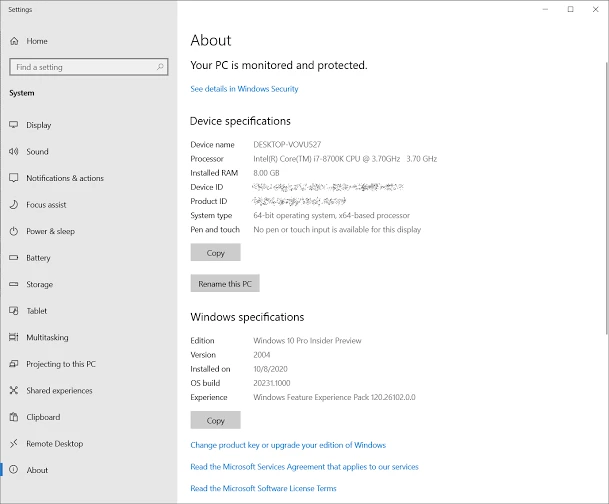
Verify the result: The selected DLL architecture matches the process architecture. The Windows system type does not replace this check.
What does an x86 and x64 DLL mismatch look like?
An architecture mismatch often appears immediately at launch: the application closes before opening a window, displays an incompatible DLL or Bad Image message, or returns code 0xc000007b. These signs do not prove the cause by themselves, because the code can also accompany corrupted dependencies. First record the error text and file name, then check the process architecture and restore the component from an official source.
System32 vs SysWOW64: Where Are x64 and x86 DLLs?
On 64-bit Windows, the folder names are counterintuitive: C:\Windows\System32 mainly contains 64-bit system components, while C:\Windows\SysWOW64 supports the 32-bit WOW64 environment. WOW64 applies file system redirection for 32-bit processes, so an application may access a path differently from what the user expects.
Method 2: Repair Windows system components
When to use it: The error began after a Windows failure or update, or similar messages appear in multiple programs.
- Open Terminal (Administrator) from the Start menu.
- Run
DISM /Online /Cleanup-Image /RestoreHealth.
- After it finishes, run
sfc /scannow. - Restart the computer.
- Start the affected application and check the original error.
According to Microsoft's instructions for repairing system files, DISM repairs the Windows image and SFC checks protected system files. This method does not replace reinstalling a DLL supplied with a specific application.
Method 3: Reinstall the component from an official source
When to use it: The problem occurs only in one game or program while other applications work normally.
- Close the affected application.
- Open the developer's official download page or support section.
- Download the application installer or the component specified by its developer.
- If the installer offers an architecture choice, select x86 for a 32-bit process or x64 for a 64-bit process.
- Complete installation and start the application again.
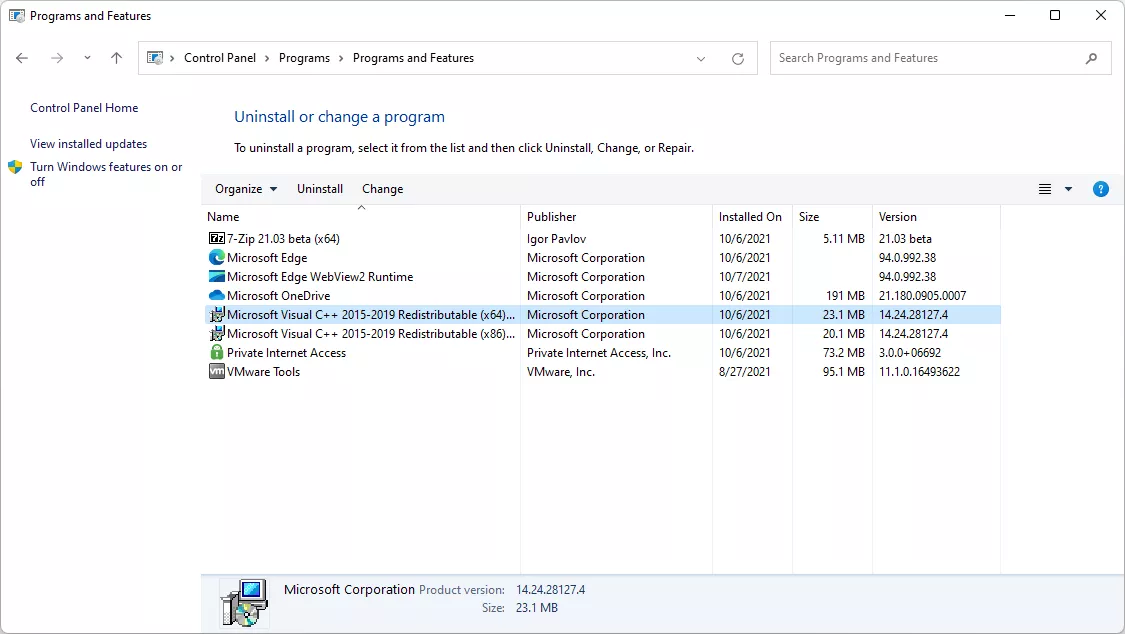
Verify the result: The application opens without the original message. The official installer puts related files and versions in their expected locations; do not use an individual DLL from an unknown source.
Method 4: Diagnose and repair the issue with Fionn DLL Fixer
When to use it: When the cause is unclear and you need to check DLLs, system components, and startup dependencies. Fionn DLL Fixer performs scanning, repair, and rechecking; it can detect missing, corrupted, version-mismatched, and System32-related DLL issues.
- Launch Fionn DLL Fixer. The program automatically scans the PC for DLL and system issues and displays the results when scanning finishes.

- After the scan finishes, click Repair to automatically start repairing all detected DLL and system issues.

- Wait for the repair to finish. During the process, the button changes to Fixing until all issues are repaired.

- When finished, click Ok in the confirmation dialog. If prompted, restart the computer before checking the result.

- If the issue remains after restarting, click Recheck to scan again. If new issues are found, click Repair again.

Verify the result: Open the original program again. If the error remains, save its text, the DLL name, and the process architecture for the developer's support team.
How to avoid x86 and x64 errors
- Match the DLL to the application process, not only to the Windows architecture.
- Do not use the absence of a
*32label as the only way to determine architecture. - When one program fails, start with its official installer.
- When errors occur in multiple programs, check system components with DISM and SFC.
Conclusion
Start by determining the process architecture: this decides whether you need an x86 or x64 DLL. If one program fails, reinstall its component from the official site; if the issue affects multiple applications, use DISM and SFC for Windows system files. Remember that System32 mainly contains 64-bit components and SysWOW64 supports the 32-bit environment, but do not manually copy files between these folders. When the source of the error is unclear, Fionn DLL Fixer can scan, repair, and recheck. Success means the program starts without the previous error.
Frequently asked questions
Can I use an x86 DLL on x64 Windows?
Yes, if the DLL is loaded by a 32-bit application. A 64-bit process cannot load an x86 DLL.
Why does an x64 DLL not work in a 32-bit program?
A 32-bit process cannot load a 64-bit DLL. Install the x86 version provided by the program manufacturer.
Why does System32 contain x64 DLLs?
This is a historical Windows convention. On a 64-bit system, System32 is mainly intended for 64-bit system components, while SysWOW64 serves the 32-bit WOW64 environment.
Does error 0xc000007b definitely mean that the DLL has a different architecture?
No. An incompatible architecture is one possible cause; the code can also appear when dependencies are corrupted or missing. Check the architecture and restore the official component.
When should I use DISM and SFC?
Use them when Windows system file corruption is likely or when the error affects multiple programs. For a DLL supplied with one program, use its official installer first.


