 Emily CarterDLL Errors
If Windows reports missing DLL files, do not download an individual file from an unknown website. First, note its exact name: it often indicates what needs to be repaired—the program itself, the Microsoft Visual C++ package, DirectX components, or Windows system files. This guide covers five methods: start with the DLL type and the most targeted solution, then move on to checking Windows. If the file name or dependency is difficult to identify, Fionn DLL Fixer can scan DLL files and related Windows components.
How to Identify the Cause from the Missing DLL Name
The full error message matters more than the general term “DLL.” Copy the file name and compare it with the table below: this reduces unnecessary steps and helps you fix the program launch issue with a targeted approach.
| What appears in the error | What to check first | Examples |
|---|---|---|
vcruntime
,
msvcp
,
msvcr
| The matching Microsoft Visual C++ Redistributable | vcruntime140.dll
,
msvcp140.dll
|
d3dx9
,
d3dcompiler
,
xinput
| DirectX components required by the game or application | d3dx9_43.dll
,
xinput1_3.dll
|
| Windows system DLL | DISM and SFC | shell32.dll
,
user32.dll
|
| DLL in a specific program folder | Repair or reinstall the program | A file next to the application's executable file |
| Unclear type | Save the full name and run diagnostics | An error message without a file path |
Quick Comparison of Methods for Missing DLL Files
| Method | Best suited for | Effectiveness | User effort |
|---|---|---|---|
| Repairing the program | An error in only one application | High for application files | Low |
| Visual C++ or DirectX | Runtime library or game errors | High when the DLL type matches | Moderate |
| DISM and SFC | System DLL files or failures in multiple programs | High for protected Windows files | Moderate |
| Updating Windows | A system that has not been updated for a long time | Depends on available updates | Low |
| Fionn DLL Fixer — recommended option | An unclear cause or several dependencies | Automated diagnostics and repair | Low |
Method 1: Repair the Affected Program
When to use it
Choose this method if the error appears only when launching one program or game, or if the missing DLL is in its folder. Many such files are supplied with the application and are not part of Windows.
- Close the affected program.
- Open Windows Settings and go to installed apps.
- Find the program and select Repair if that option is available.
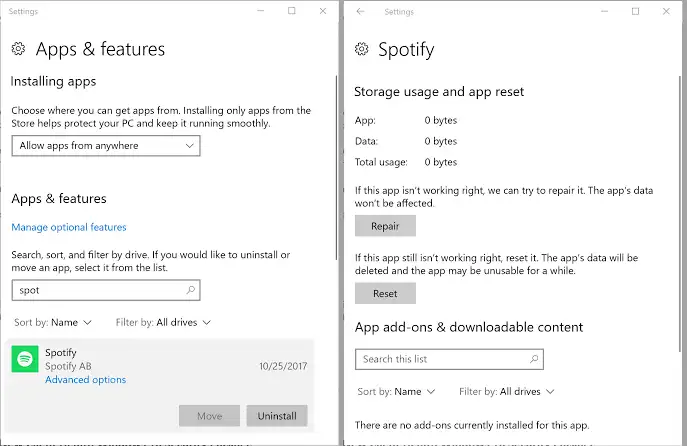
- If repair is unavailable or does not help, uninstall the program using the standard method.
- Install it again from the developer’s official source.
- Launch the program.
Verify the result: The application opens without the previous message; test it again after restarting Windows.
Method 2: Repair Visual C++ or DirectX
When to use it
Use this approach for
vcruntime*.dll
,
msvcp*.dll
, and
msvcr*.dll
, as well as
d3dx9_*.dll
,
d3dcompiler_*.dll
, and
xinput*.dll
. Microsoft states that missing Visual C++ runtime libraries should be resolved by installing the matching Redistributable, not by obtaining an individual DLL. For Visual C++, consider the architecture: x86 is for 32-bit applications, x64 is for 64-bit applications, and ARM64 is for ARM64.
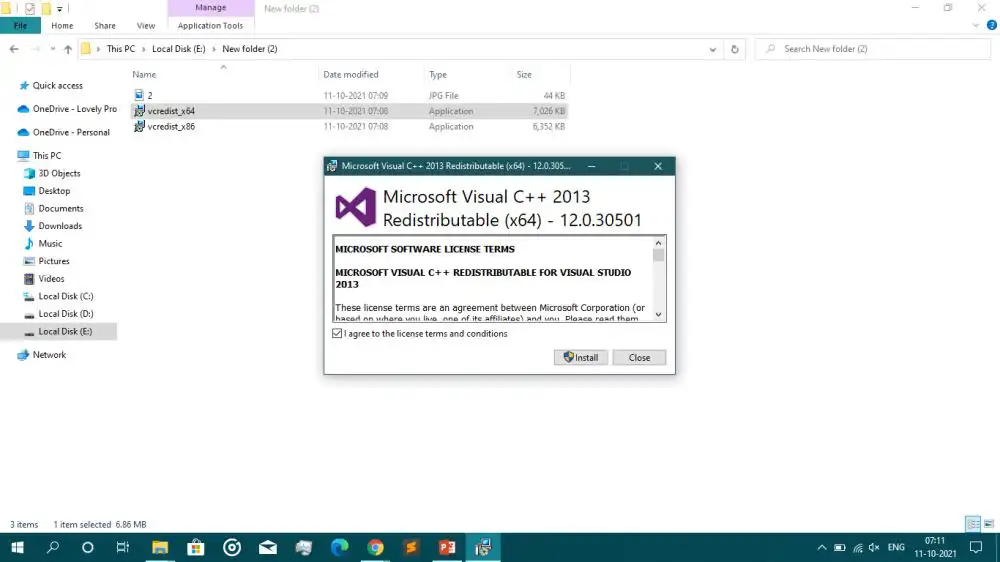
- Match the missing DLL name with Visual C++ or DirectX using the table above.
- For Visual C++, open the Microsoft page for supported Redistributables .
- Install or repair the package that matches the application and system architecture.
- For DirectX DLL files, run the installer or repair tool for the components supplied by the game’s or application's official installer.
- Restart Windows if the installer requires it.
- Launch the program again.
Verify the result: The message about the runtime library or DirectX component disappears, and the application launches.
Method 3: Repair System Files with DISM and SFC
When to use it
This method is for Windows system DLL files, errors in multiple programs, and failures after system corruption. Microsoft recommends repairing the Windows image with DISM first, then checking protected system files with SFC.
- Open Command Prompt or Terminal as an administrator.
- Run this command:
DISM.exe /Online /Cleanup-image /Restorehealth

sfc /scannow
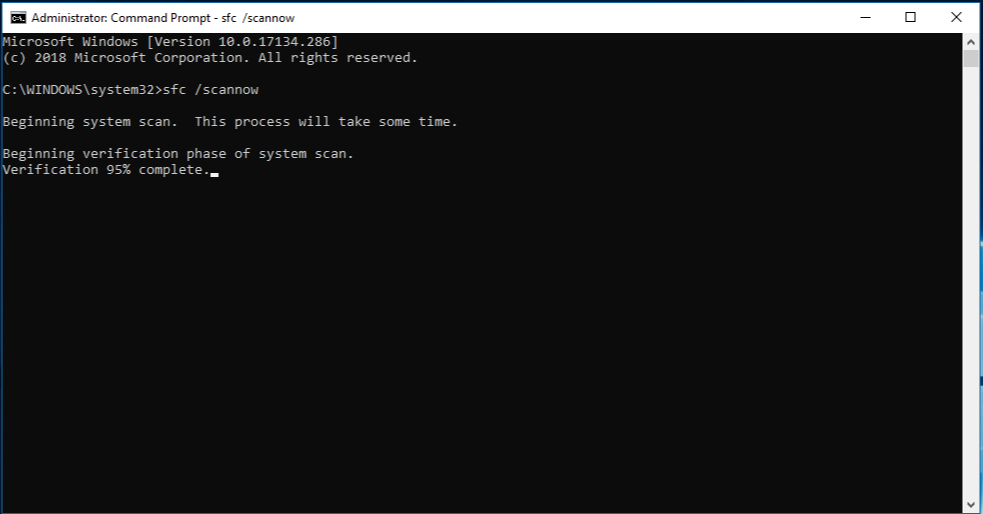
- Wait for the final SFC message.
- Restart your computer.
- Check the original application.
Verify the result: SFC reports that no integrity violations were found or that they were repaired, and the DLL error no longer occurs.
Method 4: Update Windows
When to use it
Check for updates before or after system file repair, especially on a new or long-unupdated Windows installation. This is a supporting step: it does not replace reinstalling the application or the required Visual C++ package.
- Open Windows Settings.
- Go to Windows Update.
- Select Check for updates.
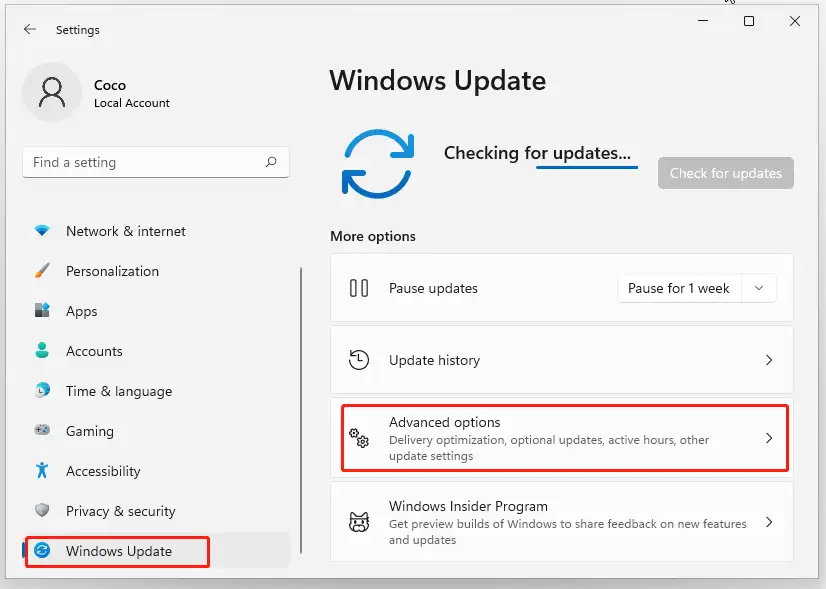
- Install the offered updates.
- Restart your computer.
- Launch the application again.
Verify the result: After updates are installed and the computer restarts, the message does not appear again.
Method 5: Diagnose and Fix Missing DLL Files with Fionn DLL Fixer
When to use it
This is the recommended option when the DLL name does not indicate the cause, the error affects multiple dependencies, or manually checking DirectX, Visual C++, .NET, OpenAL, and XInput takes too long. Fionn DLL Fixer for Windows checks missing, damaged, incompatible, and System32 path-related DLL files, and supports scanning, repair, and rechecking.
- Launch Fionn DLL Fixer. The program automatically scans your computer for DLL and system problems and displays the detected results when the scan is complete.

- After the scan is complete, select “Repair” to automatically begin fixing all detected DLL and system issues.

- Wait for the repair to finish. During the process, the button changes to “Fixing” until all issues are resolved.

- When the repair is complete, select “Ok” in the confirmation dialog. If prompted, restart your computer before verifying the result.

- If the issue remains after restarting, select “Recheck” to scan again. If new issues are found, select “Repair” again to fix them.

Verify the result: After repair and, if needed, rechecking, launch the program that displayed the original error.
What Not to Do
- Do not copy DLL files into
System32or the program folder without a confirmed source and reason. - Do not choose a Visual C++ package solely by the Windows architecture; also consider the application architecture.
- Do not interrupt DISM or SFC before they finish.
- After each method, test the same program to determine which action helped.
Conclusion
When DLL files are missing, first use the file name as a clue: repair one affected application, install the required Visual C++ Redistributable or DirectX components, and run DISM and SFC for system DLL files. Then install Windows updates. If the cause is unclear or several dependencies need checking, Fionn DLL Fixer simplifies scanning, repair, and rechecking. The result is confirmed only when the original program launches after a restart without the previous message.
Frequently Asked Questions
Why can’t I simply download the missing DLL?
An individual file may have the wrong version or architecture, or come from an unknown source. It is safer to repair the program, the official runtime package, or Windows system files.
How can I tell whether I need a Visual C++ Redistributable?
Check the DLL name. Files beginning with
vcruntime
,
msvcp
, or
msvcr
usually indicate a Visual C++ dependency.
Why might a 64-bit version of Windows require the x86 package?
Because a 32-bit application uses 32-bit libraries even when Windows itself is 64-bit.
When should I run DISM and SFC?
Run them for system DLL errors, failures in multiple programs, or after Windows corruption. Run DISM before SFC.
What should I do if the error persists?
Save the full error message, the DLL name, its path, and the program name. Then contact the program developer’s official support or run dependency diagnostics again.
Need to check several dependencies? Open Fionn DLL Fixer after trying the manual methods to check detected DLL and system-component issues before launching the application again.


