 Emily CarterDLL Errors
DLLs are usually not installed as separate programs. If Windows reports that a file is missing, the correct solution depends on which component should provide it: the program itself, Visual C++ Redistributable, DirectX, or Windows. Do not begin by downloading a file and copying it into a system folder. This guide covers three practical methods: restore the supplying component, check Windows, and diagnose DLL issues. After each method, test the specific program or game where the error occurred.
Do You Need to Install a DLL Manually?
A DLL is a library that an application loads together with its dependencies; it is not a universal installation package. Therefore, the approach of downloading
xxx.dll
and placing it in
System32
usually does not resolve the underlying cause. The file may require other DLLs, not match the application version, or have a different architecture.
| What is needed | Safe method |
|---|---|
| A DLL for a specific program | Reinstall the program from its official source |
vcruntime
,
msvcp
,
msvcr
| Install or repair the appropriate Microsoft Visual C++ Redistributable |
d3dx9
,
xinput
,
d3dcompiler
| Restore the official DirectX component or reinstall the game |
| A Windows system DLL | Run DISM, then SFC |
| A separate DLL supplied by a developer | Follow the developer's documentation exactly |
| An unknown DLL from the internet | Do not install it manually |
How to Install a DLL: Quick Method Comparison
| Method | Best suited for | Effectiveness | User effort |
|---|---|---|---|
| Install the component or reinstall the program | An error in one application or a known library name | High when the correct component is identified | Low |
| DISM and SFC | Errors in several programs and system DLLs | High for Windows components | Moderate |
| Fionn DLL Fixer | The cause is unclear or DLLs and dependencies need checking | Automated diagnosis and repair | Low |
Method 1: Install the Component or Reinstall the Program
When to use it:
the error appears in only one program, or the file name points to a known runtime. For example, for
vcruntime140.dll
do not look for an individual file: install or repair Microsoft Visual C++ Redistributable. For
d3dx9
,
xinput
and
d3dcompiler
, use the game's official installer or the official DirectX component.
- Write down the full DLL name and the program name shown in the error message.
- If the error affects only one program, open
Settings → Apps → Installed apps
.
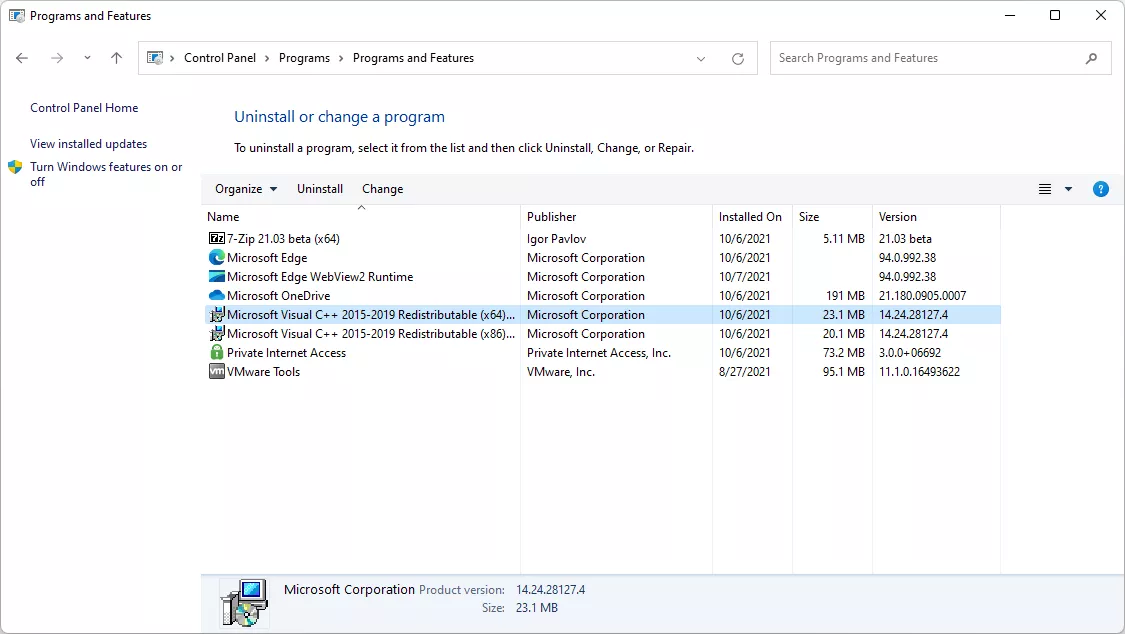
- Uninstall the affected program or use its official repair feature, if available.
- Download the installer only from the developer's official website or the store where you obtained the program.
- Install the program or the component it specifies, then launch it again.
Check: the program opens without a “DLL not found” message. If the installer requests the same file again, make sure you selected the component version for the application's architecture—x86 for a 32-bit program and x64 for a 64-bit program.
Where Should You Install a DLL: System32 or SysWOW64?
Do not choose a folder based on its name alone. On 64-bit Windows,
System32
contains 64-bit system libraries, while
SysWOW64
contains 32-bit ones; the names are historically counterintuitive. However, Windows does not search for DLLs in one fixed folder: the application directory, system directories, and other permitted search paths are involved. In addition, the DLL itself may depend on other libraries.
Do You Need to Register a DLL with regsvr32?
No, not by default.
regsvr32
is not a DLL installer: it works only with DLL and OCX files that support the relevant self-registration mechanism. An ordinary missing-DLL error does not mean registration is required. Use
regsvr32
only when the program developer or official documentation explicitly instructs you to register a specific file and provides the appropriate command.
Method 2: Restore Windows System Files
When to use it: the same errors occur in several unrelated programs, after a Windows failure, or when you suspect damaged system components. Microsoft recommends running DISM first and then SFC.

- Open Windows Terminal (Administrator) .
- Run the command and wait for it to finish:
DISM.exe /Online /Cleanup-image /Restorehealth - After DISM, run the following command:
sfc /scannow
- Restart the computer if Windows reports that files were repaired.
- Launch the affected application again.
Check: SFC completes its scan and reports a result, and the application opens without the previous error. Details are available in the Microsoft instructions for SFC and DISM .
Method 3: Check DLLs and System Components with Fionn DLL Fixer
When to use it: you need to diagnose missing, damaged, or incompatible DLLs, System32 issues, or dependencies involving DirectX, Visual C++, .NET, OpenAL, and XInput, and identifying the component manually takes too much time. Fionn DLL Fixer for Windows supports scanning, repair, and rechecking.
- Launch Fionn DLL Fixer and wait for the automatic scan of DLL and system issues to finish.

- After the scan, click
Repair
to start fixing the detected issues.

- Wait for the process to finish; during the repair, the button displays
Fixing
.

- In the confirmation dialog, click
Ok
; restart the computer if prompted.

- If the error remains after restarting, click
Recheck
; if new issues are detected, select
Repair
again.

Check: the recheck does not show the previous issue, and the application launches. This method simplifies diagnosis, but it does not replace reinstalling a specific program if that program's own files are damaged.
Conclusion
To install a DLL correctly, first identify the supplying component rather than a folder for an individual file. For an error in one program, reinstall it or its official runtime; for system failures in several programs, run DISM and then SFC. If the source of the error is unclear and you need to check DLLs, system paths, and game dependencies, use Fionn DLL Fixer . The result is confirmed only when the affected program launches successfully. If the message does not change, save its full text and contact the developer's official support.
Frequently Asked Questions
Can I put a DLL in the program folder?
Only if the developer's official documentation explicitly instructs you to do so for that specific program version. Otherwise, reinstall the program or its runtime; this restores a compatible set of dependencies.
Why should a 64-bit DLL not automatically go in SysWOW64?
On 64-bit Windows, the
SysWOW64
folder is intended for 32-bit system libraries. However, manually choosing a folder is still not a universal solution because DLLs load according to search rules and may depend on other files.
When is the regsvr32 command needed?
Only for DLL or OCX files that support self-registration and when the developer explicitly instructs you to use it. It does not fix most missing-DLL messages.
What should I do about vcruntime140.dll?
Install or repair the appropriate Microsoft Visual C++ Redistributable from an official source, or reinstall the program that requires it. Do not download a standalone file from an unofficial catalog.
Do I need to run both DISM and SFC?
To repair system files, Microsoft recommends running DISM followed by SFC. These commands do not replace reinstalling files for an individual program.


