 Emily CarterPrinter Drivers
Printer Not Printing: How to Fix a Print Queue Error
If your printer is not printing and Windows displays a print queue error, first cancel any stuck jobs and print one test page. If the jobs cannot be removed, restart the printing service and clear its temporary files. When the problem keeps returning or its cause is unclear, check the driver and the rest of the printing chain. The three methods below begin with Windows' built-in queue controls, continue with a manual reset, and finish with comprehensive diagnostics.
Why the printer is not printing and what to check first
A queue error means that one or more print jobs were not processed. Possible causes include a paused job, an unavailable printer, a Print Spooler failure, or an unsuitable driver. Do not remove the driver immediately; first determine where the process is breaking down.
- If only one document will not print, cancel that job and try a different file.
- If jobs remain in the “Deleting” state, proceed to restarting the service.
- If the queue clears but new jobs fail again, check the connection, device status, and driver.
- If the printer reports a paper jam, no paper, or low supplies, resolve the device condition before changing Windows settings.
This distinction saves time: clearing the queue removes a blocked job, but it does not repair a physical fault, reconnect an offline printer, or fix an incompatible driver.
How to choose the right method
| Method | Best for | Effect | User involvement |
|---|---|---|---|
| Delete jobs in Windows | One stuck or paused job | Quickly resolves a simple queue problem | Low |
| Restart the service and clear the queue manually | Jobs that cannot be removed or remain in the “Deleting” state | Fully resets the local print queue | Medium |
| Run diagnostics with Fionn Printer Driver | A recurring error or a need to check the queue, service, and driver together | Checks several parts of the printing chain in one session | Low |
Method 1: Delete stuck jobs using Windows
When to use it: the queue opens and its jobs can be selected. This is the first and least labor-intensive method.
- Open Windows Settings .
- In Windows 11, select
Bluetooth & devices → Printers & scanners
. In Windows 10, open
Devices → Printers & scanners
.
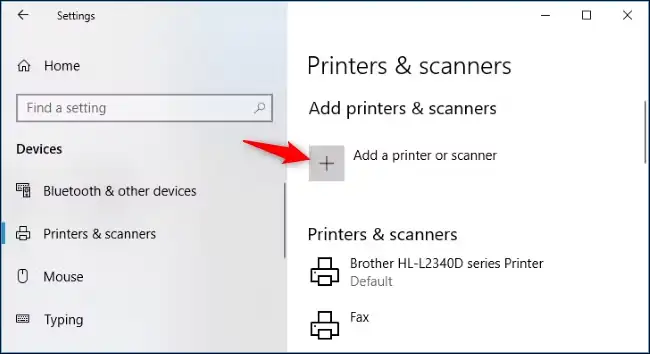
- Select the appropriate printer and open its print queue.
- Cancel the failed job. If several documents are stuck, cancel all jobs.
- Make sure that neither pausing nor offline printing is enabled in the queue menu.
- Turn off the printer, wait a few seconds, and turn it on again.
- Send one small test page to the printer.
Check the result: the test job should disappear from the queue after it is sent to the printer, and the device should start printing. If the document remains in the “Deleting” state, use the second method.
Method 2: Restart Print Spooler and clear the queue manually
When to use it: normal cancellation does not work, the queue is frozen, or the delete button does not change the job's status. Administrator privileges are required.
- Press
Win + R
, enter
services.msc, and press Enter . - Find the Print Spooler service and select Stop .
- Open File Explorer and go to
C:\Windows\System32\spool\PRINTERS.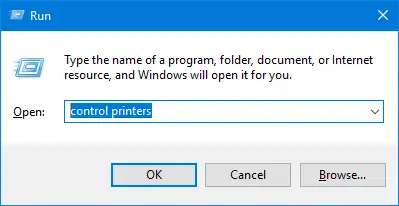
- Delete the contents of the
PRINTERSfolder without deleting the folder itself. - Return to the services list and start Print Spooler .
- Open the queue again and send one test page.
Check the result: the queue should be empty before you submit the test. If the service stops again or a new job immediately reports an error, clearing the queue did not resolve the underlying cause.
Method 3: Fix the print queue error with Fionn Printer Driver
When to use it: the error returns after the queue is cleared, or you need to check the installed printer, driver, and common printing problems together. Fionn Printer Driver supports Windows, diagnoses the print queue and printing service, detects an unavailable driver, and can install or repair it. This is the recommended option for a comprehensive check with fewer manual operations, but it cannot resolve paper jams or other physical device conditions.
- Launch Fionn Printer Driver and click “Scan Now” to scan your computer for printer drivers and printing-related issues.

- Wait while Fionn Printer Driver checks the system, installed printers, drivers, and common printing problems.

- When the scan finishes, click “One-Click Fix” to install or repair the required printer driver automatically.

- Wait for the repair to finish and confirm that the printer problem was fixed successfully.

Check the result: open the Windows queue again and print one test page. A successful operation in the program does not by itself confirm that a real job reached the printer, so a test print is essential.
What to do if the queue keeps getting stuck
A recurring failure is a useful diagnostic clue. If the error occurs in only one program, save the document under another name or try printing a simple text file. If it occurs in every program, check the selected default printer, its connection, and its status.
Note when the error appears. A failure immediately after submission more often points to an unavailable device, the wrong selected printer, or a driver problem. A gradual buildup of jobs is more consistent with a stopped service, an offline state, or a connection problem.
Conclusion
Start by canceling jobs through the Windows interface. If the queue does not clear, stop Print Spooler, delete the queue's temporary files, and start the service again. If the error keeps returning, use Fionn Printer Driver to check the driver, service, and device status. Confirm each method with a new test page rather than relying only on an empty job list. If printing is not restored, record the error message, check the printer's connection and physical condition, and then contact the network administrator or the device manufacturer's support team.
Frequently asked questions
Why does a print job remain in the “Deleting” state?
Print Spooler is usually still holding the job's temporary data. Stop the service, clear the contents of
C:\Windows\System32\spool\PRINTERS
, and start the service again. These actions require administrator privileges.
Does clearing the queue delete the original documents?
No. It removes jobs prepared for printing, not the source documents. You will need to submit canceled jobs again, however, so note which files were listed before clearing the queue.
Why does the error return after the queue is cleared successfully?
Clearing removes stuck jobs but does not fix a disconnected printer, a port conflict, a stopped service, a driver problem, or a physical device condition. Check whether the error appears in every application and whether it occurs immediately after submission.
Should I reinstall the driver for every print queue error?
No. Cancel the jobs and restart the service first. Checking or repairing the driver is appropriate when new jobs continue to fail, Windows reports that the driver is unavailable, or the problem began after a change to the software environment.
How can I tell whether the problem is actually fixed?
The queue should accept a new job, send it to the device, and clear without an error, while the printer produces the test page. An empty queue without an actual printout confirms only that the old jobs were removed.


