 Emily CarterPrinter Drivers
Printer Driver Update in Windows 11 and 10: 4 Safe Methods
Introduction
Start a printer driver update with Windows Update, Microsoft’s recommended source for compatible printer drivers. If Windows cannot find the required version, download the exact model’s package from the printer manufacturer. Device Manager can install an already downloaded package, while Fionn Printer Driver is an optional assistant for identifying a printer and checking related printing problems. The four methods below progress from the simplest built-in option to more targeted alternatives. Print a test page after every attempt; an installation success message alone does not prove that printing works.
What to Check Before Updating
Confirm the printer model, Windows edition, and system type before downloading anything. The model is usually printed on the case or manufacturer label. Find the Windows details under:
Settings → System → About
- Connect the printer by USB or place it on the same network as the computer.
- Save unfinished documents and remove important pending jobs from the print queue.
- Record the current version under
Device Manager → Printers → Properties → Driver. - Use an account permitted to install drivers.
Quick Method Comparison
| Situation | Recommended method | Limitation |
|---|---|---|
| The printer works and needs routine maintenance | Windows Update | The driver may appear under optional updates |
| Windows found no driver, or model-specific features are missing | Manufacturer’s official website | You need the exact model, Windows release, and architecture |
| The package is downloaded, or the device shows an error | Device Manager | Automatic search may not find a newer version |
| The model is unknown, or the wider printing environment needs checking | Fionn Printer Driver | It is an optional third-party assistant, not a replacement for official sources |
Method 1: Complete a Printer Driver Update Through Windows Update
When to Use
Use this method first when Windows detects the printer and no known incompatibility followed a previous update. Microsoft recommends Windows Update for installing and updating printer drivers.
Step-by-Step Guide
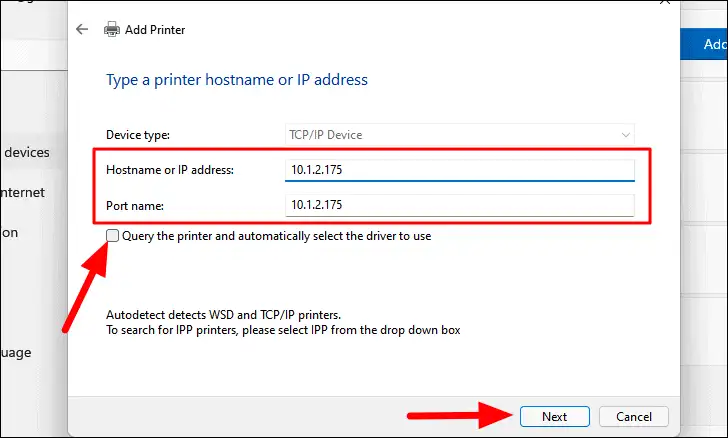
- Open
Settings → Windows Update. - Select Check for updates and wait for the search to finish.
- In Windows 11, open
Advanced options → Optional updates. - Expand the driver updates list and select the entry matching the printer.
- Install the update and restart Windows if prompted.
In Windows 10, the corresponding location may be Update & Security → Windows Update → View optional updates. Microsoft lists current installation options in its official printer driver instructions.
How to Verify the Result
Open the printer properties and print a test page. Compare the date and version on the Driver tab with the values recorded earlier. No version change does not necessarily indicate failure; Windows Update may consider the installed driver the most suitable one.
If no update appears or model-specific settings remain unavailable, use the manufacturer’s package next.
Method 2: Install the Driver From the Manufacturer’s Website
When to Use
Choose this method when Windows Update cannot identify the printer, provides a generic driver without required features, or the manufacturer has issued a model-specific correction. Download software only from the manufacturer’s official support area.
Step-by-Step Guide
- Find the exact model designation on the printer or in its documentation.
- Check the Windows edition and system type under
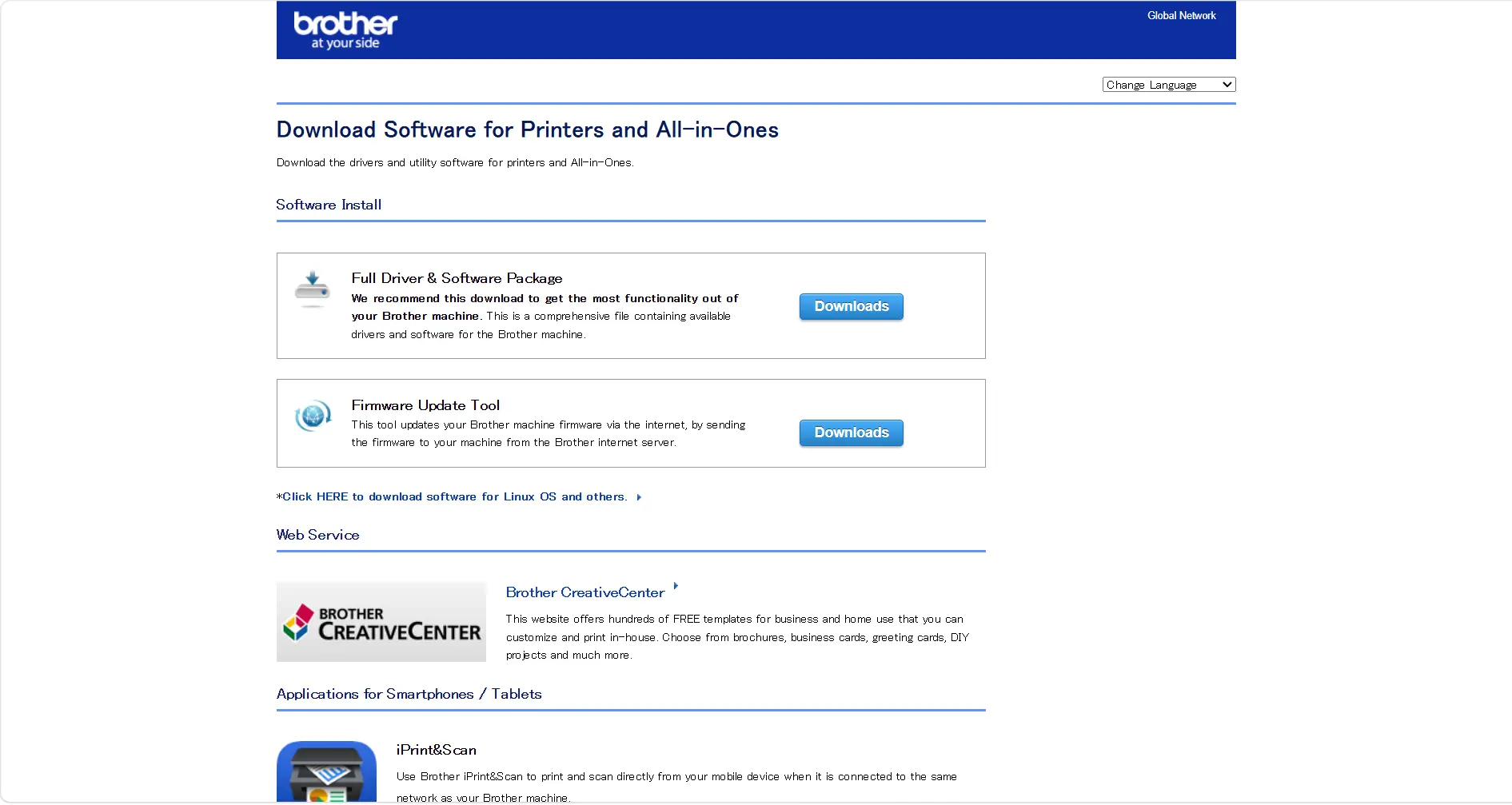
Settings → System → About. - Open the manufacturer’s official website and locate its support or drivers section.
- Select the exact printer model, Windows version, and matching architecture.
- Download the latest applicable package and confirm that the domain belongs to the manufacturer.
- Close open applications and run the installer without changing unverified advanced settings.
- Restart the computer if the installer requests it.
How to Verify the Result
Print a test page and check model-specific options such as paper size and two-sided printing. If Windows displays a similar but incorrect printer model, remove that package and install the driver intended for the exact model.
If the official package is already extracted but its installer does not work, continue with Device Manager.
Method 3: Update the Driver Through Device Manager
When to Use
Device Manager is useful when the printer appears with a warning or an official driver package is already stored locally. It can install local driver files, but its automatic search does not guarantee the newest manufacturer release.
Step-by-Step Guide
- Right-click Start and open Device Manager.
- Expand Printers or Print queues.
- Right-click the correct printer and select Update driver.
- Choose automatic search or Browse my computer for drivers.
- For a manual installation, select the folder containing the extracted official package.
- Complete the installation and restart Windows if requested.
How to Verify the Result
Open Properties → Driver and check the provider, date, and version. Print one test page from the printer properties and another from the application that previously failed. If only one application still fails, its configuration may be the cause rather than the driver.
If printing stopped immediately after the update, avoid random replacement packages. Use Roll Back Driver on the Driver tab when available, and then test again.
Method 4: Update With Fionn Printer Driver
When to Use
This optional method suits cases where the exact model is unknown or both the driver and Windows printing environment need checking. The product can identify most mainstream printer brands and models, offer automatic or manual matching, detect available updates, and check common printer, service, port, and queue problems.
Step-by-Step Guide
- Launch Fionn Printer Driver and select Scan Now to check printer drivers and related issues.

- Wait while Fionn Printer Driver checks installed printers, drivers, and common printing problems.

- After scanning finishes, select One-Click Fix to install or repair the required printer driver.

- Wait for the repair to finish and review the displayed result.

How to Verify the Result
Run another scan, then print a test page. If no exact match appears, enter the brand and model manually or return to the manufacturer’s official support site. A scan result does not replace an actual print test.
Common Printer Driver Update Mistakes
- Choosing a similarly named model: Closely related printers can require different packages and features.
- Downloading from a mirror: The file’s origin and current status may be impossible to verify.
- Treating “Offline” as proof of a driver fault: Check power, USB or network connectivity, the port, and the selected printer first.
- Trusting the version number without printing: The queue or a specific application may still fail.
- Removing the old driver unnecessarily: When a new update caused the problem, rollback is usually safer than installing an unrelated package.
Conclusion
For the safest printer driver update, try Windows Update first and then use the official manufacturer package for the exact model. Use Device Manager when you already have an extracted driver or the device shows an error. If model identification or the wider Windows printing chain remains unclear, Fionn Printer Driver is an optional additional check. Confirm success by printing a test page and testing the application that originally failed. If printing still fails with the correct current driver, inspect the connection, port, queue, printer status, and Print Spooler service, or contact the manufacturer.
Frequently Asked Questions
Should I update a printer driver when the printer works normally?
Not every package requires manual installation. Windows Update is generally sufficient for routine maintenance. Consider a targeted update when compatibility problems appear, a required feature is missing, or the manufacturer recommends it for the exact model.
Why does Windows say the best driver is already installed?
Windows found no more suitable package in the sources it searched. The message does not confirm that you have the manufacturer’s latest version. Compare the installed version with the official support page for the exact printer model.
What should I do if the printer stops working after an update?
Restart the printer and computer, then print a test page. If the failure began immediately after updating, open the device properties and use Roll Back Driver when available. Avoid reinstalling the same package until its compatibility is confirmed.
Will a printer driver update fix an offline printer?
Only when a damaged or incompatible driver causes the status. An offline printer can also result from lost power, a disconnected USB cable, a different network, an incorrect port, a paused queue, or the wrong default device.
Can I install a Windows 10 printer driver in Windows 11?
Do so only when the manufacturer explicitly confirms compatibility. Matching the processor architecture is not enough because driver models and installer components can differ. Look for a Windows 11 package first and follow the manufacturer’s documentation if none is available.


