 Emily CarterDLL Errors
How to Fix the xinput1_3.dll Error on Windows 10 and 11
Introduction
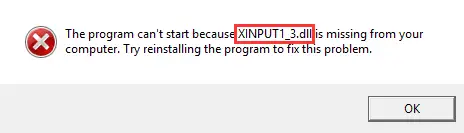
An xinput1_3.dll error usually means an application cannot load the XInput 1.3 component it expects. Start by repairing or reinstalling the affected application. If that fails, install Microsoft's legacy DirectX runtime. Use Windows system repair when several programs or Windows features also malfunction. This guide covers four methods, including a guided Fionn scan, and explains how to verify each result.
Choose the Right Method
| Method | Best For | Efficiency | User Effort |
|---|---|---|---|
| Repair or reinstall the affected app | Only one app or game fails | High when its local installation is incomplete | Low to moderate |
| Install Microsoft's legacy DirectX runtime | The message specifically names xinput1_3.dll | High when the required XInput 1.3 component is absent | Moderate |
| Run DISM and SFC | Several apps or Windows features fail | Useful for broader Windows component corruption | Moderate |
| Fionn DLL Fixer — Recommended guided option | The cause is unclear or multiple dependencies may be involved | Automates scanning, repair, and rechecking | Low |
Method 1: Repair or Reinstall the App Showing the xinput1_3.dll Error
When to use: Choose this method when one application fails while other programs work normally. That pattern points toward an incomplete or damaged local installation rather than a broad Windows problem.
- Restart Windows, then launch the affected application again.
- Open
Start > Settings > Apps > Installed apps
.
- Find the affected application and open its available advanced or modification options.
- Select Repair if that option is available.
- If repair is unavailable or unsuccessful, uninstall the application through Settings.
- Download its installer from the publisher's official source and reinstall it.
- Launch the application from its normal shortcut and reproduce the action that caused the error.
Verification: The method succeeded if the application opens without displaying the xinput1_3.dll message.
Method 2: Install Microsoft DirectX End-User Runtimes
When to use: Use this method when the error explicitly identifies xinput1_3.dll, especially after reinstalling the affected application did not help. Microsoft states that its DirectX End-User Runtimes package installs legacy side-by-side libraries used by some applications, including XInput 1.3.
- Close the application displaying the error.
- Visit the official Microsoft DirectX End-User Runtimes download page .
- Download
directx_Jun2010_redist.exefrom Microsoft. - Run the downloaded package and choose an empty folder when asked where to extract its files.
- Open that folder and run
DXSETUP.exe. - Follow the installation prompts, then restart Windows.
- Launch the affected application and test the same action again.
Verification: The required result is that the application starts without reporting that xinput1_3.dll is missing, not found, or invalid.
A current DirectX version and the legacy XInput 1.3 library are not interchangeable checks. A computer can report a modern DirectX version while an older application still requires this side-by-side component.
Method 3: Repair Windows Components with DISM and SFC
When to use: Reserve this method for broader symptoms, such as several applications failing, Windows features malfunctioning, or other damaged-file messages. It repairs protected Windows components; it is not a substitute for installing an application's legacy dependency.
- Open Start and search for Command Prompt .
- Select Run as administrator and approve the prompt.
- Enter
DISM.exe /Online /Cleanup-image /Restorehealthand wait for it to finish.
- Enter
sfc /scannowafter DISM completes successfully. - Keep the window open until verification reaches 100 percent.
- Restart Windows and test the affected application.
Verification: Review the final SFC message, then confirm whether the application and any other affected Windows functions now work. Microsoft's DISM and System File Checker instructions explain the possible scan results.
The symptom pattern is a useful diagnostic boundary: one failing app favors local repair or its required runtime, while failures across unrelated apps justify a system-level scan.
Method 4: Diagnose and Fix the xinput1_3.dll Error with Fionn DLL Fixer
When to use: This is the recommended guided option when the underlying dependency is unclear or manual checks have not resolved the error. Fionn DLL Fixer scans Windows DLL and system issues, supports automatic repair, and can recheck the computer afterward.
- Launch Fionn DLL Fixer. The software automatically scans your PC for DLL and system issues and displays the detected results when the scan is complete.

- After the scan finishes, click
Repair
to start fixing all detected DLL and system issues automatically.

- Wait while the repair is in progress. During this process, the button changes to
Fixing
until all issues have been repaired.

- When the repair is complete, click
Ok
in the confirmation dialog. If prompted, restart your computer before checking whether the problem has been resolved.

- If the issue still persists after restarting, click
Recheck
to perform another scan. If new issues are found, click
Repair
again to fix them.

Verification: Confirm that the recheck no longer reports the relevant problem, then launch the affected application and repeat the action that previously produced the error.
The product displays three free attempts. VIP access unlocks DLL, DirectX, runtime, and system-repair benefits, so review the displayed plan before relying on paid functionality.
Common Mistakes to Avoid
- Replacing files manually: A downloaded file may have the wrong version or architecture and can obscure the actual dependency problem.
- Assuming every DirectX component is already present: Modern Windows includes DirectX, but some older applications still need optional legacy libraries.
- Running system scans first for one failing app: Repairing that app is more targeted and usually requires fewer system-level steps.
- Skipping verification: Always reproduce the original launch or action. A completed installer alone does not prove the error is fixed.
Conclusion
Repair the affected application first when the xinput1_3.dll error is isolated to one program. Install Microsoft's legacy DirectX runtime when the message persists and explicitly names this component. Use DISM followed by SFC only when the symptoms extend beyond one application. If the cause remains uncertain, Fionn DLL Fixer provides a guided scan, repair, and recheck workflow. Verify every method by reopening the application and reproducing the failed action. Contact the application's publisher if the error remains after all relevant checks.
Frequently Asked Questions
What is xinput1_3.dll?
xinput1_3.dll is associated with XInput 1.3, one of the legacy components included in Microsoft's DirectX End-User Runtimes package. Some applications depend on that side-by-side component even when Windows already reports a newer DirectX version.
Why is xinput1_3.dll missing on Windows 11?
An application may require a legacy XInput 1.3 component that is not available to it, or its installation may be incomplete or damaged. The filename alone does not prove which cause applies. Start with app repair, then use Microsoft's official legacy runtime package.
Can I download xinput1_3.dll by itself?
Avoid standalone copies from unofficial DLL sites. A loose file provides no reliable assurance about its source, version, or compatibility. Install the affected application again or use Microsoft's official DirectX package so the required components are installed through a defined process.
Will DISM and SFC always fix this error?
No. DISM and SFC address Windows component corruption. They may help when several applications or Windows features fail, but they do not replace an optional legacy runtime required by one application. Match the method to the observable symptom pattern.
Should I copy xinput1_3.dll into System32?
Do not manually copy an unverified file into
System32
. That action can introduce an incompatible or untrusted copy without repairing the underlying installation. Use the application's installer, Microsoft's official runtime package, or a supported diagnostic workflow instead.
Need a Guided DLL Check?
If manual diagnosis has not identified the cause, use Fionn DLL Fixer to scan DLL and system issues, apply the supported repair workflow, and recheck the result.


