 Emily CarterScreen Recording
Which free screen recorder is right for Windows? Your choice depends on the recording area, computer or microphone audio, time and quality limits, whether installation is needed, and how complex the settings are. Snipping Tool works for short recordings in Windows 11, Xbox Game Bar for games and apps, and OBS Studio for complex scenes. Fionn Screen Recorder is worth considering for recordings with area selection, audio settings, and editing, provided that its free-version limits work for you.
Quick recommendations
- Short screen clip without additional installation: Snipping Tool in Windows 11.
- A game or a single app: Xbox Game Bar in Windows 10/11.
- Webcam, multiple sources, and flexible scene setup: OBS Studio.
- Recording area, audio, video settings, and editing afterward: Fionn Screen Recorder, if a clip of up to 2 minutes at 720p is sufficient in the free version.
Quick comparison of free screen recorders
| Program | Free features | Best for | Main limitations |
|---|---|---|---|
| Snipping Tool | Built-in recording of a selected rectangular area | Short instructions and interface clips in Windows 11 | Not designed for complex scenes with multiple sources |
| Xbox Game Bar | Built-in recording of an app or game, with microphone control | Games and individual apps in Windows 10/11 | Not a replacement for a multilayer scene tool |
| OBS Studio | A fully free, open-source program for recording and streaming | Screen, windows, webcam, and multiple sources | Requires installation and scene setup |
| Fionn Screen Recorder | Screen and audio recording with area selection; free saves of up to 2 minutes at 720p | Short clips with audio configuration and editing | Free-version limits on duration and resolution |
If you need a screen recorder without limitations, do not confuse that requirement with the ability to download software for free: OBS Studio is a fully free, open-source solution, while the free version of Fionn Screen Recorder has the stated limits.
1. Snipping Tool
What it does: this built-in Windows 11 tool records a selected rectangular screen area. Who it is for: people making a short video of actions in a browser or interface. Limitations: it is not a multilayer scene editor or a tool for combining several independent sources.
- Open Snipping Tool from Windows Search.
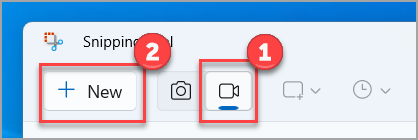
- Switch to recording mode and click New.
- Select the area you need.
- Start recording, then stop it and save the clip.
Check: open the saved video and make sure the required area is visible and no unwanted windows appear in the frame.
2. Xbox Game Bar
What it does: this built-in Windows component records a game or app; the Windows + Alt + R shortcut starts and stops recording, while Windows + Alt + M toggles the microphone. Who it is for: people recording games and individual apps. Limitations: for a complex composition with multiple sources, OBS Studio is a better choice.
- Enable Xbox Game Bar in Windows Settings if necessary.
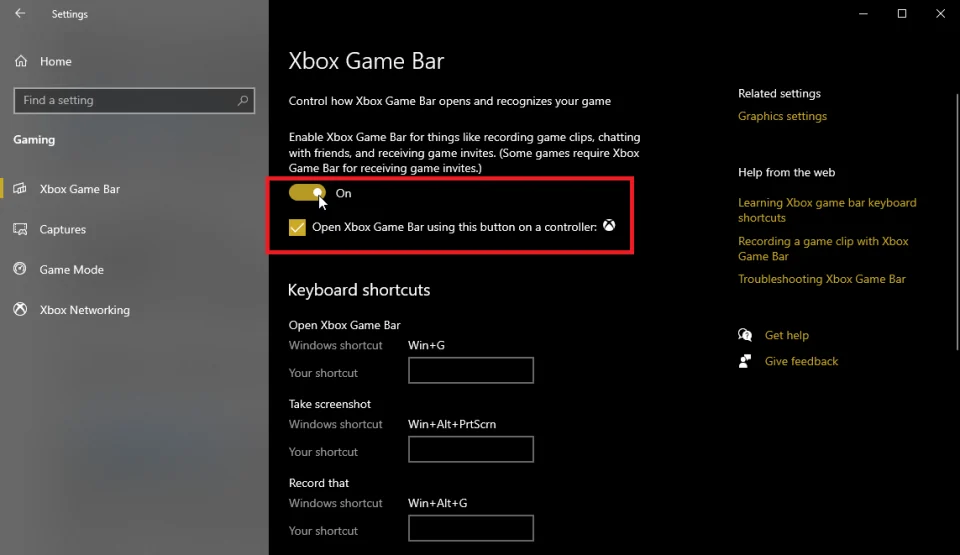
- Open the game or app.
- Press Windows + Alt + R .
- Turn on the microphone if needed with Windows + Alt + M .
- Stop the recording with the same shortcut and find the MP4 file in the Videos\Captures folder.
Check: play the MP4 and confirm that the required audio is present.
3. OBS Studio
What it does: OBS Studio is fully free, open-source software for recording and streaming in Windows 10/11. A scene can include screen or window capture, a webcam, an image, and text. Who it is for: people creating tutorials, streams, and videos with multiple sources. Limitations: you need to download the program and spend time setting up sources and audio.
- Download the installer from the
official OBS Studio download page
.
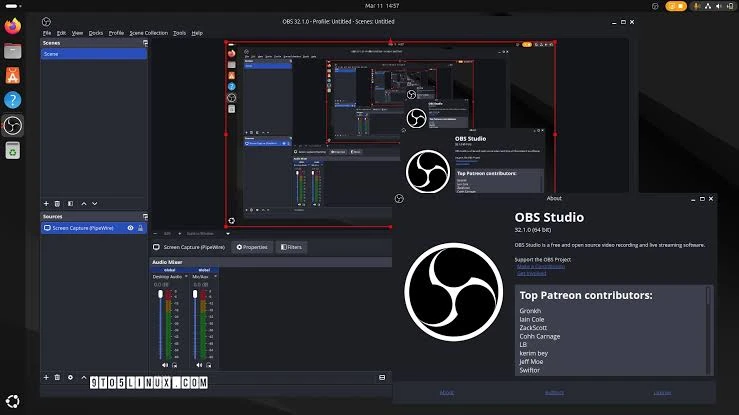
- Create a scene and add a capture source.
- Check the image in the preview.
- Check audio levels and make a test recording.
Check: the test file should contain the required video and audio. If an element is unnecessary, change the source or its boundaries before making the main recording.
4. Fionn Screen Recorder
What it does: Fionn Screen Recorder for Windows lets you choose the full screen, a window, or a custom area; record system audio and microphone audio; adjust video settings; and use a recording library. GDI is available for compatibility and DXGI for high-performance game recording in Windows 10+, while frame rate can be set from 1 to 60 FPS; the interface recommends 24 FPS for a typical tutorial video. Who it is for: people making short clips that need area selection, audio, and trimming afterward. Limitations: the free version saves videos no longer than 2 minutes and only at 720p. Paid-version users get unlimited duration, 2K/4K, no watermark, and the full set of recording modes.
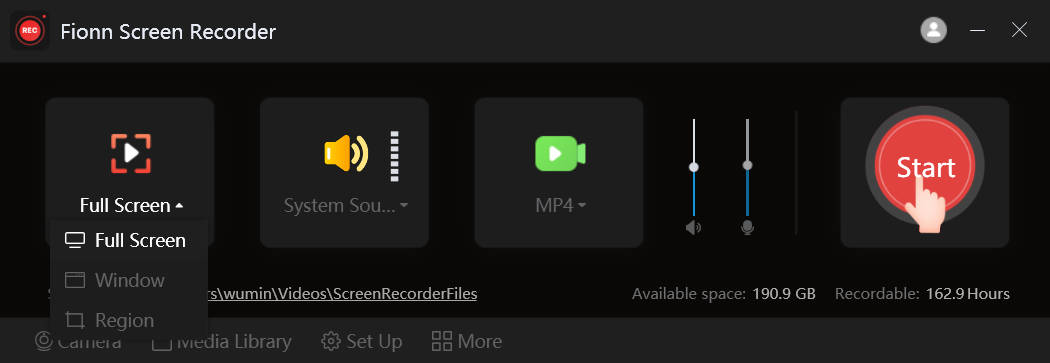
- Open Fionn Screen Recorder and choose a capture area: Full Screen, Window, or Region.
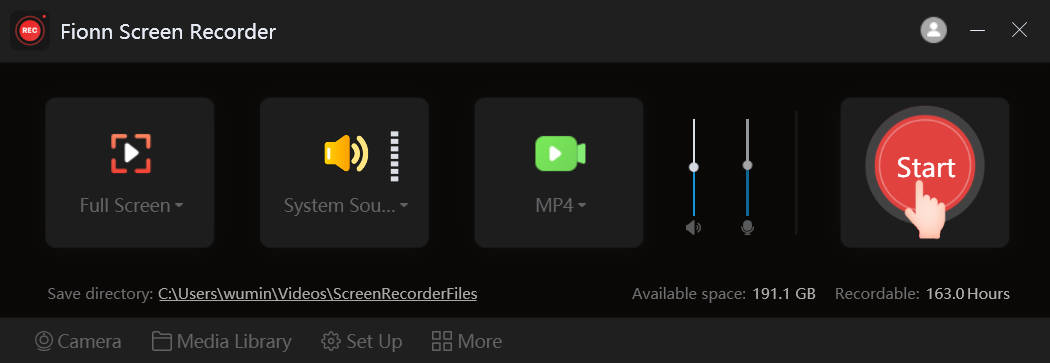
- Choose Full Screen, Window, or Region from the recording-area menu.
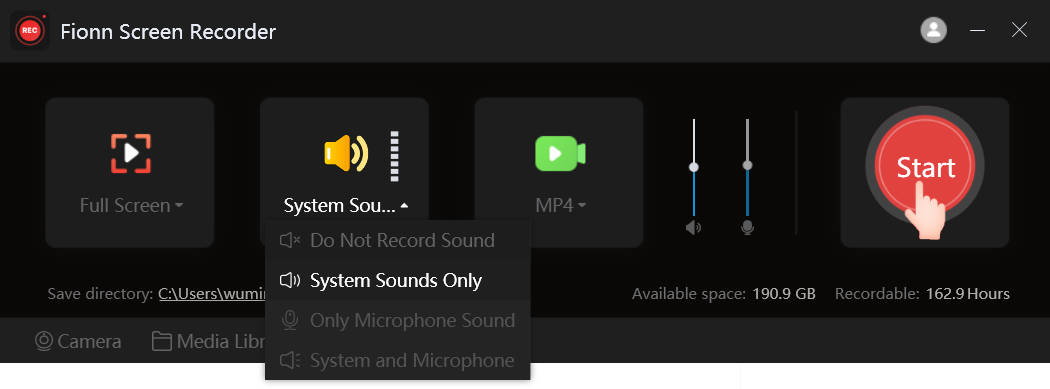
- Choose system audio, microphone audio, both sources, or no audio.
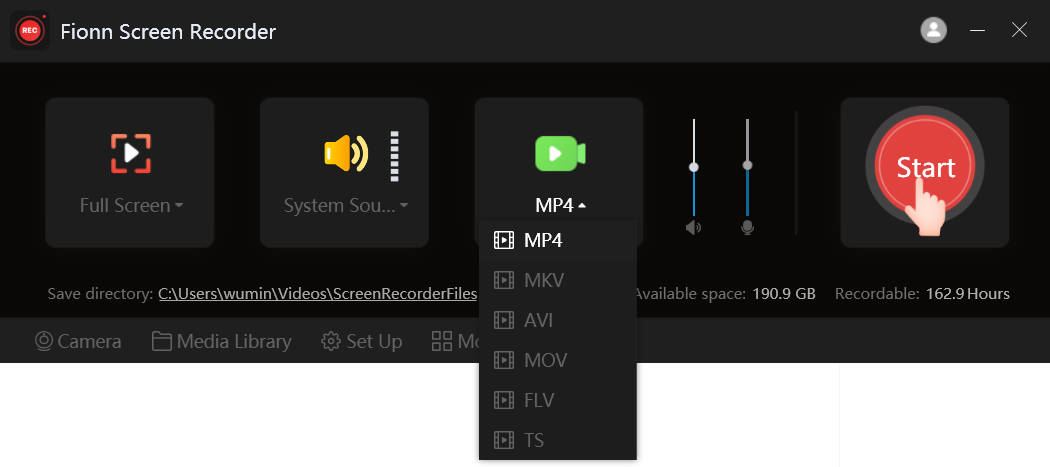
- Choose MP4 or another video format before recording.
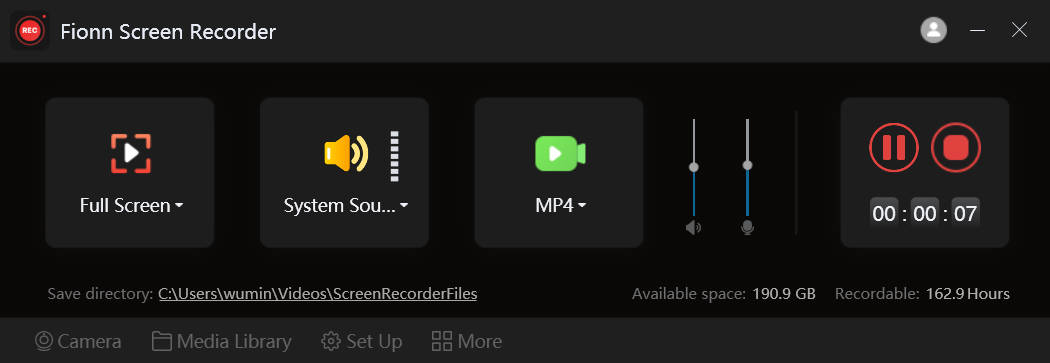
- Click Start, then use Pause or Stop.
- Open the media library to play, edit, locate, or delete videos.
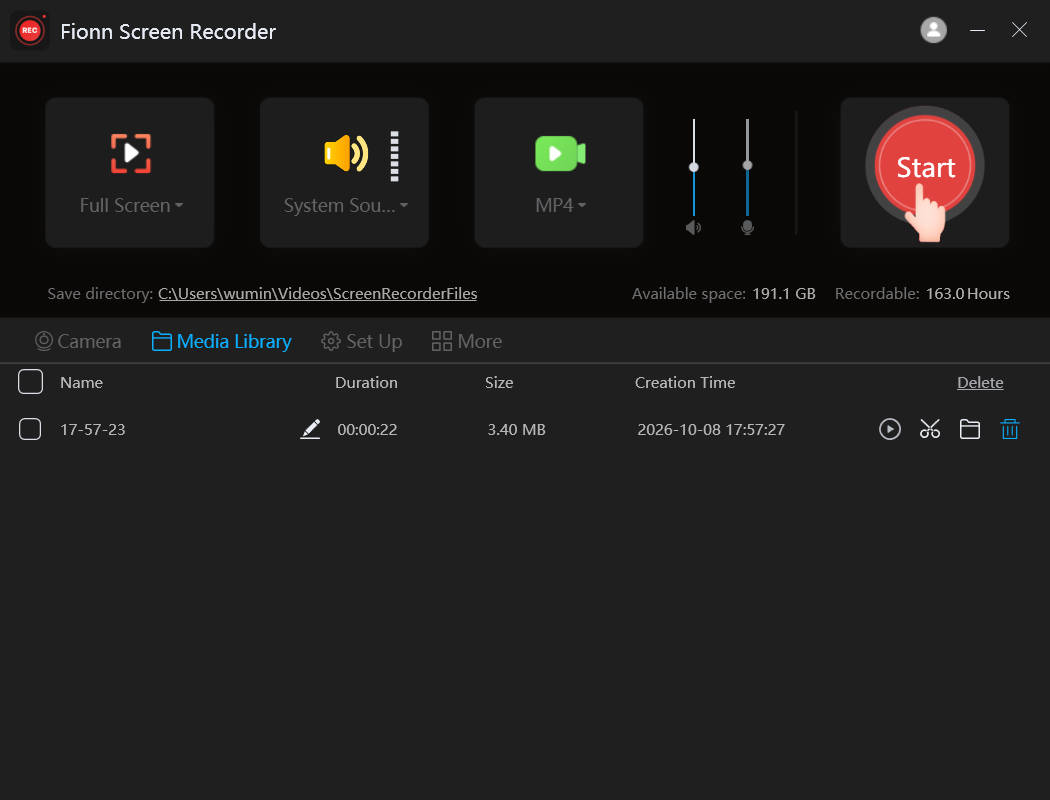
Check: open the recording in the media library and check the frame and audio. If needed, use the built-in Video Editor to trim and export it.
How to choose a free screen recorder
- Without installing additional software: Snipping Tool, for short recordings of a selected area in Windows 11.
- For game recording: Xbox Game Bar, for quickly capturing gameplay; Fionn Screen Recorder with DXGI is an option for games in Windows 10+ if you need its settings and its version terms suit you.
- For video tutorials with audio: OBS Studio, if you need multiple sources; Fionn Screen Recorder, for a short video with system-audio and microphone selection.
- For recording the entire screen: choose Fionn Screen Recorder if you need full-screen capture and the free limit is enough; for a built-in option, assess whether Xbox Game Bar meets the task.
- For complex scenes and a webcam: OBS Studio, thanks to its sources and scene setup.
- For short clips with editing afterward: Fionn Screen Recorder with its media library and Video Editor, while keeping the 2-minute and 720p free-save limit in mind.
Test audio separately: having the right picture does not guarantee that the microphone was recorded. If a second monitor contains private information, choose a window or area instead of recording the entire screen.
Conclusion
Free screen recorders serve different needs: Snipping Tool is convenient for a short selected area, Xbox Game Bar for a game or app, and OBS Studio for a complex scene at no cost. For a short recording with area selection, audio settings, and editing, you can try Fionn Screen Recorder , while considering its free-version limit in advance: up to 2 minutes at 720p.
Frequently asked questions
Which screen recorder is completely free?
OBS Studio is fully free, open-source software. Snipping Tool and Xbox Game Bar are built-in Windows tools for their respective use cases. Fionn Screen Recorder has free features, but saved videos are limited to 2 minutes and 720p.
How do I record the screen in Windows 11 without installing software?
To record a selected area, use Snipping Tool: open it, switch to recording mode, create a new recording, select an area, and start recording.
Can I record the screen with audio for free?
Yes, but the available features depend on the tool. Xbox Game Bar supports microphone use while recording an app or game; OBS Studio lets you configure audio sources; and Fionn Screen Recorder lets you choose no audio, microphone only, or system audio together with the microphone.
Which program is suitable for recording games?
Xbox Game Bar is suitable for quickly capturing a game in Windows. For a complex scene with a webcam and multiple sources, use OBS Studio. Fionn Screen Recorder includes DXGI mode for games in Windows 10+.
What are the limitations of the free version of Fionn Screen Recorder?
The free version does not save videos longer than 2 minutes and limits resolution to 720p. It should not be considered a screen recorder without limitations.
How does OBS Studio differ from built-in Windows tools?
OBS Studio requires installation, but it lets you build a scene from multiple sources, including a screen, window, webcam, text, and image. Built-in tools are simpler for short recordings but are not designed for this level of scene setup.


