 Emily CarterVoice Changer
Looking for Voice.ai alternatives usually means you need a live voice effect to reach a game, call, stream, or chat app through its microphone input. The options below use different audio routes: a virtual microphone, or processing applied to a Windows capture device. Choose the route that matches where you need to speak, then confirm the effect in that destination—not only in a local preview.

When an Alternative Makes Sense
Voice.ai documents real-time voice transformation for Windows and states that installation requires accepting its terms and granting driver permissions. Its pricing page lists a Free plan at $0 per month with 5,000 credits; it also lists no Instant Voice Clones, a 500-character conversion limit, and a five-minute audio-tool conversion limit. Those documented plan details may matter if they apply to the work you intend to do, but they do not establish a like-for-like limit for every live voice-changing workflow.
Before switching, identify your actual goal: hear an effect locally, route it into a destination app, or modify a selected Windows capture device. A local meter or headphone preview is a useful intermediate check; it does not by itself show that another participant receives the processed audio.
Quick Comparison
| Option | Supported use described in the supplied evidence | Audio approach | Important condition |
|---|---|---|---|
| Fionn VoxMagic | Windows real-time voice changing with device selection, Classic and AI voices, and preview | Virtual microphone for a third-party app | Confirm the destination app accepts the product virtual input |
| Voicemod | Desktop real-time effects for compatible games, calls, and streaming tools | Voicemod virtual microphone | Windows desktop requires Windows 10 or 11 on a supported 64-bit x64 or ARM64 device |
| Clownfish Voice Changer | Windows capture-device-level voice effects | Installed on a selected capture device | Installation or removal requires administrator rights |
Fionn VoxMagic
Fionn VoxMagic is a Windows option for selecting an input and playback device, choosing a live voice, and listening to a preview before routing speech elsewhere. It provides Classic voices, AI voices, and favorites on its real-time voice-changing page. This can help you isolate whether the microphone, selected effect, and local monitoring are working before you troubleshoot a destination app.
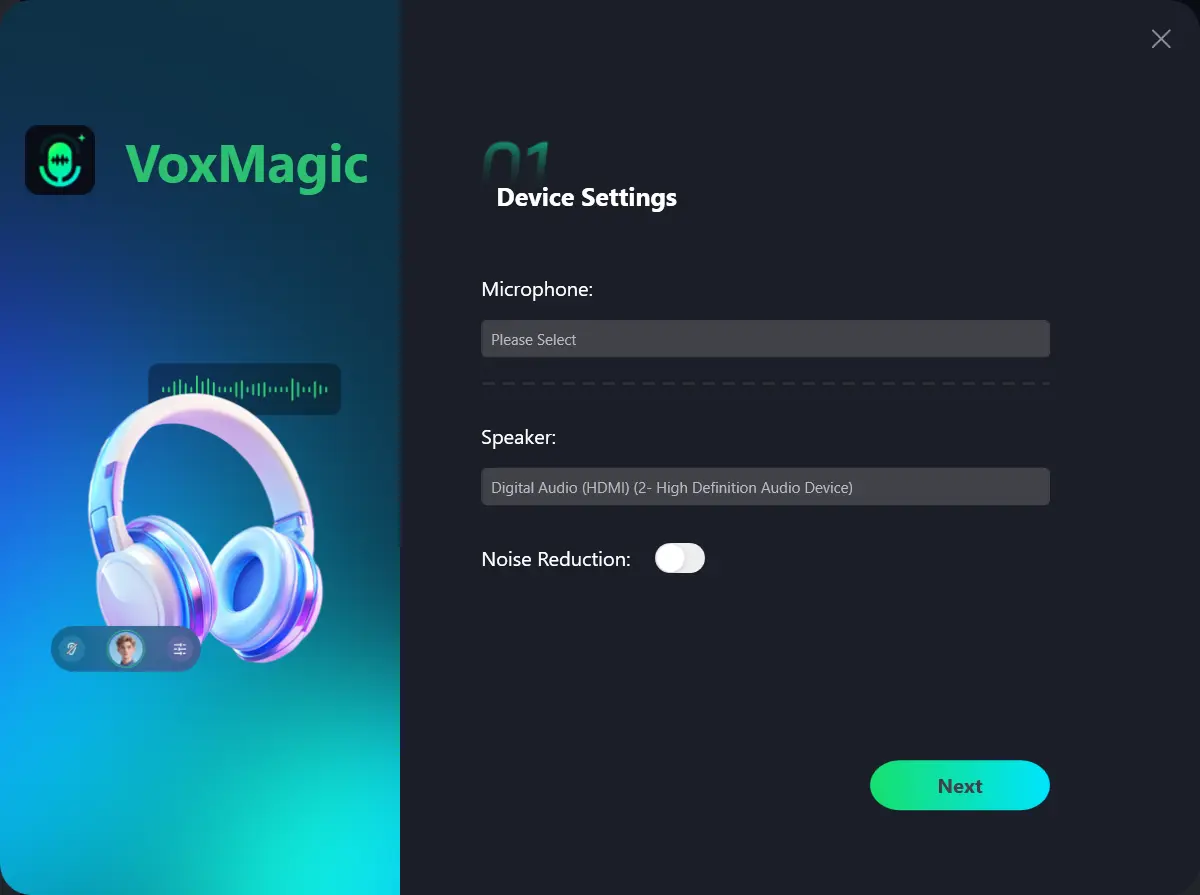
- Open Fionn VoxMagic. In Device Settings, select your microphone and playback device. Enable Noise Reduction if needed, then click Next.
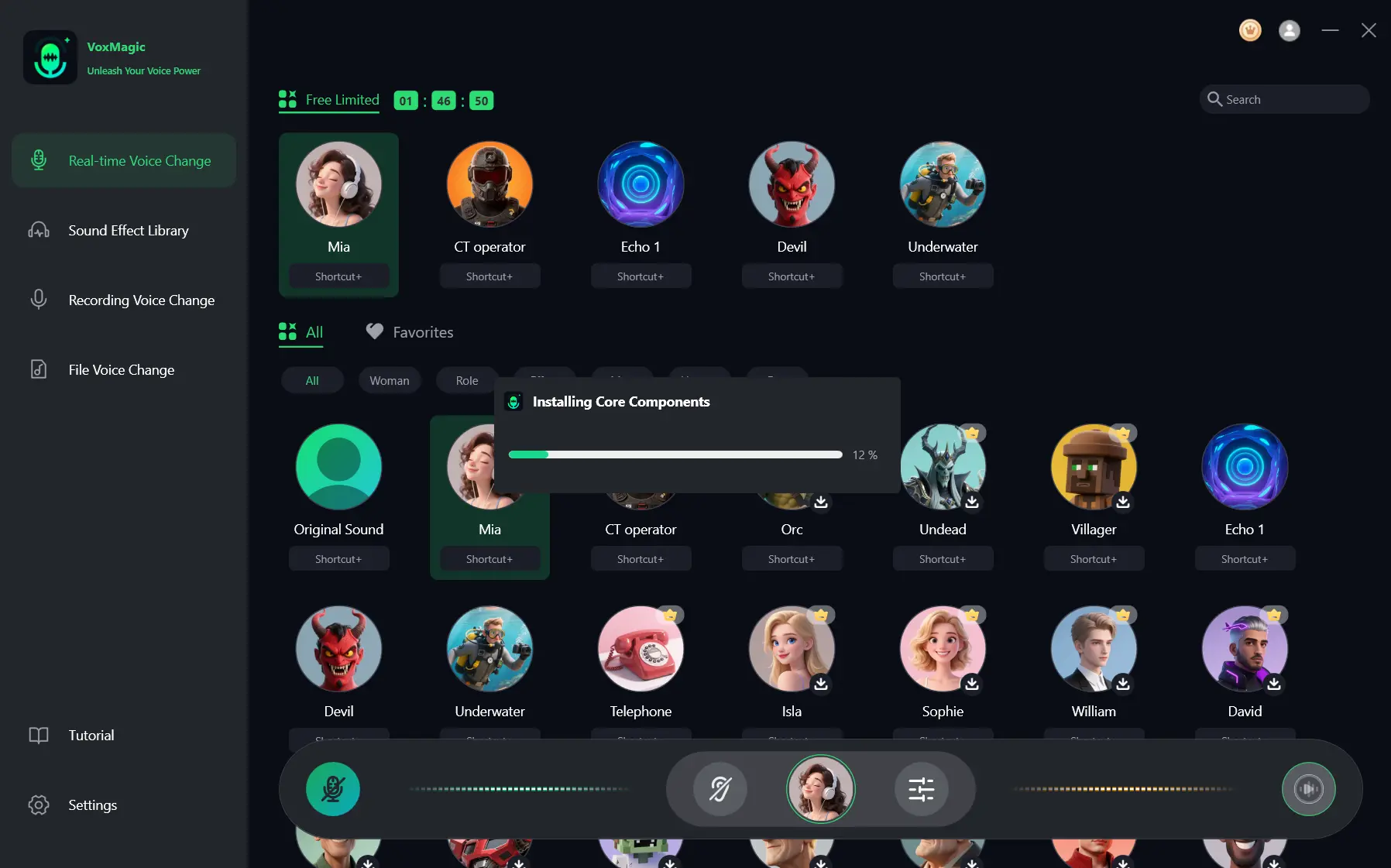
- If the Installing Core Components dialog appears, wait for the installation to finish before continuing.
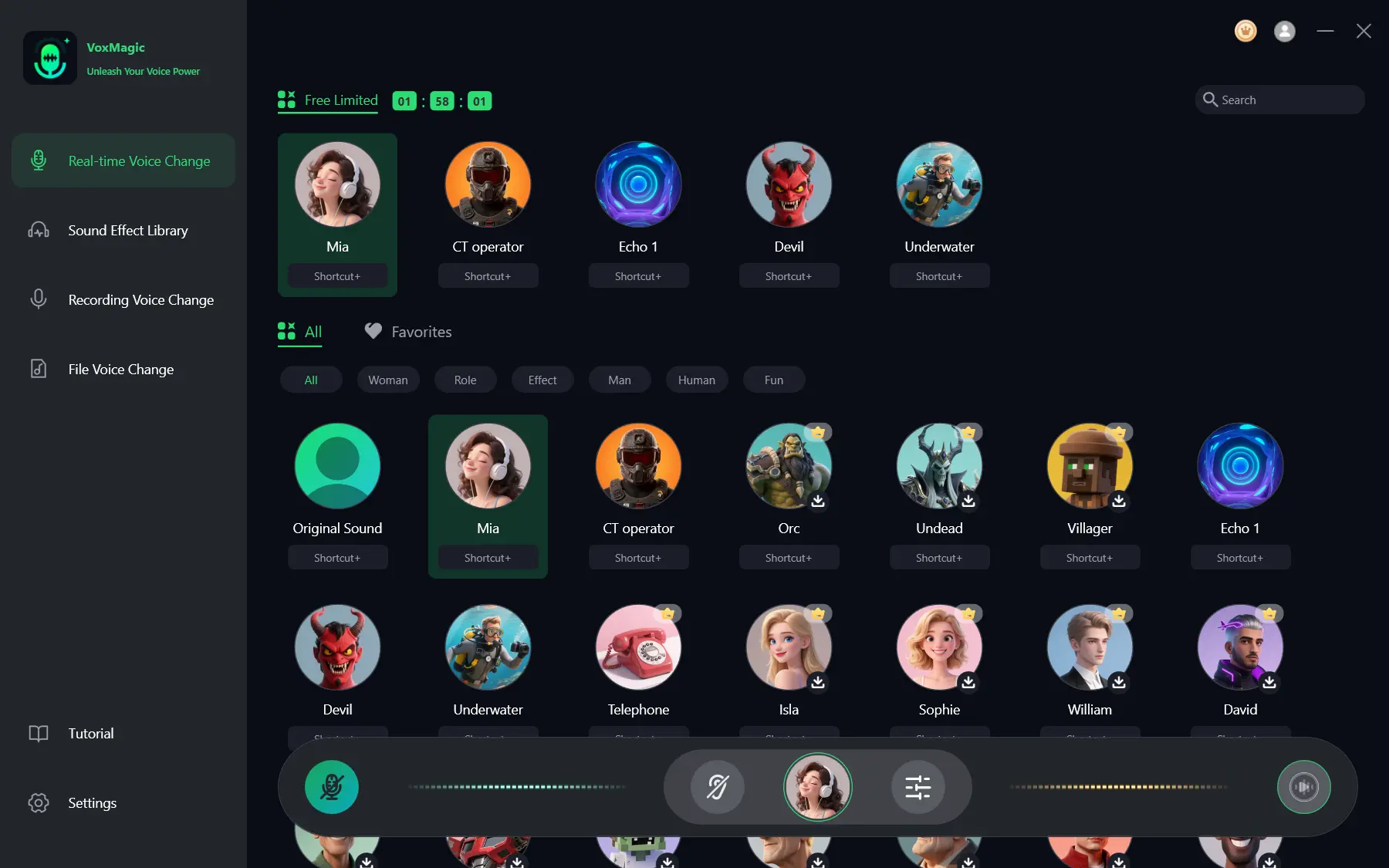
- Open Real-time Voice Change and select a voice effect, such as Mia. The selected effect is highlighted and appears in the bottom control bar.
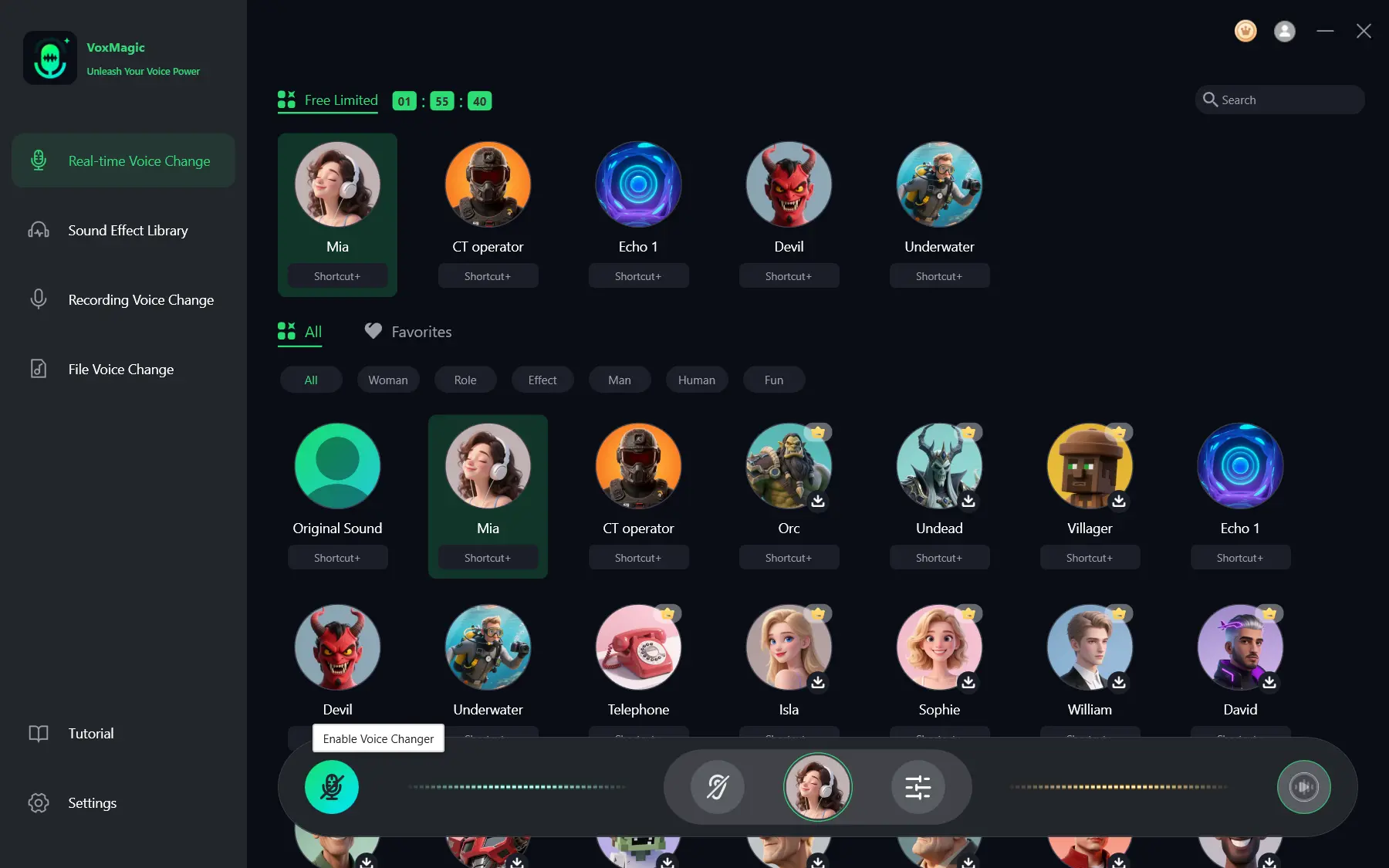
- Click the microphone button labeled Enable Voice Changer in the bottom-left corner of the control bar to turn on voice changing.
- Click the ear icon in the bottom control bar to enable voice preview. Use headphones to listen to your voice while testing the selected effect.
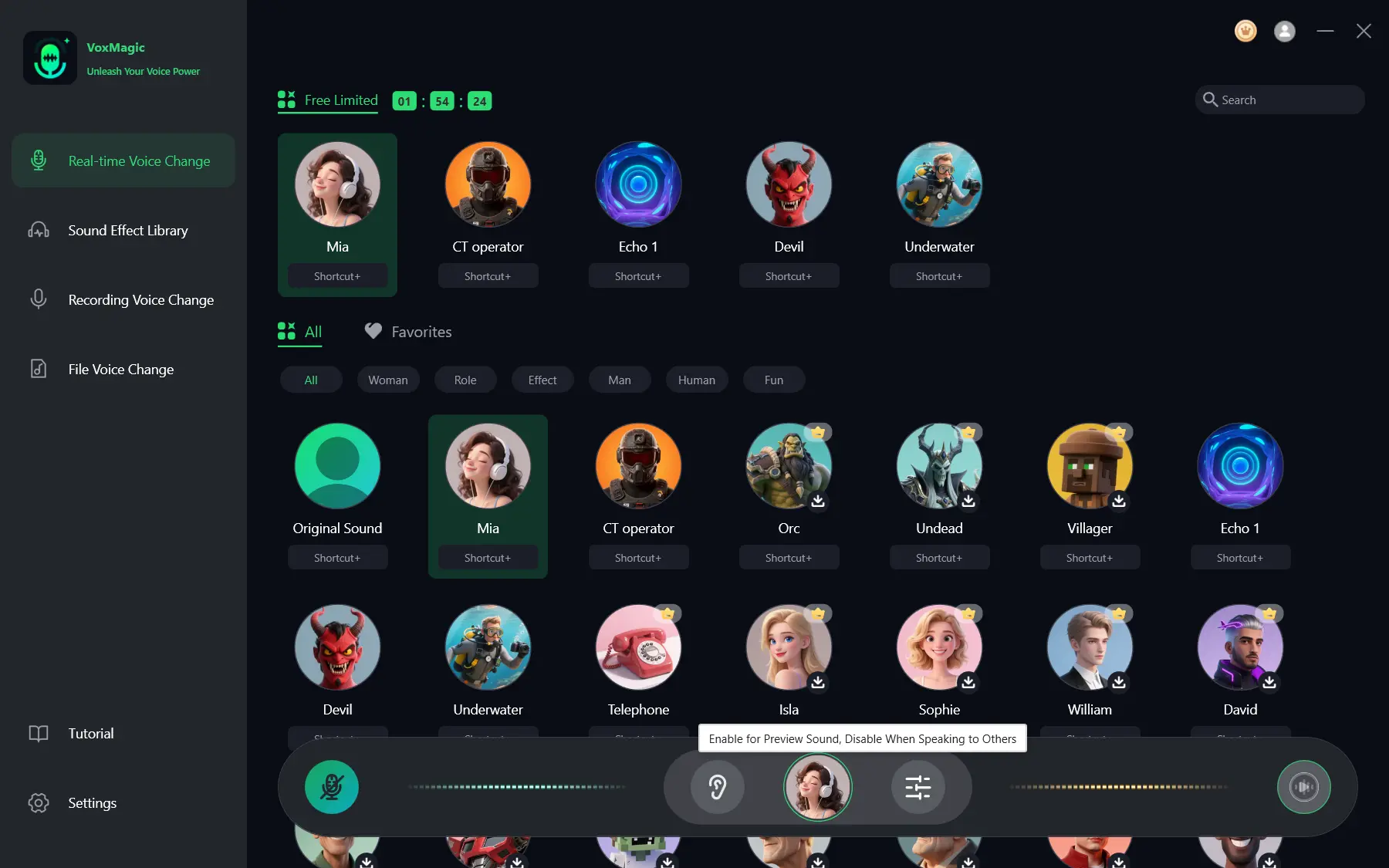
- Speak into your microphone and listen to the preview to check the selected voice effect. Check that the audio level meters respond as you speak. Disable voice preview before speaking to others.
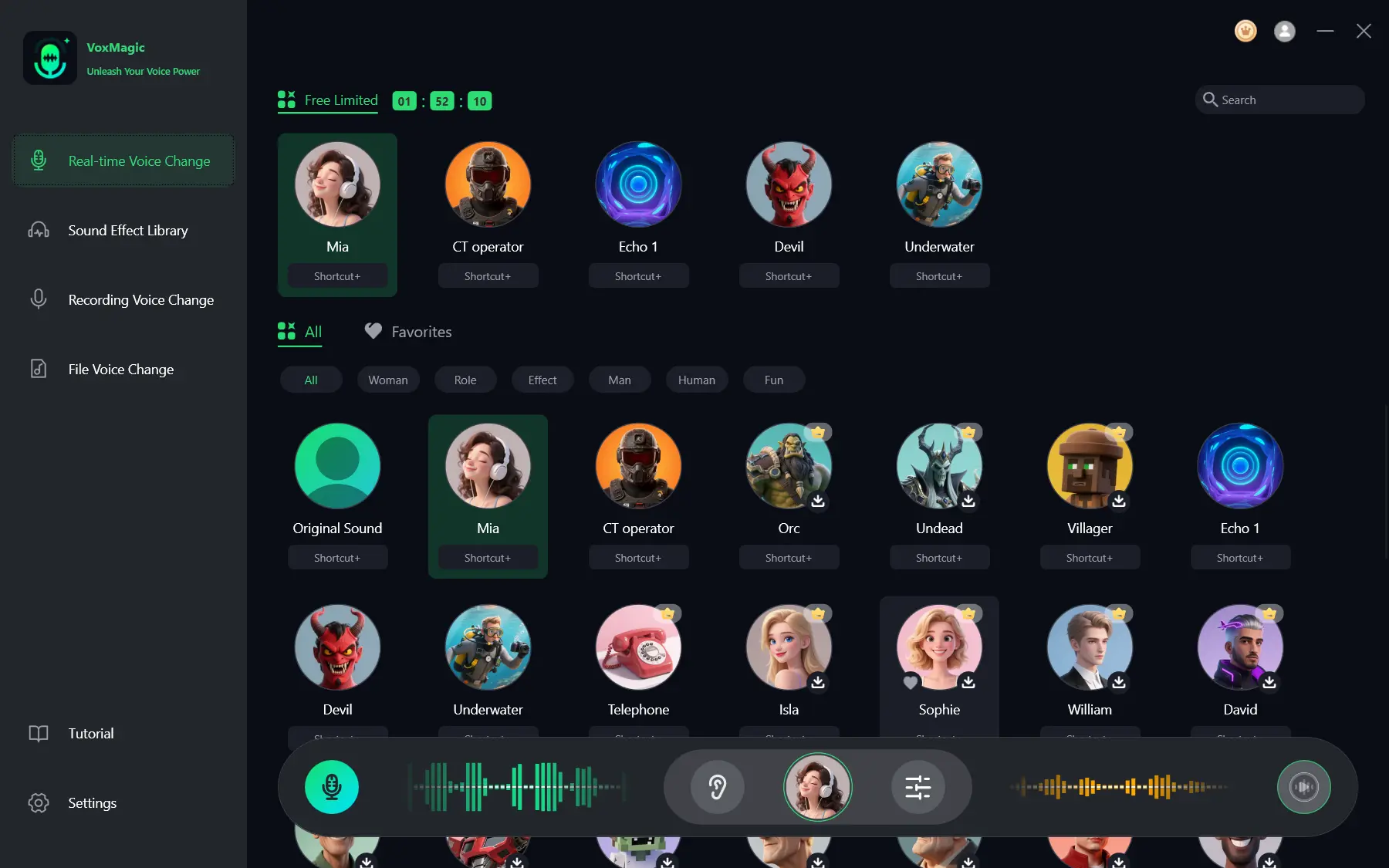
The intermediate result is responsive level meters and an audible preview. To attempt delivery in another application, select the VoxMagic virtual microphone under the name displayed in that application’s microphone selector, then use that application’s own test or a call participant to confirm what it receives.
Voicemod
Voicemod offers desktop apps for Windows and macOS. Its Windows desktop documentation specifies Windows 10 or 11 on a supported 64-bit x64 or ARM64 device. It is a suitable option when you want a documented virtual-microphone route for a compatible game, call, or streaming setup.
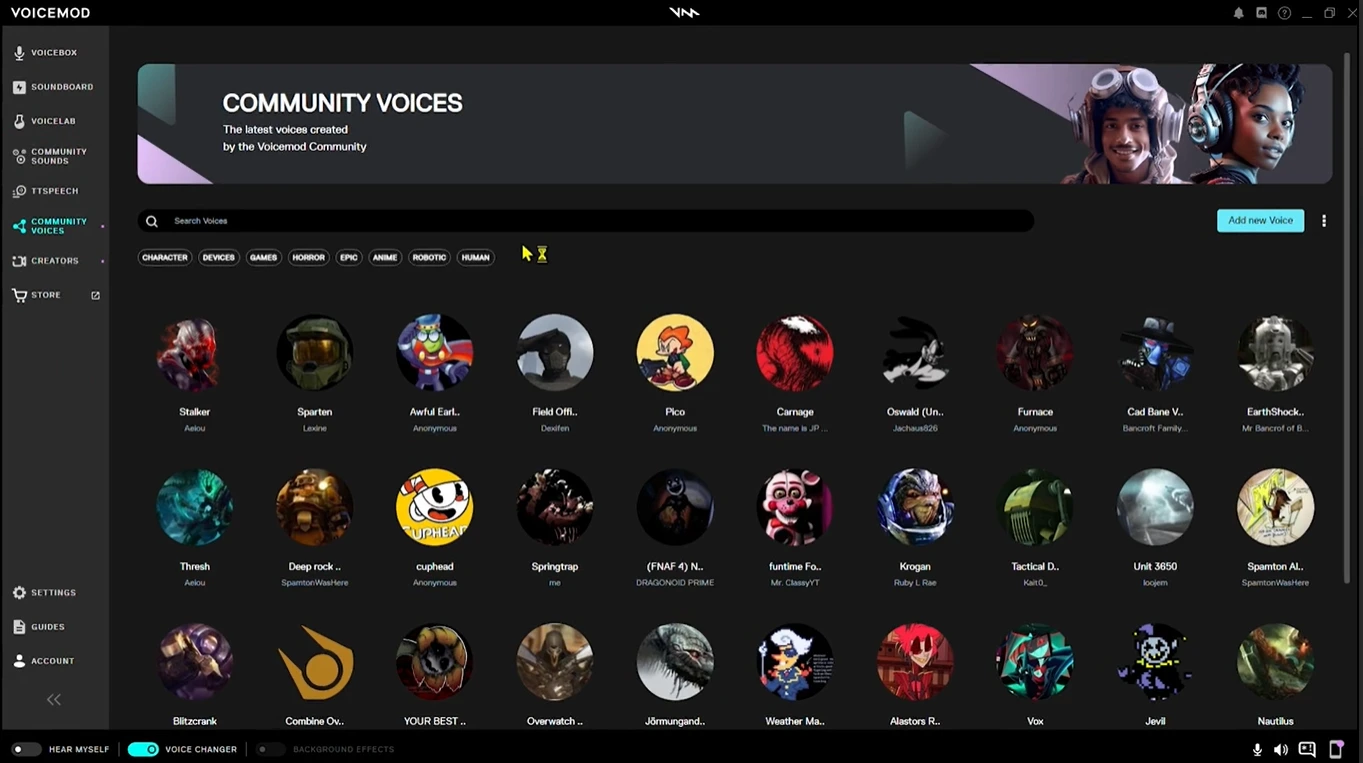
- Install the desktop app using the official platform guide .
- In the destination app or game, select the Voicemod virtual microphone.
- Choose a real-time voice effect and adjust its available controls.
For Discord, keep Voicemod open and select the physical microphone and headphones in its audio settings. In Discord’s Voice & Video settings, choose Microphone (Voicemod Virtual Audio Device) as Input Device and your actual headphones or headset as Output Device. Change a voice or play a sound, then ask a call participant whether they hear it; this checks delivery in Discord rather than only local setup. See Voicemod’s Discord setup guide .
Clownfish Voice Changer
Clownfish Voice Changer is described as a system-level Windows voice changer that affects applications using a microphone or other audio-capture device. Its site lists Windows Vista through Windows 11. Choose it when applying an effect to a selected Windows capture device is a better fit than selecting a separate virtual microphone inside each destination app.
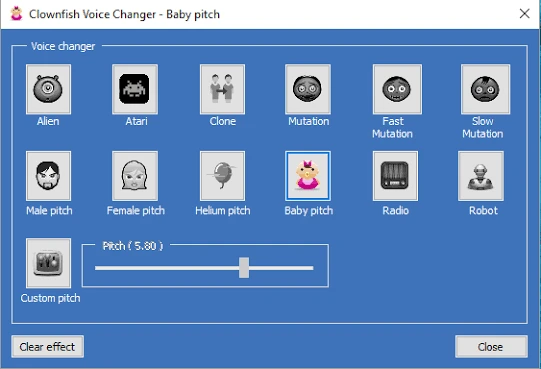
- Install Clownfish on the capture device you want to modify. By default, it installs on the default audio-capture device.
- Right-click the Clownfish tray icon to open its main control menu.
- Open Set Voice Changer and select the active voice effect.
- Double-click the tray icon to turn the application on or off.
Enable Hear microphone to listen to the modified voice. This is a local check, so test in the application where you plan to speak before relying on it. Installing or removing Clownfish from capture devices requires administrator rights.
If the effect remains unchanged, open the Windows recording-device properties for the microphone. Where an Enhancements tab is available, make sure Disable all enhancements is unchecked; otherwise, on the Advanced tab, make sure Enable audio enhancements is checked. Clownfish also documents trying its installation modes by removing the device, changing the mode, and installing the device again. Use the official Clownfish instructions for these checks.
Choosing the Right Route
- Choose Fionn VoxMagic when you use Windows and want to select input and playback devices, hear a local preview, then try its virtual microphone in a third-party application.
- Choose Voicemod when documented virtual-microphone routing is important, particularly if you need the supplied Discord procedure or macOS desktop availability.
- Choose Clownfish when an effect installed on a specific Windows capture device fits your setup and you have administrator rights for that installation.
All three cover live voice-changing use cases on Windows according to the supplied documentation. Windows support alone is therefore not a reason to prefer one over another. Make the decision from the route and setup conditions you need, and perform a destination-app test before a live session.
Conclusion
Pick the Voice.ai alternative whose routing model matches your destination. Start with Fionn VoxMagic if local device selection and preview are your immediate needs, use Voicemod when its documented virtual-microphone route fits your app, or use Clownfish for capture-device-level processing. After setup, select the relevant input in your destination app and confirm that another listener or the app’s test receives the changed voice.
FAQ
Do these Voice.ai alternatives change voices in real time?
Yes. The supplied evidence describes Fionn VoxMagic, Voicemod, and Clownfish for live voice-changing use. Their audio-routing approaches differ, so use the option that fits your target application or capture device.
Which option supports macOS?
Voicemod officially lists desktop apps for Windows and macOS. The supplied evidence for Fionn VoxMagic and Clownfish supports Windows use only.
Why does a local preview work while my call app still hears my normal voice?
A preview only checks the local path. Open the call app’s audio settings and choose the applicable product virtual microphone if that product uses one. Then use the app’s test feature or ask a call participant to confirm the received audio.
Does Clownfish require administrator access?
Yes. Clownfish states that administrator rights are required to install or remove it from capture devices.
What should I do if Clownfish does not change my voice?
Check the documented microphone audio-enhancement setting, then try the documented alternate installation modes if necessary. The exact steps are linked in the Clownfish section above.


