 Emily CarterVoice Changer
To change your voice in Dota 2, first check that Windows receives audio from the correct microphone, then enable and preview an effect in Fionn VoxMagic . Finally, make sure the game's voice chat uses an available input device. The three consecutive methods below cover a basic Windows check, effect preparation, and testing the result in the game.
How to Change Your Voice in Dota 2: What to Prepare
- Connect your microphone and headphones before launching the game.
- Close applications that may be using the microphone if the input level does not respond.
- Test your voice through headphones: speakers can cause echo or feedback.
Method Comparison
| Method | Best for | Effectiveness | User effort |
|---|---|---|---|
| Checking Windows input | The game cannot hear the regular microphone | High for basic diagnostics | Low |
| Setting up Fionn VoxMagic | You need an effect and want to test it beforehand | High for voice preparation | Medium |
| Checking Dota 2 voice input | The effect is audible in the application but not in the game | Depends on available settings | Low |
Method 1: Check the Windows Microphone Input
When to use it: before setting up an effect or when there is no voice signal in the game.
- Open the sound settings in Windows 10 or Windows 11.
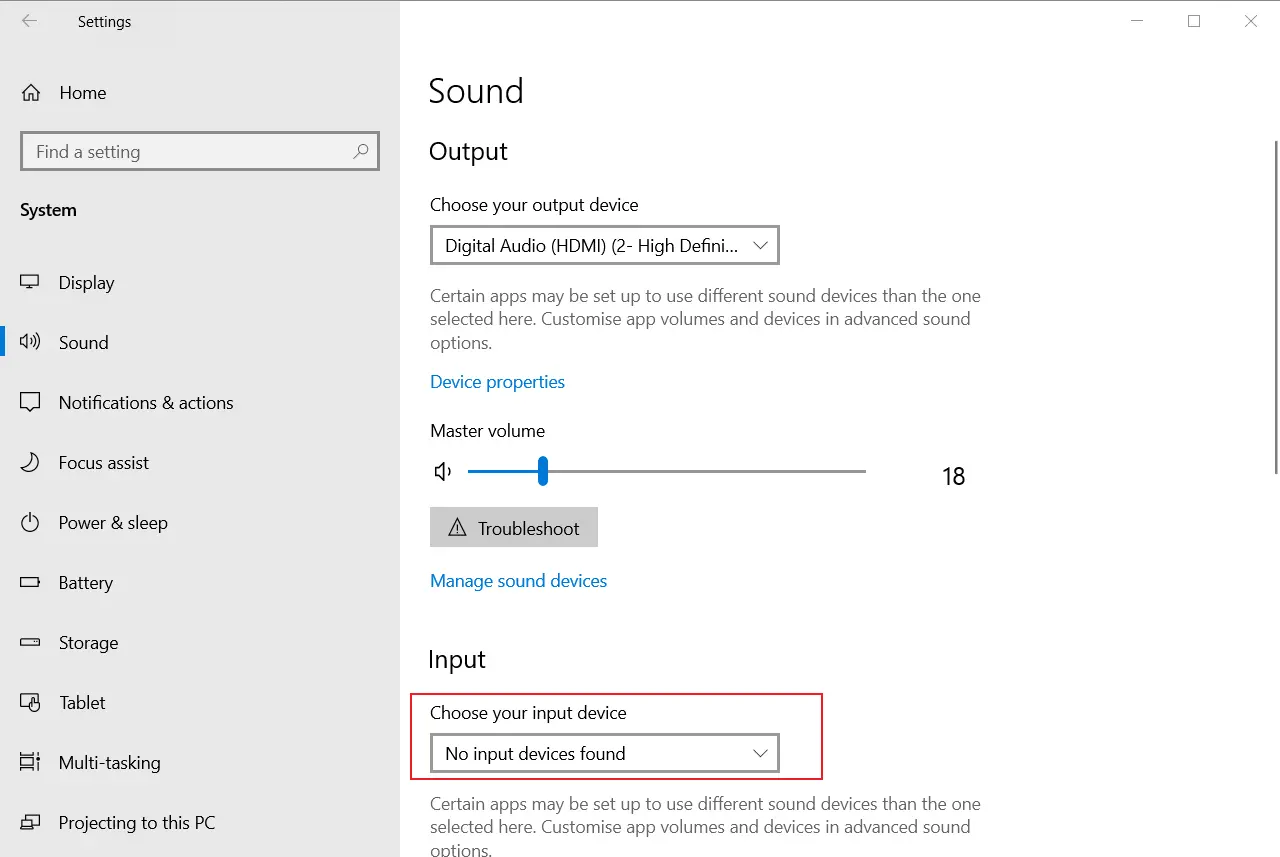
- Under Input, select the physical microphone you speak into.
- Say a few words and check whether the input-level indicator responds.
- Connect headphones as the playback device to test without feedback.
Check: the input-level meter responds to speech. If it remains still, resolve the connection or microphone-access issue first instead of changing the game settings.
Method 2: Set Up an Effect in Fionn VoxMagic
When to use it: when you need to choose a voice effect and test it before a match. This is the recommended option for preparing the effect: the product supports device selection, noise reduction, real-time voice changing, and preview.
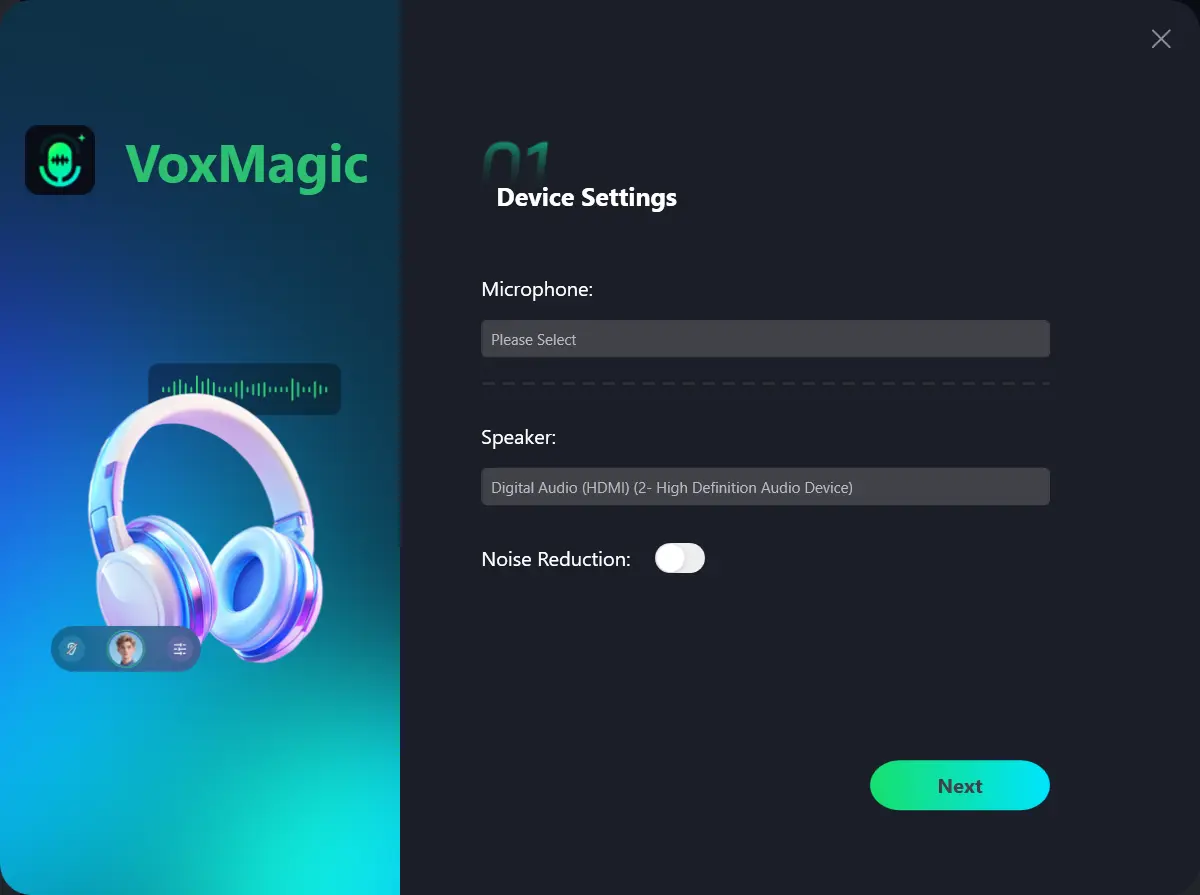
- Open Fionn VoxMagic. In the device settings, select your microphone and playback device. Enable noise reduction if needed, then click Next.
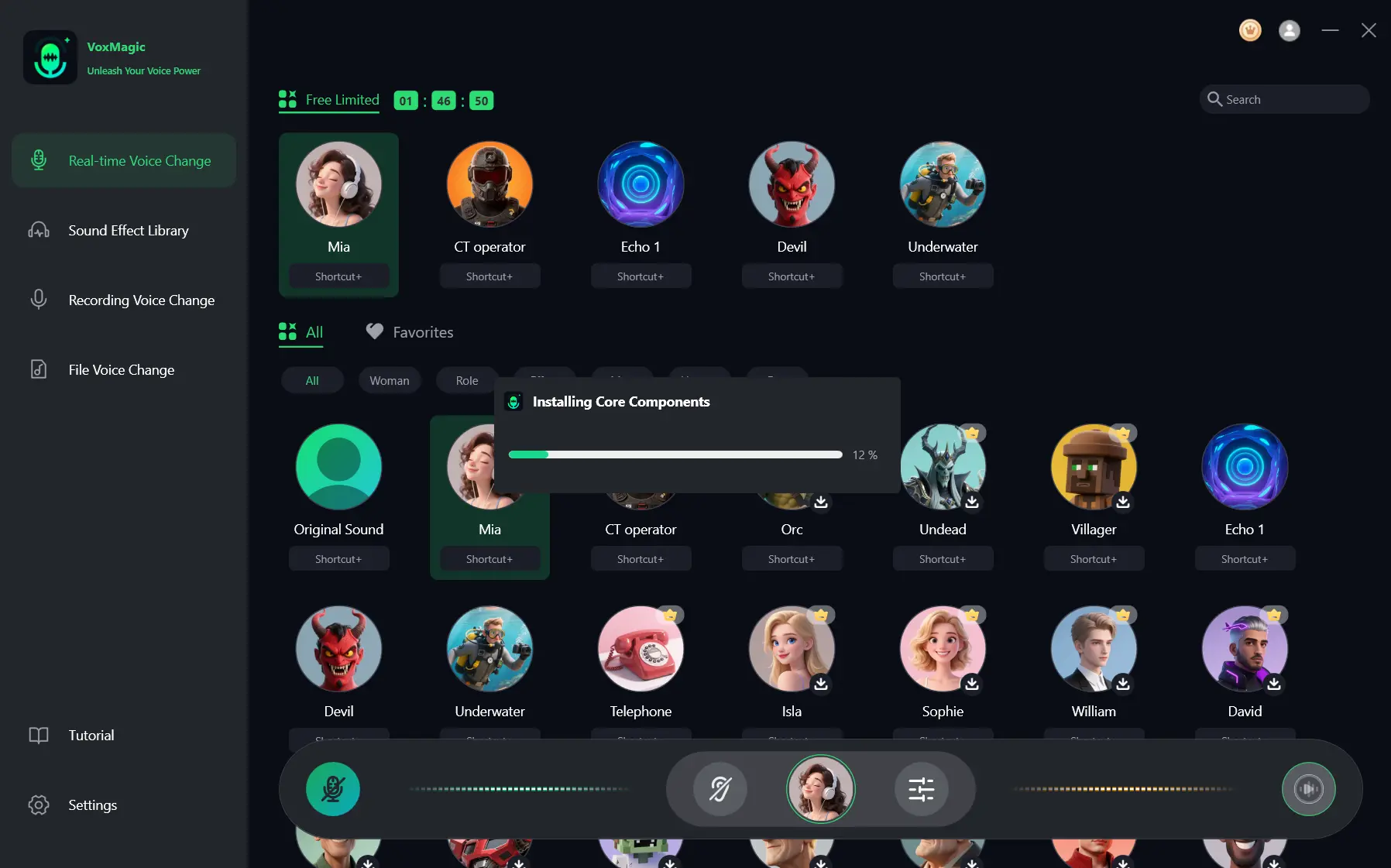
- If the Installing Core Components dialog appears, wait for the installation to finish before continuing.
- Open the real-time voice changing section and select a voice effect, such as Mia. The selected effect is highlighted and appears on the bottom control bar.
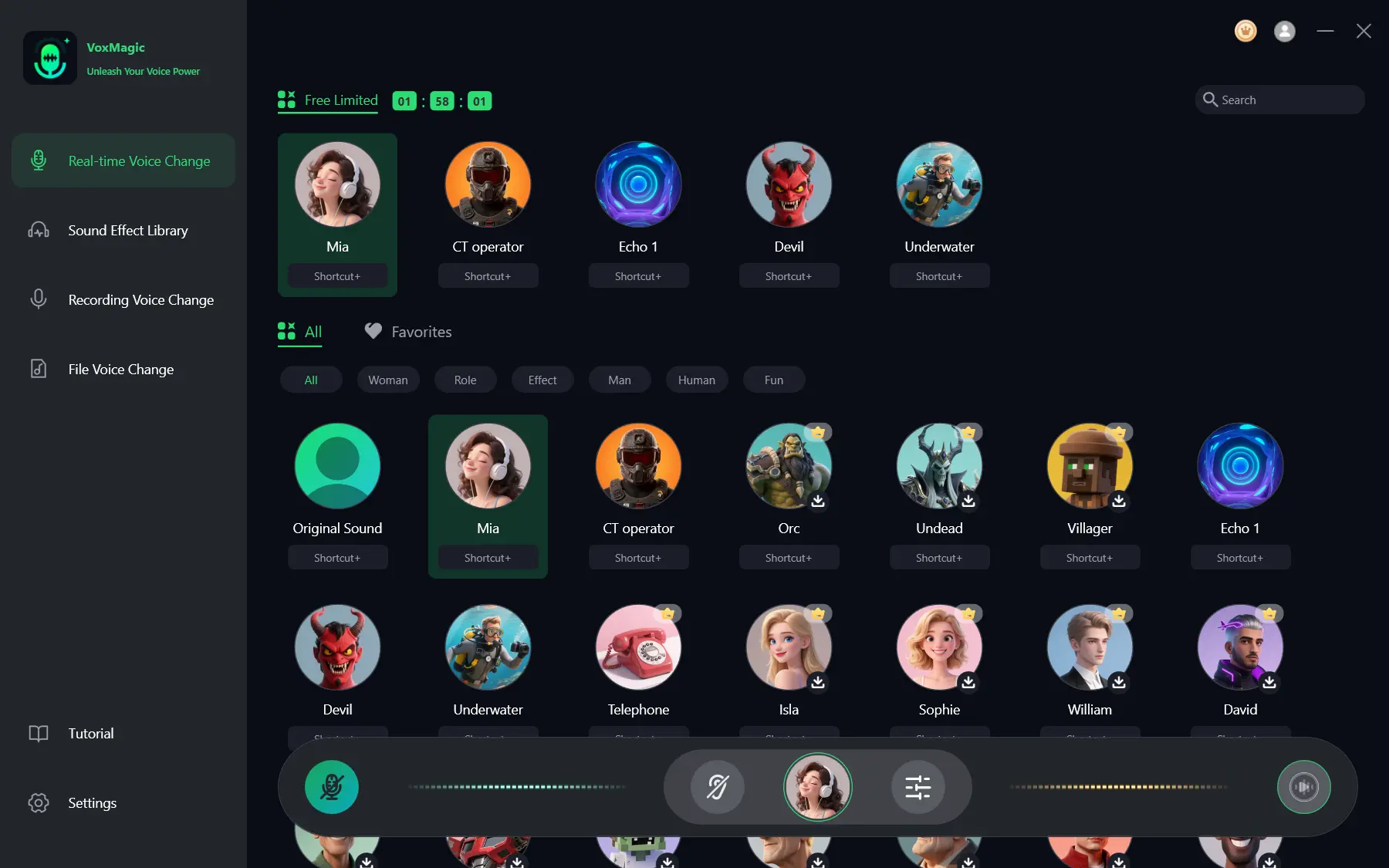
- Click the microphone button labeled Enable Voice Changer in the lower-left corner of the control bar.
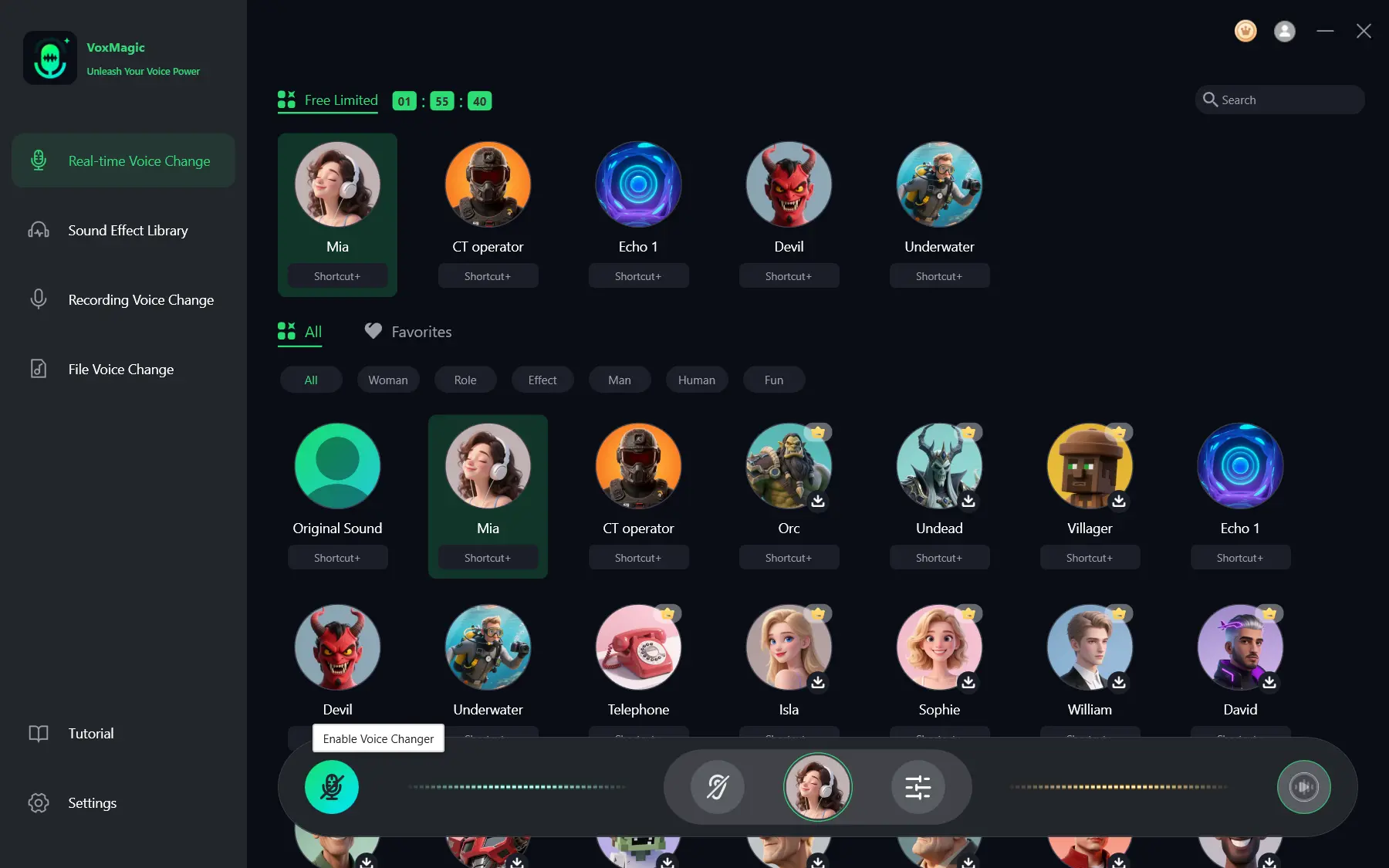
- Click the ear icon on the bottom bar to enable preview. During testing, use headphones to hear your voice with the selected effect.
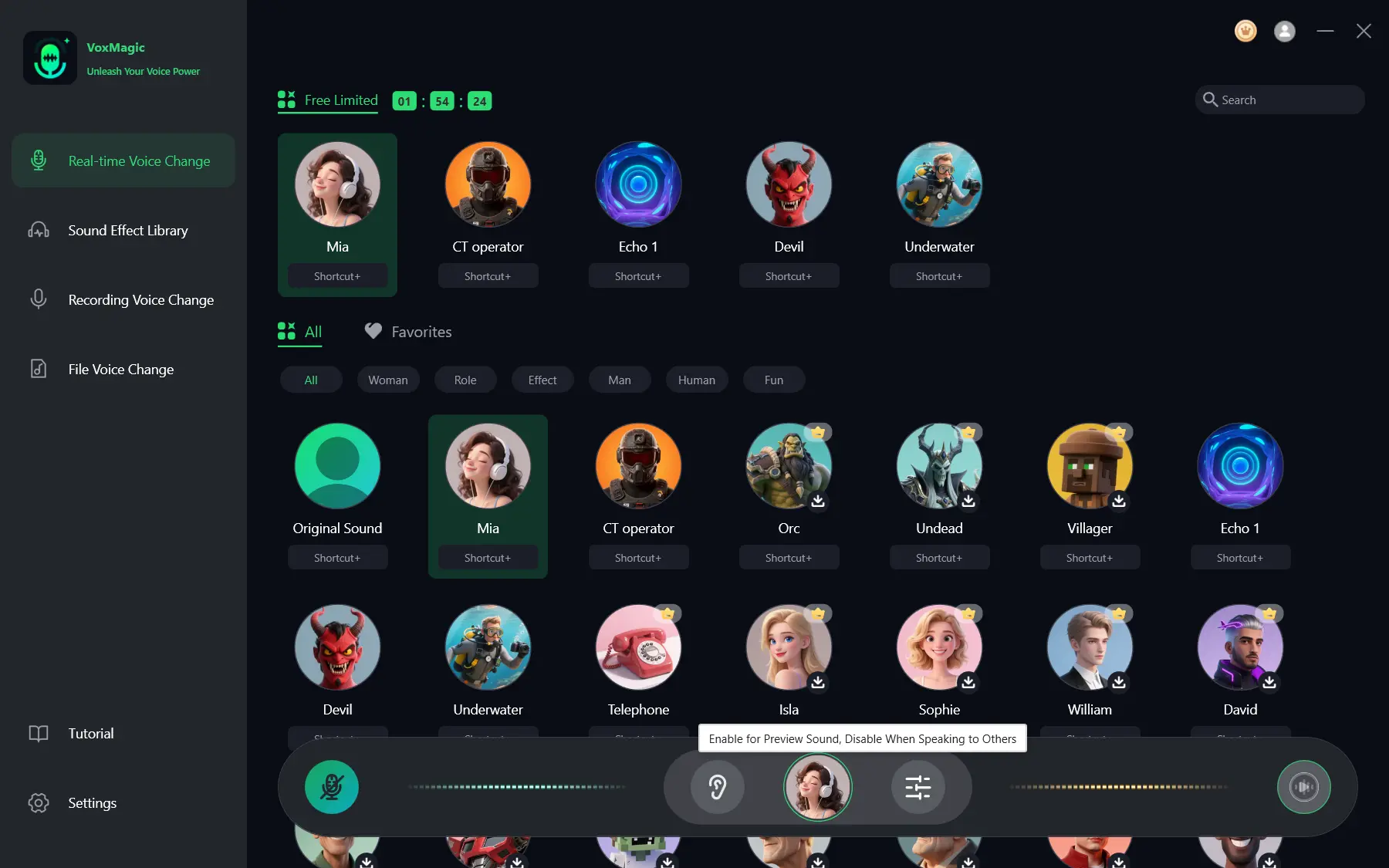
- Speak into the microphone and listen to the result to check the effect. Make sure the audio-level indicators respond to speech. Turn off preview before speaking with other players.
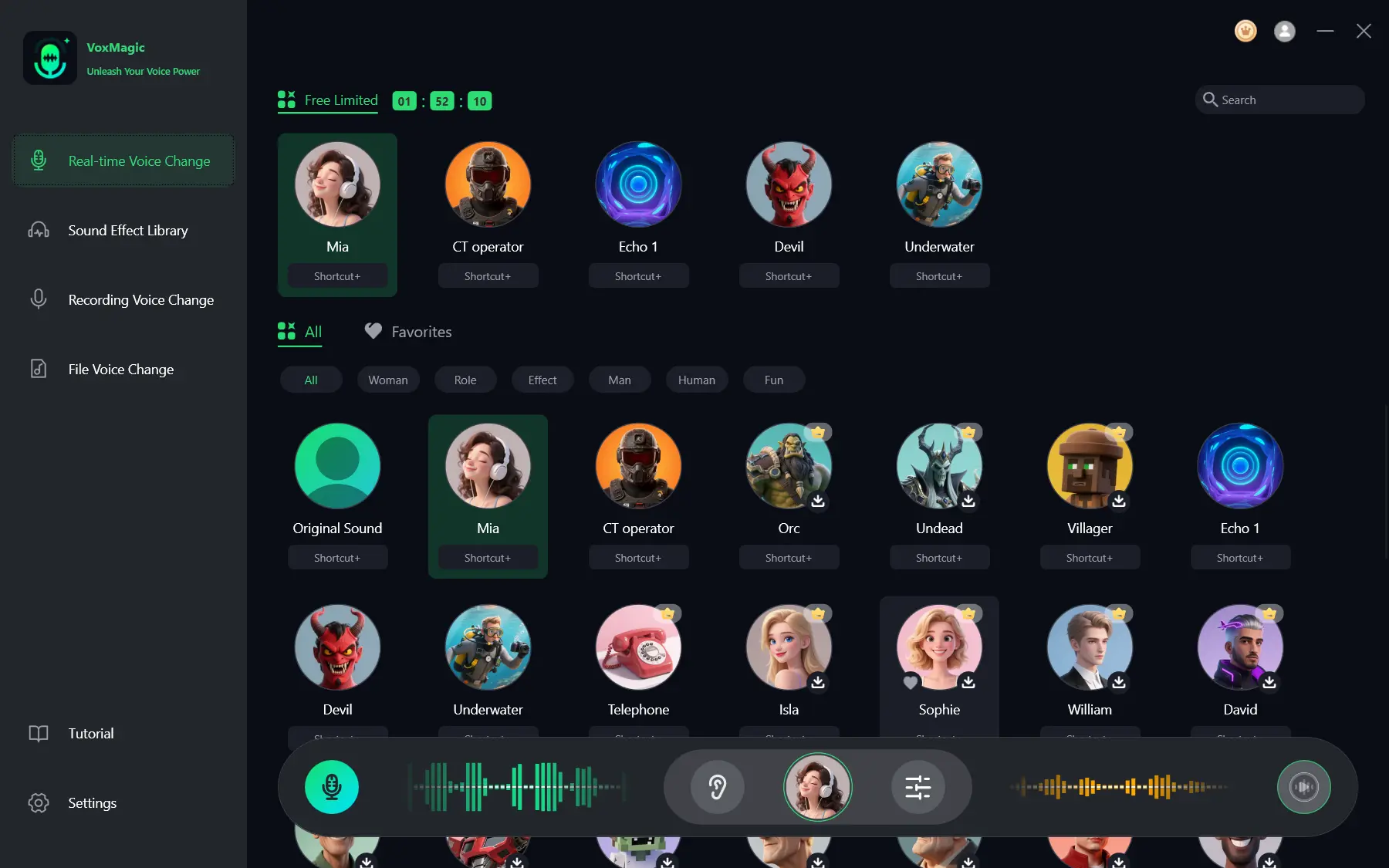
Check: the level indicators respond, and you can hear the selected effect through your headphones. If the voice sounds unnatural, reduce the noise-reduction level: a higher level can affect sound quality.
Method 3: Check Dota 2 Voice Input
When to use it: if preview works in VoxMagic but other players cannot hear the changed voice.
- Open the Dota 2 audio or voice chat settings.
- Find the voice input device setting if it appears in the current game interface.
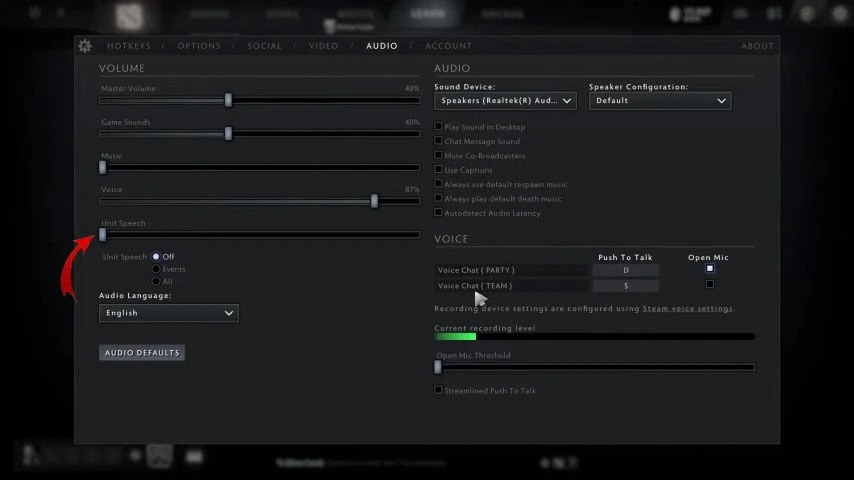
- Select the virtual microphone only if it appears in the list of available devices.
- Run the available voice test or ask another player to confirm which voice they hear.
Check: another player hears the changed voice rather than merely seeing an indicator respond. If there is no separate device list, return to the Windows input check and do not change multiple devices at once.
Common Mistakes
- Testing the effect through speakers instead of headphones.
- Changing the physical microphone and virtual input at the same time.
- Evaluating the result only by the indicator, without having another player test it.
- Using noise reduction that is too strong, causing the voice to lose its natural sound.
Conclusion
Start with a working physical microphone in Windows, then prepare and preview the effect in Fionn VoxMagic , and then check the available voice input device in Dota 2. This order helps separate a connection issue from an effect or game-settings issue. Setup is complete when the input meter responds, preview delivers the selected effect, and another player confirms it in voice chat. If the final stage does not work, check the selected input and Windows microphone access again.
Frequently Asked Questions
Can I hear the changed voice before launching Dota 2?
Yes. Fionn VoxMagic provides preview through the ear icon. Use headphones and turn off preview after testing.
Why does the indicator respond but players cannot hear me?
The indicator confirms the input signal only where it is displayed. Check the voice input device in the game and ask another player to confirm whether they can hear you.
Do I need to enable noise reduction?
Enable it if it helps in your environment. VoxMagic supports noise-reduction levels, but a high level can affect voice quality.
Why do I hear an echo?
A common cause is testing through speakers. Connect headphones and turn off preview when you finish testing.
Can I use my own audio file?
VoxMagic lets you import custom sound effects and assign a name, cover image, and hotkey. Imported audio must not be longer than 60 minutes.


