 Emily CarterScreen Recording
If you have screen recording no audio Windows 11 , first identify what is missing: computer sound, microphone sound, or both. A recording app can capture only the sources it is configured and permitted to use. Start by checking the recorder’s audio choice, then check Windows permissions and device settings. This guide covers four targeted fixes, from choosing an audio source in Fionn Screen Recorder to correcting Xbox Game Bar and Windows 11 settings.
Symptoms
- The video has picture but is completely silent.
- Music, meetings, or game sound is missing, while your voice is present.
- Your voice is missing, while desktop audio is present.
- Only one recorder fails, while other apps can play or use audio.
- Audio stopped working after switching headphones, a monitor, USB audio, or a Bluetooth device.
A single affected recorder usually points to that recorder’s capture settings. Missing microphone sound across several apps more often points to microphone access or an input-device issue. Missing playback sound in several apps can indicate the wrong Windows output device, muted mixer controls, or a disabled device.
Quick Diagnosis Checklist
- The recording needs system sound and/or a voiceover: use Method 1 to select the required source before recording.
- Only Xbox Game Bar recordings are silent: use Method 2 and set its Capturing option to include all audio.
- The microphone is absent in the recording or several desktop apps: use Method 3 to review Windows microphone access.
- Audio is absent in recordings and normal playback is also wrong: use Method 4 to check the Windows output, input, and volume mixer.
Quick Method Comparison
| Method | Best For | Efficiency | User Effort |
|---|---|---|---|
| Fionn Screen Recorder audio choice | A new recording where you need to choose system audio, microphone audio, both, or no sound | High | Low |
| Xbox Game Bar Capturing setting | Silent clips made with Xbox Game Bar | High | Low |
| Windows microphone permission | Missing voice or microphone input in desktop apps | High | Low |
| Windows Sound and mixer checks | Wrong, muted, or disabled audio devices | Medium | Medium |
Method 1: Fix No Audio with Fionn Screen Recorder (Recommended)
When to use: Use this method when you are starting a new recording in Fionn Screen Recorder and need to capture computer sound, your microphone, or both. The recorder provides explicit sound-source choices, making it a practical first check when the wrong source was selected.
Step-by-step guide:
- Open Fionn Screen Recorder and choose the area you want to capture: Full Screen, Window, or Region.

- Choose whether to record system audio, microphone audio, both, or no sound.

- Select MP4 or another video format before you start recording.

- Click Start to begin recording, then use Pause or Stop when you are finished.

- Open Media Library to play, edit, locate, or delete your recorded videos.

How to verify: In Media Library, play the short test recording. Confirm that the audio source selected in step 2 is audible: system sound, microphone sound, or both.
Method 2: Include All Audio in Xbox Game Bar
When to use: Use this only for clips recorded with Xbox Game Bar. Microsoft documents an audio setting in Game Bar’s Capturing section that controls whether all computer audio is included.
Step-by-step guide:
- Press Windows + G to open Xbox Game Bar.
- Open Settings in the Game Bar controls.
- Select Capturing .
- Select All for audio capture.
- Record a brief clip from the app or game that previously produced silence.
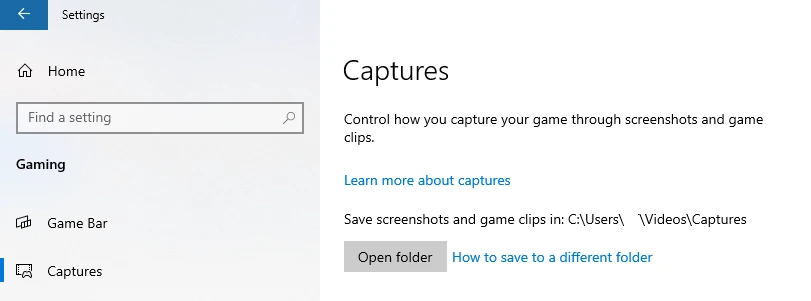
How to verify: Play the new clip and listen for the same app or game audio. Microsoft’s Xbox Game Bar recording guidance describes selecting All to include computer sounds.
Method 3: Allow Microphone Access in Windows 11
When to use: Use this method when system audio records but your narration does not, or when another desktop app also cannot access the microphone.
Step-by-step guide:
- Open Start and select Settings .
- Select Privacy & security , then select Microphone .
- Turn on
Microphone access
.
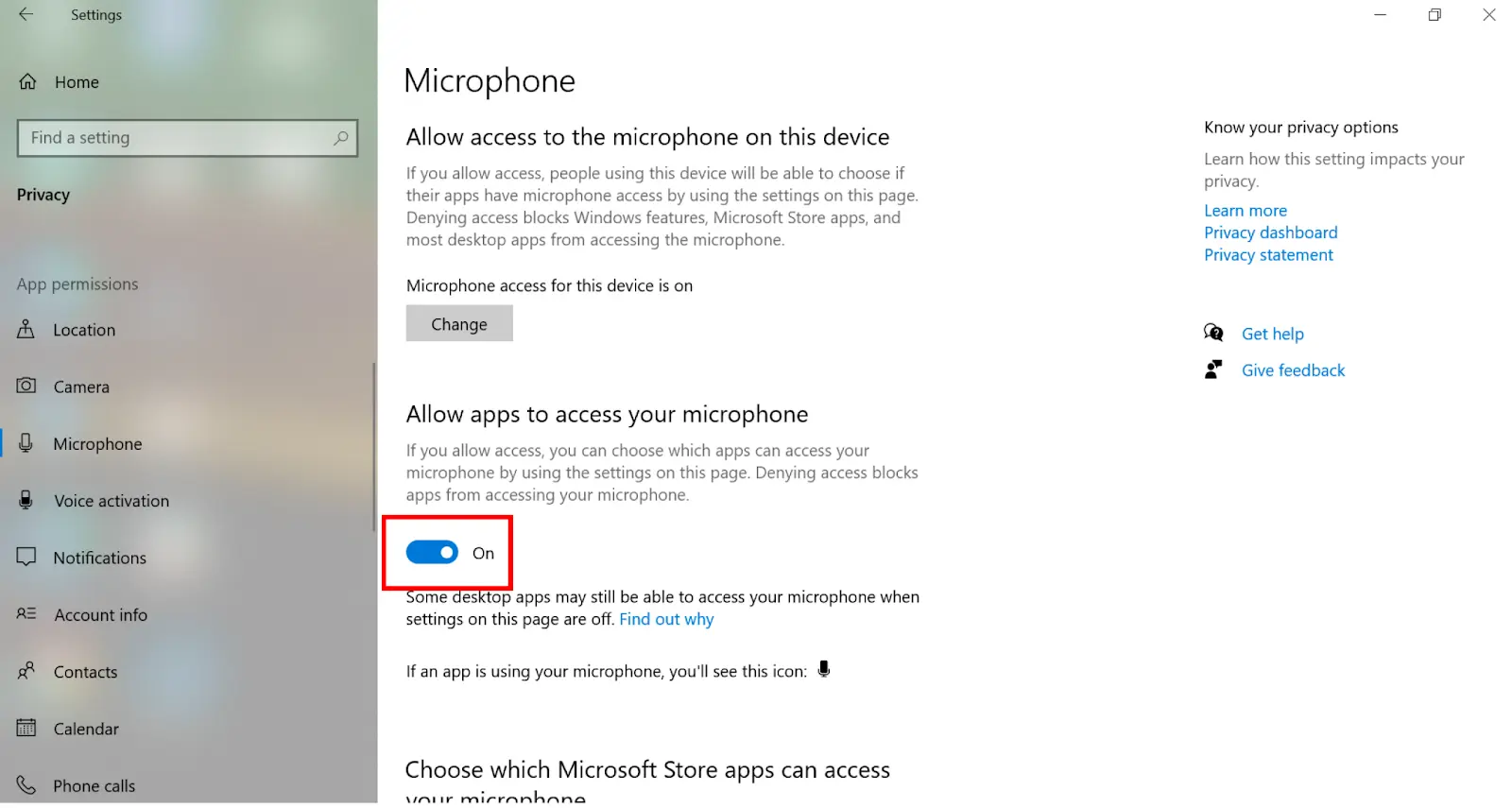
- Turn on Let apps access your microphone .
- Turn on Let desktop apps access your microphone if the recorder is a desktop app.
How to verify: Reopen the recorder, make a short spoken test recording, and play it back. Microsoft’s Windows microphone-permission instructions confirm that desktop-app access must be enabled for desktop apps to use the microphone.
Method 4: Check Windows 11 Audio Devices and Mixer
When to use: Use this method after changing speakers, headphones, USB devices, HDMI displays, or Bluetooth audio—or when normal Windows playback is also silent.
Step-by-step guide:
- Select the speaker icon on the taskbar.
- Choose the intended audio output device from the available device list.
- Open the Volume mixer and confirm the relevant device and app are not muted.
- Open
Settings > System > Sound
and select the intended input device for microphone recording.
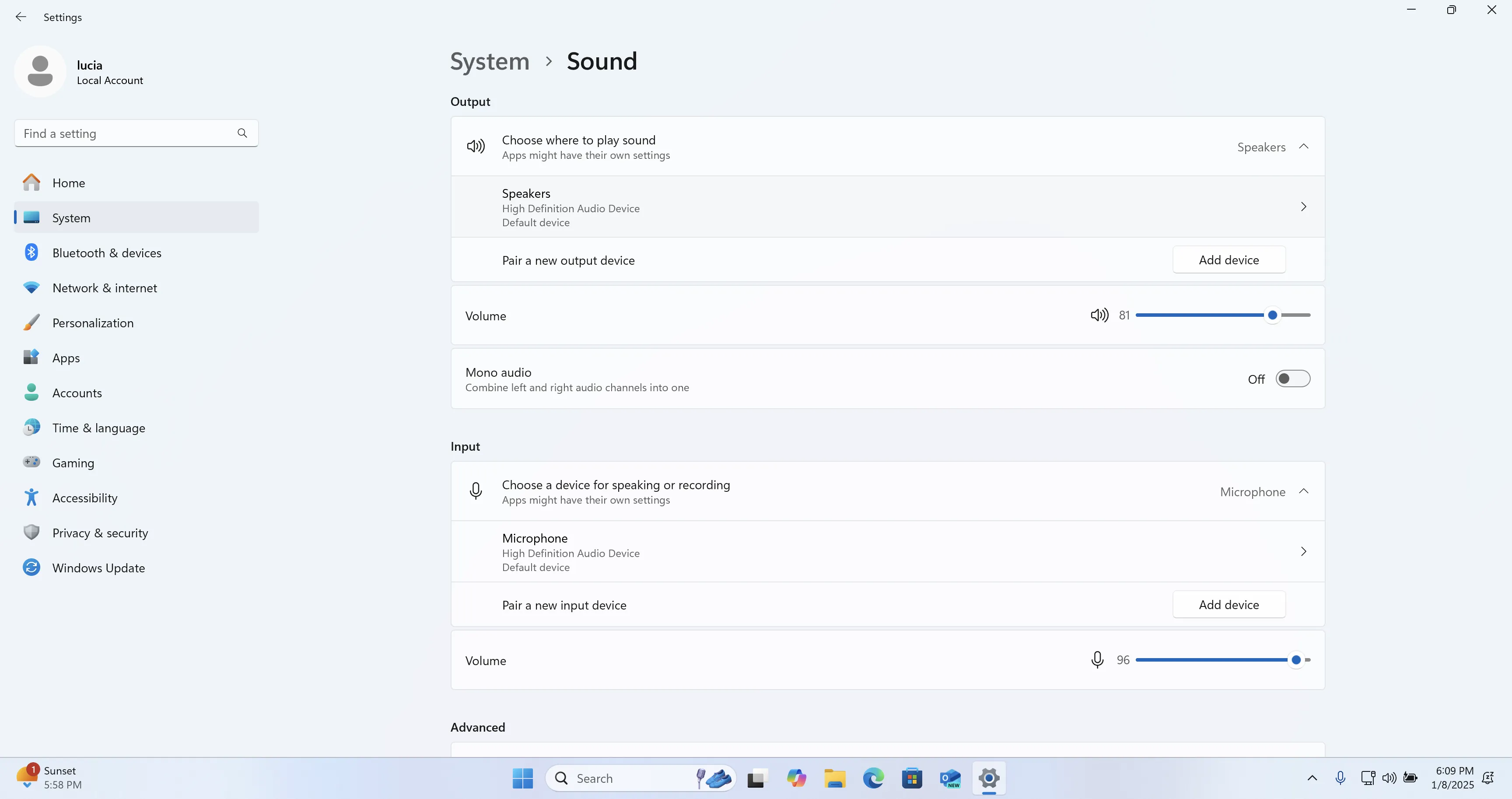
- Under More sound settings, confirm the selected input and output devices are enabled.
How to verify: Play audio through the selected output and record a new sample. Microsoft’s Windows audio troubleshooting guidance also recommends checking mixer volume, enabled devices, and the default output device.
Verification Checklist
- A new test video contains visible video and audible sound.
- The intended system sound is audible when system audio was selected.
- Your spoken test phrase is audible when microphone audio was selected.
- The correct Windows output and input devices remain selected after reconnecting peripherals.
- The recording app and Windows volume mixer are not muted.
Conclusion
For screen recording no audio on Windows 11, begin with the recorder’s audio-source selection because it directly determines what the new clip can capture. Use Xbox Game Bar’s Capturing setting only for Game Bar clips, then check Windows microphone permissions when voice is missing. If the problem affects playback as well as recording, check the selected Windows devices and mixer. Verify every change with a short clip containing voice and system sound. If the clip is still silent after these checks, contact the recorder’s developer or Microsoft support with the recording app, audio device, and test result. For a recorder with selectable sound sources, Fionn Screen Recorder is an available Windows option.
FAQ
Why does my screen recording have video but no sound?
The recorder may be set to no sound, to microphone-only capture, or to a different source than the one you expect. Check the recorder’s audio source before testing Windows settings.
Why is my microphone missing but computer audio is recorded?
Check that microphone recording is selected in the recorder and that Windows 11 allows desktop apps to access the microphone.
Why did audio stop after I connected a monitor or headphones?
Windows may have selected the new HDMI, USB, Bluetooth, or headphone device as the output. Choose the intended output in the taskbar sound control and retest.
Can Xbox Game Bar record system audio?
Yes. In Game Bar Settings, open Capturing and select All to include computer sounds in the recording.


