 Emily CarterDLL Errors
Introduction
A
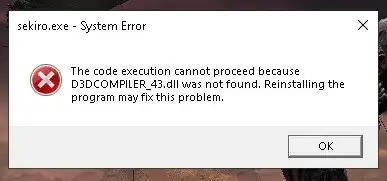
d3dcompiler_43.dll missing
message means the launching program cannot load the legacy compiler library it expects. Use three methods in order: install Microsoft’s official legacy DirectX package, repair or reinstall the affected application, and optionally run a targeted DLL scan. Start with Method 1 because it restores the component from its confirmed package instead of relying on an unverified standalone DLL. Test the same program after every method and stop when it opens without the error.
Why the d3dcompiler_43.dll Missing Error Appears
Microsoft’s DirectX SDK notes
confirm that the June 2010 SDK includes
D3DCompiler_43.dll
. Microsoft describes its functionality as an offline High-Level Shader Language compiler for Direct3D 9, 10, or 11.
The library belongs to an optional legacy component set. Microsoft states that its end-user package adds side-by-side legacy technologies without changing the DirectX Runtime already installed in Windows. Therefore, having a current built-in DirectX version does not prove that this optional file is installed.
An error limited to one application can point to that application’s installation. The same error across several applications makes the shared legacy package a more useful first target. This distinction helps avoid unrelated system repairs.
Quick Method Comparison
| Observed scenario | Recommended method | Risk level |
|---|---|---|
| The exact file is missing when an older application starts | Install Microsoft DirectX End-User Runtimes | Low |
| Only one application still fails after Method 1 | Repair or reinstall that application | Moderate, with a backup |
| Several applications fail or more DLL errors appear | Use an optional Fionn DLL Fixer scan | Low |
Method 1: Fix d3dcompiler_43.dll Missing with Microsoft DirectX End-User Runtimes
When to Use
Use this method first when the message names
d3dcompiler_43.dll
. Microsoft’s end-user package installs runtime libraries from the legacy DirectX SDK and does not replace or downgrade the DirectX Runtime built into Windows.
Step-by-Step Guide
- Close the application displaying the error.
- Open Microsoft’s official DirectX End-User Runtimes (June 2010) download page .
- Download
directx_Jun2010_redist.exe. - Run the downloaded file and extract its contents into a new empty folder.
- Open that folder and run
DXSETUP.exe. - Complete the setup, then restart Windows if prompted.
How to Verify
Launch the same executable that produced the error. Method 1 succeeded if the application reaches its normal startup screen without mentioning
d3dcompiler_43.dll
. If only this application still fails, continue with its own repair or reinstall process.
Method 2: Repair or Reinstall the Affected Application
When to Use
Use this method when Method 1 completed successfully but one application continues to fail. A repair can restore that application’s files and configuration. A clean reinstall is appropriate when no repair option exists.
Step-by-Step Guide
- Back up locally stored saves, projects, profiles, or custom settings.
- Open
Settings > Apps, then selectInstalled appson Windows 11 orApps & featureson Windows 10. - Select the affected application and choose
Repairif that option is available.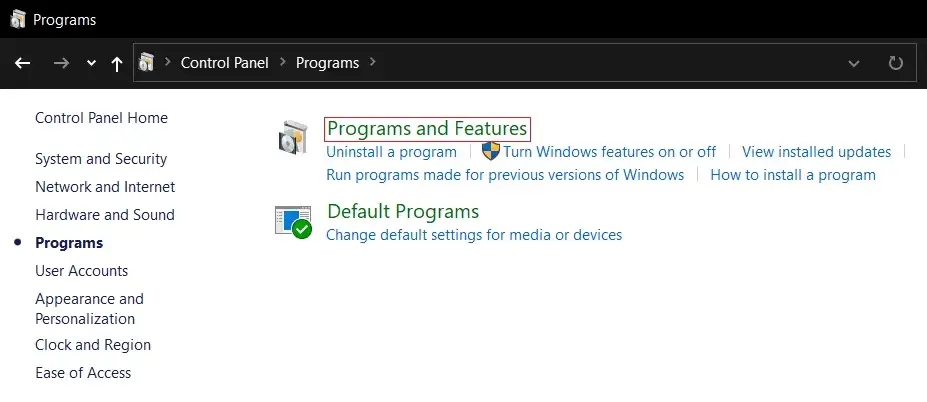
- Uninstall the application if repair is unavailable or does not work.
- Restart Windows after the uninstall finishes.
- Reinstall the application from its original publisher or authorized store.
How to Verify
Open the newly repaired or installed copy from its normal shortcut. Confirm that it starts without the missing-file dialog. If several unrelated applications now display DLL or component errors, a broader diagnostic scan may be more efficient than repeatedly reinstalling programs.
Method 3: Scan with Fionn DLL Fixer
When to Use
Use this optional method after the official and application-specific methods, especially when several programs fail or the reported filename changes. The Windows application can check DirectX DLLs, D3D Runtime components, Shader Compiler issues, graphics API conflicts, and missing, damaged, or mismatched DLLs.
Step-by-Step Guide
- Launch Fionn DLL Fixer. The software automatically scans your PC for DLL and system issues and displays the detected results when the scan is complete.

- After the scan finishes, click "Repair" to start fixing all detected DLL and system issues automatically.

- Wait while the repair is in progress. During this process, the button changes to "Fixing" until all issues have been repaired.

- When the repair is complete, click "Ok" in the confirmation dialog. If prompted, restart your computer before checking whether the problem has been resolved.

- If the issue still persists after restarting, click "Recheck" to perform another scan. If new issues are found, click "Repair" again to fix them.

How to Verify
Complete the recheck and confirm that the relevant item no longer appears as an error or warning. Then launch the affected program. Successful verification requires both a clear recheck and normal application startup without the original dialog.
Common Mistakes to Avoid
- Downloading a standalone DLL from an unverified repository: Its source, version, and architecture may not match the application. Use Microsoft’s complete package instead.
- Copying files into Windows system folders:
Manual placement can create duplicate or mismatched copies. The official installer chooses the required locations.
- Assuming the built-in DirectX version includes every legacy component: Microsoft identifies these libraries as optional side-by-side technologies.
- Starting with broad Windows repairs: SFC and DISM are not the most targeted first response for a DLL confirmed in the legacy SDK package. Reserve broader repair work for separate evidence of Windows corruption.
Conclusion
Use a targeted sequence: install Microsoft’s legacy DirectX package, repair or reinstall the single affected application, and scan only if errors remain or spread across programs. Verify every method by launching the same executable and checking that the exact filename no longer appears. If one program alone still fails, contact its publisher with the error text and the steps already completed. For recurring or multi-application DLL symptoms, Fionn DLL Fixer provides an optional scan, repair, and recheck workflow after the manual solutions.
Frequently Asked Questions
What is d3dcompiler_43.dll?
d3dcompiler_43.dll
is included in Microsoft’s June 2010 DirectX SDK. Microsoft describes the related compiler functionality as supporting offline High-Level Shader Language compilation for Direct3D 9, 10, or 11. Applications built around that legacy component can fail to start when Windows cannot load it.
Why is the file missing when DirectX is already installed?
The current DirectX Runtime and optional legacy side-by-side libraries are different components. Microsoft’s end-user package explicitly adds legacy SDK technologies without changing the DirectX version installed in Windows. Install the legacy package even when Windows reports that its built-in DirectX Runtime is current.
Is it safe to download d3dcompiler_43.dll by itself?
A standalone download is not the recommended route because its provenance, version, and architecture can be difficult to verify. Download the complete legacy runtime from Microsoft’s official HTTPS page. Its installer places the package’s components without requiring manual copies into protected Windows folders.
Why does only one application show the error?
That application may be the only installed program requesting this optional legacy component, or its own installation may be incomplete. Install the Microsoft package first. If the failure remains isolated, repair or reinstall that application from its original publisher or authorized store.
What if a different DLL error appears afterward?
Record the new filename instead of assuming it has the same source. Repeatedly downloading individual DLLs can create a chain of mismatched files. Use the affected application’s official installer, run a component-focused scan, or contact the publisher with every exact error message.


