 Emily CarterScreen Recording
To record AION 2 with audio, capture the game video and enable system audio; for commentary, enable your microphone as well. On Windows, you can use three practical options: Fionn Screen Recorder, the built-in Xbox Game Bar, and OBS Studio. Start with a short test recording—it will immediately show whether the game and your voice can be heard and whether one source is overpowering the other.
How to Choose a Method for Recording AION 2 With Audio
| Method | Best for | Efficiency | User effort |
|---|---|---|---|
| Fionn Screen Recorder | Quickly recording gameplay, system audio, and microphone audio | High | Low |
| Xbox Game Bar | Short game clips without installing software | High | Low |
| OBS Studio | Flexible control of sources and audio | High after setup | Moderate |
If you need a quick video with voice commentary, start with Fionn Screen Recorder. Use Game Bar for a built-in option. Choose OBS Studio when you need manual control over the game source and audio levels.
Method 1: Record AION 2 With Fionn Screen Recorder
When to use it: when you need to select a screen, window, or region and record game audio, microphone audio, or both sources in one workflow. This is the recommended option for recording gameplay without separate scene setup.
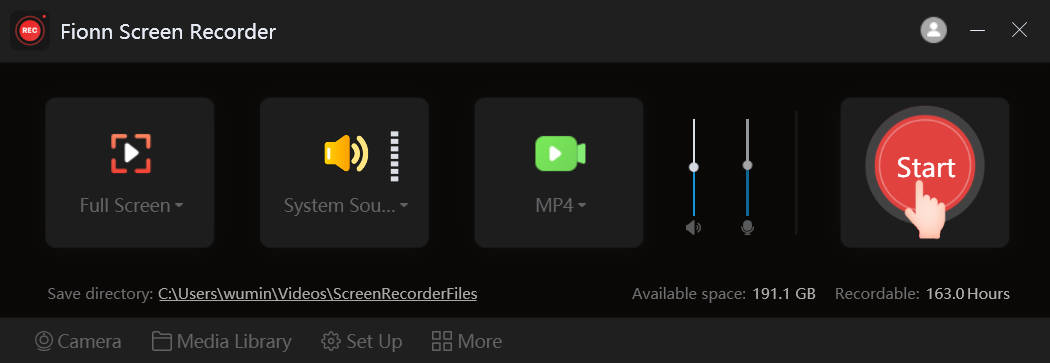
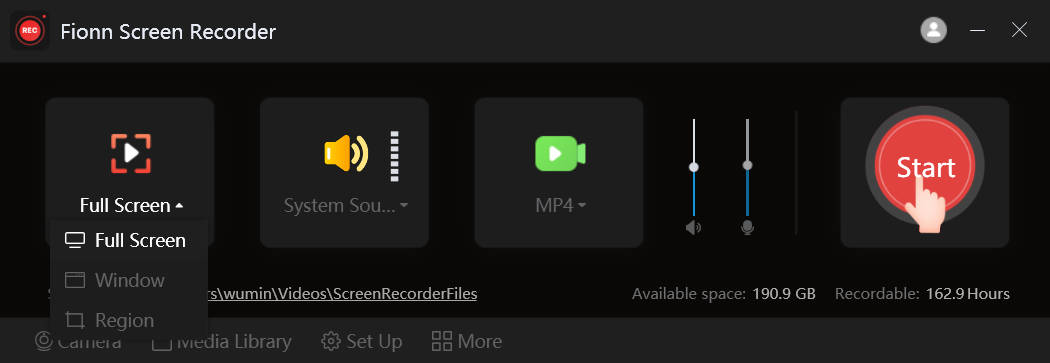
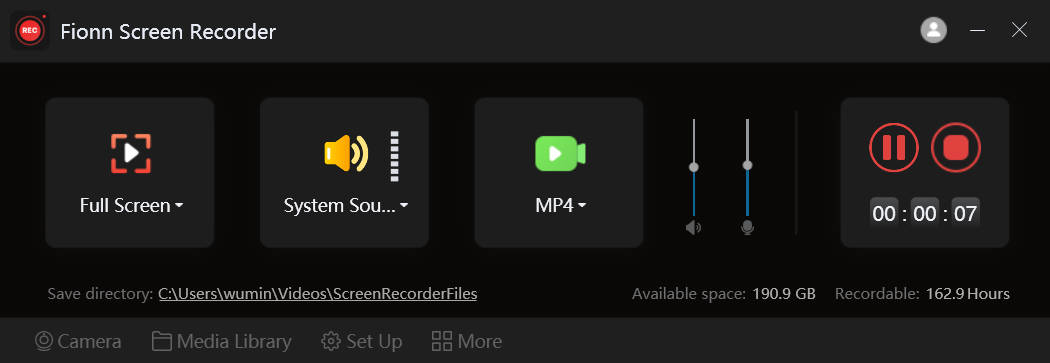
- Open Fionn Screen Recorder and choose a capture area: Full Screen, Window, or Region.
- In the recording area menu, select Full Screen, Window, or Region according to what you need to record.
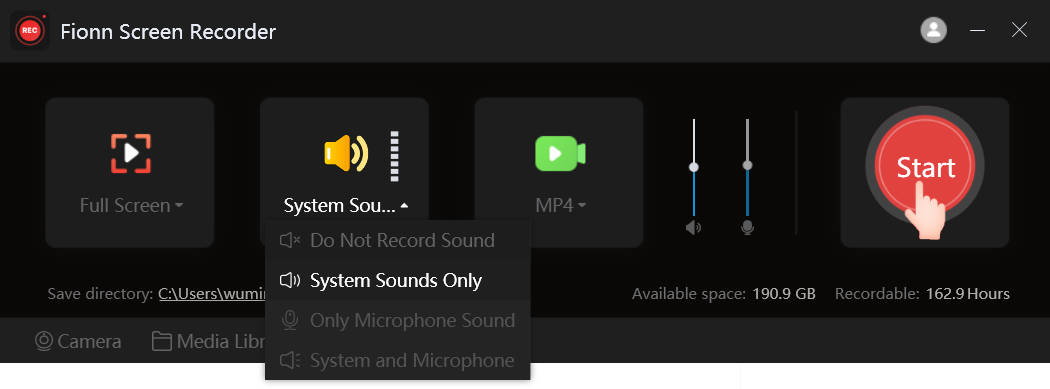
- Choose system audio, microphone audio, both sources, or no sound.
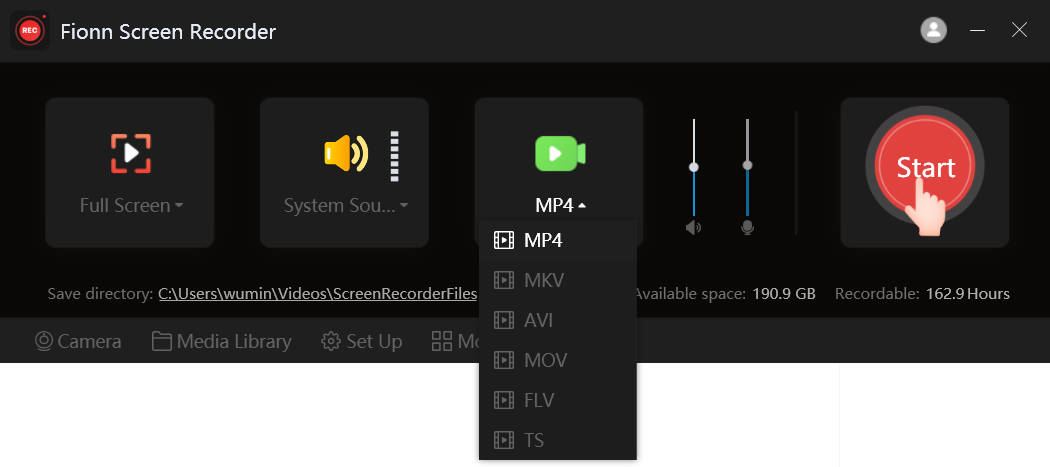
- Select MP4 or another video format before you start recording.
- Click Start to begin recording, then use Pause or Stop when you are finished.
- Open Media Library to play, edit, locate, or delete your recorded videos.
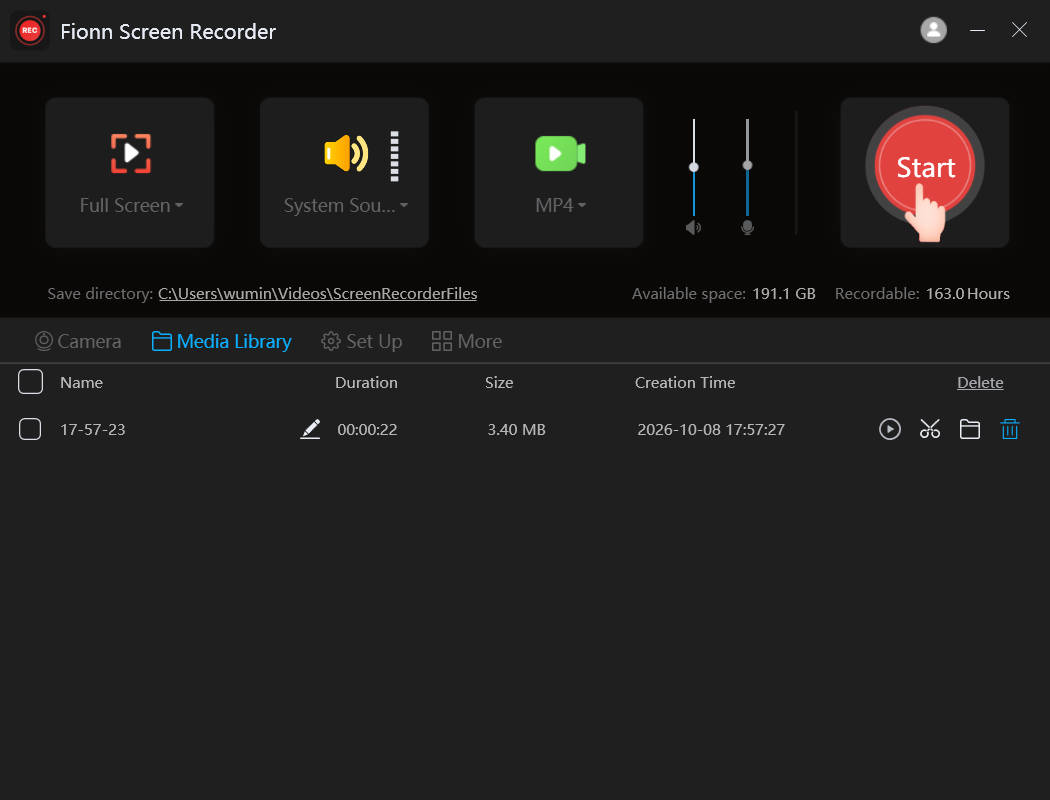
Check: open the finished video in Media Library and listen to a section with a game effect and a spoken microphone phrase. The recording should contain only the sources selected in step three.
Method 2: Record AION 2 With Xbox Game Bar
When to use it: when you need to quickly save a gameplay clip using Windows 10 or Windows 11 features. Microsoft states that Game Bar can record a clip of a game or app, and you can enable all system audio in the capture settings.
- Open Windows Settings, find Xbox Game Bar, and enable it if it is turned off.
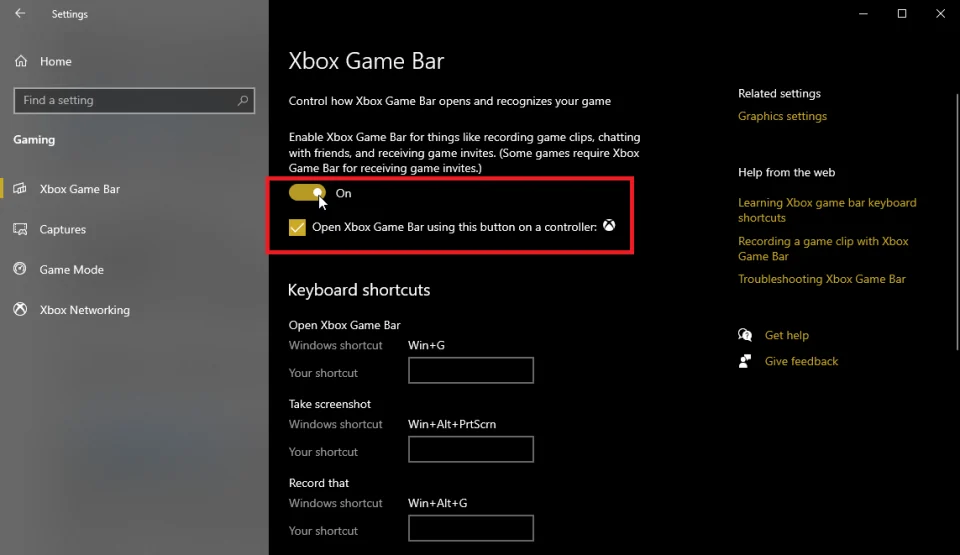
- Launch AION 2 and press
Win + Gto open Game Bar. - Open Game Bar settings, go to Capture, and choose the option to record all audio.
- Return to the game and press
Win + Alt + Rto start recording. - Press
Win + Alt + Mif you need to turn the microphone on or off during recording. - Press
Win + Alt + Ragain to stop recording, then review the saved clip.
Check: the beginning of the video should include menu audio or game effects. If you need voice audio, say a short phrase after starting the recording and make sure it is audible.
Method 3: Record AION 2 and Separate Audio Sources in OBS Studio
When to use it: when you need control over game capture, system audio, and microphone audio before you begin recording. OBS Studio can capture desktop audio and microphone audio by default, and the Audio Mixer meters help confirm that the correct devices are selected.
- Open OBS Studio and create a scene for recording.
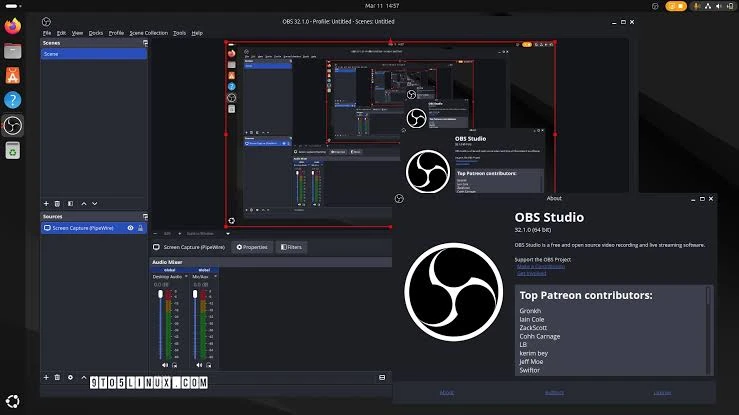
- Click + in the Sources panel and add Game Capture for the AION 2 window.
- Open Settings → Audio and check the devices for desktop audio and microphone audio.
- Return to the OBS main window and play game audio along with a short spoken phrase.
- Make sure the meters for the corresponding sources move in the Audio Mixer.
- Click Start Recording, play for several seconds, stop the recording, and listen to the file.
Check: if one meter does not move, OBS is not receiving that source; return to Audio settings and select the device manually. Do not add the same audio output both globally and as a separate source, as this can cause echo.
For information about game capture, device setup, and checking the Audio Mixer, see the official OBS Studio quick start guide.
Tips Before You Start Recording
- Record 15–30 seconds before a long gaming session and check the audio through headphones.
- If you need only game audio, disable the microphone to prevent accidental background noise.
- If you add commentary, adjust the game volume first, then check whether speech is clear over the effects.
- When recording at high resolution and frame rate, keep in mind that file size and computer load increase.
Conclusion
To record AION 2 with audio, first choose a capture source, then enable system audio and, if needed, your microphone. Fionn Screen Recorder is convenient when you need area selection, audio settings, and result review in one workflow; Game Bar is suitable for a quick clip, while OBS Studio provides manual source control. After recording, always listen to the completed file rather than relying only on audio meters. If the game or voice is missing, repeat a short test and check the selected device. For your next recording, you can use Fionn Screen Recorder.
Frequently Asked Questions
Can I record system audio and microphone audio at the same time?
Yes. In Fionn Screen Recorder, select system audio and microphone audio. In OBS, check both devices in Settings and use the Audio Mixer meters to confirm them. In Game Bar, you can toggle the microphone with Win + Alt + M.
Why does my video have an image but no AION 2 audio?
Usually, system audio was not selected or the wrong output device was selected. Run a short test with a noticeable game effect and make sure the meter or completed file contains audio.
Which method should I choose for a short gameplay clip?
Xbox Game Bar is suitable if it is enabled and you need simple recording without installing software. To select a recording area and combine system audio with microphone audio, use Fionn Screen Recorder.
Do I need to use a microphone to record gameplay?
No. For a video containing only game effects, select system audio without a microphone. A microphone is needed only for commentary or communication that you want to preserve in the recording.


